Staff a project
Put your own people on a project's reporting tree, and engage the contractors who will do the work.
Overview
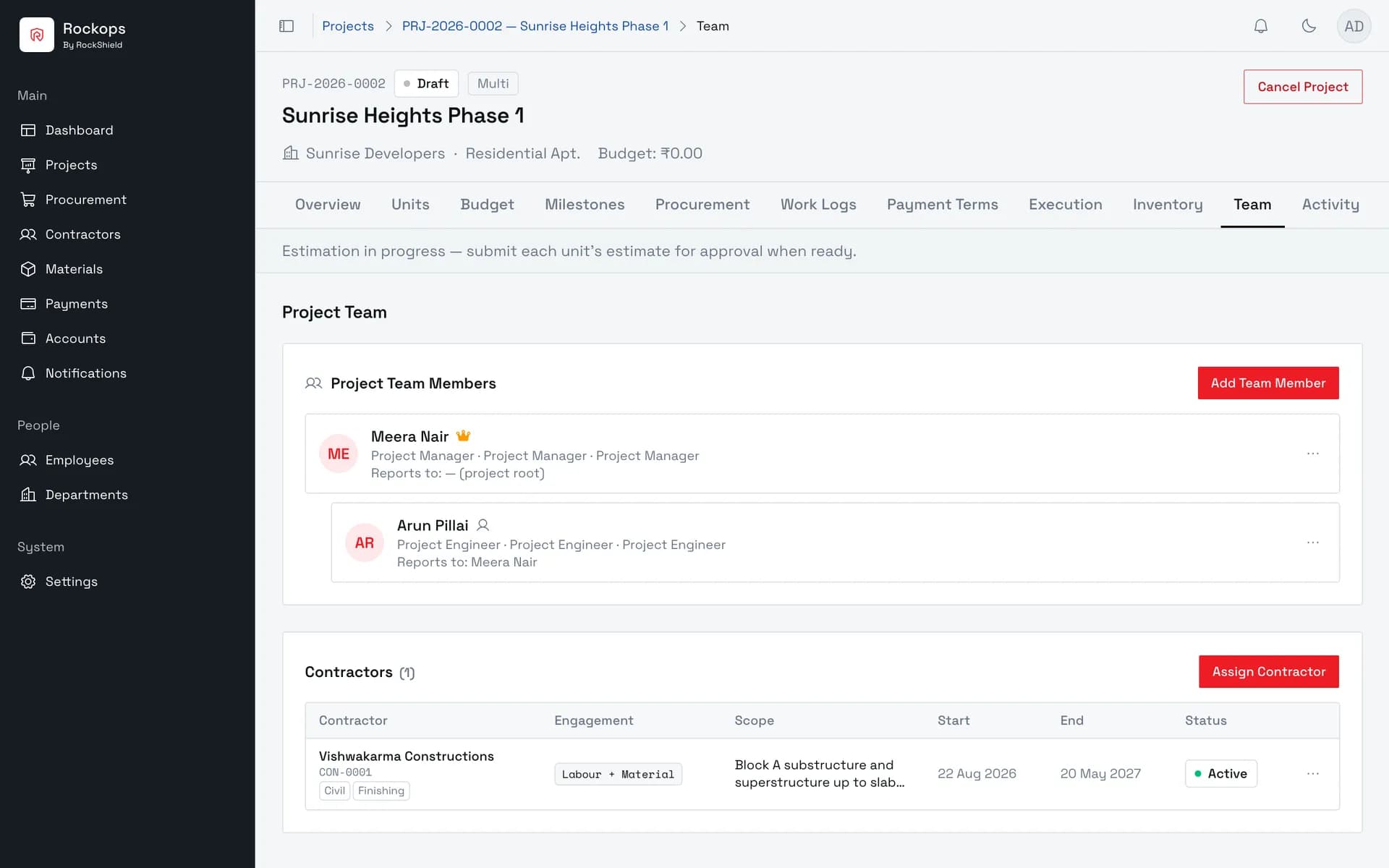
A project's Team tab holds two different things, and they behave nothing alike.
Project Team Members are your own employees. They form a reporting tree with the project manager at the root, and every member reports to exactly one other member. The shape of that tree is fixed by role, not chosen: a Project Engineer reports to the Project Manager, a Site Supervisor to a Project Engineer, a Worker to a Site Supervisor. You cannot invent a reporting line that the role hierarchy does not allow.
Contractors are the firms engaged to do the work. An assignment is a small contract in its own right — an engagement type, a scope, a window, and a status — and it is what rate cards, work logs, and contractor payments all key off.
Which employees you can add is decided for you. A team role is tied to exactly one organization role: Project Engineer to Project Engineer, Store Coordinator to Store & Inventory Manager, Procurement Coordinator to Procurement Officer, and so on. Only employees holding the matching organization role appear in the picker, and anyone already on the team is left out of it.
The project manager is not added here. There is only ever one, it is set when the project is created, and it is changed through the project's own Change Manager action.
Before you start
The employee you want to add must already hold the matching organization role — set through System role on the Add Employee wizard. An employee with no platform access at all cannot be put on a team, however senior their designation.
Add the tree top-down. Reports To only offers members already on the project, so a Site Supervisor cannot be added before a Project Engineer exists to report to. The picker says so when it happens: "No eligible members found to report to — add the parent role first."
Managing a team requires Administrator, Owner, or Project Manager on the server. The page itself does not check — Add Team Member and Assign Contractor are rendered for anyone who can open the project — so a role without permission can fill in either form and be refused only on submit. See Roles and permissions for the full matrix, including how a Project Manager's reach is limited to projects they actually hold the PM seat on.
The contractor must be active. A blacklisted or deactivated contractor is not offered, and would be refused server-side even if it were.
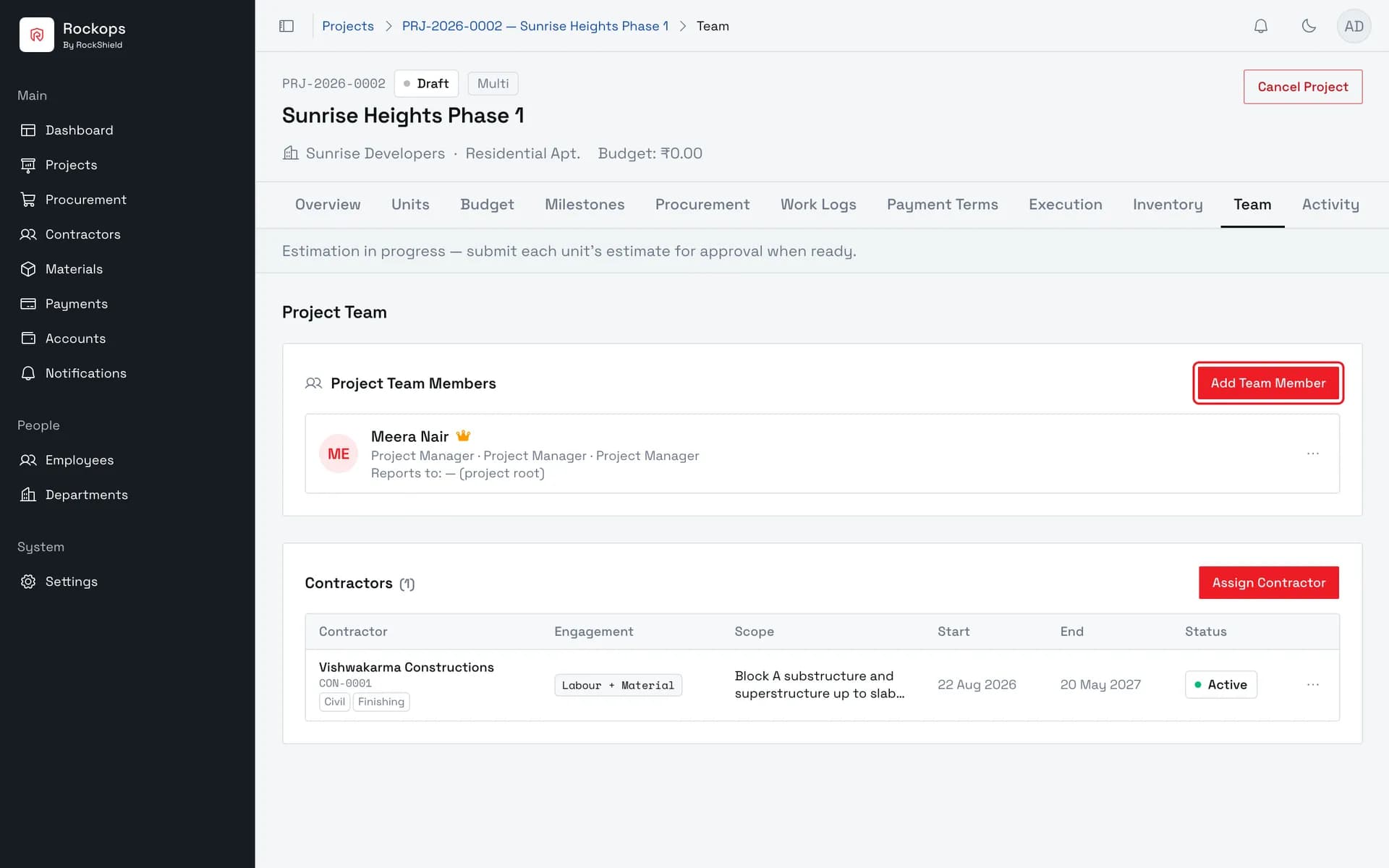
1. Open the project's Team tab
Two separate lists live here. Project Team Members are your own employees, arranged in a reporting tree under the project manager. Contractors are the firms engaged to do the work.
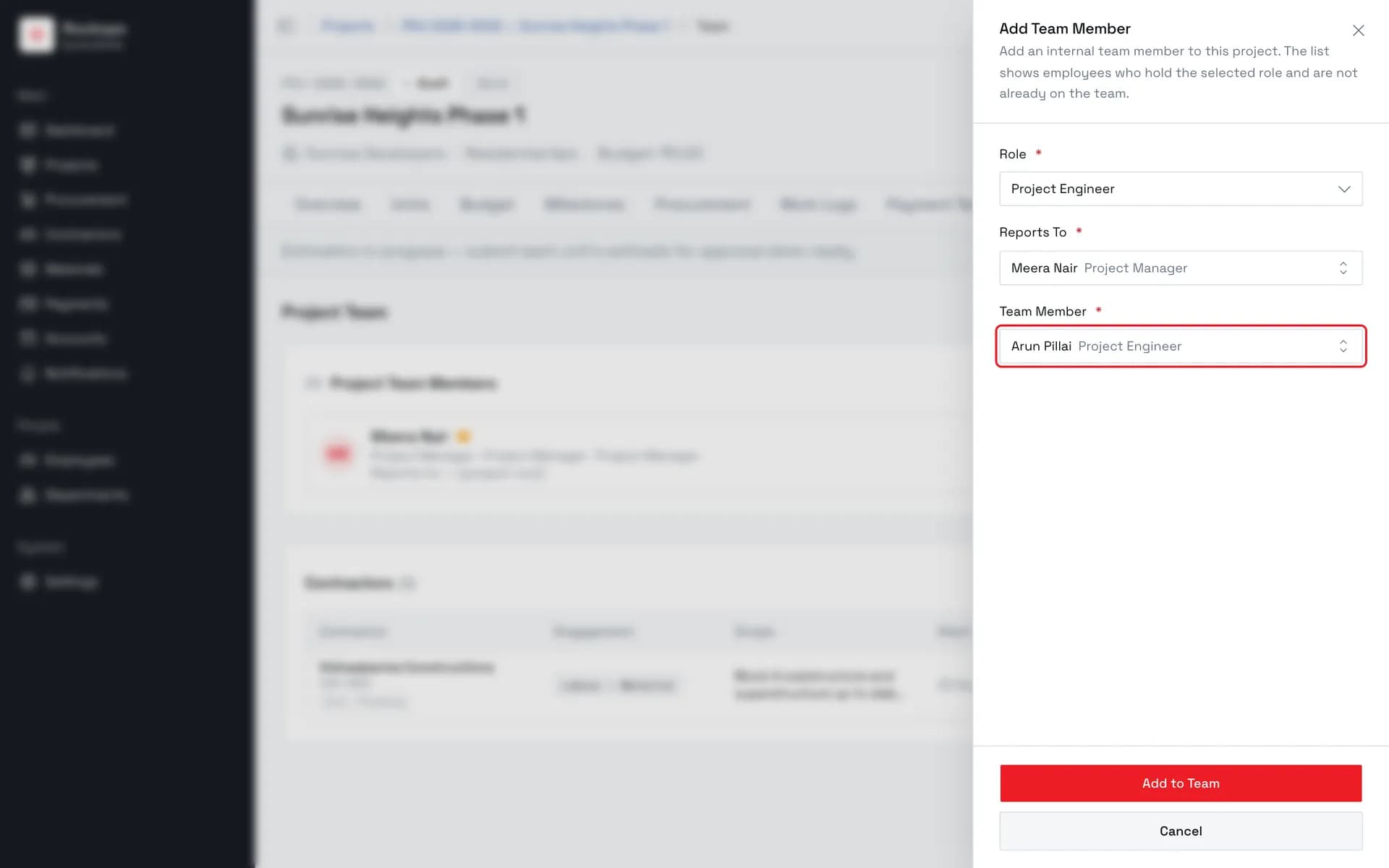
2. Pick a role, a parent, and a person
Role comes first: it decides who can be reported to and who is even offered as a member. Only employees whose organization role matches the team role appear, and anyone already on the team is left out.
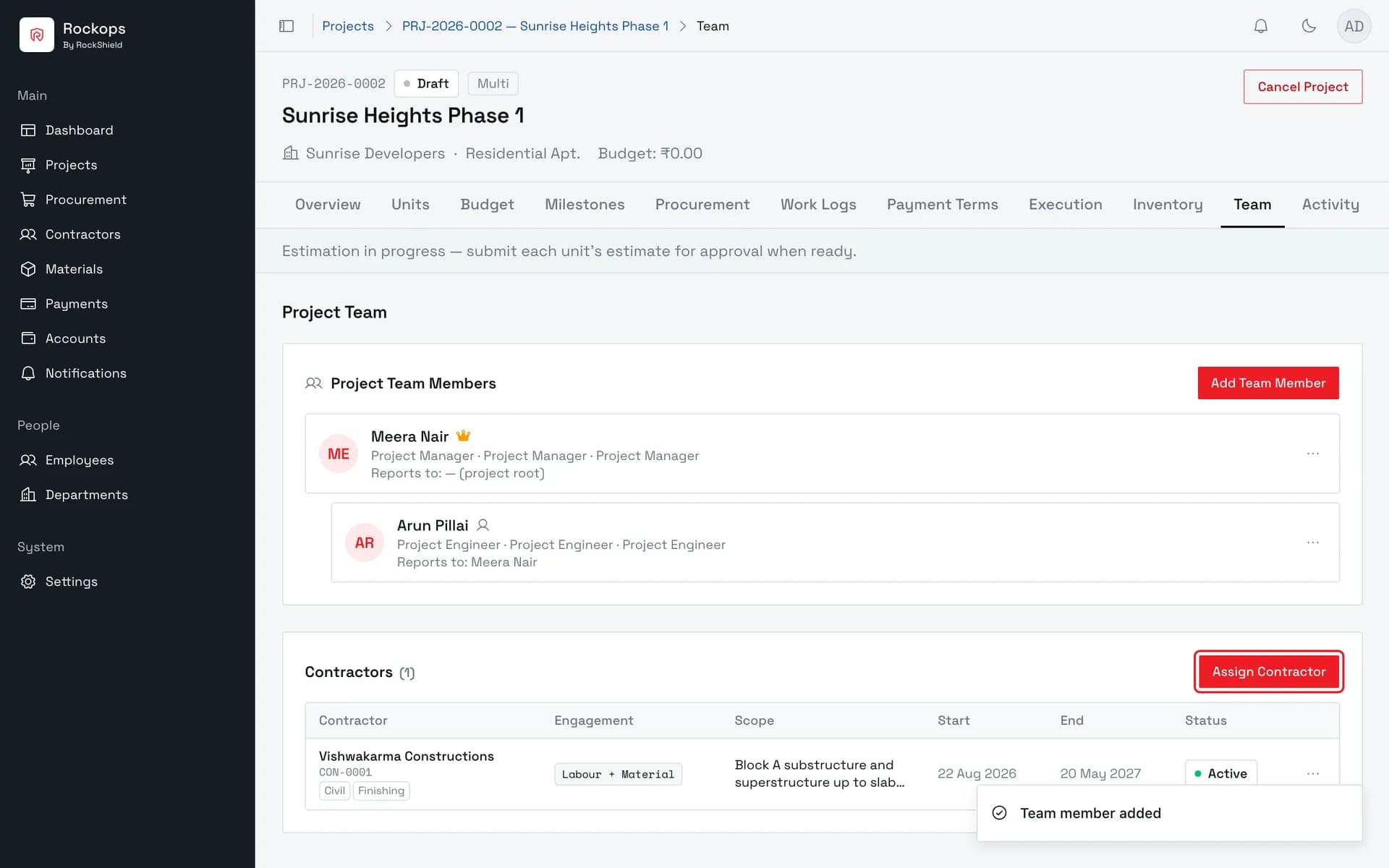
3. The member joins the reporting tree
Members are listed under whoever they report to. The project manager sits at the root and is changed through its own action rather than by adding a second one here.
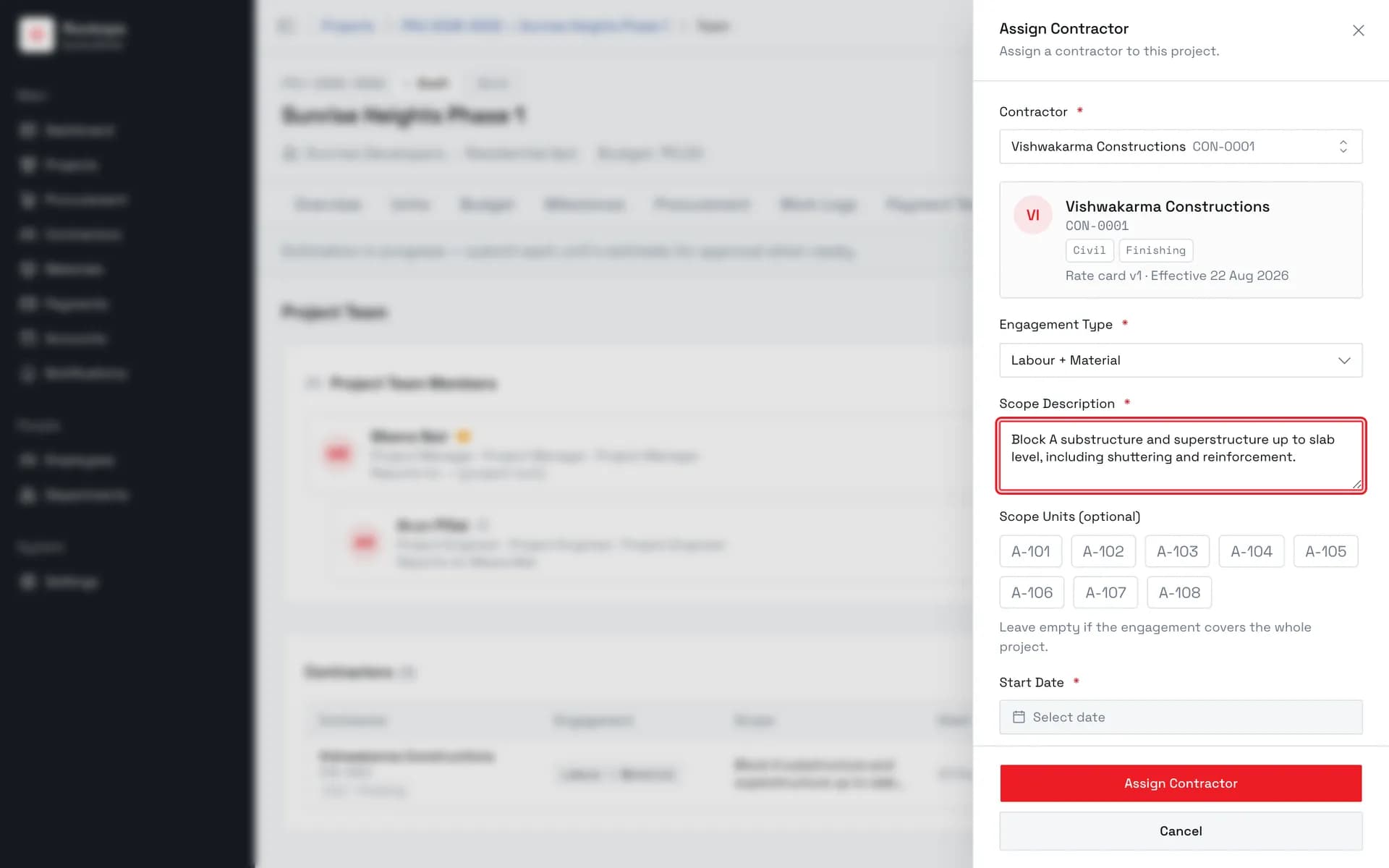
4. Choose the contractor and the terms
Picking a contractor shows a summary card with their trade categories, so a wrong pick is visible before you commit. Engagement type and a scope description are both required.
5. Set the engagement window
Start date is required. Turning on Open-ended removes the end date entirely, for an engagement with no agreed finish. Scope Units above is optional — leave it empty and the engagement covers the whole project.
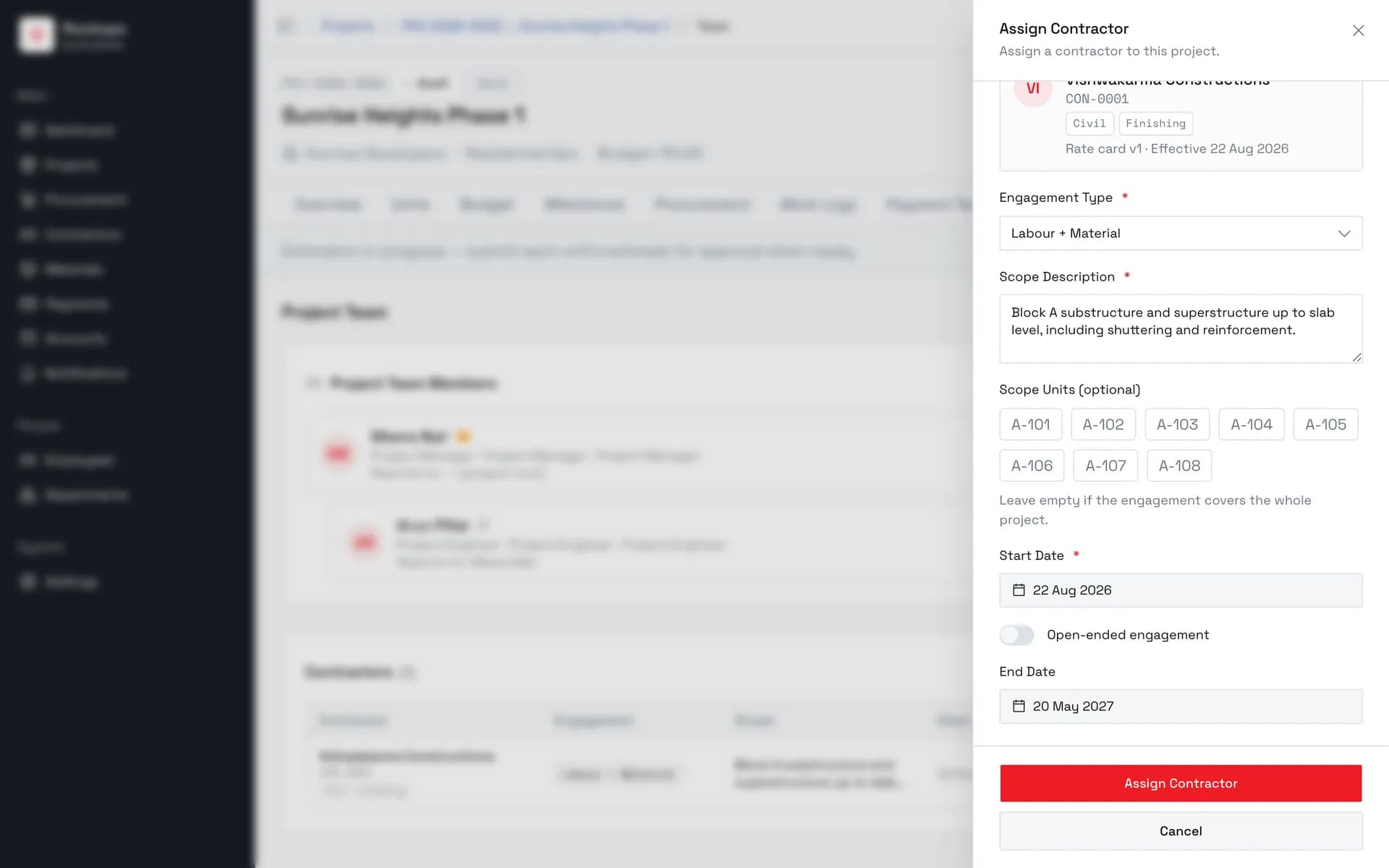
6. The contractor is on the project
The assignment carries its own status and window, and is ended through Terminate rather than deleted. Rate cards, work logs, and contractor payments all key off it.
Field reference
Add Team Member
| Field | Required | Rules |
|---|---|---|
| Role | Yes | One of the eight addable team roles. Project Manager is not among them. Choosing it is what populates the other two fields. |
| Reports To | Yes | Existing members holding the parent role for the one you picked. Empty until a role is chosen. |
| Team Member | Yes | Active employees holding the matching organization role, excluding anyone already on this team. |
Assign Contractor
| Field | Required | Rules |
|---|---|---|
| Contractor | Yes | Searchable by name or code. Picking one shows a summary card with its trade categories, so a wrong pick is visible before you commit. |
| Engagement Type | Yes | Labour Only, Labour + Material, or Materials Only. Starts empty. |
| Scope Description | Yes | Up to 2000 characters. What this contractor is actually engaged to do. |
| Scope Units | No | A picker of the project's real units. Leave it empty and the engagement covers the whole project. |
| Start Date | Yes | Chosen from a calendar. |
| Open-ended engagement | No | A switch. Turning it on removes the End Date field entirely. |
| End Date | Only when not open-ended | Must be a valid range against the start date. |
Best practices
- Build the tree in role order. Project Engineer first, then the roles that report to it. Working top-down avoids the dead end where nobody is available to report to.
- Write the scope description as if it were the contract. It is the only free-text record of what a contractor was engaged for, and it is what the assignment row shows on this page.
- Use Scope Units when a contractor is on part of the job. An empty scope reads as "the whole project", which is a much broader claim than most engagements deserve.
- Prefer a real end date to open-ended. Open-ended exists for genuinely indefinite engagements; an assignment with a date is one you will be prompted to revisit.
Troubleshooting
"No eligible members found to report to — add the parent role first" — the role you picked reports to a role nobody on this project holds yet. Add that one first.
"No one left to add — every employee with this role is already on the team" — everybody holding the matching organization role is already a member. Either the role is right and the person is already there, or the person you have in mind holds a different organization role.
"Employee "…" does not hold the "…" platform role" — the employee's organization role does not match the team role. Change their System role on the employee record, or pick a different team role.
"Employee "…" is already an active team member of this project" — they are already on the tree, possibly under a different role.
"Invalid reporting parent: …" — the chosen parent does not sit above this role in the hierarchy. The picker normally prevents this; seeing it usually means the team changed while the form was open.
The contractor you want isn't in the list — they are inactive or blacklisted. Only active contractors can be assigned.
"This project is … , so contractors can no longer be assigned to it." — the project is completed or cancelled. A terminal project accepts no new engagements.
Assigned the wrong contractor — assignments are not deleted. Use Terminate on the assignment row, which ends it and keeps the record.