Add project milestones
Set up the stages of a project — the milestones that estimate sections are tagged with and that an estimate needs before it can be submitted.
Overview
A milestone is a stage of the project — Substructure complete, Finishes complete, Handover. Milestones do two jobs in estimating:
- They are the stages an estimate is broken down by. Each section of a unit's estimate can be tagged with one milestone, and the estimate screen then shows how much of the budget is planned for each stage.
- They are a submission requirement. An estimate cannot be submitted for approval until the project has at least one milestone.
Milestones belong to the project, so one set serves every unit's estimate. They list in project order, and that order is the order stages are offered in everywhere else — the section stage picker, the stage summary above an estimate, and the Stage dropdown in the Excel import template.
Before you start
The project must be in Draft. Once it has moved on, the Milestones tab shows a banner explaining that milestones can only be added or edited in Draft; status and progress can still be updated from each milestone's badge.
Adding and editing milestones requires Administrator, Owner, or the Project Manager assigned to the project.
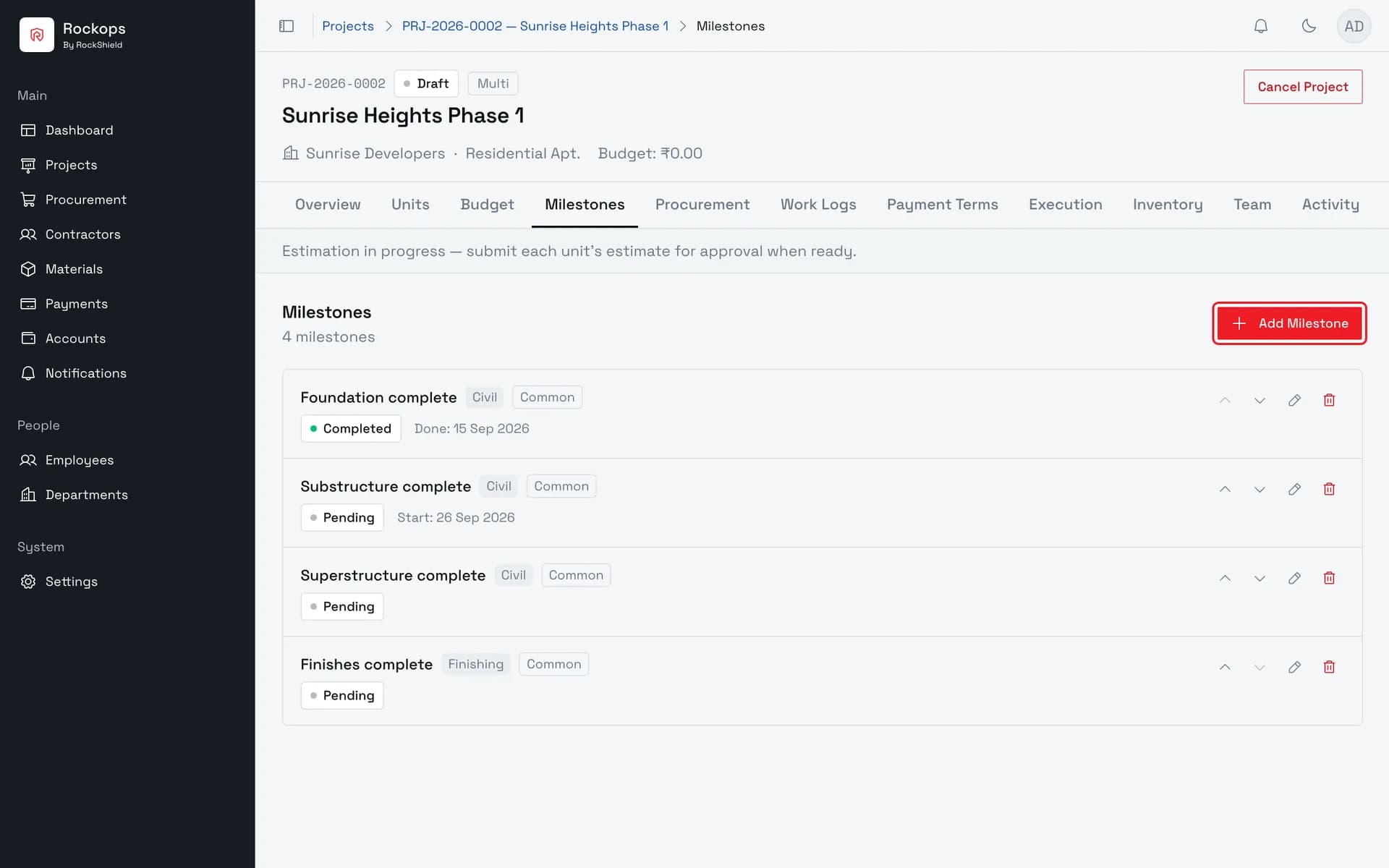
1. Open the project's Milestones tab
Milestones are the project's stages. Estimate sections are tagged with them, and an estimate cannot be submitted until the project has at least one.
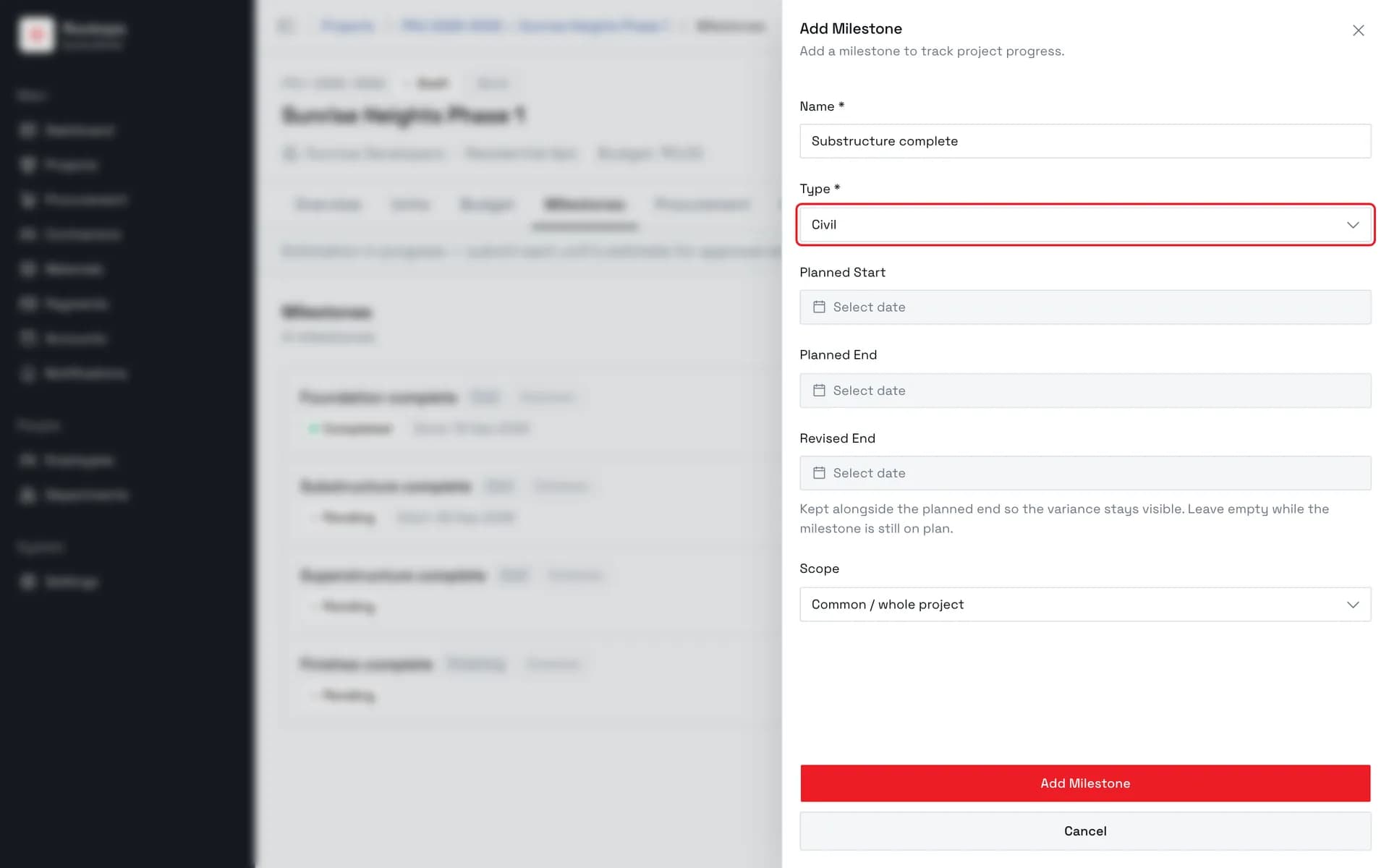
2. Name the milestone and choose its type
Use the name people will recognise on an estimate — it is what a section's stage tag and an import file's Stage column show. Type groups milestones into Planning, Civil, Finishing, Handover, or Other.
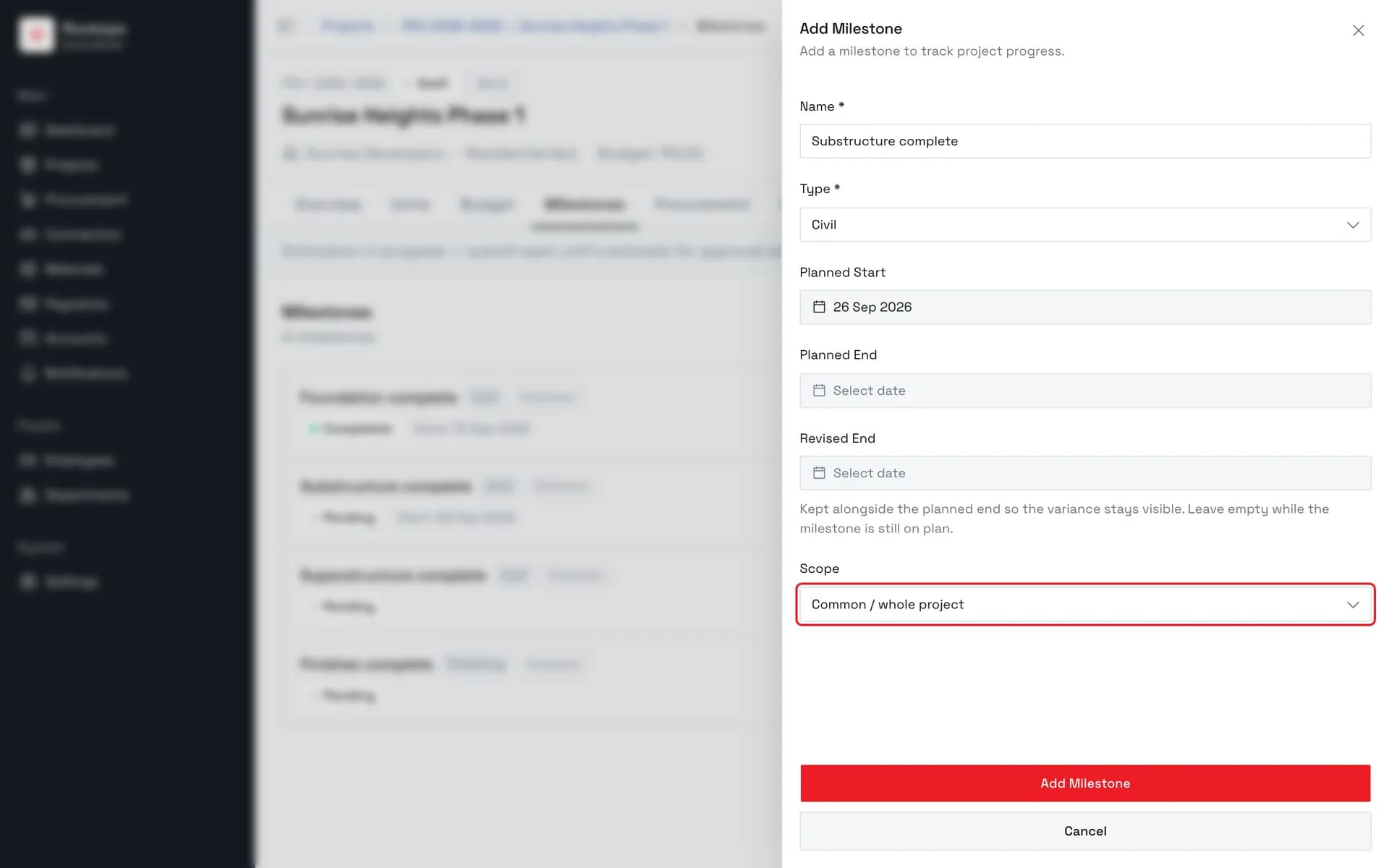
3. Add dates and check the scope
Dates are optional. Scope defaults to the whole project; pick a unit only for a milestone that belongs to that unit alone.
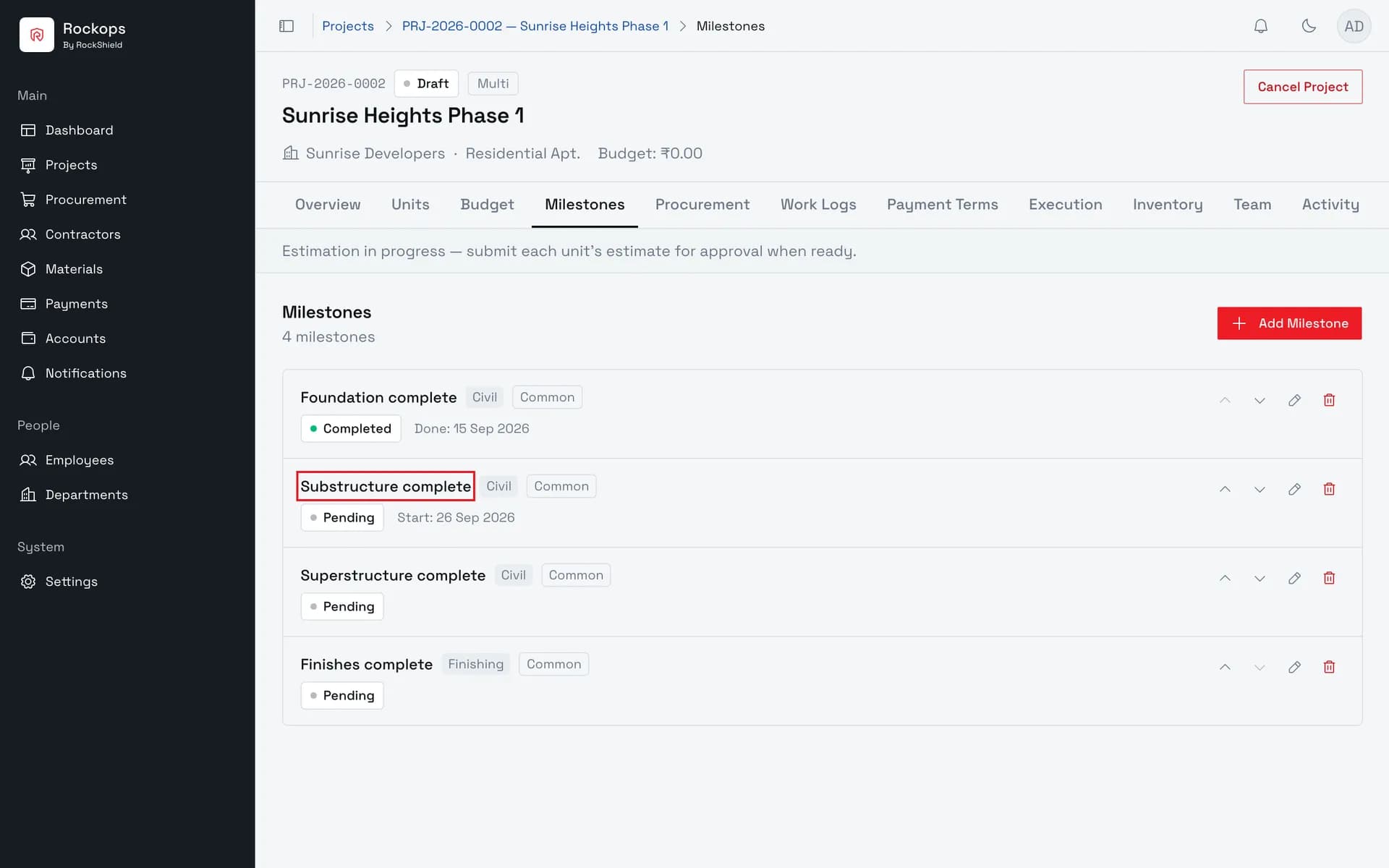
4. Milestones added
They list in project order. The arrows beside each one reorder it, and that order is the order stages appear in on an estimate.
Field reference
| Field | Required | Rules |
|---|---|---|
| Name | Yes | Up to 160 characters. This is the text a section's stage tag shows, and what an import file's Stage column has to match. |
| Type | Yes | Planning, Civil, Finishing, Handover, or Other. Defaults to Other. |
| Planned Start | No | A date. |
| Planned End | No | A date on or after Planned Start. |
| Revised End | No | Today or later — past days cannot be picked. Kept alongside Planned End so the variance stays visible; leave it empty while the milestone is on plan. |
| Scope | No | Shown only on a multi-unit project's own Milestones tab. Common / whole project by default, or a single unit. |
Best practices
- Name milestones the way estimators will type them. The Excel import matches its Stage column to milestone names, ignoring case and surrounding spaces but nothing else. A section whose stage doesn't match any name is imported untagged.
- Set the order before tagging estimates. Stage pickers and the stage summary follow the milestone order, so reordering later reshuffles every estimate's breakdown.
Troubleshooting
There is no Add Milestone button — either the project is no longer in Draft (the banner above the list says so), or your role cannot manage this project.
"Planned end (…) cannot be before planned start (…). Enter an end date on or after the start date." — the two dates are the wrong way round. Equal dates are allowed.
"Revised end date cannot be in the past. Enter today's date or a later one." — a revised end is a forecast, so it has to be today or later.
"… cannot be deleted — it is referenced by …" — work logs, buy requests, progress updates, inventory transactions, estimate sections, or payment obligations still point at the milestone. Detach or repoint them first; the message names what is holding it.
"… cannot be deleted — it is referenced by 2 estimate sections. Detach them first." — an estimate section is tagged with this milestone as its stage. Open the estimate, set that section's stage to No milestone, then delete the milestone.
Add units to a project
Define a unit type, then create a block of units from it in one batch — the fastest route from an empty multi-unit project to something estimable.
Build a unit's estimate
Fill in a unit's Bill of Quantities — sections tagged by stage, typed line items with catalogue suggestions, and a contingency — in a builder that saves as you type.