Calculate a quantity with a worksheet
Work out a line's quantity in a small spreadsheet attached to that line, so the take-off is stored with the estimate and an approver can see where the number came from.
Overview
Any line of an estimate can take its quantity from a worksheet instead of a typed number. The worksheet is a small spreadsheet attached to that one line: lay out the take-off — rooms, lengths, widths, counts — write formulas over it, and pin one formula as the line's quantity.
The worksheet only ever feeds the Qty cell. The line's rate, total, and everything computed from them work exactly as they do for a typed quantity, using the value the worksheet produced. What the worksheet adds is the record of how that value was reached: it is saved with the line, travels with the estimate when it is revised, and opens read-only for anyone reviewing a submitted estimate.
A worksheet only sees its own cells. It cannot refer to another line, another worksheet, or the line's own unit and rate.
Before you start
Worksheets are part of the estimate builder, so the same rules apply as for building an estimate: the project and the estimate must both be in draft, and saving requires Administrator, Owner, or Project Manager.
The worksheet is saved together with the rest of the estimate — there is no separate save. Save & close hands the result back to the line, and the builder's autosave writes it a second later.
1. Open the worksheet from the Qty cell
Every line has a small fx button beside its quantity. It opens a spreadsheet attached to that line, for working the quantity out instead of typing it.
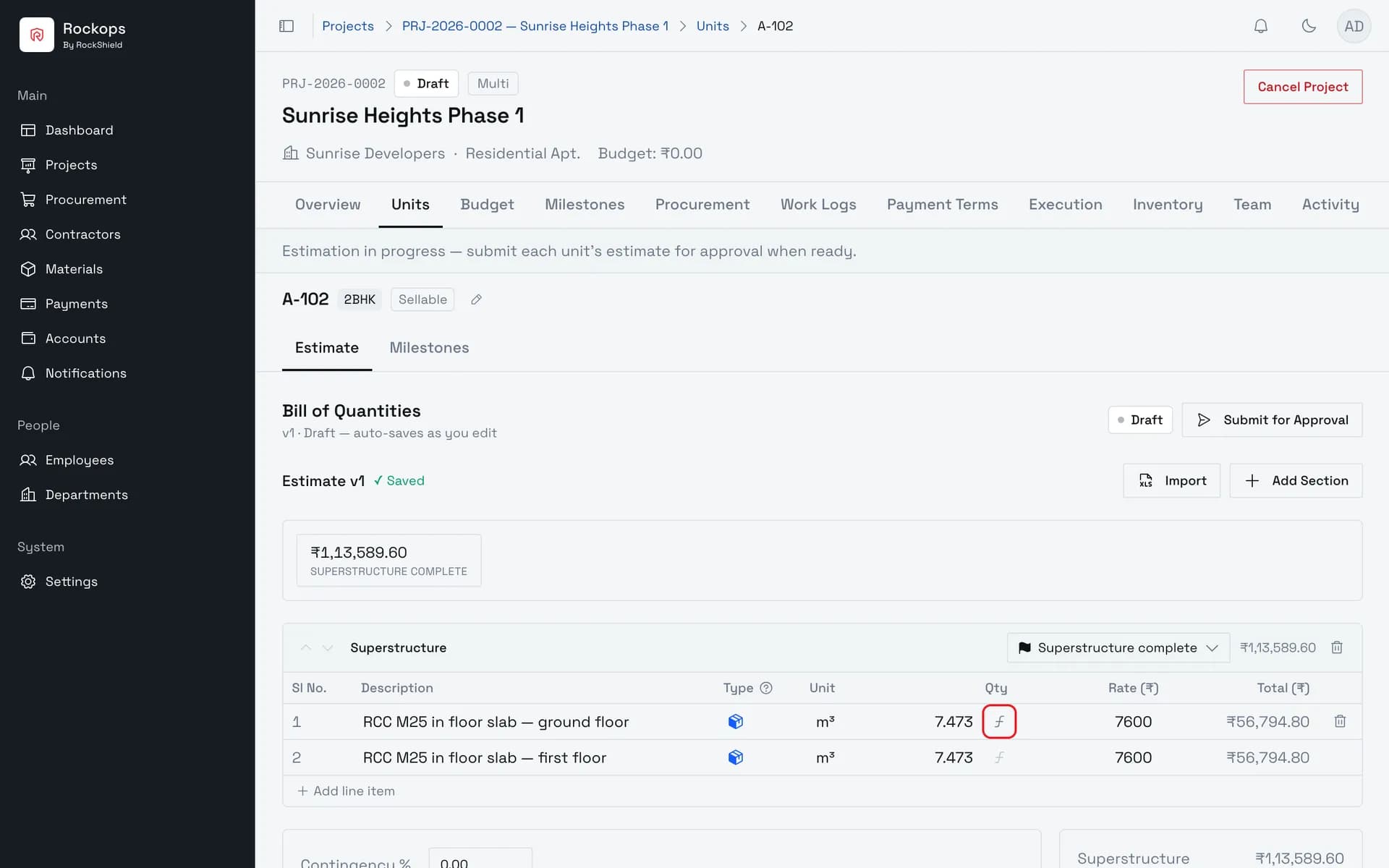
2. Lay out the take-off
Cells take a number, a label, or a formula starting with =. Here B1 holds the slab thickness and D4 multiplies length by width by $B$1 — the $ signs pin that reference so it doesn't move when the formula is copied.
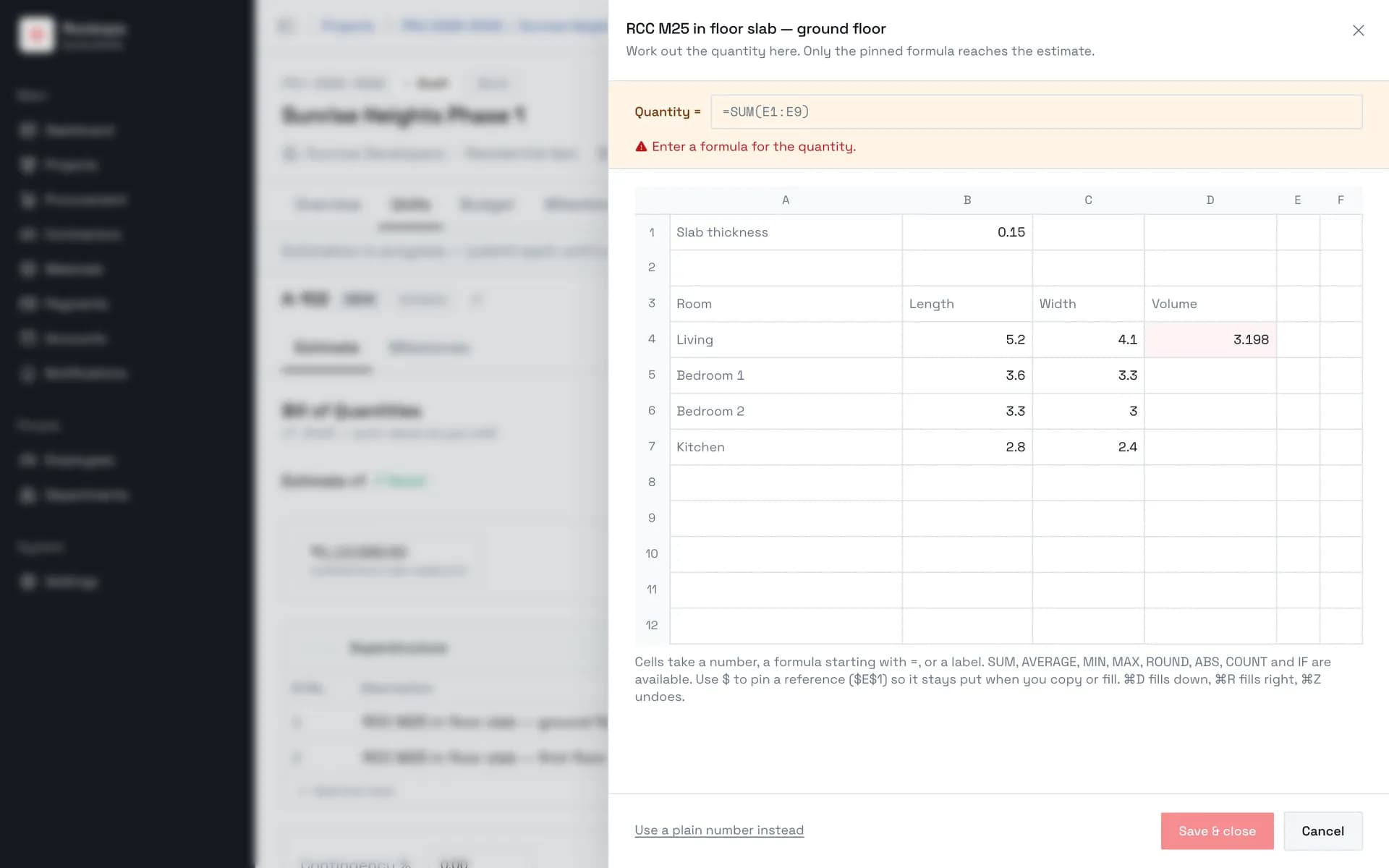
3. Fill the formula down
Select from the formula to the last row and press ⌘D (Ctrl+D on Windows). Each copy shifts its row references — B5, B6, B7 — while $B$1 stays fixed. ⌘R fills right the same way, and ⌘Z undoes.
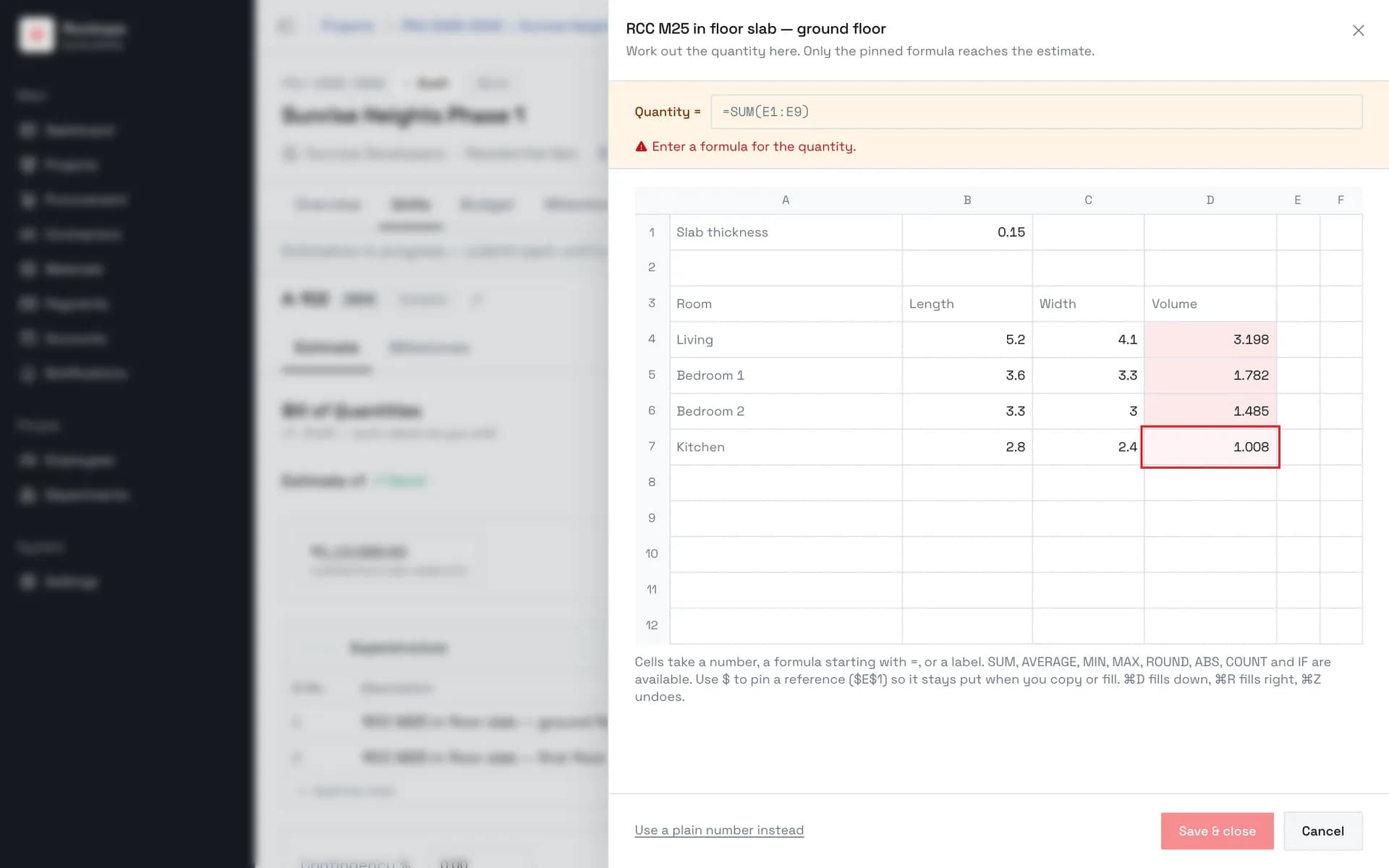
4. Pin the quantity
The Quantity = field names the one result that reaches the estimate; nothing else on the sheet does. Beneath it is the value that will be stored, rounded to three decimal places. Save & close stays disabled until it resolves to a number.
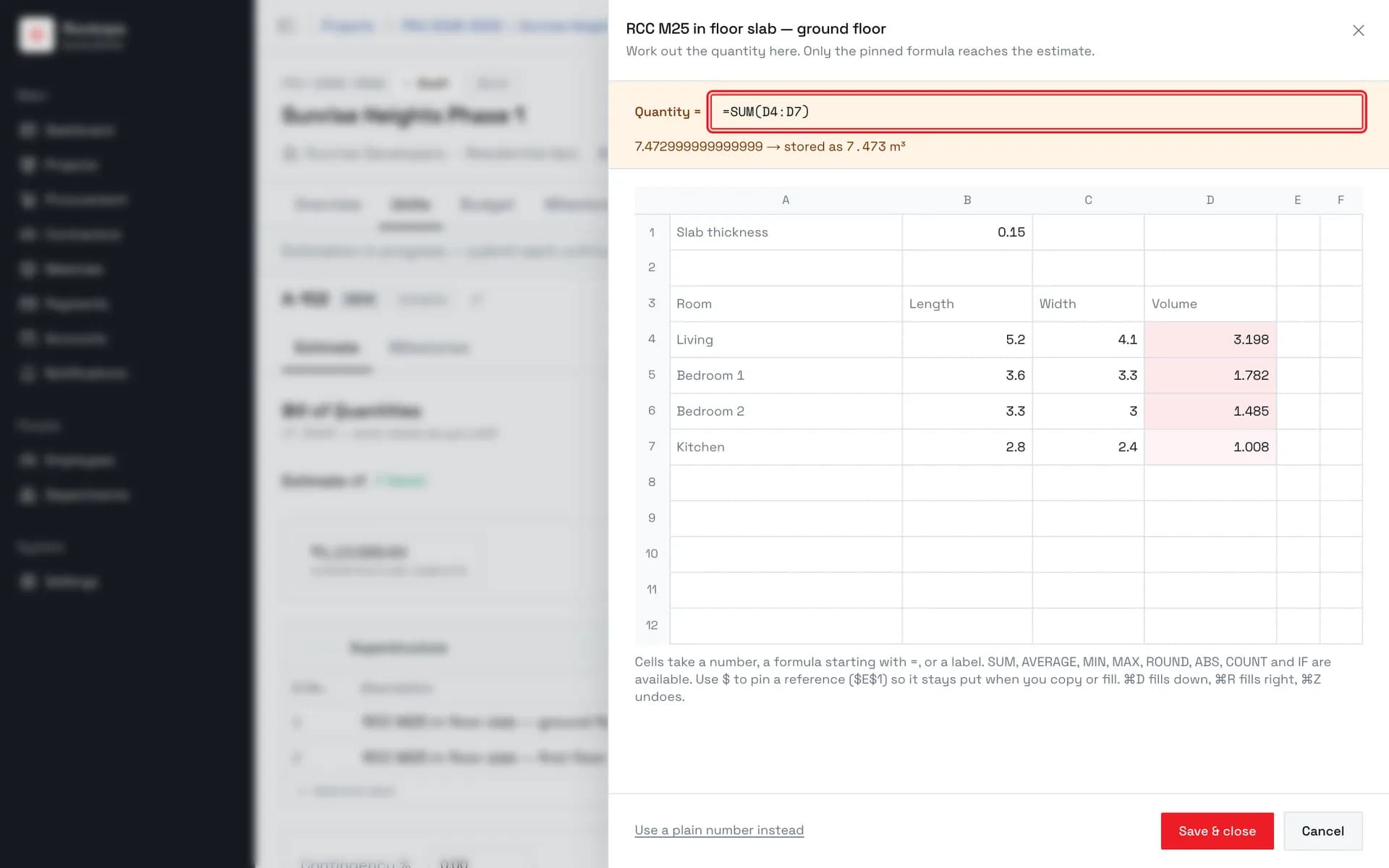
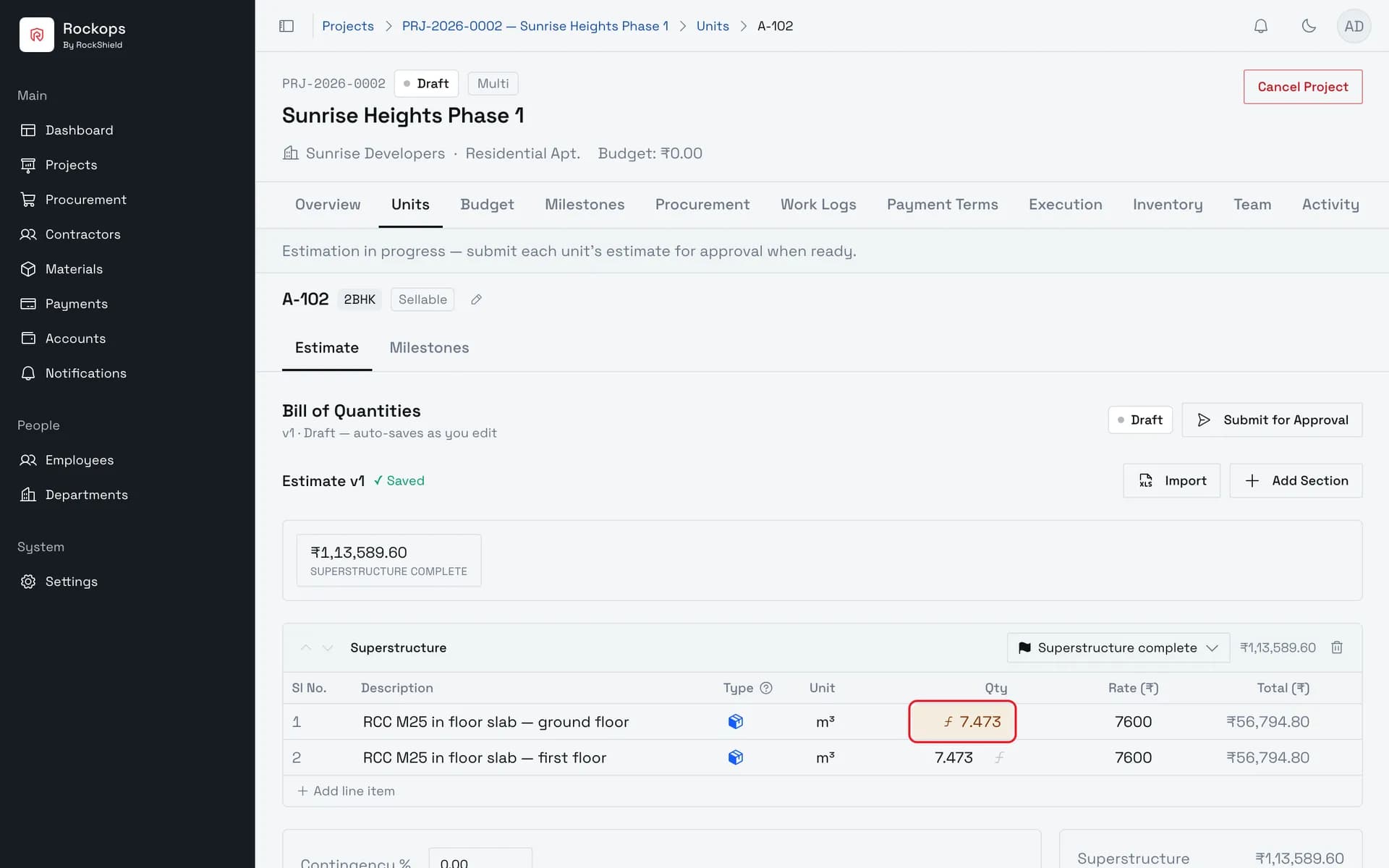
5. The quantity is now computed
The Qty cell becomes an amber pill — amber always means computed, not typed. Click it to reopen the worksheet. The total uses the stored quantity like any other line.
6. Start from another line's worksheet
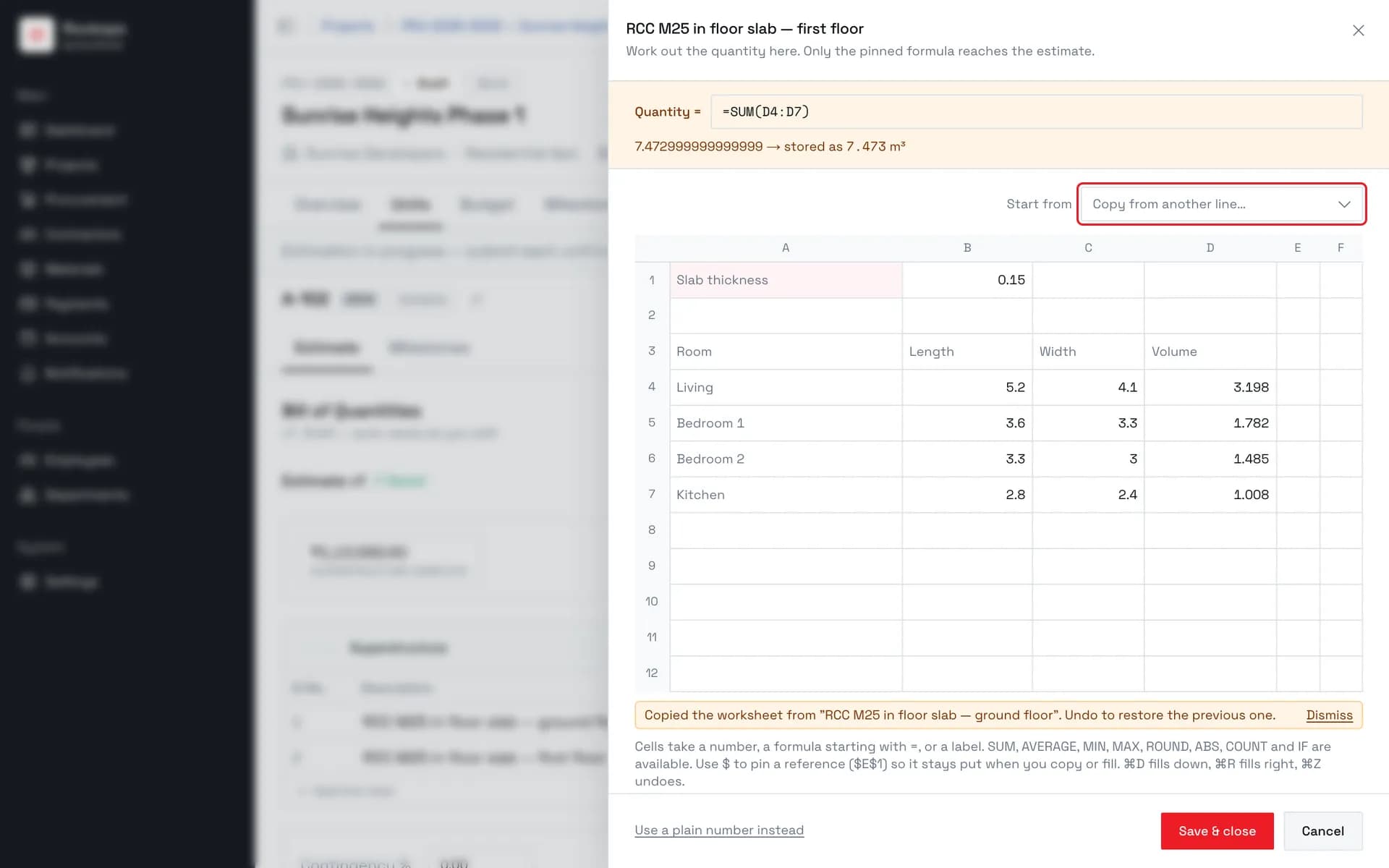
On a line with the same kind of take-off, Copy from another line… replaces this sheet with a copy of that line's — cells, layout, and pinned formula. Adjust the dimensions from there. The copy is independent, and ⌘Z restores the previous sheet.
Writing formulas
A cell holds one of three things:
- A number —
5.2,0.15. - A formula — anything starting with
=, such as=B4*C4*$B$1. - A label — any other text. Labels are for reading; they count as 0 in arithmetic and are skipped by SUM, AVERAGE, MIN, MAX, and COUNT.
| In a formula | Available |
|---|---|
| Arithmetic | + - * / ^, a leading minus, and parentheses |
| Comparisons | = <> < > <= >= — mainly for use inside IF |
| References | A single cell (B4) or a range (D4:D7) |
| Anchors | $ before the column, the row, or both ($B$1, $B1, B$1) keeps that part fixed when the formula is copied or filled |
| Functions | SUM, AVERAGE, MIN, MAX, ROUND, ABS, COUNT, IF |
Formulas cannot contain text in quotes. A function name the worksheet doesn't
know — pasted from Excel, say — shows #NAME? rather than failing silently.
The pinned quantity. The Quantity = field at the top is the only thing that reaches the estimate. It takes a formula, usually a SUM over the column the take-off produced. Beneath it is the value that will be stored: quantities are held to three decimal places, and when the result has more, both are shown — the full value, and the rounded value that is stored.
Working in the grid
The sheet opens with columns A–F and 12 rows, and grows as you move or paste past the edge — up to column Z, row 200, and 500 filled cells.
| Key | Effect |
|---|---|
| Arrow keys | Move; with Shift, extend the selection |
| Tab / Enter | Move right / down (with Shift, left / up). While editing, they also commit the cell |
| F2, double-click, or just start typing | Edit the cell |
| Escape | While editing, discard the change to that cell |
| Delete / Backspace | Clear the selected cells |
| ⌘A | Select the whole grid |
| ⌘C / ⌘X / ⌘V | Copy, cut, paste |
| ⌘D / ⌘R | Fill down / fill right from the first row or column of the selection |
| ⌘Z / ⌘⇧Z | Undo / redo |
On Windows, use Ctrl in place of ⌘. Arrow keys move the text cursor, not the selection, while a cell is being edited.
Copy and paste. Copying out of a worksheet puts the displayed values on
the clipboard for Excel or Google Sheets, and the formulas themselves for
another worksheet. Pasting from another worksheet keeps the formulas and
shifts their references, respecting $ anchors. Pasting from Excel brings in
values and labels — Excel copies what a cell shows, not its formula. A paste
lands at the top-left of the selection once; it is not repeated to fill a
larger selection.
Reusing a whole worksheet. When another line in the same estimate already has a worksheet, Copy from another line… appears above the grid. Picking a line replaces this sheet with an independent copy of that one — later edits to either do not affect the other. It is hidden when no other line has a worksheet.
Field reference
| Control | Rules |
|---|---|
| Quantity = | Required to save. Must resolve to a number of 0 or more. |
| Cells | Up to 200 characters each, 500 filled cells per worksheet. |
| Save & close | Disabled until the quantity resolves to a number. Writes the quantity and the worksheet to the line. |
| Cancel | Discards everything done since the sheet was opened. |
| Use a plain number instead | Removes the worksheet and keeps the line's current quantity as a typed number. Available even when the formula is broken. |
Reading a worksheet on a submitted estimate
Once an estimate is submitted or approved, worksheet-driven quantities still show as amber pills. Clicking one opens the worksheet read-only, with a single Close button.
If the worksheet no longer calculates to the stored quantity, a banner in the sheet says so and names both figures. The stored quantity is the one every total uses.
Best practices
- Put shared constants in their own cell and anchor them. A thickness,
a wastage factor, or a floor height referenced as
$B$1stays correct when the formula is filled down; an unanchoredB1would slide toB2,B3… and quietly multiply by empty cells. - Label the rows and columns. Labels cost nothing in the arithmetic and make the take-off readable to whoever approves it.
- Reuse before retyping. Two lines with the same shape of take-off — ground and first floor slabs — are a Copy from another line… and a change of dimensions.
Troubleshooting
Save & close is disabled — the quantity doesn't resolve to a number. The line under the Quantity field says why: "Enter a formula for the quantity.", "That formula is not valid.", "The formula does not produce a number.", or "Quantity cannot be negative."
A cell shows #CIRCULAR! — a formula refers back to itself, directly or
through other cells.
A cell shows #REF! — a copied or filled formula pointed past the edge of
the grid. #DIV/0!, #VALUE!, and #NAME? mean division by zero,
an unusable value, and an unknown function name. Hover the cell for details.
A filled-down formula gives zeros — a reference that should have stayed
put moved with the fill. Anchor it with $ and fill again.
"… cells were not pasted — a worksheet holds at most 26 columns, 200 rows and 500 filled cells." — the paste would have taken the worksheet past its size limits. The cells that fit were pasted, and ⌘Z undoes the whole paste.
The worksheet disappeared after an Excel import — importing replaces every line of the estimate, and imported lines never carry worksheets. The import preview warns how many worksheets it will remove before you confirm.
Build a unit's estimate
Fill in a unit's Bill of Quantities — sections tagged by stage, typed line items with catalogue suggestions, and a contingency — in a builder that saves as you type.
Submit and approve an estimate
Move an estimate from draft to approved — what locks, who decides, and how to reopen one that has already been signed off.