Add units to a project
Define a unit type, then create a block of units from it in one batch — the fastest route from an empty multi-unit project to something estimable.
Overview
A multi-unit project is empty until it has units. Units are what carry estimates, so nothing downstream — budget, procurement, sale — has anything to attach to until they exist.
Unit setup has two halves, and the order matters:
- Unit Types describe a configuration: a code, a name, and optionally the bedroom count and the built-up and carpet areas. A type is not a unit. It is a reusable description, and — through Edit Template — a reusable estimate that new units of that type can be created with.
- Sellable Units are the real things. Each has a name, an estimate, and a status of its own.
There are two ways to create units. Add Unit adds one, and is the only route that can create a common unit — a clubhouse, a substation — rather than a sellable one. Bulk Create generates a run of consecutively numbered sellable units from a prefix, and is what this page walks through, because it is how a floor or a tower actually gets set up.
Unit setup only works while the project is in Draft. Once the project moves on, every control here disappears and the page says so; the server enforces the same rule, so units cannot be added, edited, or deleted afterwards by any route.
Before you start
The project must be multi-unit. Single-unit projects have no Units tab at all — they carry one estimate for the whole job, under Estimate.
Adding and editing units requires Administrator, Owner, or Project Manager, and the project must still be in Draft. Both conditions are checked in the interface and again on the server, so unlike the New Project button there is no way to fill in a form here and be refused afterwards.
Know roughly what you are creating before you open Bulk Create. It generates names from a prefix and a run of numbers, and if any generated name already exists the entire batch is refused — nothing partial is created, so a half-planned batch means starting the form again.
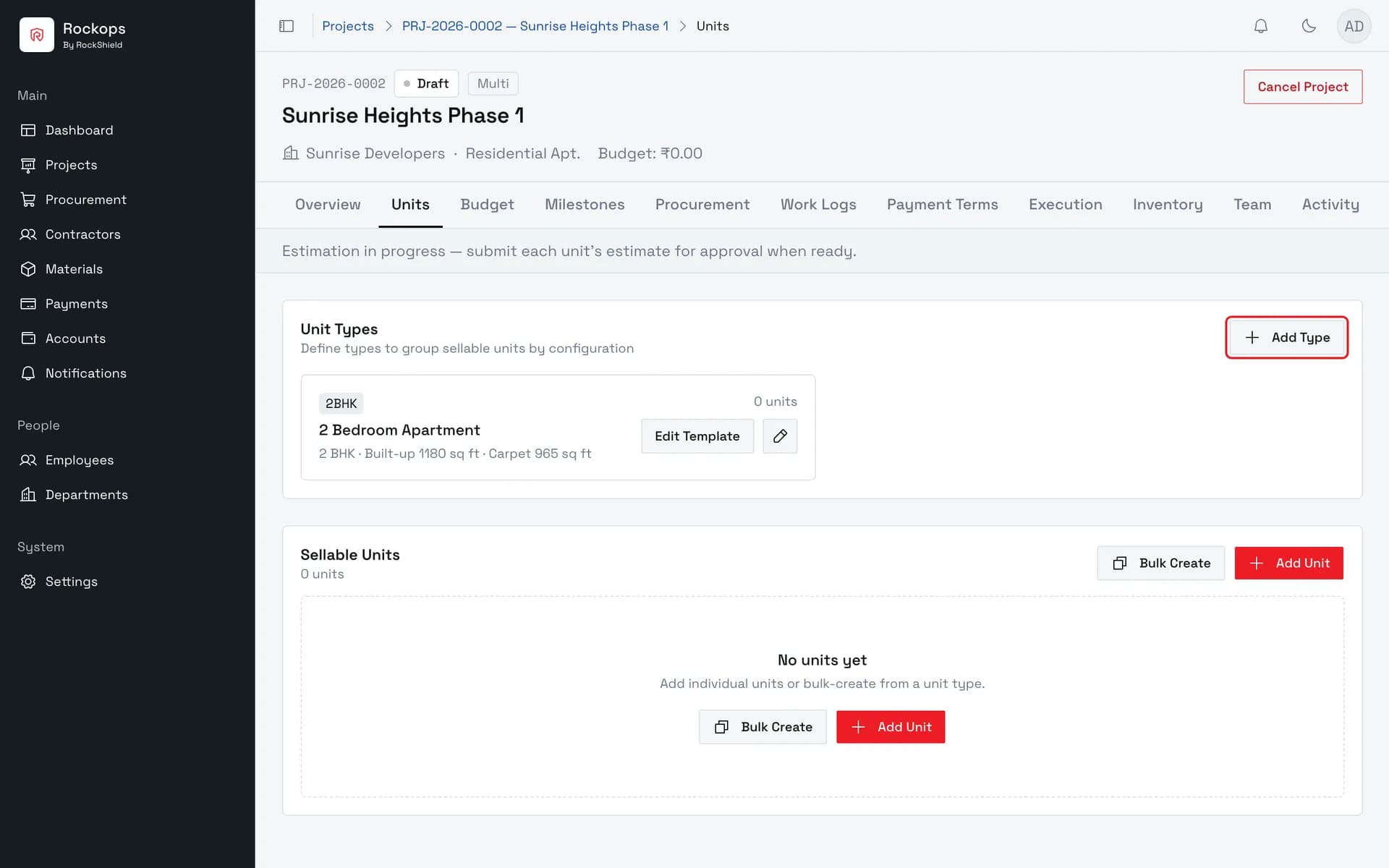
1. Open the project's Units tab
Unit setup has two halves: Unit Types, which describe a configuration, and Sellable Units, which are the real units. Start with a type — it is what makes bulk creation possible.
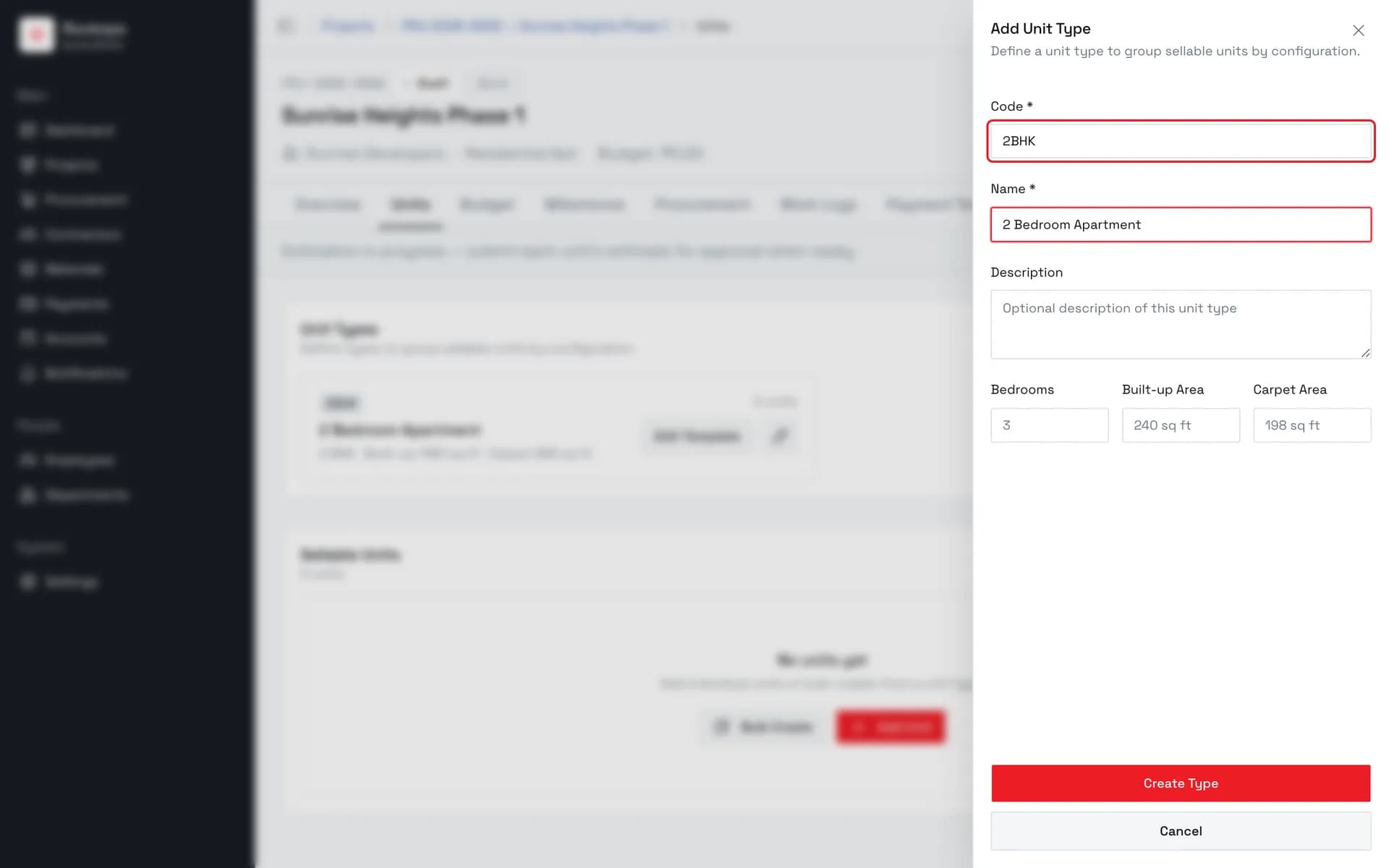
2. Give the type a code and a name
The code is the short handle shown on every unit of this type — letters, numbers, underscores, and hyphens only, up to 20 characters. The name is what people read.
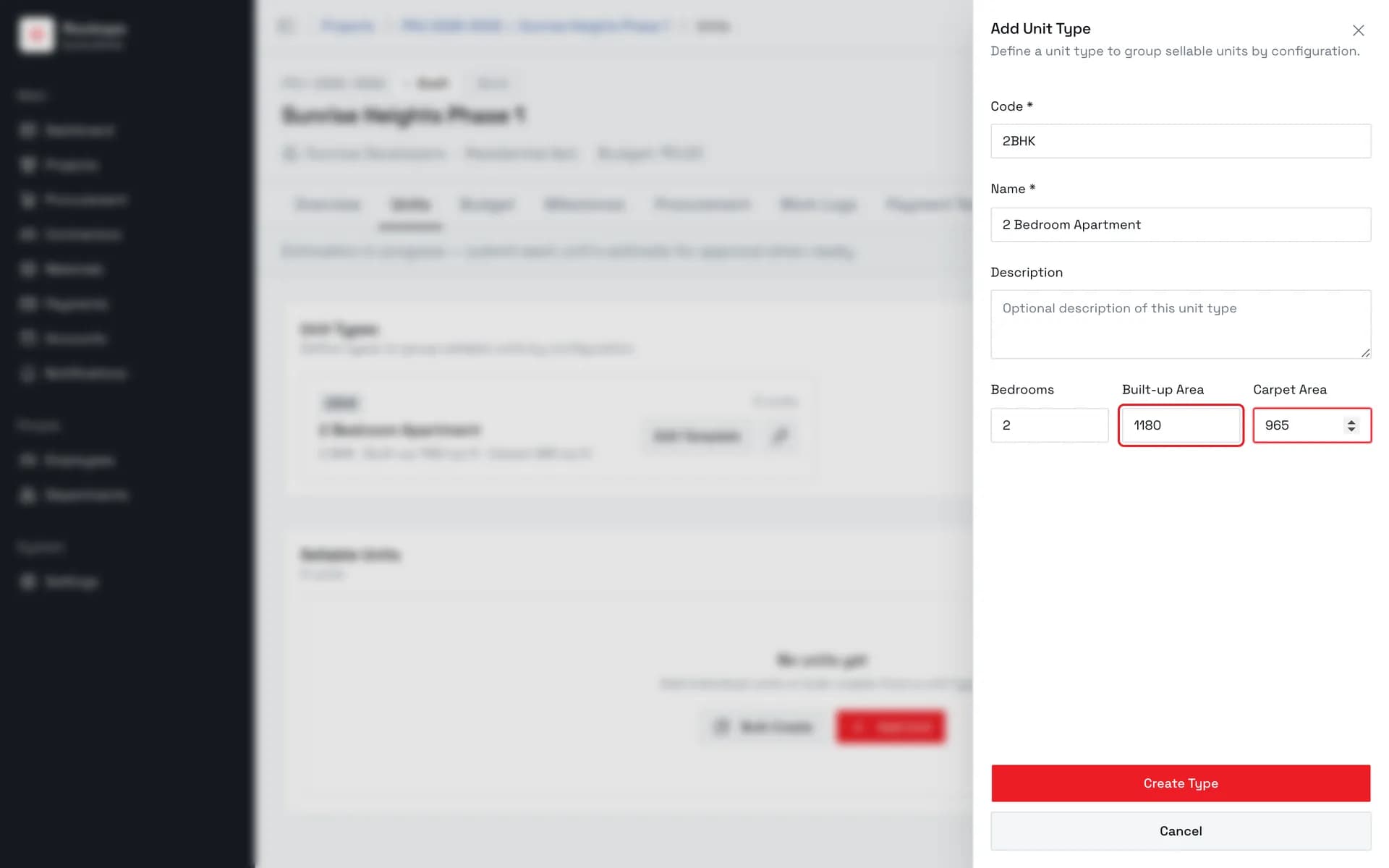
3. Describe the configuration
Bedrooms and the two areas are optional, and all three are plain numbers — square feet is assumed rather than entered. They are what distinguishes one type from another on the list.
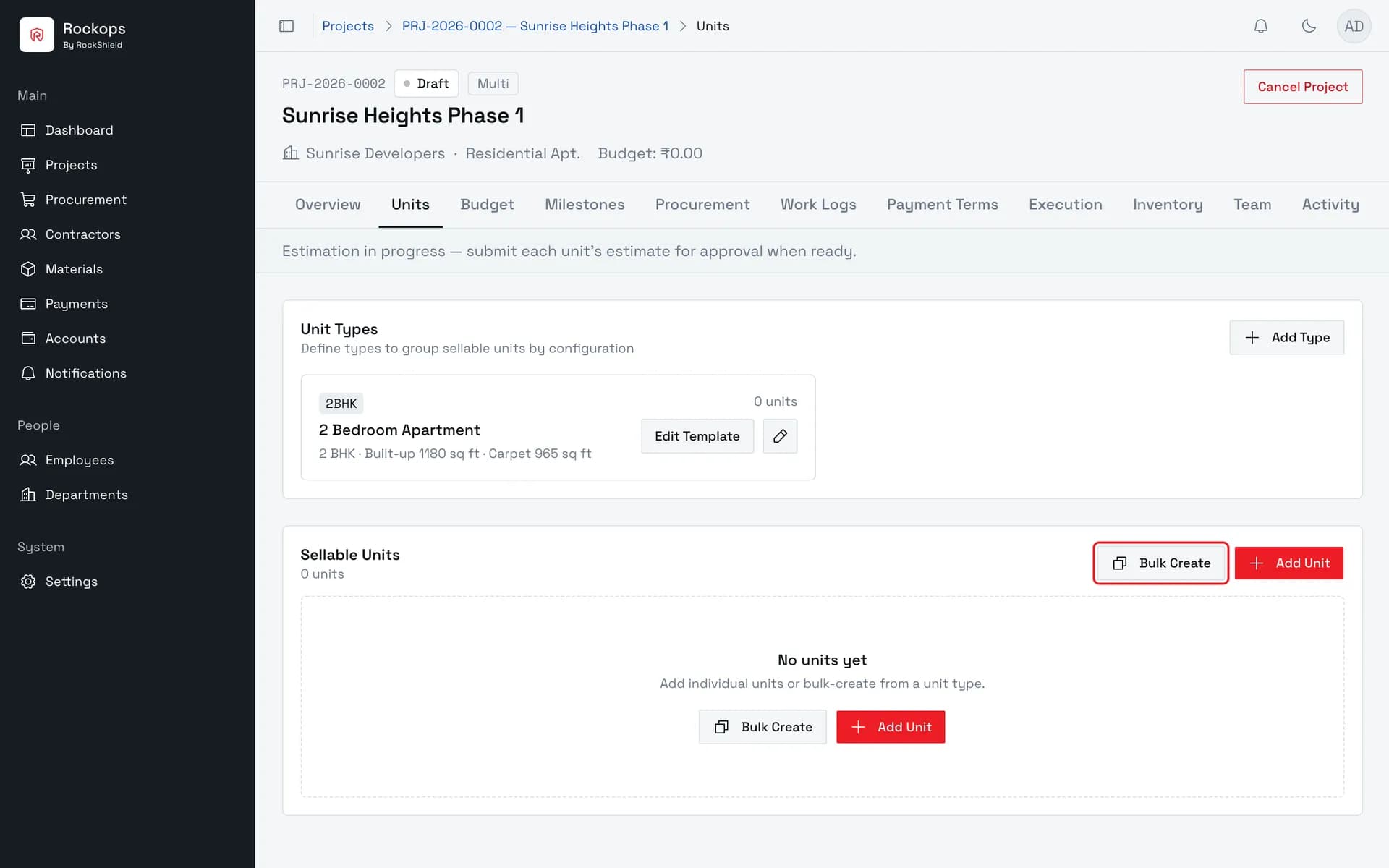
4. The type is ready to use
The card shows the code, the configuration, and how many units currently use it. Edit Template is where a reusable estimate for this type is built.
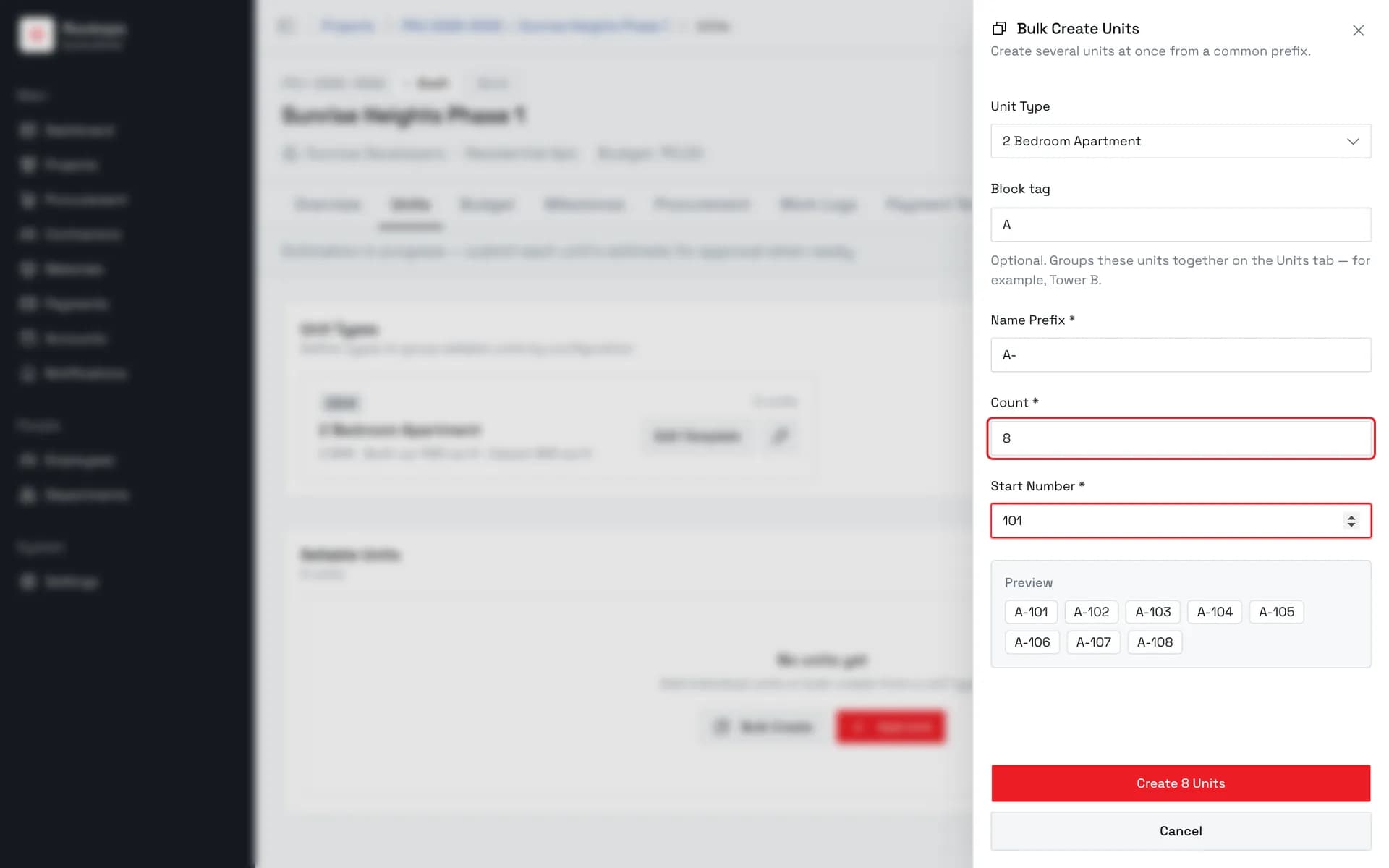
5. Set the prefix, the count, and the first number
Names are built as the prefix followed by consecutive numbers from the start number, and the Preview shows exactly what will be created before anything is. Count is capped at 50 per batch.
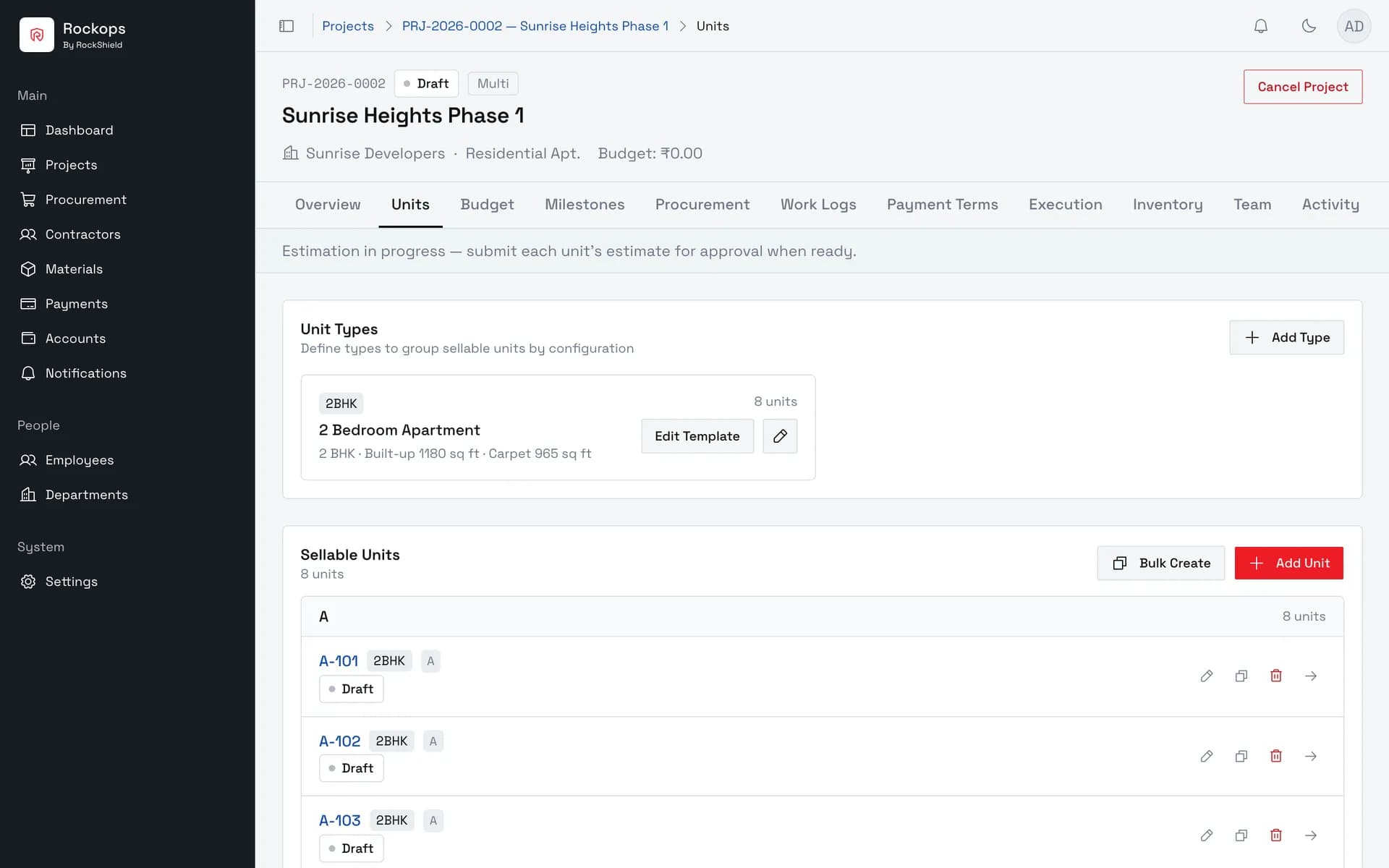
6. The units are created
Each unit carries its own estimate and can be renamed, duplicated, or deleted from here. The block tag groups them on this page without becoming part of their names.
Field reference
Unit type
| Field | Required | Rules |
|---|---|---|
| Code | Yes | Up to 20 characters, letters, numbers, _ and - only. Must be unique within the project. Shown as a tag on every unit of this type. |
| Name | Yes | Up to 80 characters. |
| Description | No | Up to 500 characters. |
| Bedrooms | No | A plain number. Displayed as N BHK. |
| Built-up Area / Carpet Area | No | Plain numbers. Square feet is assumed — the unit is added for you on display, not typed in. |
Bulk Create
| Field | Required | Rules |
|---|---|---|
| Unit Type | No | Defaults to None (untyped). Choosing a type tags every unit in the batch with it. |
| Block tag | No | Up to 60 characters. Groups the batch under a heading on the Units tab. It does not become part of the unit names — name them with the prefix if you want the block in the name. |
| Name Prefix | Yes | Up to 60 characters. Names are the prefix followed by consecutive numbers. |
| Count | Yes | Between 1 and 50. One batch cannot exceed 50 units; create several batches for more. |
| Start Number | Yes | 1 or more. Numbers below 10 are padded to two digits, so a start number of 1 gives 01, 02, 03. |
| Copy estimate template | No | Offered only when the chosen unit type actually has a template. |
Everything Bulk Create makes is a sellable unit; there is no category choice on that form. Use Add Unit for a common unit.
Best practices
- Create the type before the units. Bulk Create works without one, but untyped units cannot inherit an estimate template, and retro-fitting a type onto units means editing them one at a time.
- Build the type's estimate template first if several units share a scope. Edit Template on the type card is what makes Copy estimate template light up during bulk creation — a per-unit estimate you would otherwise re-enter for each unit.
- Use the block tag for grouping and the prefix for naming. They are
separate on purpose:
A-101reads as a name, and a block tag ofAgroups the run without repeating itself in every name. - Finish unit setup before moving the project out of Draft. Every control here is gone once it does, and there is no route back for adding a forgotten unit.
Troubleshooting
"Unit type code "X" already exists in this project. Enter a different code." — codes are unique per project. Check the existing type cards before adding a new one; you may already have what you need.
"A unit named "X" already exists in this project. Enter a different name." — from Add Unit, where you named a single unit that is already there.
"N of these unit names already exist in this project: … No units were created — change the name prefix or the start number." — from Bulk Create. The whole batch is refused rather than partially applied or silently renumbered, so nothing was created. Move the start number past the existing run, or use a different prefix.
"Max 50" — Count is capped at 50 per batch. Run the wizard again with a higher start number for the next 50.
"Copy estimate template" isn't offered — the selected unit type has no template yet. Use Edit Template on the type card first, then bulk-create.
The Add Type, Add Unit, and Bulk Create buttons are gone — the project has left Draft. The page shows its current status in a banner where the controls were. Units cannot be added, edited, or deleted after that point.
There is no Units tab — the project is single-unit. Structure is fixed at creation, so it cannot be converted.
Create a multi-unit project
Set up a project made of many units — an apartment block, a villa row, a phased layout — and land straight in unit setup.
Add project milestones
Set up the stages of a project — the milestones that estimate sections are tagged with and that an estimate needs before it can be submitted.