Build a unit's estimate
Fill in a unit's Bill of Quantities — sections tagged by stage, typed line items with catalogue suggestions, and a contingency — in a builder that saves as you type.
Overview
An estimate is a Bill of Quantities: the work a unit needs, grouped into sections, each line priced by quantity and rate. It is what the project's budget is built from, and it is what gets submitted for approval before work can start.
On a multi-unit project every unit carries its own estimate, under Estimate on the unit's page. On a single-unit project there is one estimate for the whole job, under the project's Estimate tab. The builder is the same either way.
The builder is organised in three levels:
- Sections group lines however suits the bill — by stage, trade, or vendor. Each section can be tagged with one of the project's milestones, which is how the estimate is broken down by stage.
- Lines are the priced work. Every line has a type — Material, Labour, or Other — which decides where the Description cell looks for suggestions.
- Contingency and notes apply to the estimate as a whole.
Three things about it are unlike the rest of RockOps:
- There is no save button. Every change is written automatically a second after you stop typing, and the indicator beside the version number reports it — Saving…, then ✓ Saved, or ⚠ Save failed if something went wrong.
- The table is edited in place. Cells look like text until you click them. There is no row form and no dialog.
- Every figure is computed. A line's total is quantity times rate, a section's subtotal is its lines, and the grand total is its sections — all in whole paise, so the displayed lines always sum exactly to the displayed total.
Two larger features live in the same builder and have their own pages: the fx button in the Qty column opens a quantity worksheet, and Import fills the whole estimate from an Excel file.
Before you start
The project must be in Draft and the estimate must still be a draft. Once an estimate is submitted, the builder switches to a read-only view; if the project has moved on while the estimate is still a draft, the same read-only view appears with a banner naming the project's current status.
Saving an estimate requires Administrator, Owner, or Project Manager.
To tag sections by stage, the project needs milestones — see Add project milestones. Milestones are also required to submit the estimate at all.
Suggestions come from what already exists: the material catalogue for Material lines, and contractors' rate cards for Labour lines. Neither is required — any typed text is a valid line.
1. Open the unit's estimate
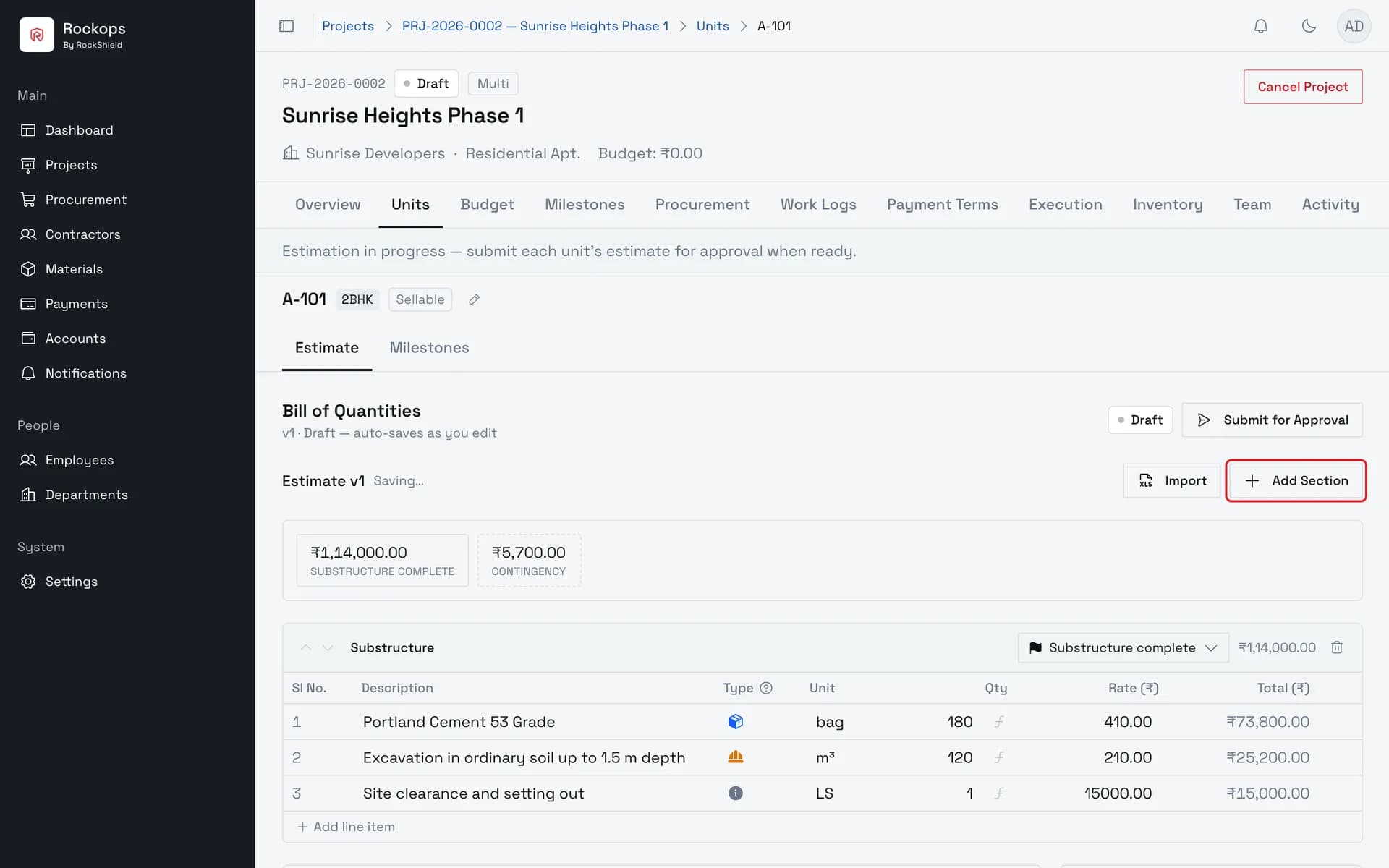
Each unit has its own Bill of Quantities, under Estimate on the unit's page. Add Section starts a new group of lines; Import fills the whole estimate from an Excel file instead.
2. Name the section and attach its stage
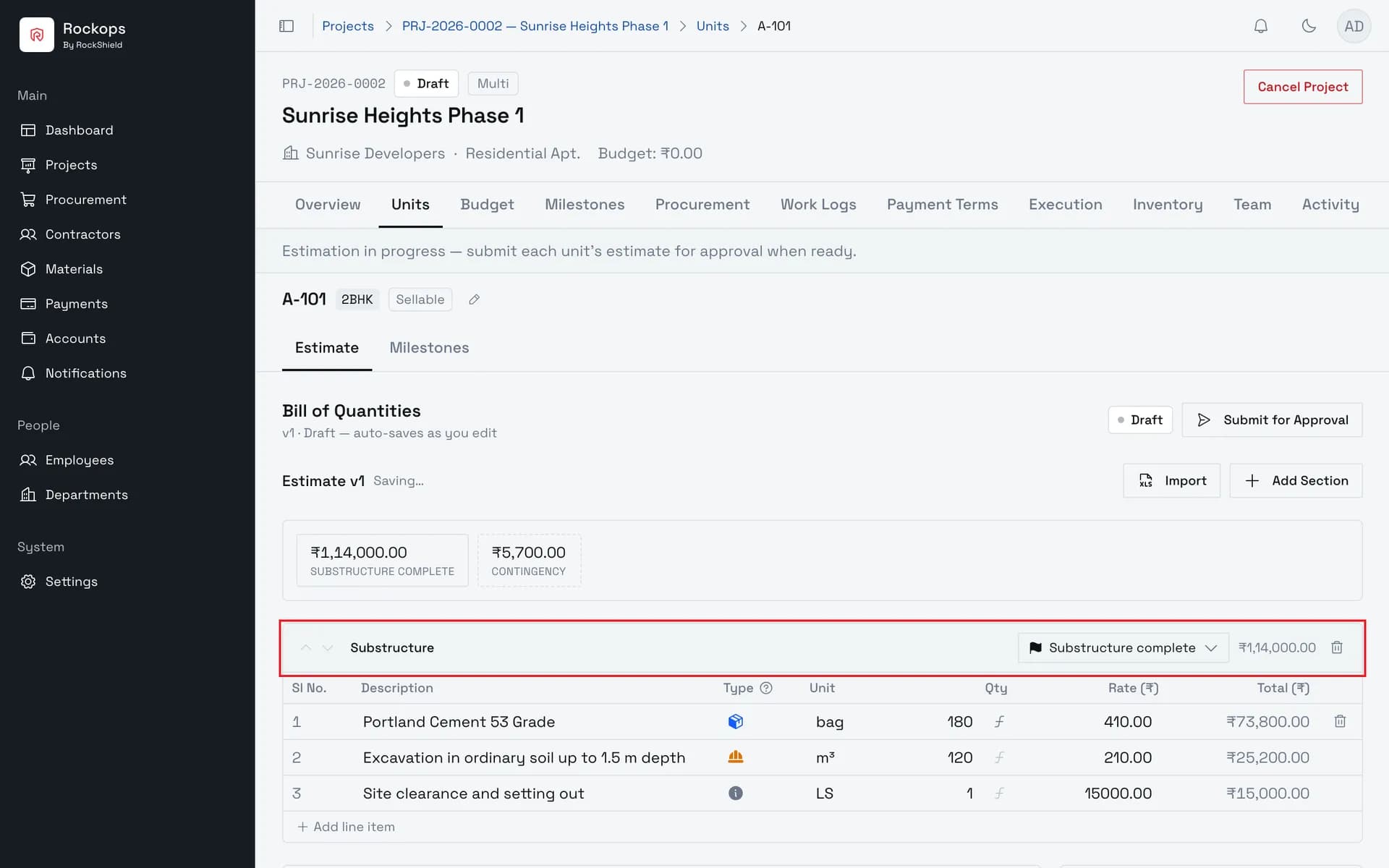
A section groups lines however suits the bill — by stage, trade, or vendor. Attach milestone tags the whole section with one of the project's milestones; that tag is what the stage summary above the builder adds up.
3. Type a description and pick a suggestion
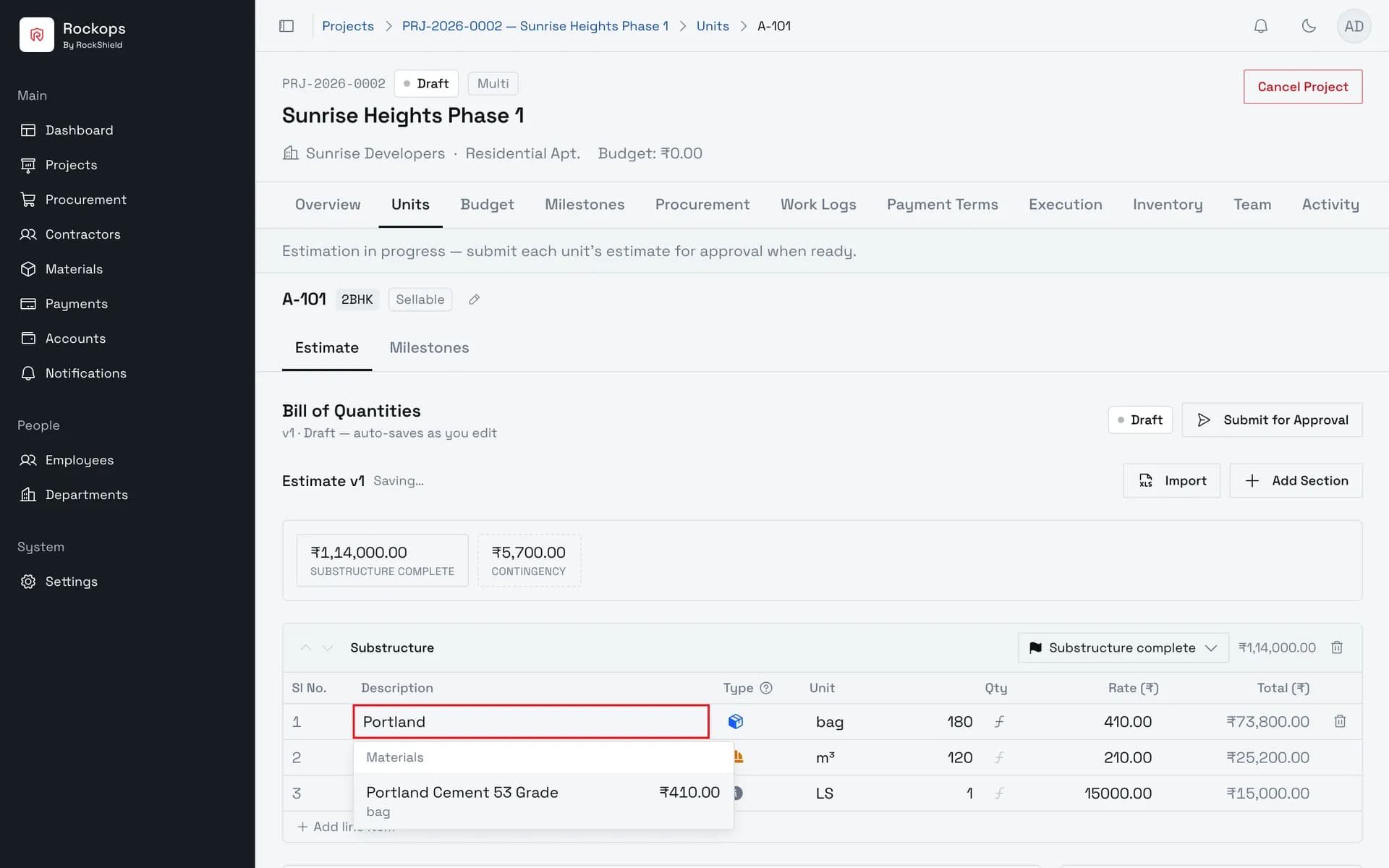
A Material line suggests from the material catalogue as you type, with each item's unit and standard rate. Suggestions never block typing — any text is a valid line.
4. Enter the quantity
Picking copies the description, unit, and rate into the row, and nothing more — the row keeps no link to the catalogue and every value stays editable. Quantity is always yours to enter.
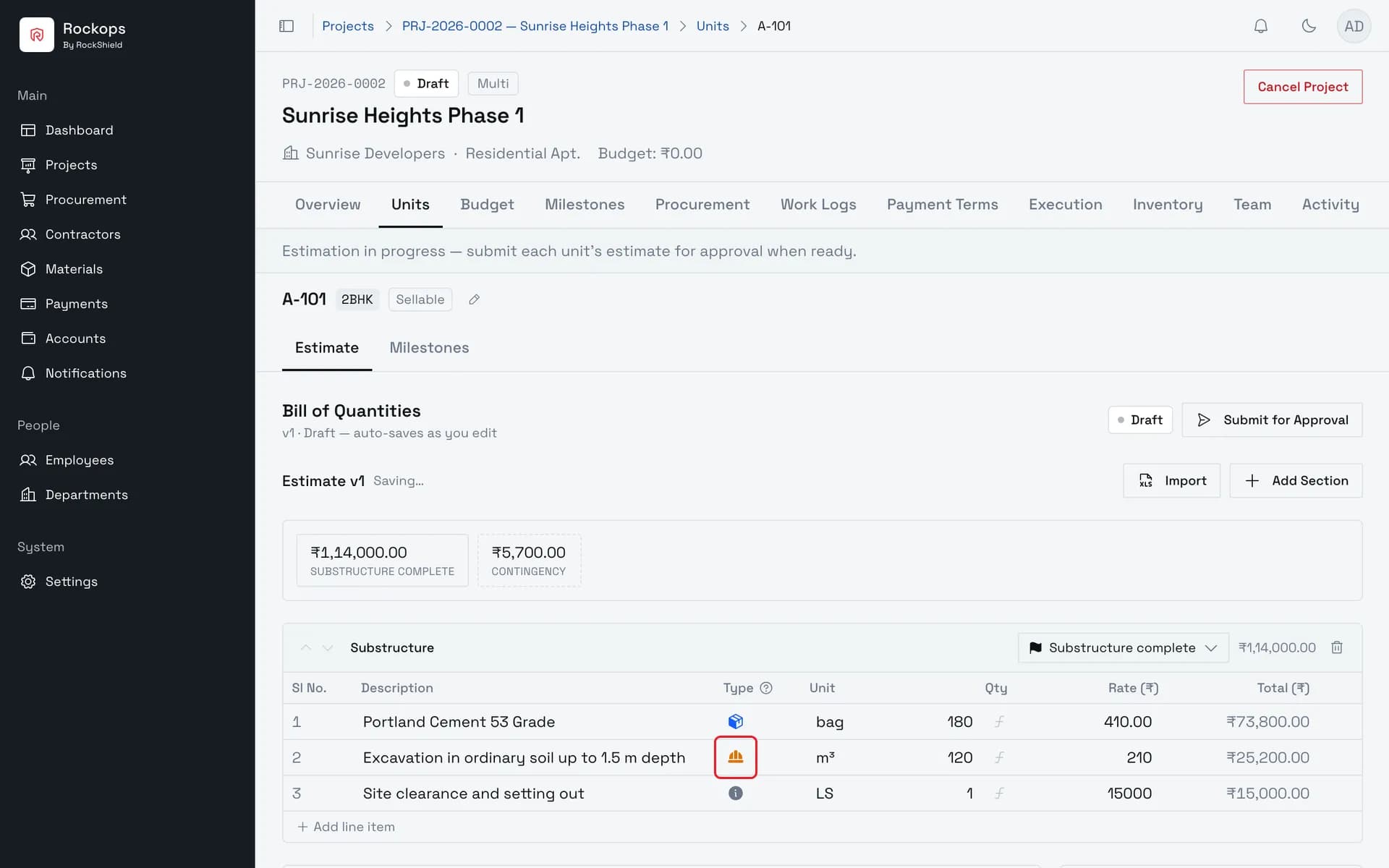
5. Set each line's type
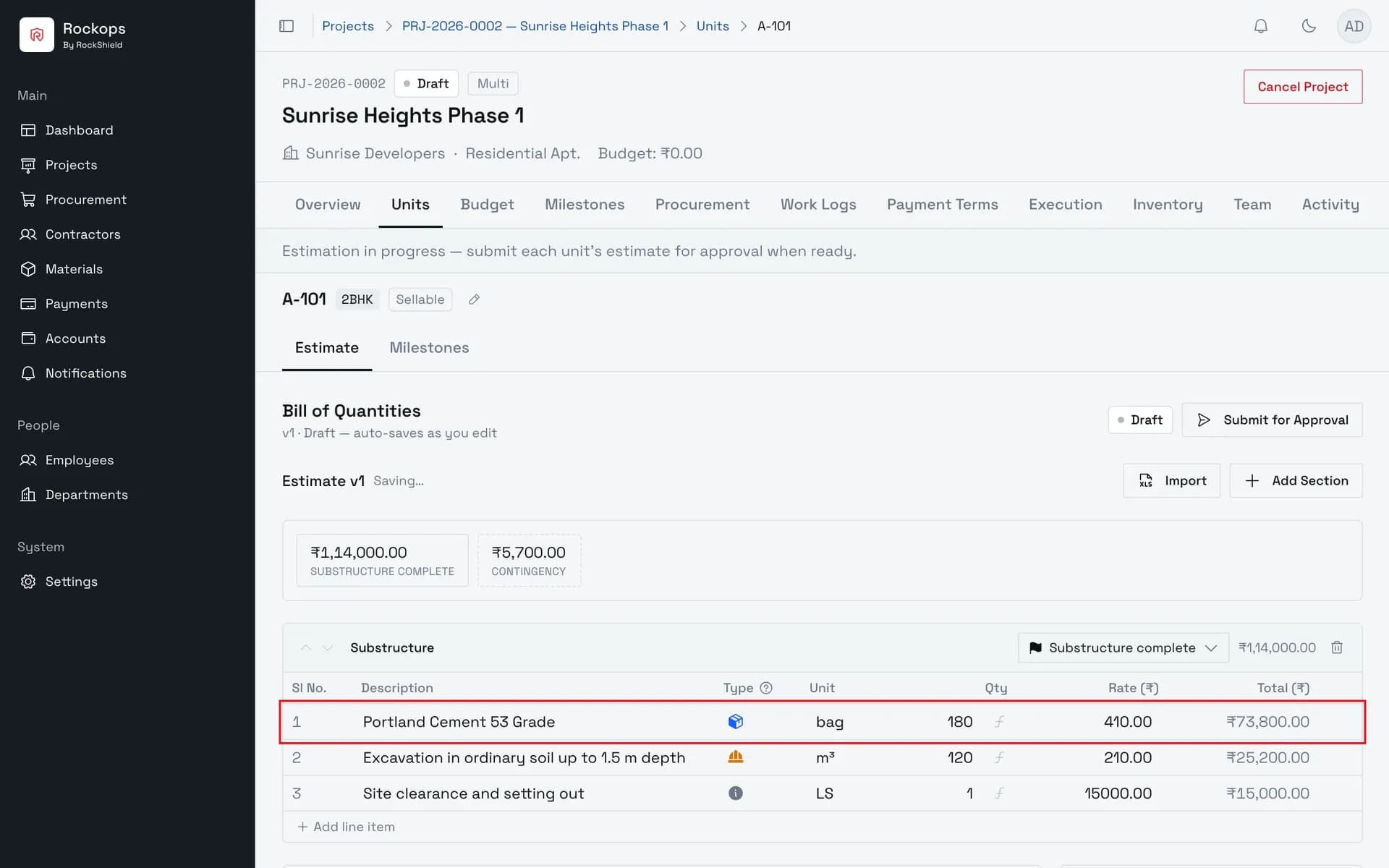
The icon in the Type column cycles Material → Labour → Other. Labour suggests from contractors' current rate cards for this project's type; Other suggests nothing. New lines start on the type of the line above.
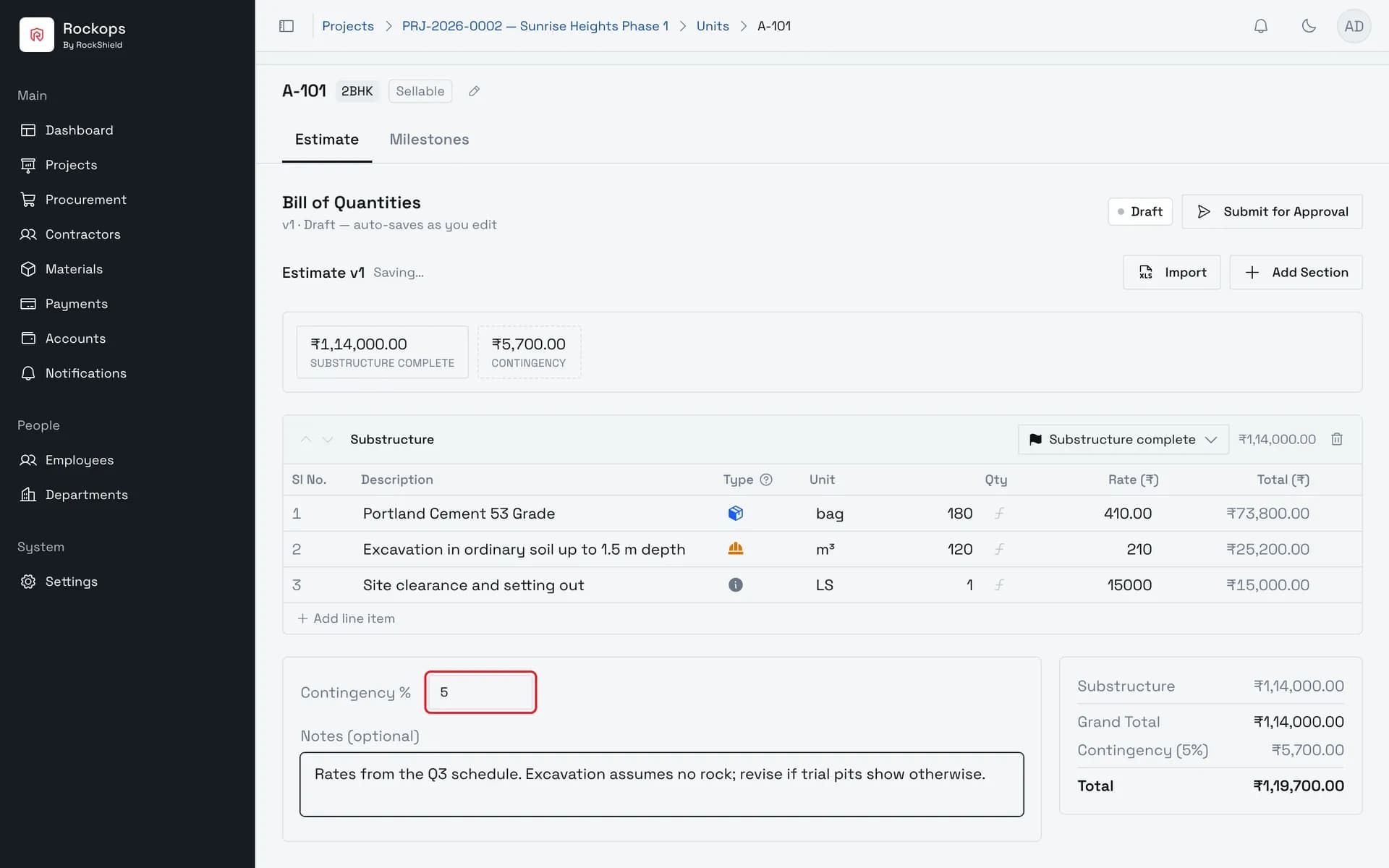
6. Set a contingency and add notes
Contingency is a percentage added on top of the grand total, not spread across the lines, so it shows as its own row in the totals.
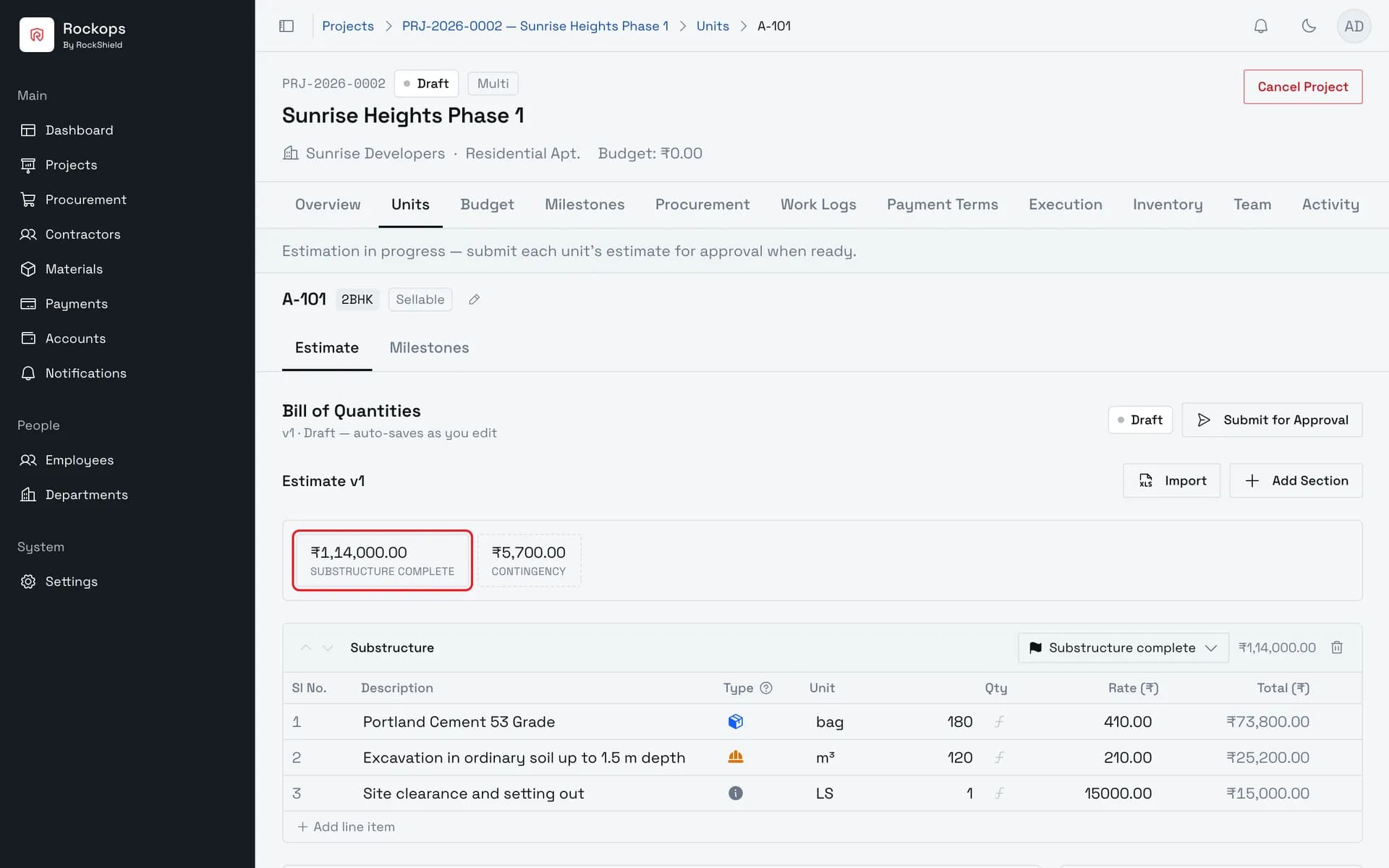
7. The estimate totals itself
There is no save button — every change is written a second after you stop typing. The strip above the builder splits the saved budget by stage, with contingency kept apart; the panel below totals each section.
How line types work
The icon in each row's Type column is a single button. Each click moves it to the next type, and a tooltip names the new one:
| Type | Suggests from | Suggestion shows |
|---|---|---|
| Material | The material catalogue — active materials only | Name, unit, and standard rate |
| Labour | Every contractor's current rate card, excluding blacklisted contractors, limited to items for this project's type or for all project types | Description, rate card version and contractor, and the rate per unit |
| Other | Nothing | — |
Suggestions appear once the description has two or more characters. Arrow keys move through them, Enter picks one, and Escape closes the list without touching what you typed. A description that matches nothing simply shows no list.
Picking a suggestion copies its description, unit, and rate into the row. Quantity is never filled in. The row keeps no link back to the catalogue or the rate card afterwards: every value stays editable, and a picked row and a typed row are indistinguishable once saved. If a material has no standard rate, the pick leaves the rate you already typed in place.
A new line starts on the same type as the line above it, and the first line of an estimate starts on Material.
Field reference
Section
| Field | Required | Rules |
|---|---|---|
| Section name | Yes, to be saved | Free text. While any section is unnamed, autosave fails — the totals panel shows it as (Unnamed) and the indicator reads ⚠ Save failed. |
| Stage | No | One of the project's milestones, chosen from Attach milestone. No milestone clears it. A new section always starts without a stage — it is never copied from the section above. Not shown when the project has no milestones. |
Line item
| Field | Required | Rules |
|---|---|---|
| Sl No. | — | The row's position in its section. Not stored; deleting a row renumbers the rows below it. |
| Description | Yes, to be saved | Free text with suggestions (see above). A line with a blank description is not saved. |
| Type | Yes | Material, Labour, or Other. See How line types work. |
| Unit | No | Typed in caret form and rendered as a superscript: m^3 displays as m³. A blank unit is saved as nos. |
| Qty | No | A number, 0 or more; new lines start at 1. The fx button beside it calculates the quantity with a worksheet instead. |
| Rate (₹) | No | Rupees per unit, 0 or more. Held internally as paise. |
| Total (₹) | — | Not editable. Quantity times rate. |
Tab out of the Rate cell on a section's last line adds a new line and moves to it.
Estimate
| Field | Required | Rules |
|---|---|---|
| Contingency % | No | 0 to 100, with at most two decimal places. Added on top of the grand total and shown as its own row — it is not spread across the lines or the stages. |
| Notes | No | Free text, for assumptions and caveats that don't belong in a line description. |
The stage summary
Above the builder, one pill per stage shows how much of the estimate is planned for it — the sum of the sections tagged with that milestone, before contingency. Contingency has its own dashed pill, because it belongs to no stage, so the pills never add up to the total with contingency.
Sections with no stage are collected into a red Unassigned pill, with a note counting them ("2 sections without a stage"). That is a warning, not a block: an estimate with untagged sections can still be submitted, and the submit dialog says how many sections have no stage first.
The strip is calculated from the saved estimate. On a unit's estimate it does not refresh while you edit — reload the page to bring it up to date.
Best practices
- Name each section as soon as you add it. Nothing in the estimate saves while a section is unnamed, and section subtotals are the only breakdown the totals panel offers.
- Attach a stage to every section. Untagged sections still count toward the total but appear under no stage, which is exactly the gap the Unassigned pill is warning about.
- Set the type before typing the description. The type decides which catalogue the description searches, so switching it afterwards only changes suggestions for the next edit.
- Put assumptions in Notes, not in descriptions. Line descriptions are what the bill reads as.
- Wait for the indicator to settle before navigating away. There is nothing to press, so Saving… is the only signal that work is still in flight.
Troubleshooting
"⚠ Save failed" — an autosave did not reach the server. The edit is still on screen but not stored, and a toast shows the server's reason. Make any further change to trigger another save; if it keeps failing, copy the affected lines out before leaving the page.
"⚠ Save failed" as soon as a section is added, or on opening a new estimate — a section has no name yet. Name it and the next save goes through.
A line disappeared after reloading — its description was blank. Lines without a description are dropped when the estimate saves.
"Quantity cannot be negative. "…" has a quantity of …. Enter 0 or more." (or the same for Rate) — the named line has a negative value.
"Contingency must be between 0% and 100%, with at most 2 decimal places. You entered …%." — the contingency is out of range.
"Planning changes require the project to be in draft status (current status: "…"). Ask an admin to reopen the project." — the project left Draft while the estimate was open.
The cells won't accept typing — the estimate is no longer editable. Either it has been submitted or approved, or the project has left Draft. The banner above the table says which.
No suggestions appear — the line is set to Other, the description is shorter than two characters, or nothing in the catalogue matches. For Labour lines, only current rate cards whose items apply to this project's type are searched.
The stage summary shows an old figure — it reflects the last saved estimate and, on a unit's page, only refreshes on reload.
"At least one master milestone is required before submitting" — the project has no milestones. See Add project milestones.
"Estimate total must be greater than zero before submitting" — every line is missing a quantity or a rate. A contingency alone does not create a value; it multiplies a grand total that is still zero.
Add project milestones
Set up the stages of a project — the milestones that estimate sections are tagged with and that an estimate needs before it can be submitted.
Calculate a quantity with a worksheet
Work out a line's quantity in a small spreadsheet attached to that line, so the take-off is stored with the estimate and an approver can see where the number came from.