Add a material
Register a material in the catalogue so it can be priced, ordered, and drawn on by BOQs and purchase orders.
Overview
The Material Catalogue is the single list of materials your organization buys and consumes. Adding a material here is what makes it selectable further downstream — a material has to exist in the catalogue before it can appear on a BOQ or a purchase order.
Each material carries a name, one of eleven fixed categories, and a unit of
measure, plus an optional standard rate, brand, and description. You don't
choose its code: RockOps assigns one on save, in the form MAT-0001, from a
counter kept per organization.
Two things about a material are effectively permanent once it is created. Its name has to stay unique within the organization, and its unit of measure is locked — the edit form disables that field, so a material bought by the bag can't later be re-declared in kilograms. There is also no way to delete a material; the catalogue only offers Deactivate, which hides it from new BOQs and purchase orders while leaving the historical records that reference it intact.
Before you start
Materials lives in the sidebar's Main section, and that section is visible to organization roles that can read the catalogue: Administrator, Owner, Project Manager, Store & Inventory Manager, Procurement Officer, and Site Supervisor.
Seeing the catalogue is not the same as being able to add to it. Only Administrator, Owner, and Project Manager can actually create a material. The New Material button is shown to everyone who can open the page, so a Store & Inventory Manager, Procurement Officer, or Site Supervisor can open the form, fill in every field, and only be rejected by the server on submit. If you're signed in as one of those three roles and creation isn't working, this is why.
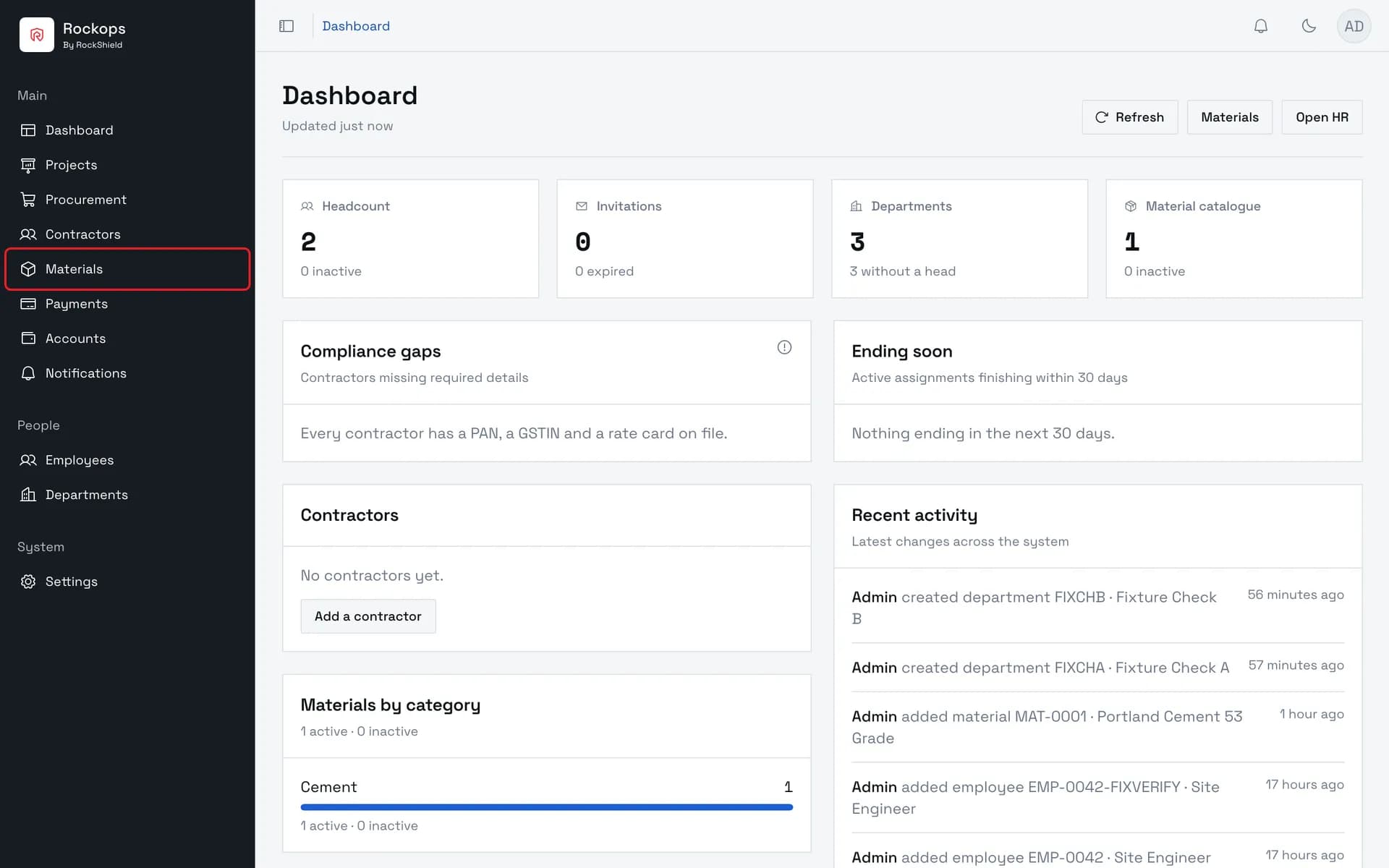
1. Open Materials
Materials sits in the sidebar's Main section, directly below Contractors.
2. The Material Catalogue
Every material in the organization, with its code, category, unit, and standard rate. The tabs along the top filter by category; inactive materials are hidden until you tick Show inactive.
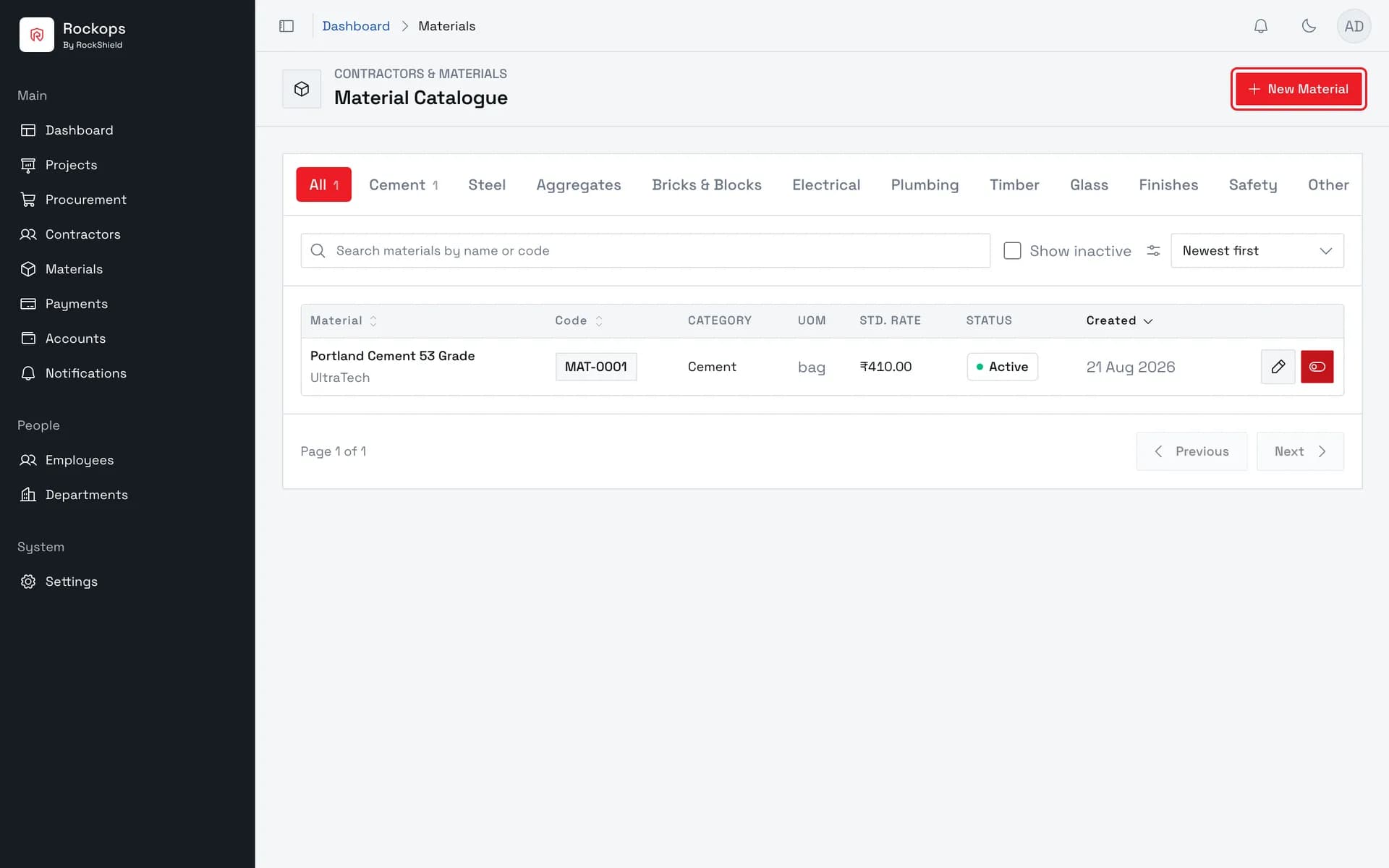
3. Open the New Material form
The form opens as a side sheet, so the catalogue stays visible behind it.
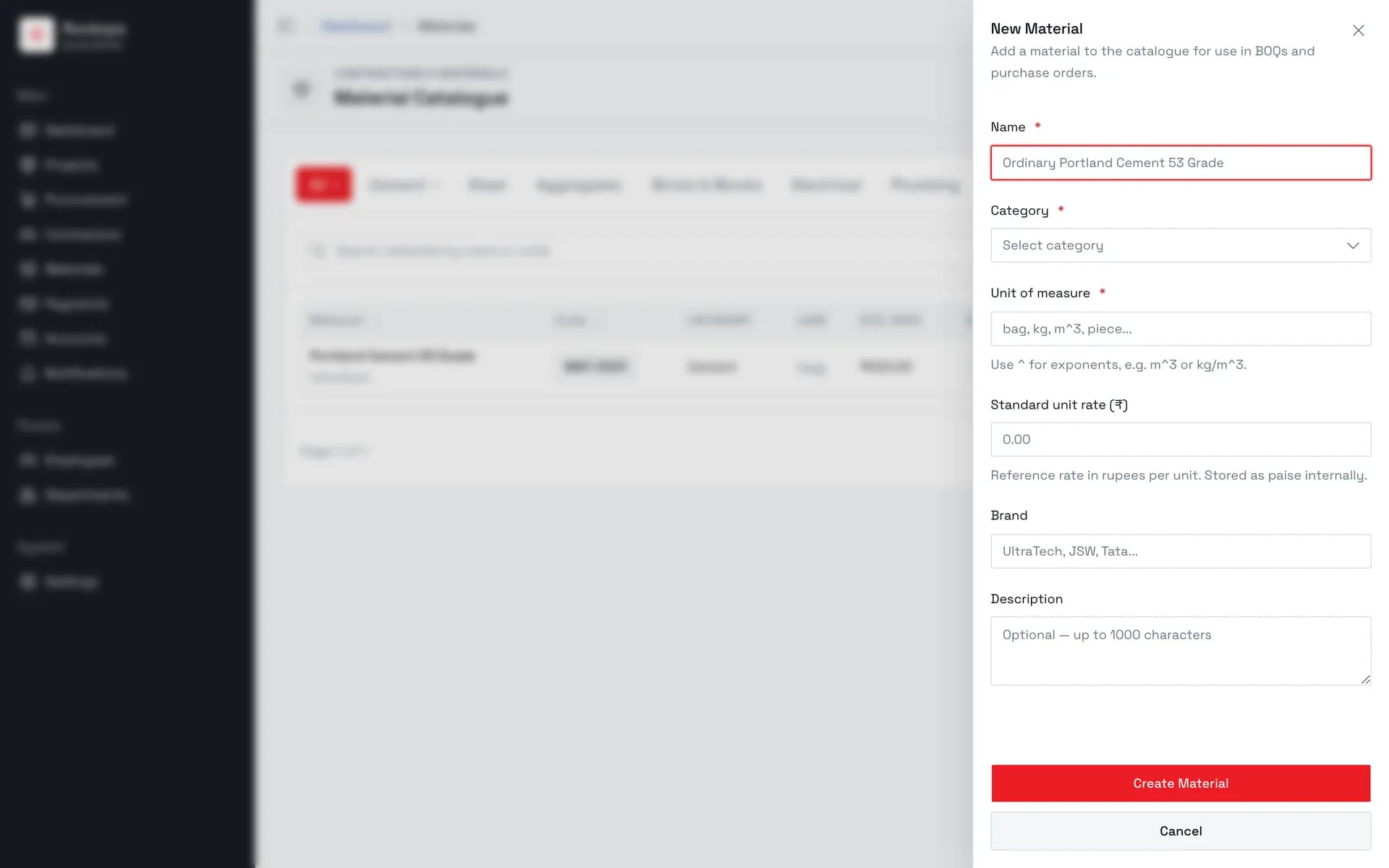
4. Enter the name
Must be unique in the organization. The check ignores capitalization, so a name differing only in case still counts as a duplicate.
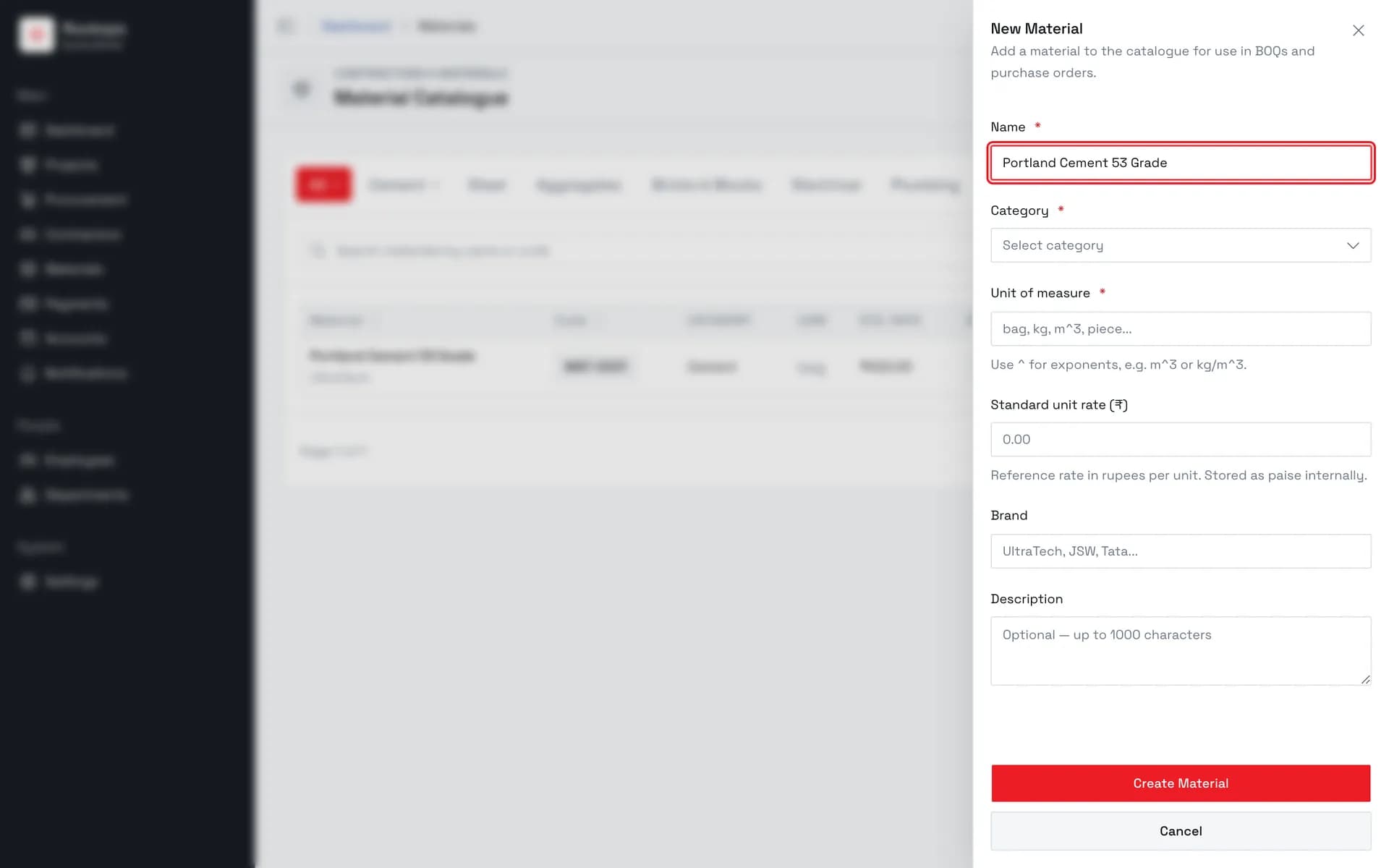
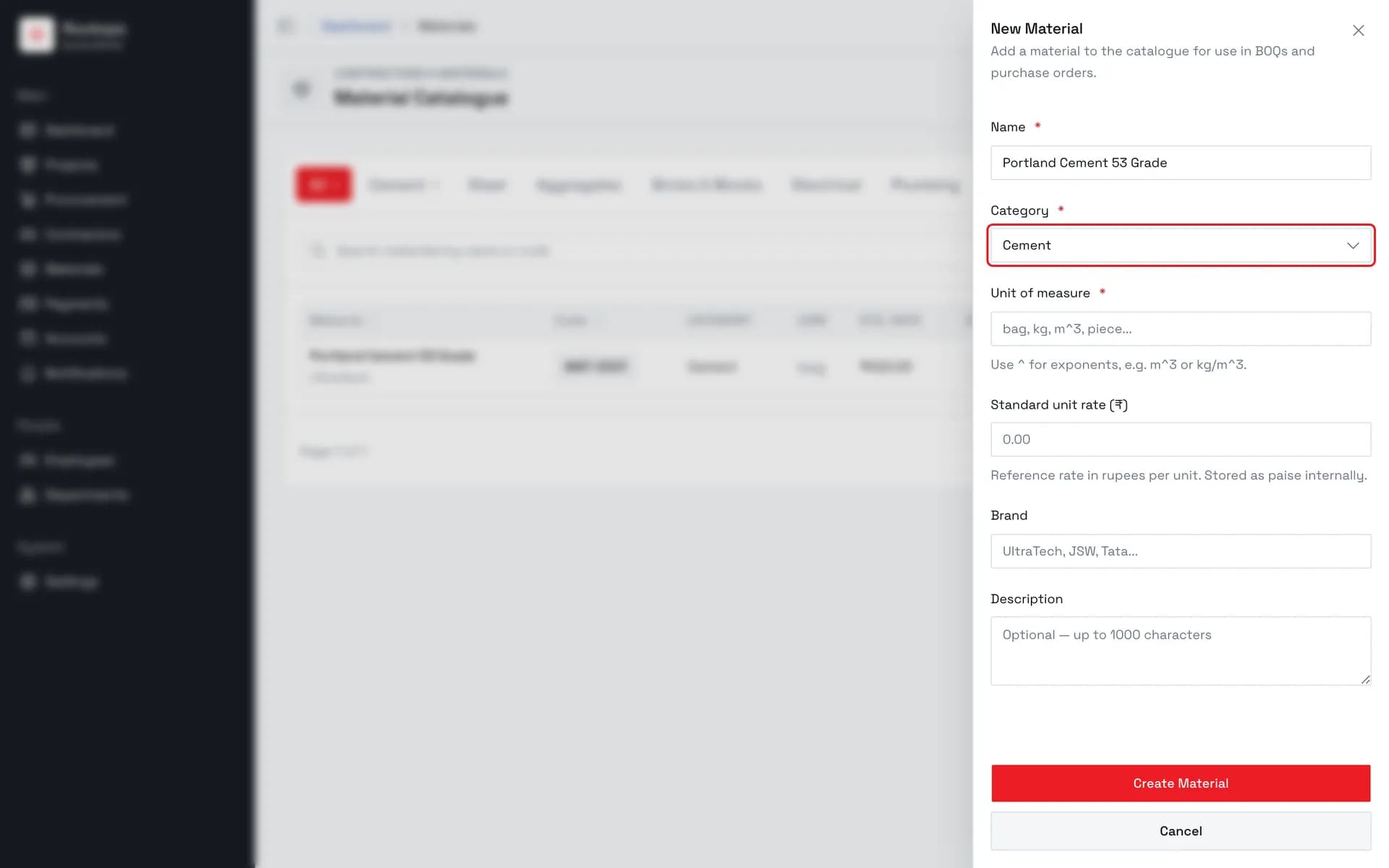
5. Choose a category
One of eleven fixed categories, from Cement and Steel through to Other. The same categories become the filter tabs on the catalogue.
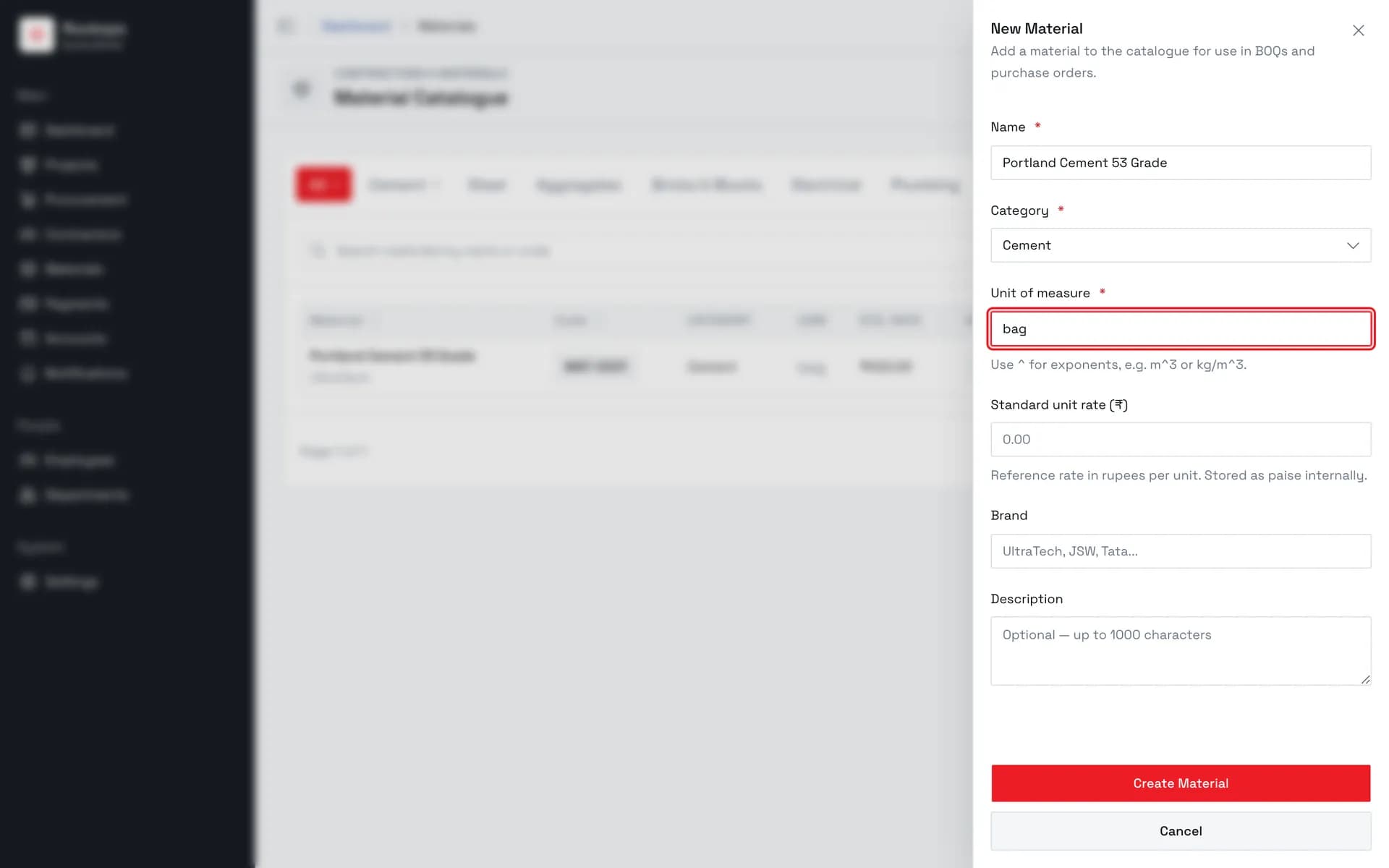
6. Enter the unit of measure
How the material is counted — bag, kg, piece, m^3. Type ^ for exponents and the catalogue renders them as superscript. Locked once the material is created.
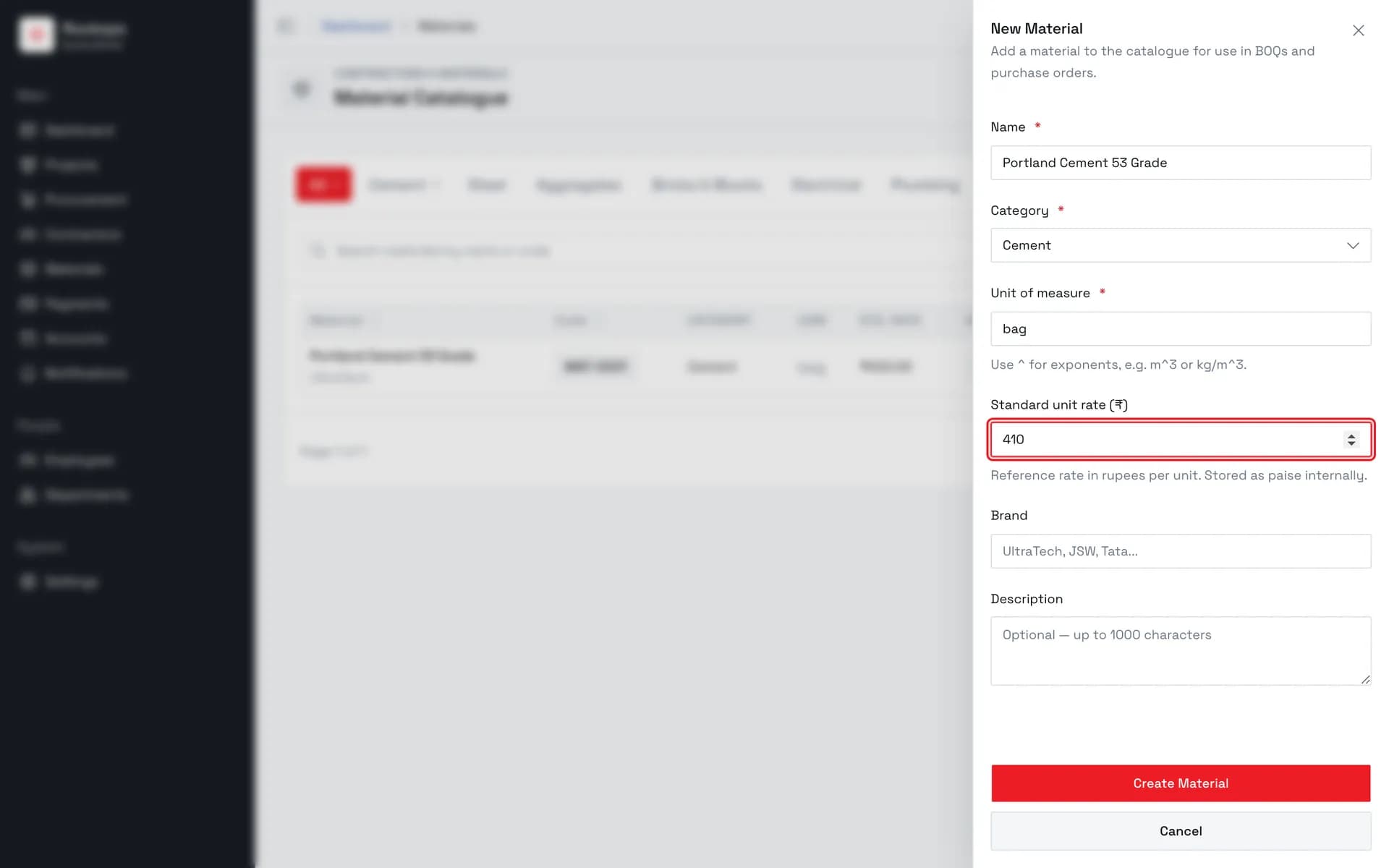
7. Set a standard rate
Optional reference rate in rupees per unit, stored internally as paise.
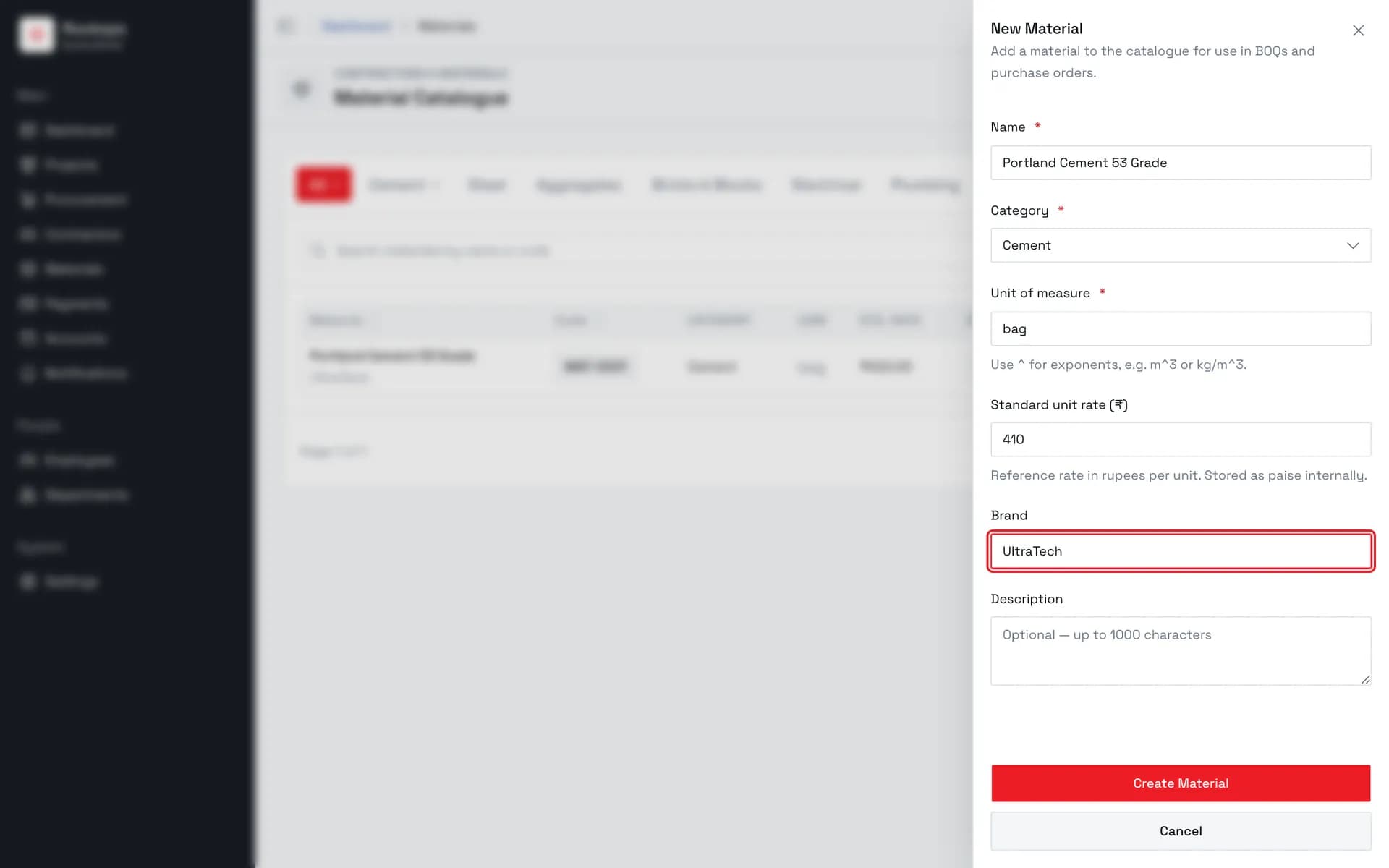
8. Add a brand
Optional, up to 255 characters. The catalogue shows it under the material name.
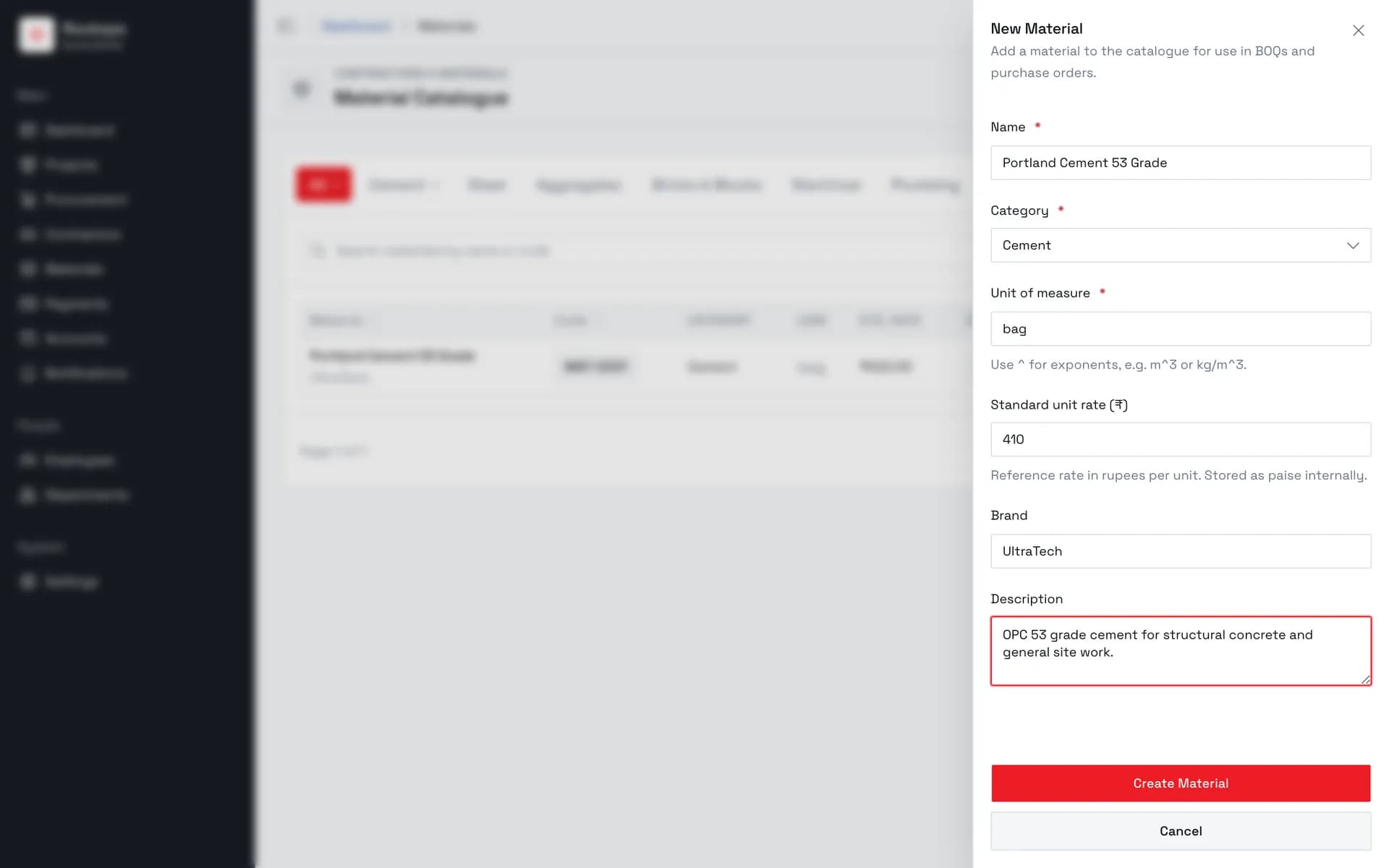
9. Add a description
Optional, up to 1000 characters.
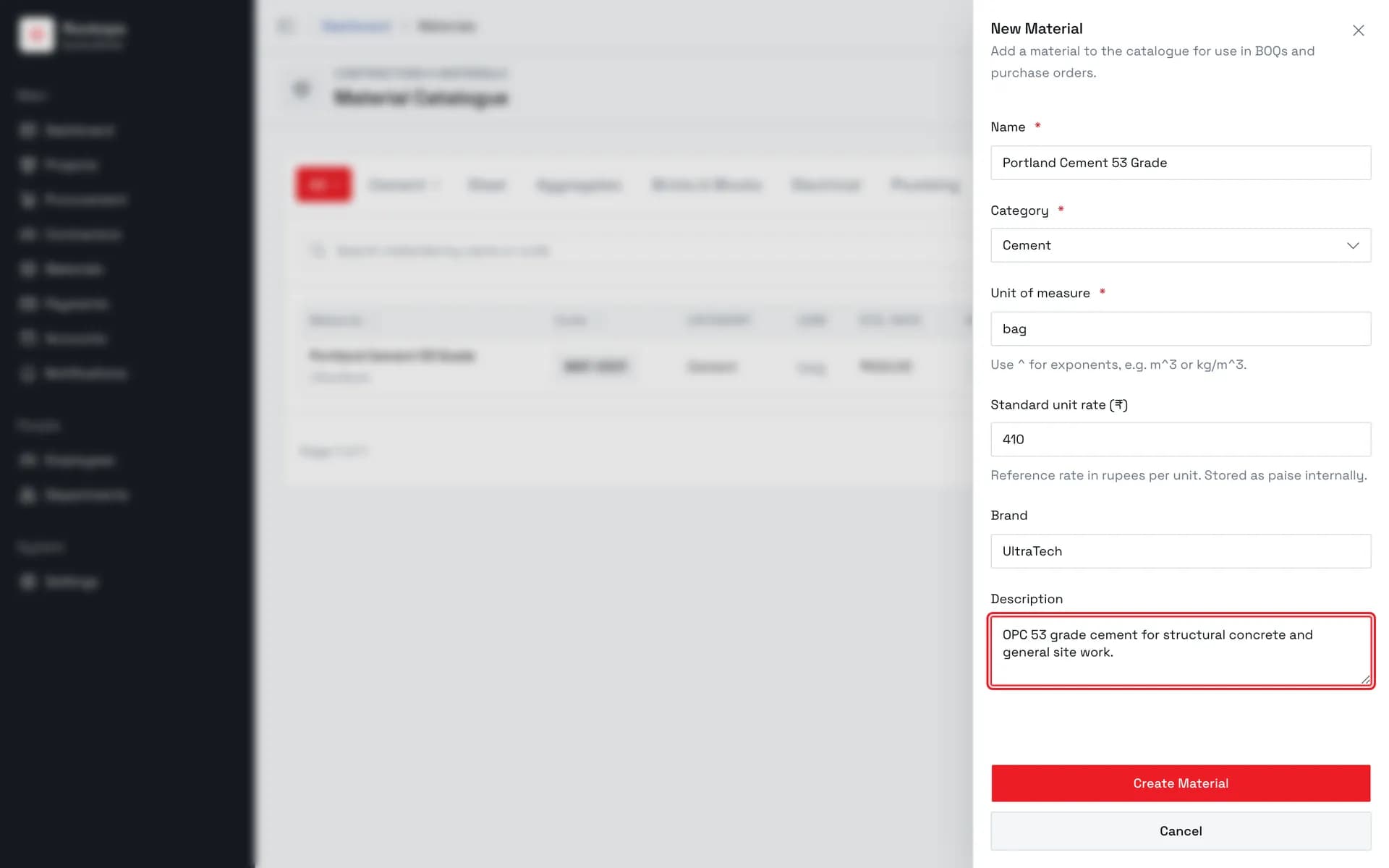
10. Review before saving
Name, category, and unit of measure are the only required fields. The code is assigned automatically on save — there is no field for it.
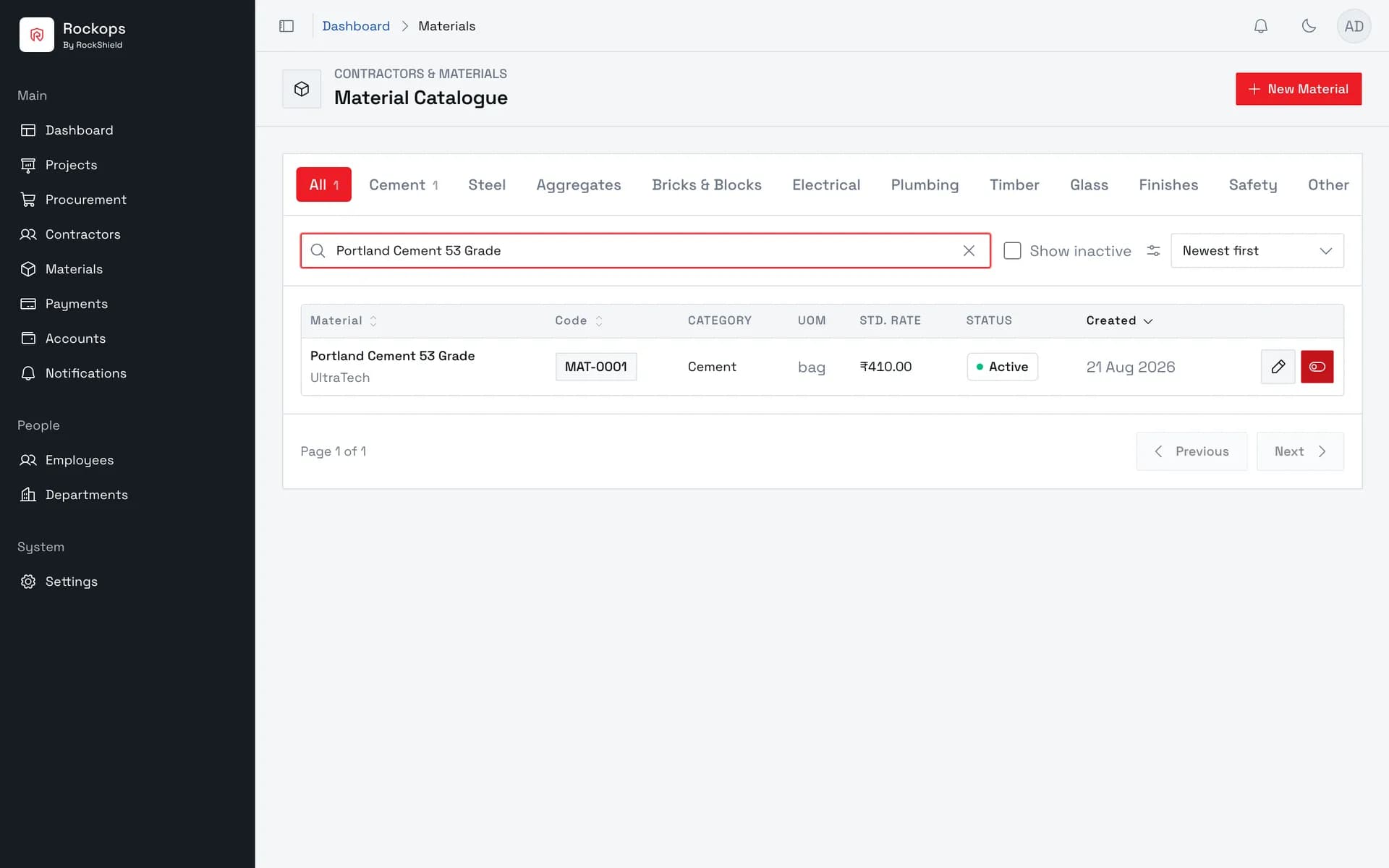
11. Material created
The material is in the catalogue with a generated MAT- code — search by name or code at any time to find it.
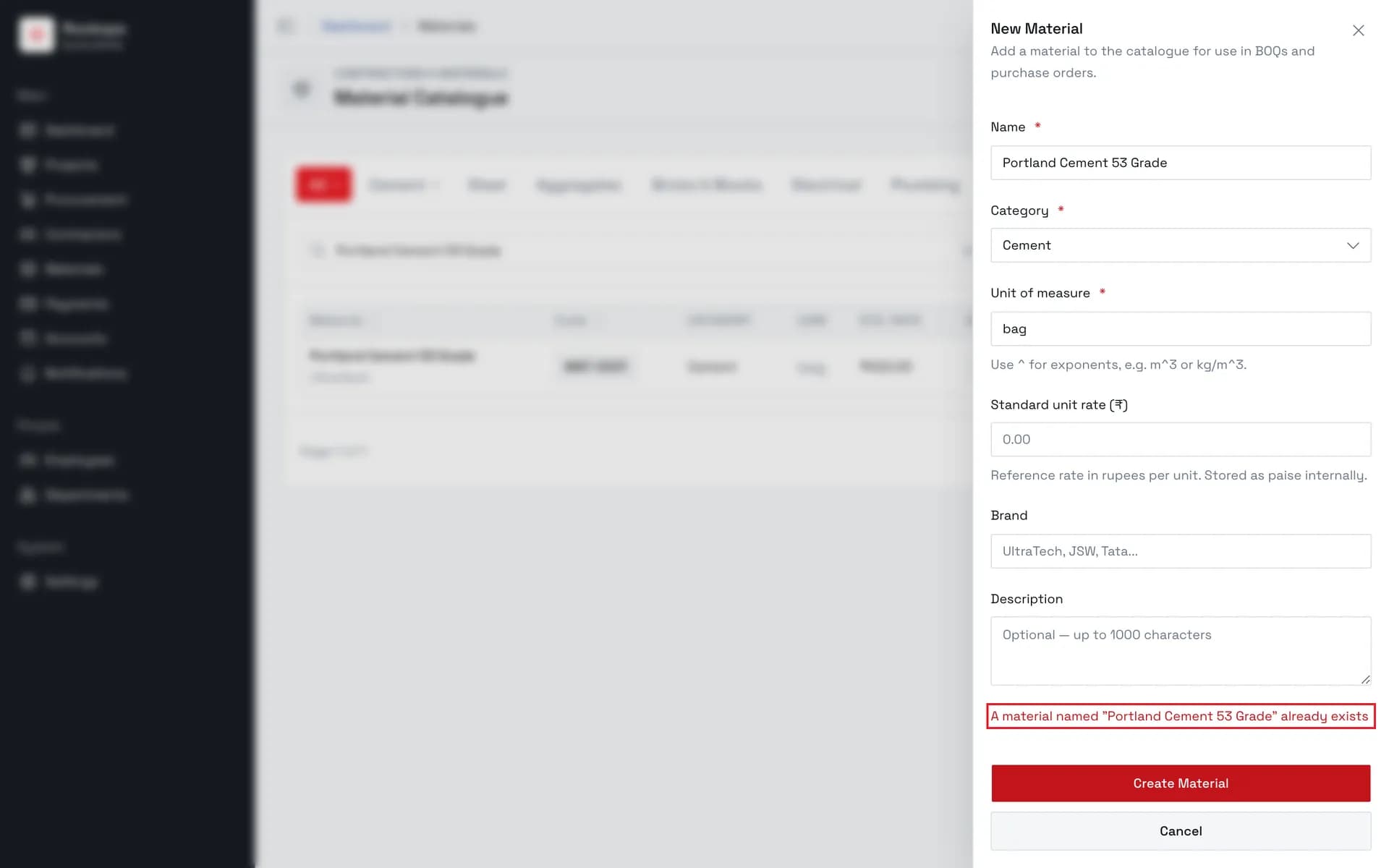
12. Duplicate names are rejected
Re-using a name already in the catalogue fails on submit, with the message shown at the foot of the form. Nothing is saved — change the name and submit again.
Field reference
| Field | Required | Rules |
|---|---|---|
| Name | Yes | Up to 255 characters. Must be unique within the organization; the duplicate check ignores capitalization, so Cement and cement collide. |
| Category | Yes | One of Cement, Steel, Aggregates, Bricks & Blocks, Electrical, Plumbing, Timber, Glass, Finishes, Safety, Other. Doubles as the catalogue's filter tabs. |
| Unit of measure | Yes | Up to 50 characters — bag, kg, piece, m^3. Write exponents with ^ and the catalogue displays them as superscript (m^3 shows as m³). The edit form disables this field, so treat it as fixed at creation. |
| Standard unit rate (₹) | No | A reference rate in rupees per unit, held internally as paise. Must be zero or more. Shown in the catalogue's Std. Rate column, formatted as Indian rupees. |
| Brand | No | Up to 255 characters. Displayed under the material name in the catalogue list. |
| Description | No | Up to 1000 characters. |
| Code | — | Not a field. Assigned automatically on save as MAT- plus a counter padded to at least four digits, and shown in the catalogue's Code column. |
Best practices
- Settle the unit of measure before you save. It is the one field the edit form won't let you change, so a material entered in the wrong unit has to be replaced by a new record rather than corrected.
- Put the grade or specification in the name, not the brand. Name is what
the duplicate check runs on and what the catalogue search matches (along
with the code), so
Portland Cement 53 Gradestays findable and distinguishable in a way thatCementdoes not. - Fill in the standard rate when there is a stable one. It's optional and purely a reference, but it's the only figure the catalogue can show in the Std. Rate column — materials left blank display an em dash.
Troubleshooting
"A material named "X" already exists" — another material in the catalogue already uses that name, ignoring case. Pick a different name, or open the existing material instead if that's what you meant. When a similarly named material exists, the message extends to "Did you mean "Y"?" and names it.
"Material name is required." / "Category is required." / "Unit of measure is required." — one of the three required fields is empty. These are caught in the form before anything is sent to the server.
The New Material button is there but submitting fails — the button is shown to every role that can read the catalogue, while creating is restricted to Administrator, Owner, and Project Manager. See Before you start.
The unit of measure can't be edited — that field is disabled on the edit form. Deactivate the material and create a replacement with the correct unit.
Added the wrong material and want to remove it — materials can't be deleted. Use the Deactivate action in the catalogue row instead: the material is hidden from new BOQs and purchase orders, still visible under Show inactive, and can be reactivated at any time.