Create a multi-unit project
Set up a project made of many units — an apartment block, a villa row, a phased layout — and land straight in unit setup.
Overview
A multi-unit project is one whose work is divided into units: flats in a tower, villas in a row, plots in a layout. The distinction matters because a multi-unit project estimates, budgets, and sells per unit, while a single-unit project treats the whole job as one thing.
The form is the same one a single-unit project uses. The difference is a single radio button — Structure: Multi Unit — and it changes three things:
- Where you land after saving. A multi-unit project opens on its Units tab rather than its overview, because it has nothing meaningful to show until units exist.
- Which tabs the project has. Multi-unit projects get Units and Budget; single-unit projects get Estimate in their place. The rest — Milestones, Procurement, Work Logs, Payment Terms, Execution, Inventory, Team — is common to both.
- What can be estimated. Estimates attach to units, so a multi-unit project carries one per unit and rolls them into a consolidated budget.
Structure cannot be changed afterwards. It is accepted when the project is created and is not among the fields the update endpoint accepts, so a project set up the wrong way has to be replaced rather than corrected.
Like any project, a new multi-unit project starts in Draft and gets a code
of the form PRJ-2026-0002, from a counter kept per organization per year.
Before you start
The role rules are the same as for any project, and they are worth repeating
because the interface does not enforce them. New Project is rendered for
every role that can open the Projects module, and /portal/projects/new has no
role check of its own — only Administrator, Owner, and Project
Manager can actually save. Anyone else can fill the entire form and be
refused on submit.
An employee must already hold the Project Manager organization role, set through System role on the Add Employee wizard. Administrators and Owners do not qualify for that field.
Have a sense of your unit structure before you start, even though this form never asks for it. You will land in unit setup immediately afterwards, and the quickest route through it — Bulk Create from a unit type — works best when you already know how many units of each configuration you need.
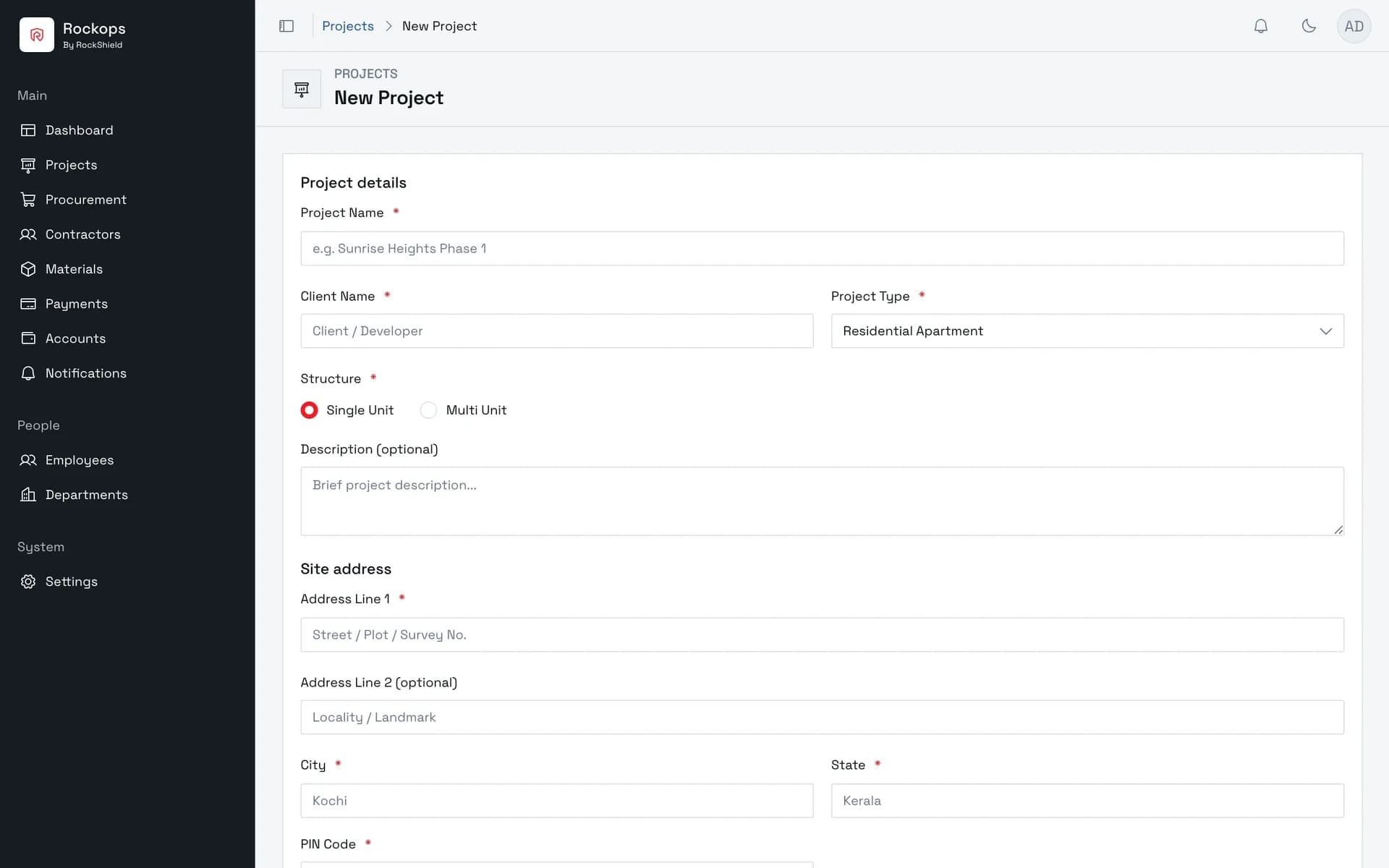
1. Open the New Project form
From Projects, choose New Project. The form is the same one a single-unit project uses — one field on it is what makes the difference.
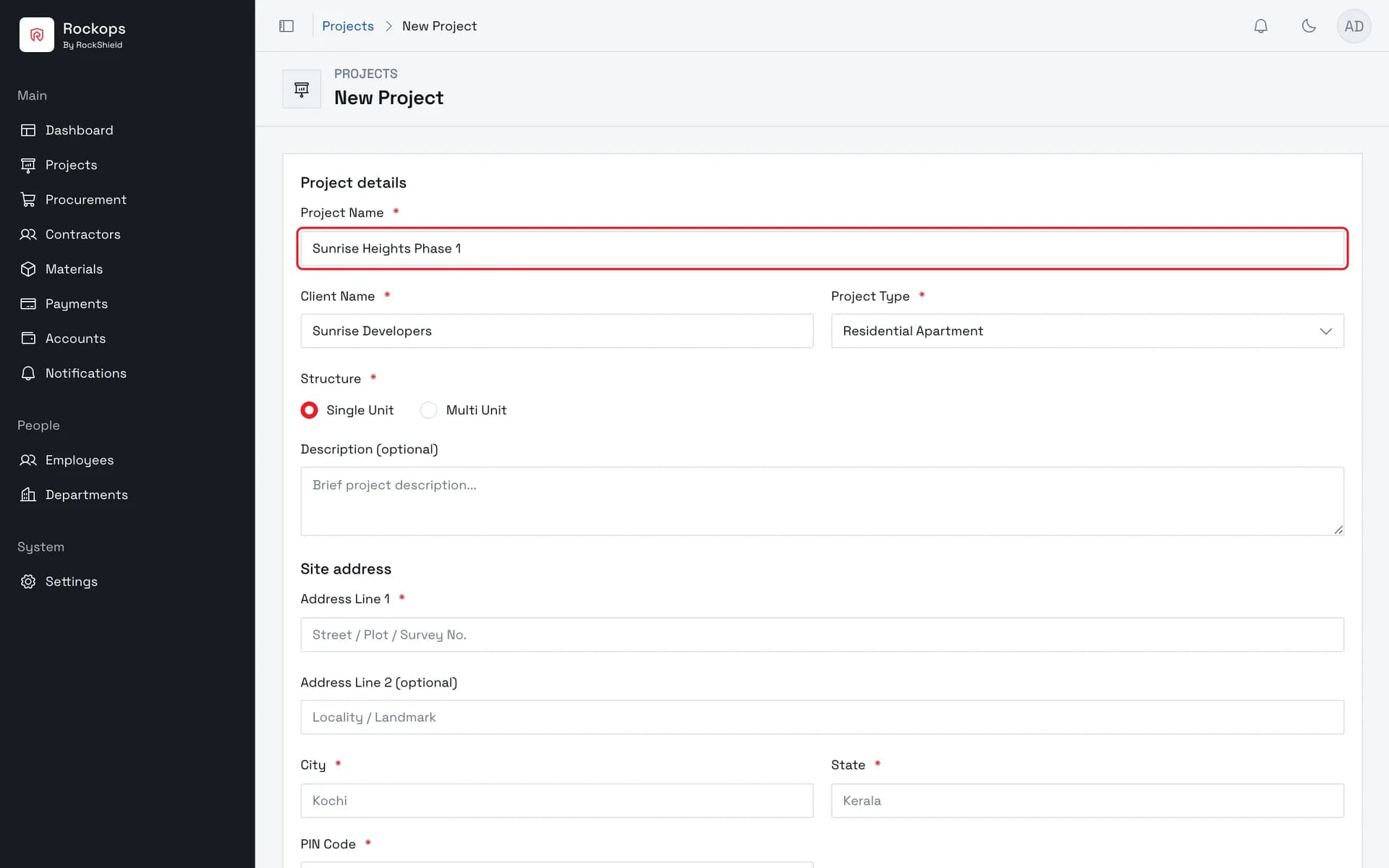
2. Name the project, its client, and its type
Name and client are required text, up to 160 characters each. Project Type defaults to Residential Apartment, which is usually right for a multi-unit build but is worth checking.
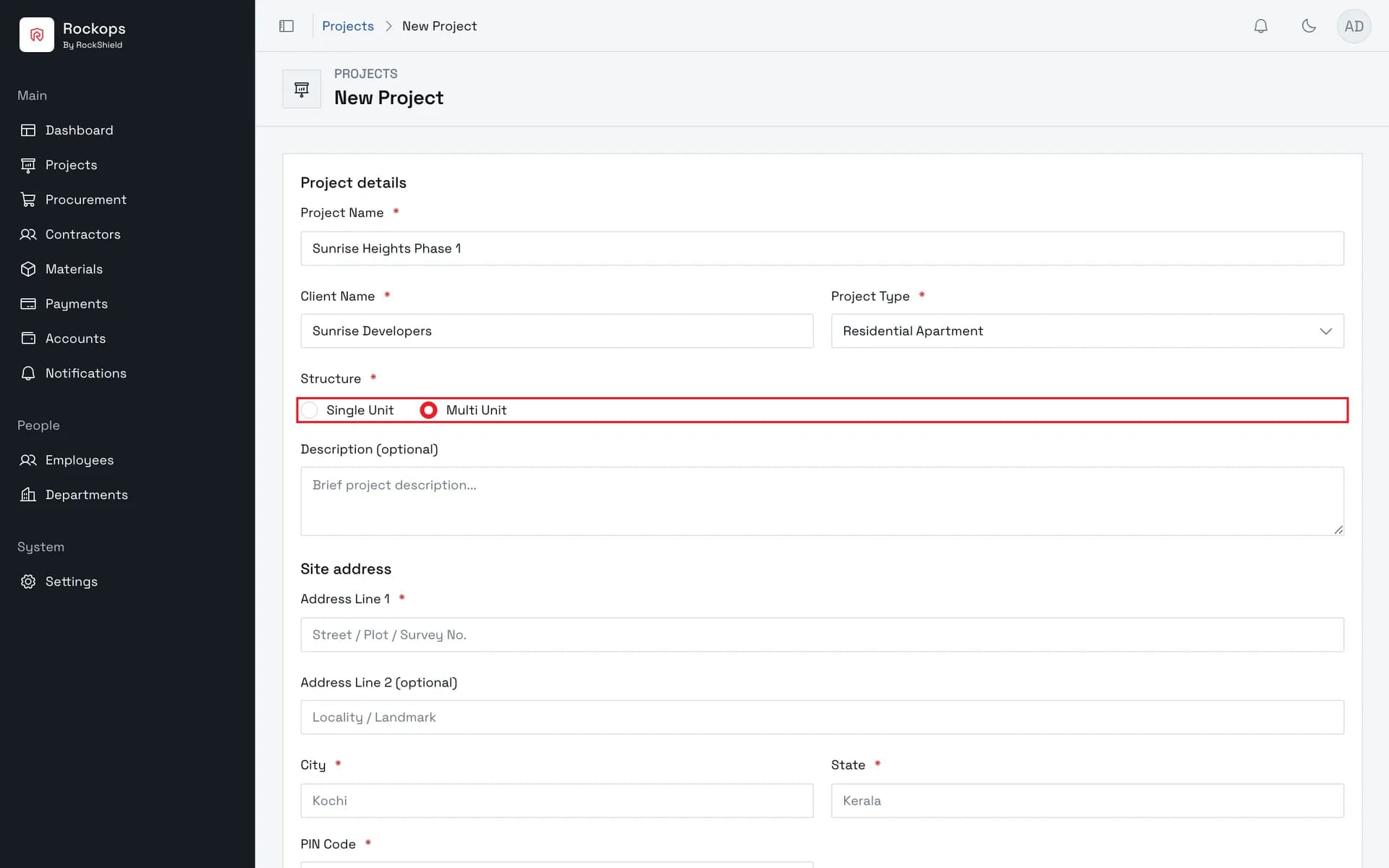
3. Choose Multi Unit
This is the field that separates the two kinds of project. It defaults to Single Unit, so it has to be changed deliberately — and saving with Multi Unit selected opens unit setup instead of the project overview.
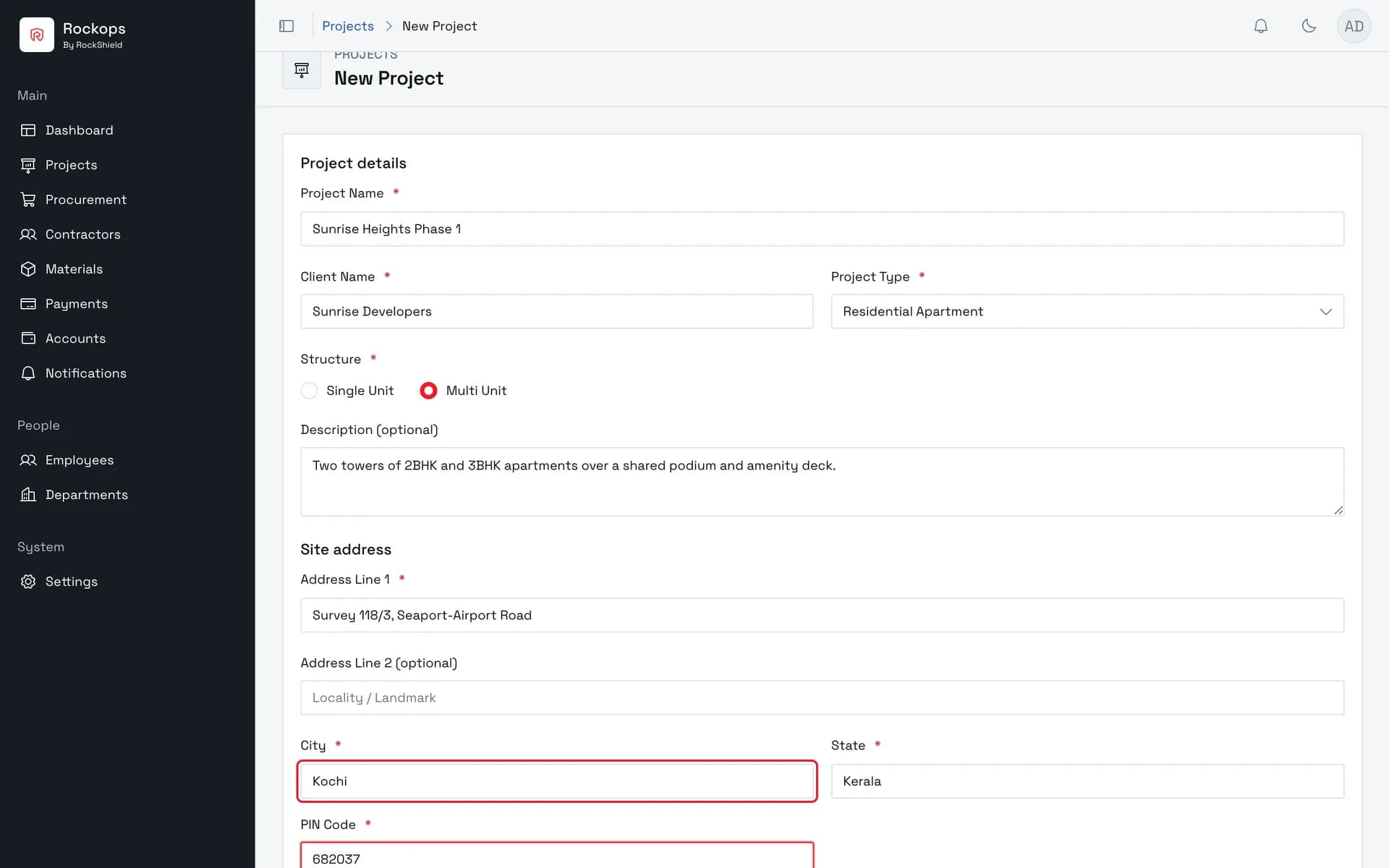
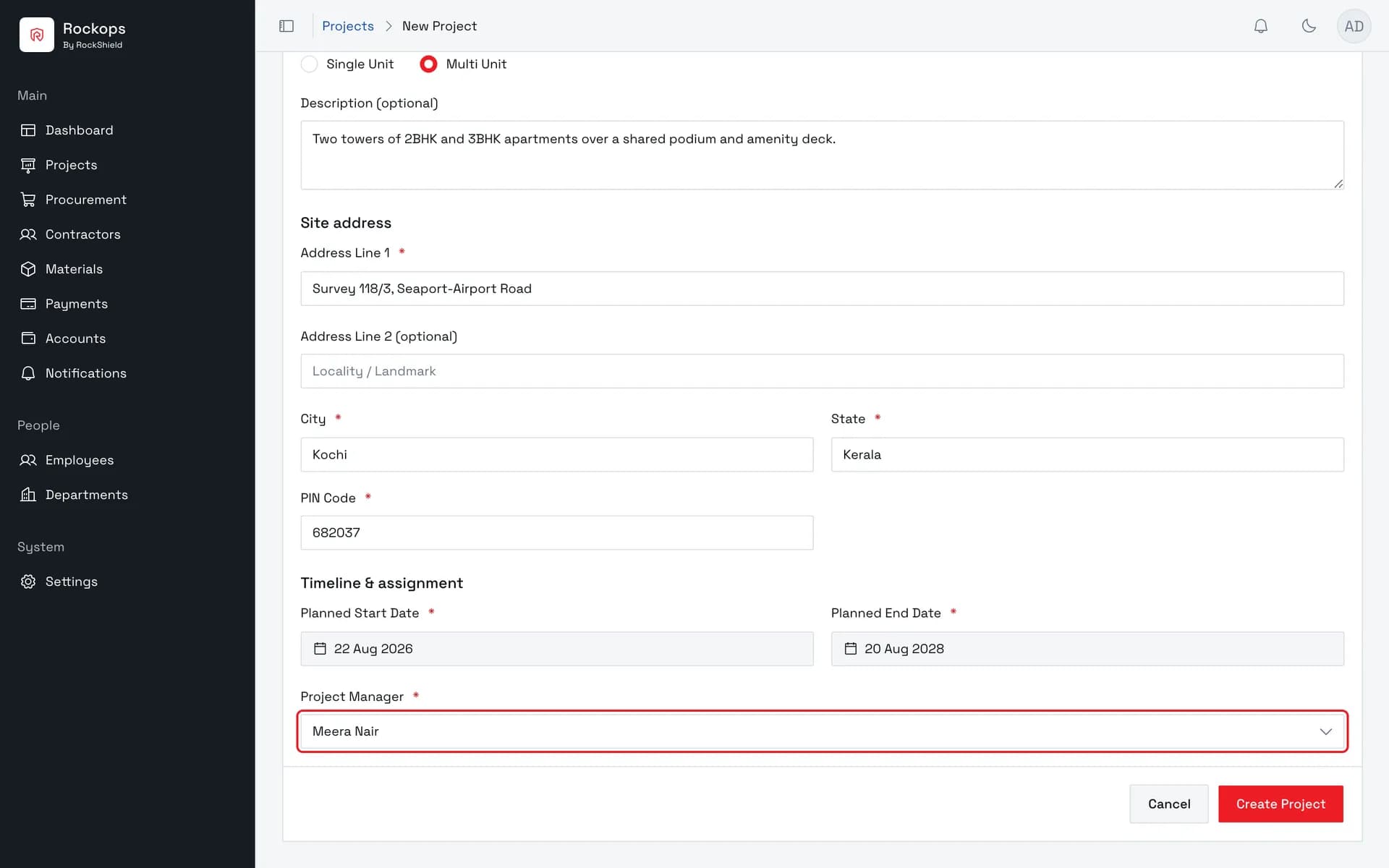
4. Enter the site address
Everything except Address Line 2 is required. This is the site, not the client's office — it is what the project's overview shows.
5. Set the timeline and the project manager
Both dates open a calendar rather than accepting typing, and the end date must be strictly after the start. The manager list holds only active employees who hold the Project Manager organization role.
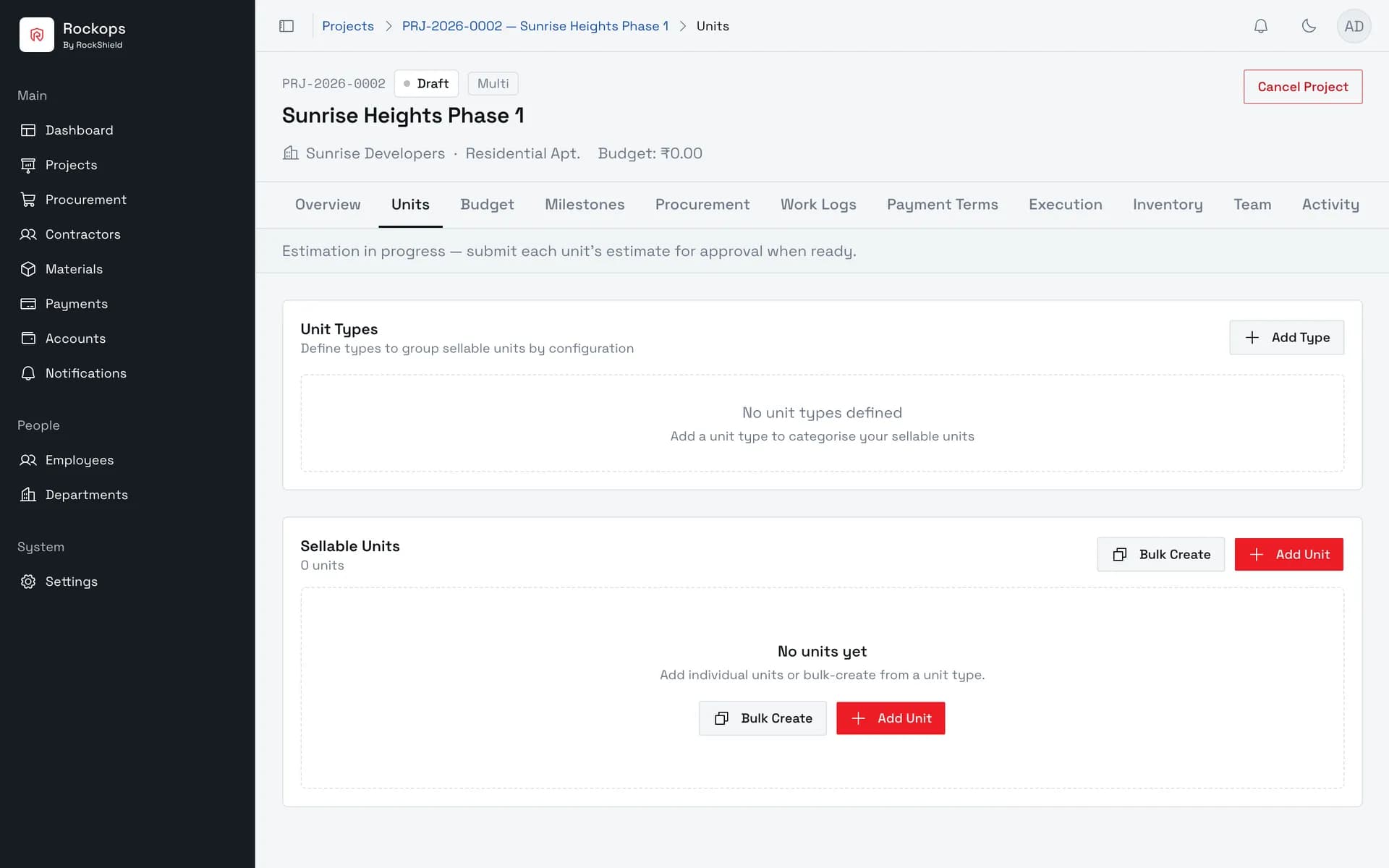
6. The project opens on unit setup
A multi-unit project lands here rather than on its overview, because it has nothing to show until it has units. Adding them is the next task — see Add units to a project.
Field reference
Every field on this form behaves exactly as it does for a single-unit project; see Create a single-unit project for the full table. Only one entry differs in consequence.
| Field | Required | Rules |
|---|---|---|
| Structure | Yes | Single Unit or Multi Unit. Defaults to Single Unit, so multi-unit has to be chosen deliberately. Fixed at creation — the update endpoint does not accept it. |
| Project Manager | Yes | Active employees holding the Project Manager organization role, and only those. Unlike Structure, this one can be changed later, through the project's own Change Manager action. |
Best practices
- Decide Structure before you press Create Project. It is the one field on this form that cannot be corrected later, and it is the one the form fills in for you.
- Plan the unit types, not just the unit count. Unit setup groups sellable units by type, and Bulk Create generates units from a type — so two towers of 2BHK and 3BHK is far quicker to set up as two types than as a long list of individually added units.
- Use Multi Unit even for a small number of units. Two or three villas sold separately still want per-unit estimates and a consolidated budget; a single-unit project gives you neither.
Troubleshooting
Saved the project and landed on the overview instead of unit setup — Structure was left on its default, Single Unit. The project has no Units tab and cannot be converted; create a replacement with Multi Unit selected and cancel the original.
The Units tab isn't there — same cause. Units and Budget appear only on multi-unit projects; a single-unit project shows Estimate instead.
The Project Manager list is empty — nobody in the organization holds the Project Manager organization role. Set System role to Project Manager on an employee's Employment step first.
"End date must be after start date" — the two dates are equal or reversed. A multi-unit build usually runs long enough that this is a mis-click in the calendar rather than a real plan.
Create Project fails even though the form looks complete — you are signed in as a role that can read projects but not create them. See Before you start.
Create a single-unit project
Set up a standalone build — one villa, one shed, one bridge — with its client, site, planned window, and project manager.
Add units to a project
Define a unit type, then create a block of units from it in one batch — the fastest route from an empty multi-unit project to something estimable.