Submit and approve an estimate
Move an estimate from draft to approved — what locks, who decides, and how to reopen one that has already been signed off.
Overview
An estimate is not a commitment until it has been through approval. The cycle is short and has one point of no return:
Draft → Submit for Approval → Submitted → Approve → Approved
From Submitted, two other doors are open: whoever manages the project can Withdraw, which returns the estimate to draft for more editing, and an approver can Reject, which sends it back with a mandatory reason. From Approved or Rejected, the only way forward is Revise Estimate, which copies the version into a fresh draft and leaves the old one on record unchanged.
Submitting locks the estimate. From that moment the builder is read-only, and it stays that way through approval — an approved estimate is never editable again, only superseded by a revision.
The project's own status follows from its estimates rather than being set directly. While any estimate is submitted the project reads estimation submitted; once every estimate is approved it becomes estimation approved; and if neither is true it falls back to draft. On a multi-unit project that means approving one unit out of eight leaves the project in Draft, because seven are still outstanding.
Before you start
The estimate must have something in it. Two conditions are checked at submit time and neither is set on this screen:
- The project needs at least one milestone. See Add project milestones.
- The estimate total must be more than zero. A contingency percentage does not count — it multiplies a grand total that is still zero.
Submitting and withdrawing require Administrator, Owner, or Project Manager. Approving and rejecting require the same three, in the interface and on the server alike, so nothing here can be started and then refused. In an organization where one person holds all of those roles, that person can approve their own submission — the separation is by role, not by individual.
1. Check the estimate before submitting
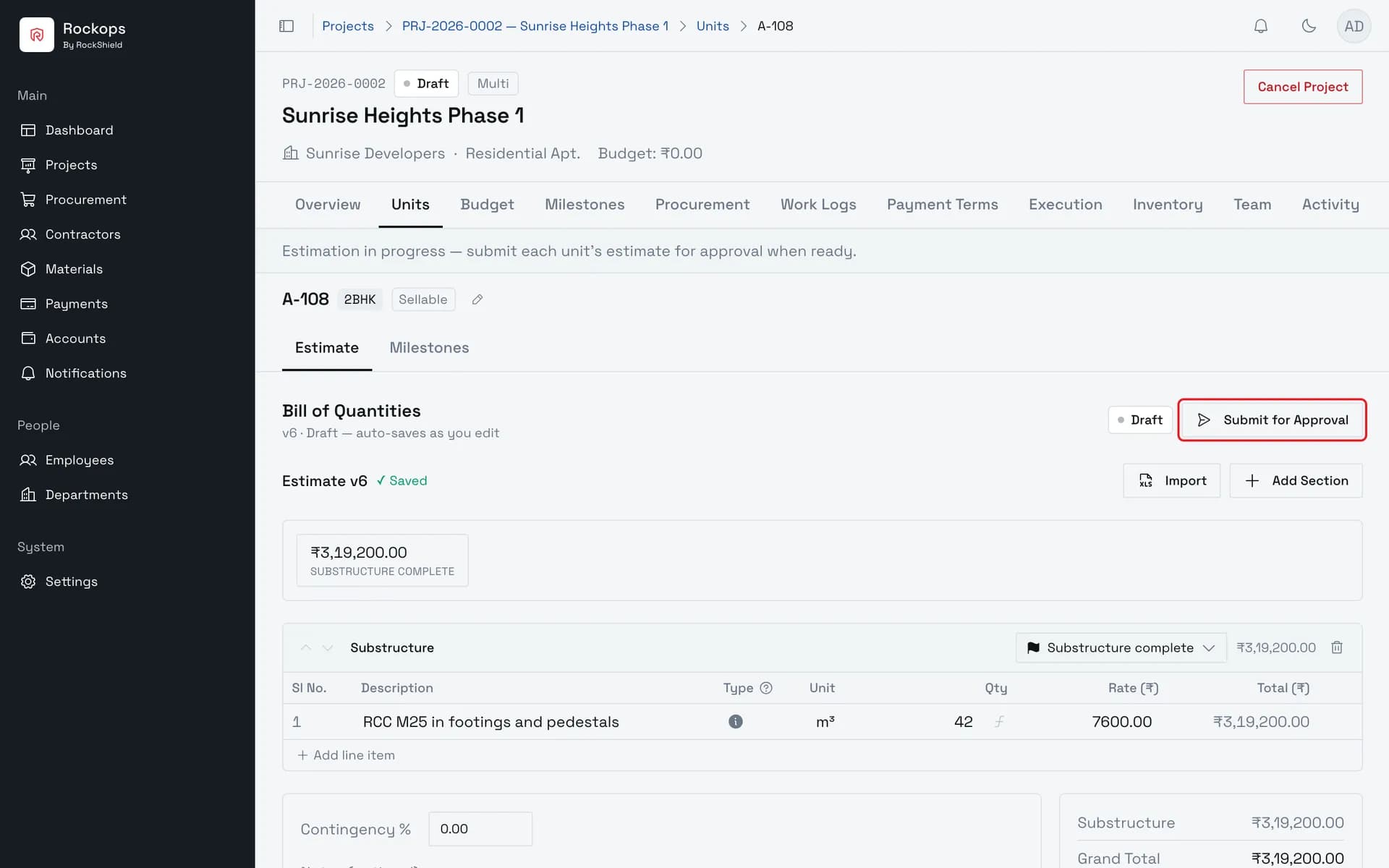
Submit for Approval sits beside the status badge, above the bill. It appears only while the estimate is a draft.
2. Confirm the submission
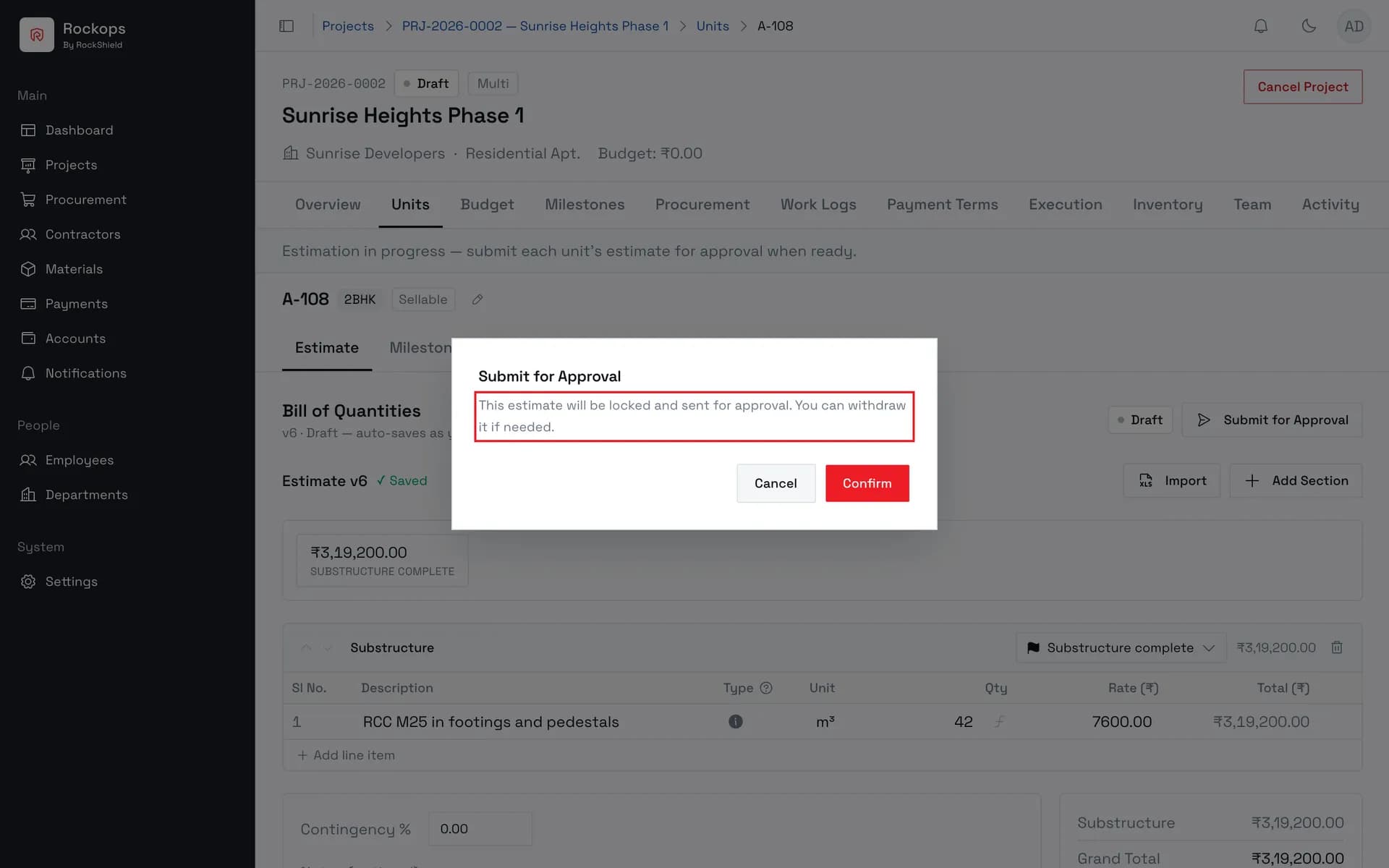
The estimate locks as soon as it is submitted — no more editing until it is withdrawn, rejected, or revised.
3. The estimate is awaiting a decision
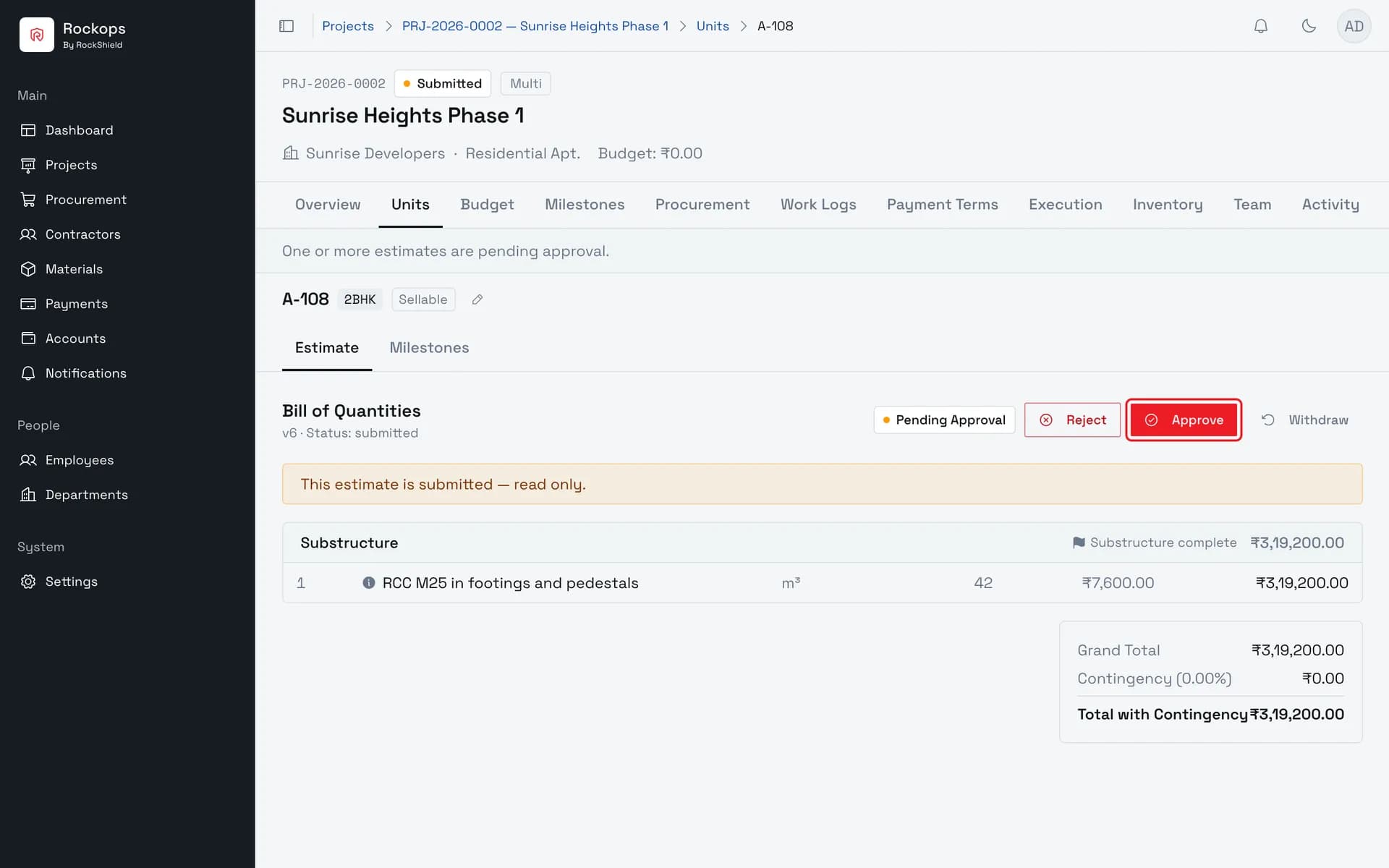
A submitted estimate offers Reject and Approve to anyone who can approve, and Withdraw to whoever manages the project. The bill below is now read-only.
4. Approve, with an optional note
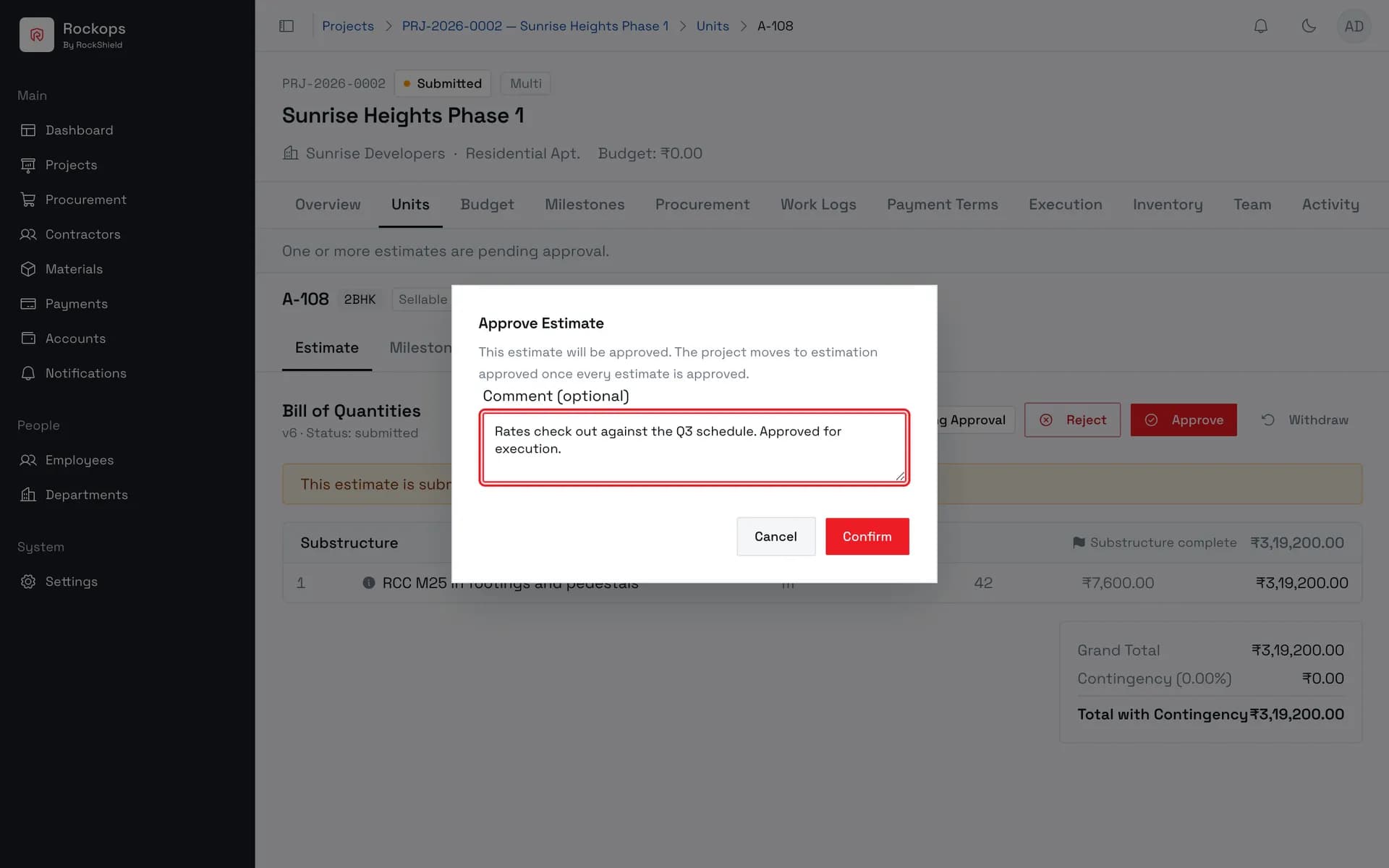
The comment is optional when approving and required when rejecting — the Confirm button stays disabled on a rejection until one is written.
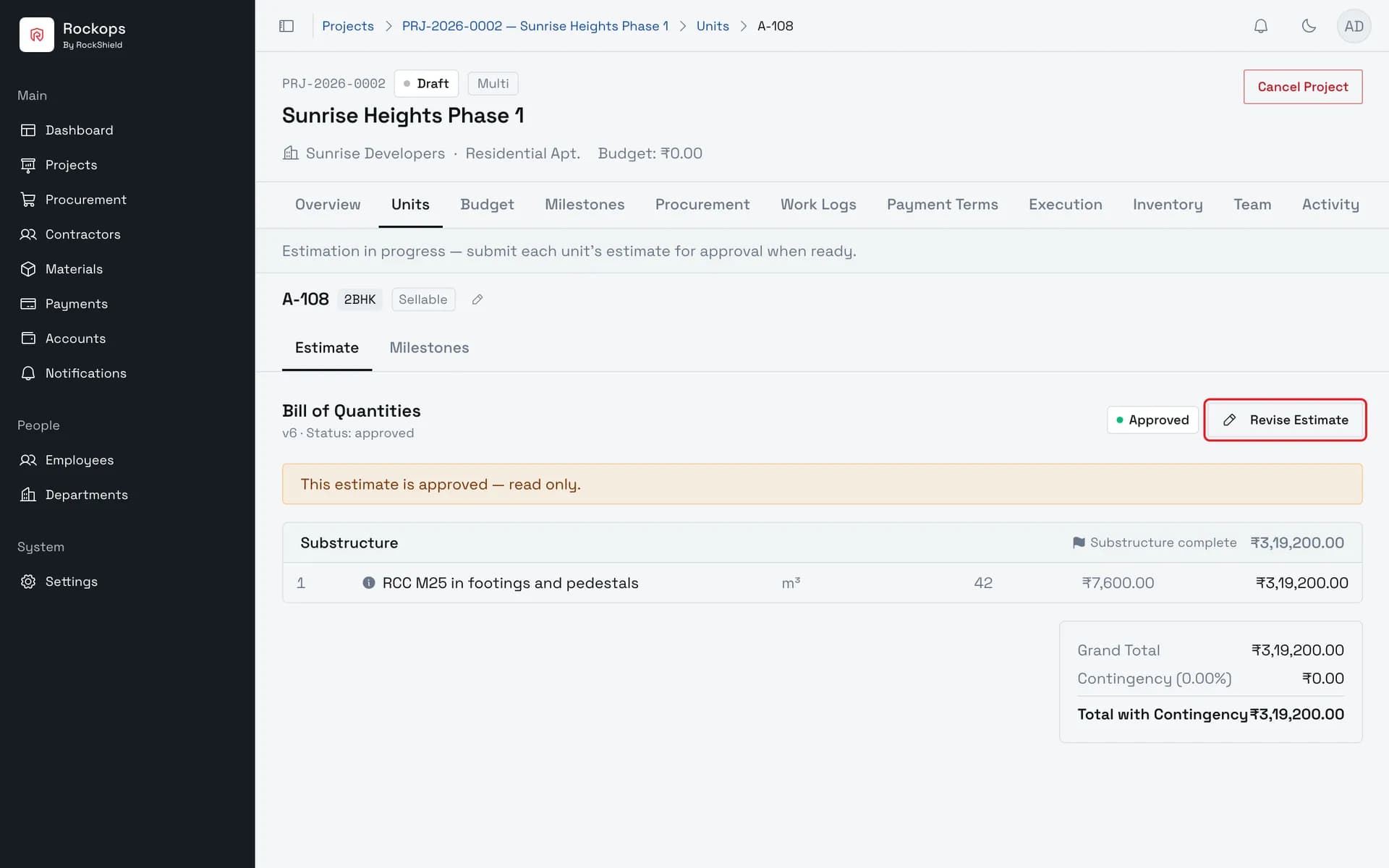
5. Approved
The estimate is approved and permanently read-only. Revise Estimate is the only way forward from here — it copies this version into a new draft and leaves the approved one on record.
Field reference
| Control | When it appears | What it does |
|---|---|---|
| Submit for Approval | Estimate is a draft | Locks the estimate and sends it for a decision. Confirmation only — no comment field. |
| Approve | Estimate is submitted | Approves it. Comment optional. |
| Reject | Estimate is submitted | Sends it back. Comment required — Confirm stays disabled until one is written. |
| Withdraw | Estimate is submitted | Returns it to draft for further editing. |
| Revise Estimate | Estimate is approved or rejected | Creates a new draft version copying the sections, line items, and contingency. The earlier version stays on record. |
| Version picker | More than one version exists | Switches the bill between versions. Older versions are always read-only. |
Revising an approved estimate also walks the project back to Draft, so the new version can be edited — and it will need approving again. That walk-back is done for you rather than left as a step to guess at.
Best practices
- Check the totals, not just the lines, before submitting. Submission is the last moment the estimate is editable without creating a new version.
- Write a reason even when approving. It is optional on approval and required on rejection, but it is the only record of why a number was accepted, and it is what the next person revising the estimate will read.
- Withdraw rather than reject your own submission. Withdrawing returns the estimate to draft in place; rejecting starts the revision cycle and adds a version.
- On a multi-unit project, submit units as they are ready. The project only moves once every estimate is approved, so there is nothing to gain by holding finished ones back.
Troubleshooting
"At least one master milestone is required before submitting" — the project has no milestones at all. This is a project-level requirement; nothing on the estimate can satisfy it.
"Estimate total must be greater than zero before submitting" — every line is missing a quantity or a rate.
The submit dialog says "… sections have no stage assigned" — a warning, not a block. Those sections count toward the total but appear under no stage in the estimate's stage summary. Submit anyway, or cancel and attach a milestone to each section first. The count reflects the last saved estimate, so reload the page if you have just tagged sections.
"Estimate is not in draft status" — it has already been submitted. Refresh the page; someone else may have submitted it while you had it open.
"Estimate is not pending approval" — the decision has already been made, or the submission was withdrawn, since the page was loaded.
Confirm is greyed out on a rejection — a comment is required to reject. Write one and it becomes available.
There is no Submit for Approval button — the estimate is not a draft. Its status badge sits immediately to the left; a submitted one offers Approve, Reject, and Withdraw instead, and an approved one offers Revise Estimate.
Revise Estimate is missing on an approved estimate — the project is completed or cancelled. A terminal project accepts no new commitment, so no new version can be started against it.
Approved the wrong estimate — nothing un-approves it. Use Revise Estimate, correct the new draft, and put it through approval again. The approved version stays on record either way.
Calculate a quantity with a worksheet
Work out a line's quantity in a small spreadsheet attached to that line, so the take-off is stored with the estimate and an approver can see where the number came from.
Staff a project
Put your own people on a project's reporting tree, and engage the contractors who will do the work.