Give a site supervisor access
Turn an employee into a site-app user — a login, an invitation, and a place on a project's team.
Overview
Site supervisors report progress and request material from the site app, a
phone app at pwa.rockops.devarithm.com. Getting someone into it takes three
things, done in the console, and missing any one of them leaves them stuck:
- A login. An employee only gets one when their System role is set. Choosing Site Supervisor creates an account for their personal email.
- A password. RockOps never sets one for them. Send Invite emails a link, and they choose their own password when they accept it.
- A project. The site app only shows projects the supervisor is a team member of. Signed in with none, Updates and Inventory read "You have no assigned projects".
Before you start
Sending an invitation needs Administrator, Owner, or HR. Adding someone to a project team needs Administrator, Owner, or Project Manager.
The project needs a Project Engineer on its team already. A site supervisor reports to one, and the Reports To picker offers nobody until one exists.
The employee's personal email must be an inbox they can open. It is where the invitation goes, and it becomes their sign-in address.
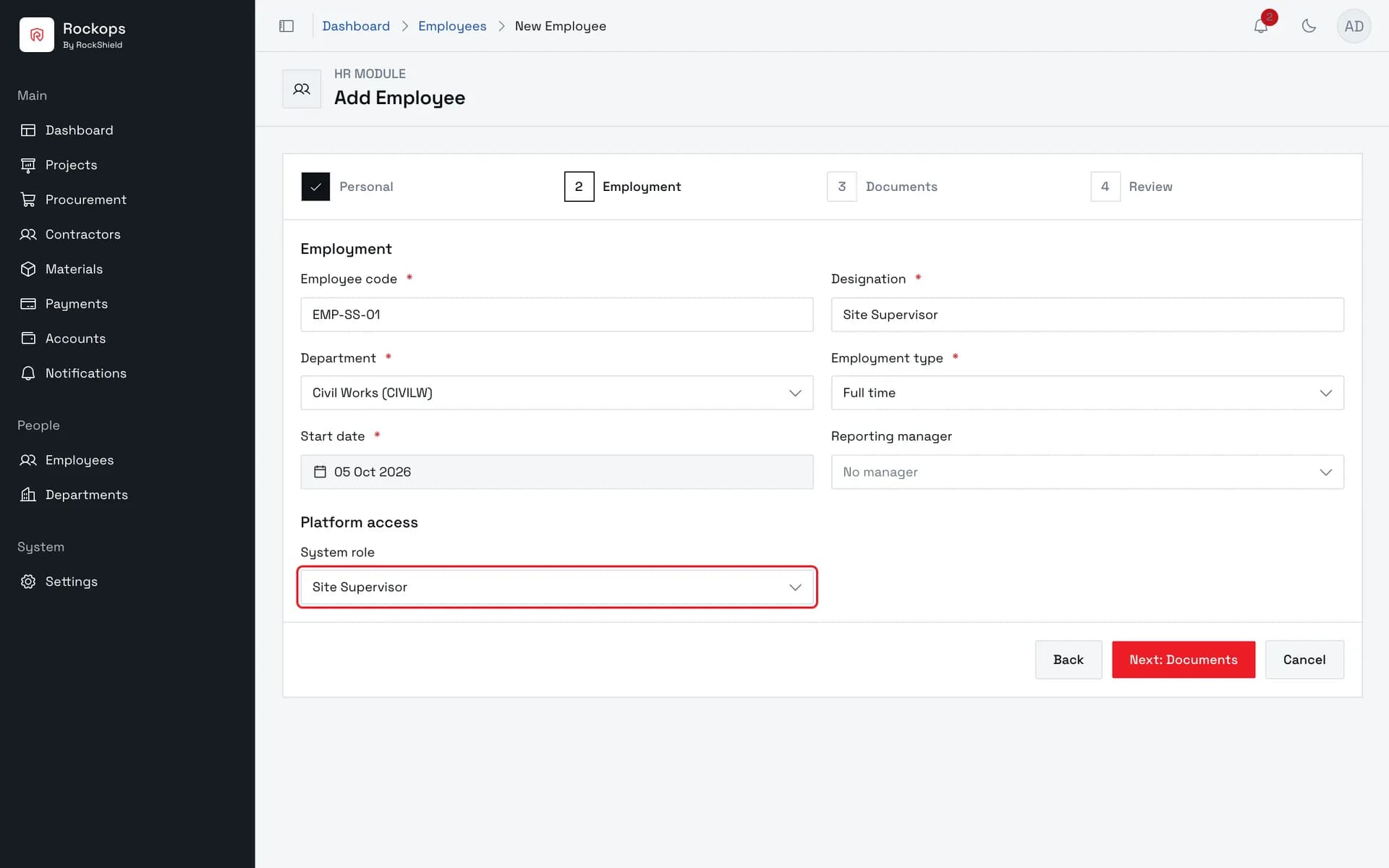
1. Set System role to Site Supervisor
It sits under Platform access on the Employment step. Setting any system role creates a login for the employee's personal email; without one, the employee has no RockOps access at all.
2. Send the invitation
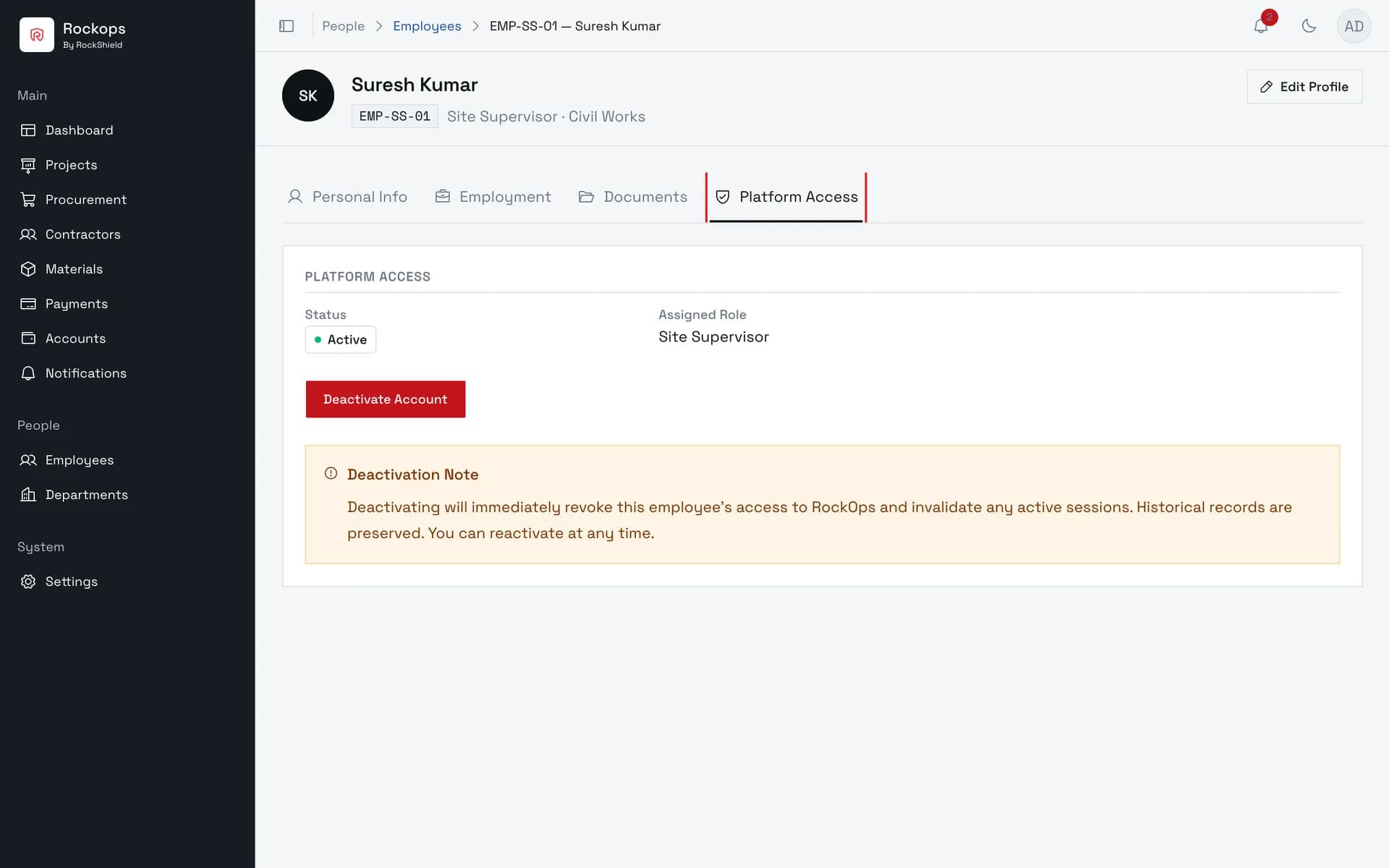
Open the employee's Platform Access tab. Send Invite emails a link to the personal email; the supervisor opens it and chooses their own password. The button disappears once they have.
3. Add them to the project team
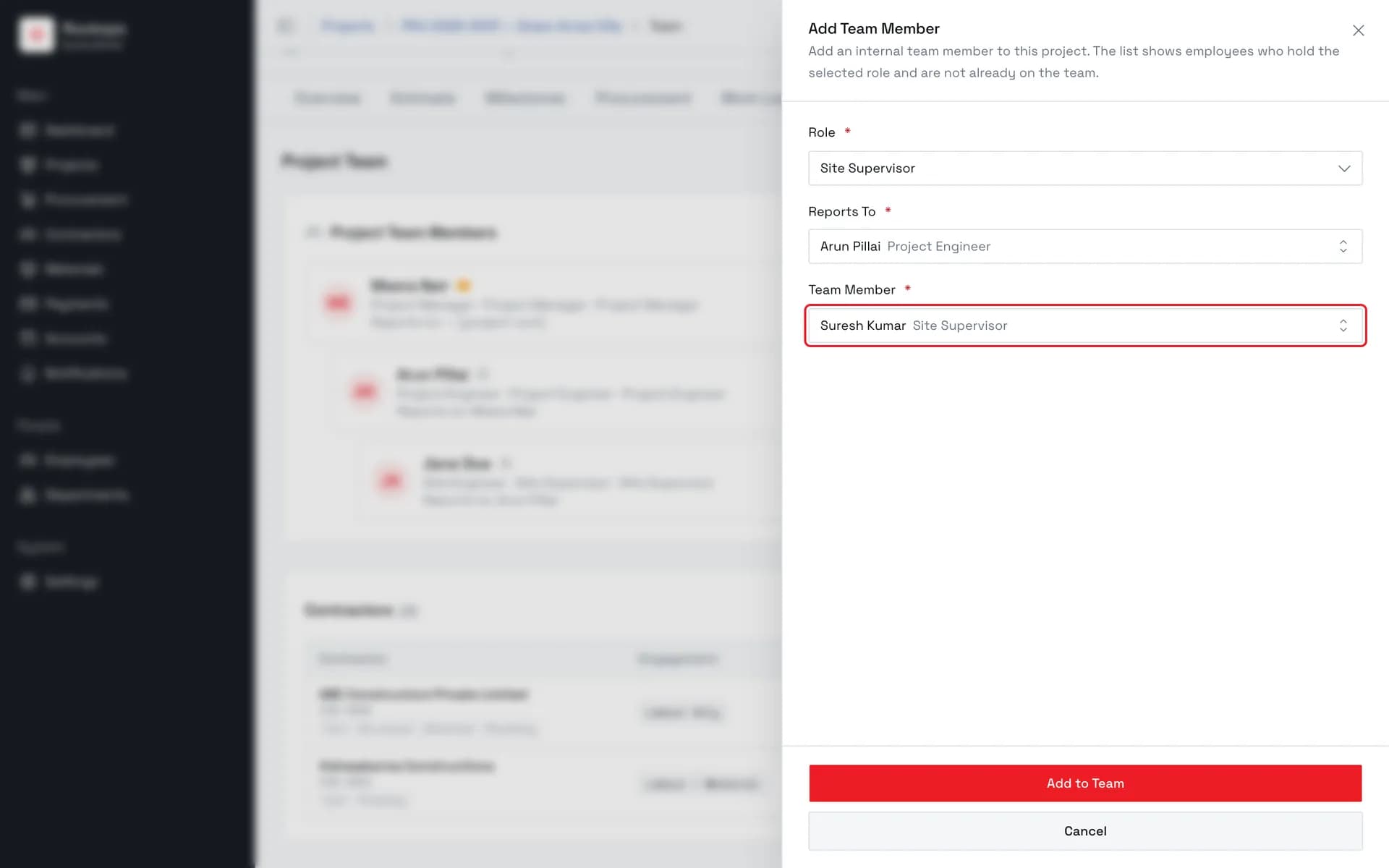
On the project's Team tab, choose Add Team Member with the Site Supervisor role. A site supervisor reports to a Project Engineer, so one must already be on the team.
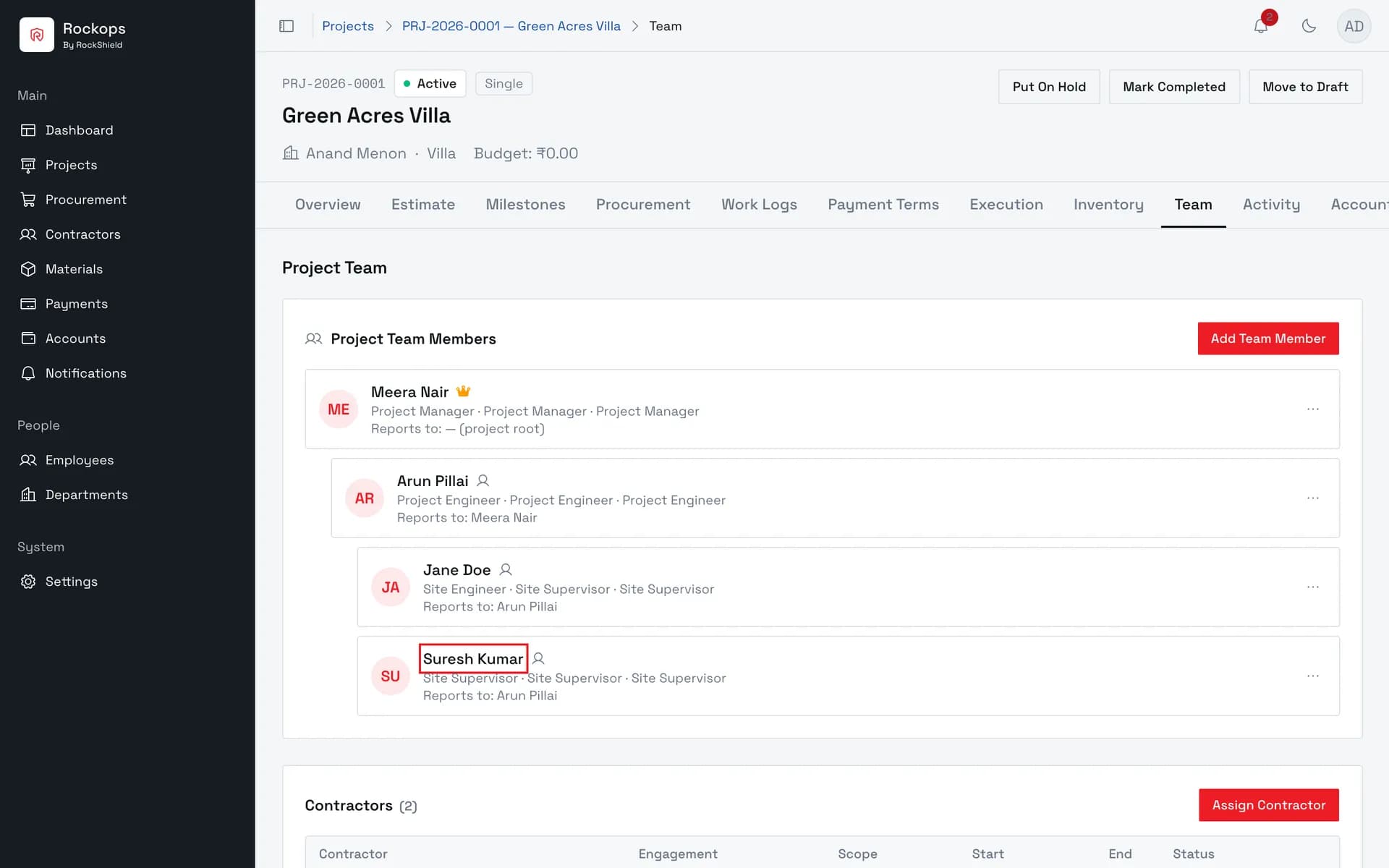
4. The supervisor is on the project
This project now appears in their site app. A supervisor on several projects can switch between them there.
Accepting the invitation
This part is done by the supervisor, not by you. The email links to a page in the console with two fields and an Accept invitation button:
| Field | Rules |
|---|---|
| Password | The page suggests at least 8 characters with a mix of letters and numbers. |
| Confirm password | Must match. |
Once accepted, the account is active. The supervisor then opens the site app and signs in with their personal email and that password. On the employee's Platform Access tab, Send Invite disappears.
Field reference
| Where | Field | Rules |
|---|---|---|
| Add Employee → Employment | System role | Optional on the form, but without it the employee has no login at all. Choose Site Supervisor. |
| Employee → Platform Access | Send Invite | Shown only while the account has a role and has not been activated yet. |
| Project → Team → Add Team Member | Role | Site Supervisor. |
| Project → Team → Add Team Member | Reports To | A Project Engineer already on the team. |
| Project → Team → Add Team Member | Team Member | Only active employees whose System role is Site Supervisor, and who are not already on this team. |
Best practices
- Add them to the team before they first sign in. Otherwise their first look at the app is the empty "no assigned projects" screen.
Troubleshooting
The supervisor never got the email — choose Send Invite again. It resends the same pending invitation instead of creating a new one, so an older link keeps working.
"This invitation has expired" — invitations are valid for seven days after they are sent. Send a new one from the Platform Access tab.
"This invitation has already been used" — the account is already active. The supervisor should sign in with the password they chose when they accepted it.
"Passwords do not match." — the two password fields on the accept page differ.
Send Invite isn't on the Platform Access tab — either the employee has no System role (edit the employee and set one), or the account is already activated.
The supervisor isn't offered in Team Member — their System role is not Site Supervisor, they are inactive, or they are already on this project's team.
"You have no assigned projects" in the site app — the supervisor signed in but is on no project's team. Add them from the project's Team tab, then have them reload the app.