Sign in to the site app
Get into the site supervisor's phone app, find your way around its three tabs, and switch between projects.
Overview
The site app is RockOps on a phone, for the people on site. It lives at
pwa.rockops.devarithm.com and does three jobs: post the day's progress,
check stock and ask for more, and pass on notifications. Everything else —
estimates, purchase orders, payments — stays in the console.
The app always works on one active project at a time. Updates and Inventory both show that project, and the choice is remembered on the device between visits.
Before you start
You need an activated account and at least one project. Both come from your office: an invitation email to set your password, and a place on a project's team. See Give a site supervisor access.
The app can be installed to the phone's home screen, but it is a website and works the same in the browser.
1. Sign in
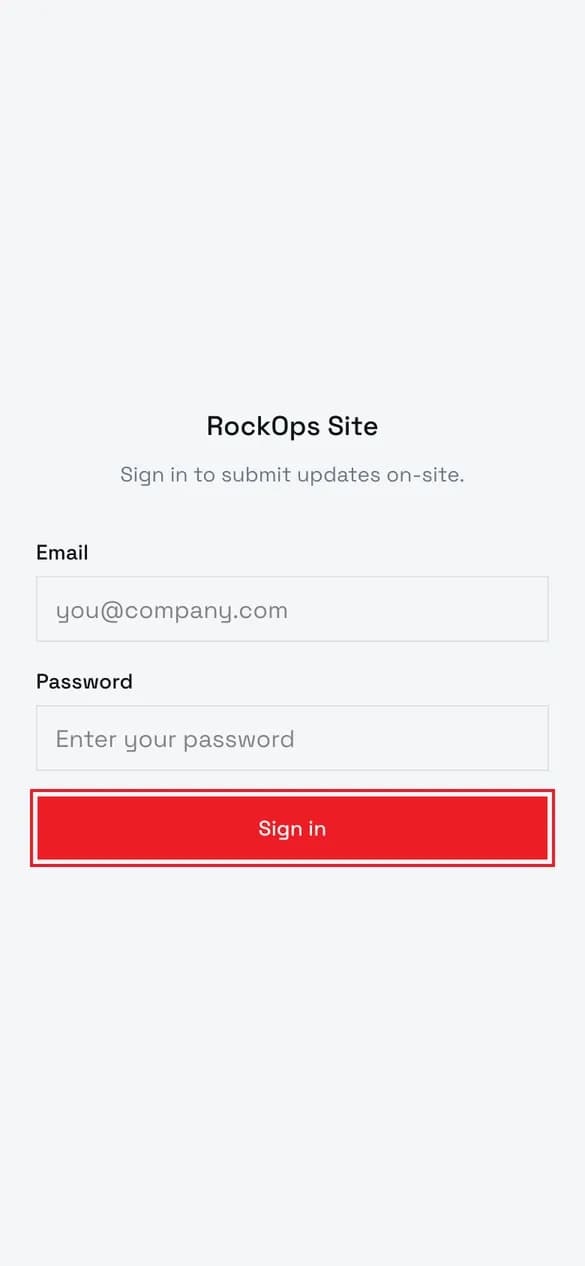
Use the email your invitation was sent to and the password you chose when you accepted it.
2. You land on Updates
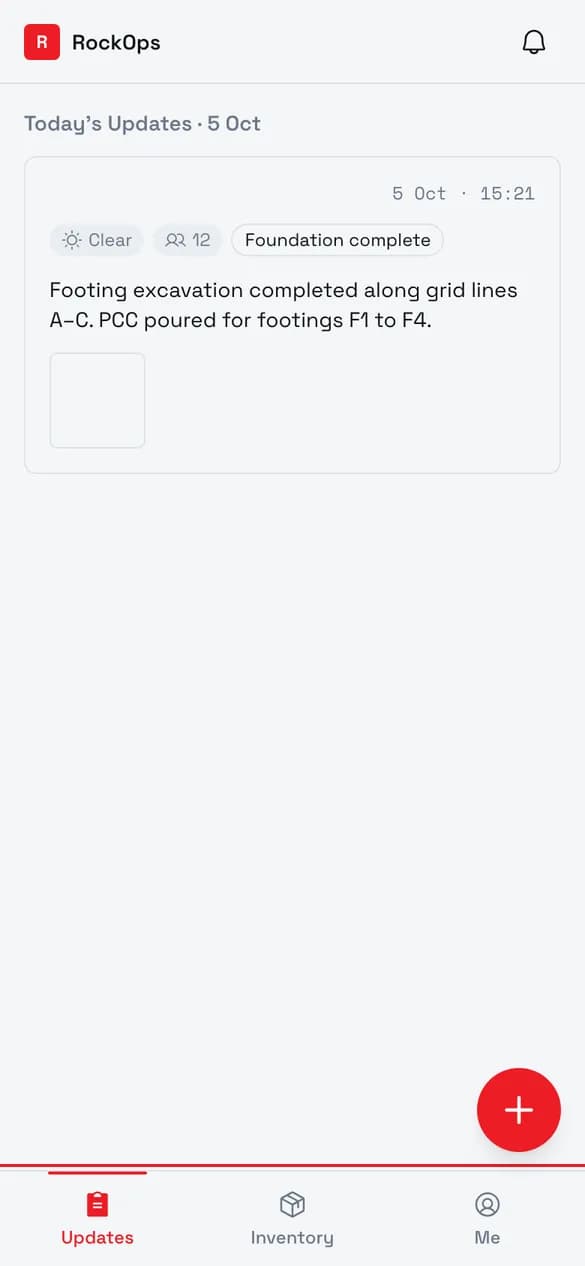
Three tabs run along the bottom: Updates for daily site reports, Inventory for stock and buy requests, and Me for your account. The bell at the top opens notifications.
3. Check your assigned projects
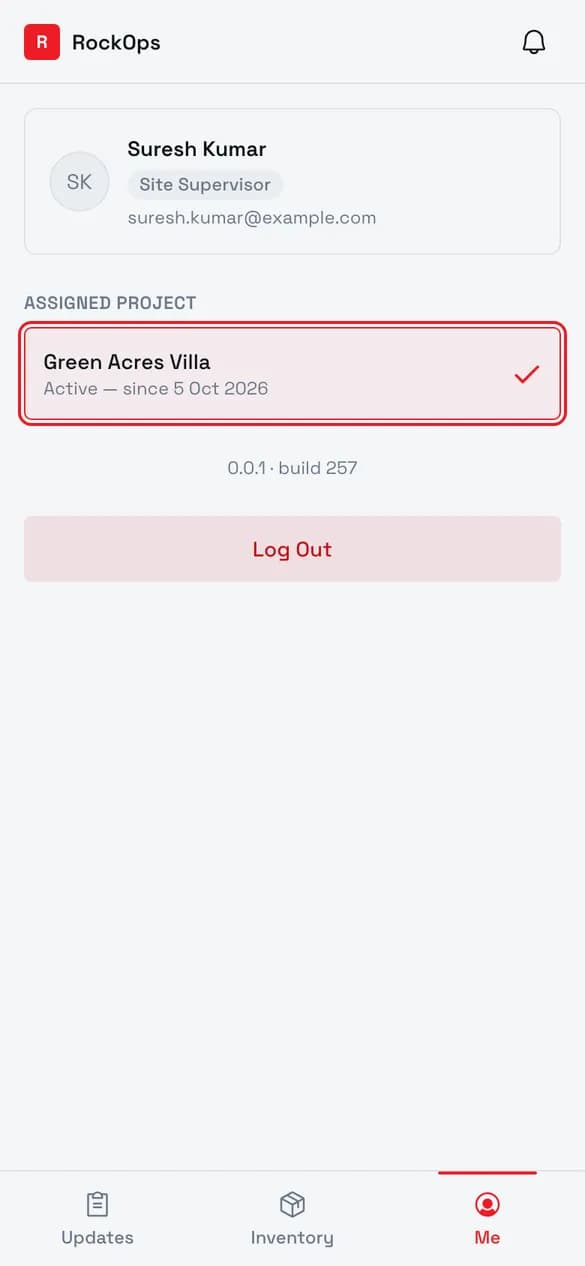
Me lists every project you are on. The one with the tick is active, and Updates and Inventory show that project. Tap another to switch.
4. Log out
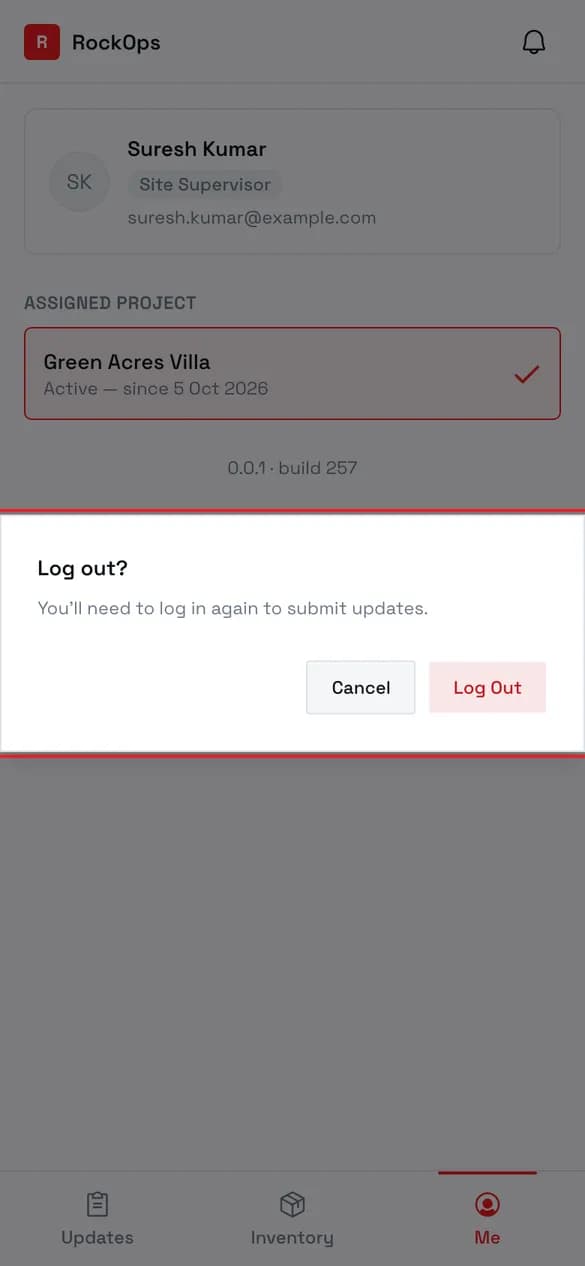
Log Out at the bottom of Me asks for confirmation. Logging out also clears any unsent update draft saved on this device.
Switching projects
On more than one project, the top bar shows the active project's name with a small arrow instead of the RockOps logo. Tap it to choose another. The Me tab's project list does the same thing.
If a project you were on is taken away, the app falls back to the first project you still have.
Field reference
| Field | Rules |
|---|---|
| The personal email your invitation was sent to. | |
| Password | The one you chose when you accepted the invitation. |
Best practices
- Stay signed in on your own phone. Sign-in is remembered, so the app opens straight to Updates next time.
- Log out on a shared phone. It also clears any update draft saved on that device.
Troubleshooting
Sign-in fails with an error above the button — the email or password is wrong, or the account has not been activated yet. Accept the invitation email first; until then there is no password to sign in with.
"You have no assigned projects" — you are signed in, but not on any project's team. Ask your project manager to add you. Me and Notifications still work in the meantime.
A "New version available" bar at the bottom — the app has been updated. Tap Reload to switch to it.