Post a daily site update
Report the day's work from site — what was done, against which milestone, with photos, and whether anything is blocking progress.
Overview
A site update is the supervisor's daily report: a few lines on the work done, optionally tied to a milestone and a unit, with up to five photos. It is posted against the app's active project and lands in that project's Execution progress feed in the console, where the office reads it.
An update can also raise a blocking issue — something that has stopped work. That one is not just recorded: the project manager is notified as soon as it is posted.
Before you start
You need to be signed in to the site app with the right project active. Updates always go to the active project. See Sign in to the site app for switching.
You need to be online to post. Offline, the form still opens and keeps what you type on the phone, but it cannot be sent until you reconnect.
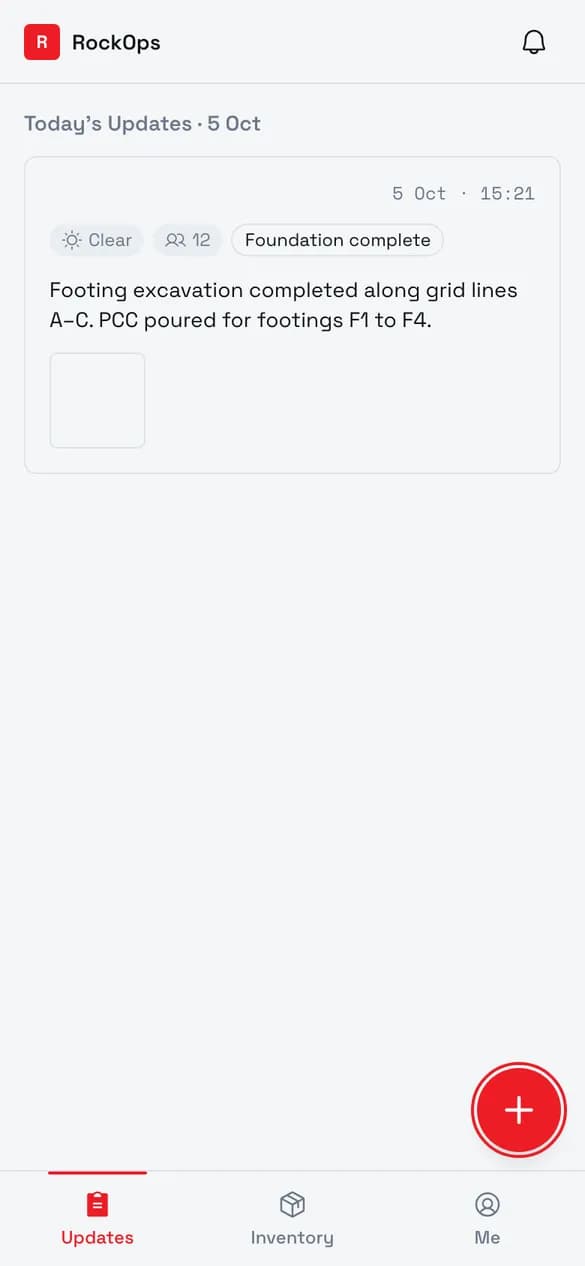
1. Tap + on Updates
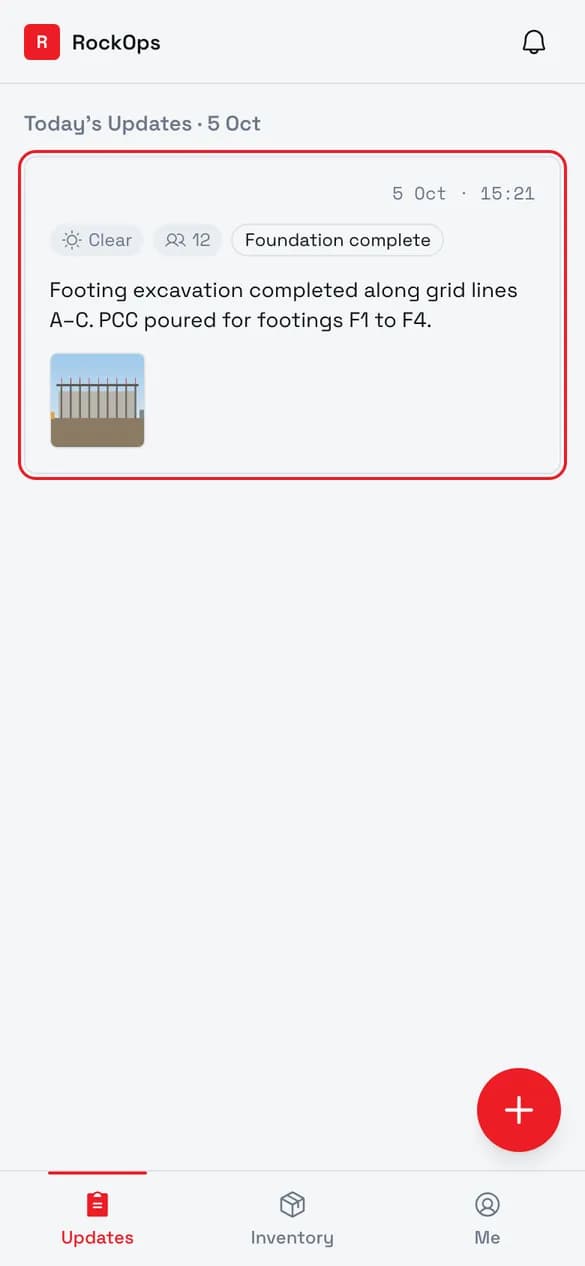
Updates shows today's reports for the active project, with the last seven days folded under Earlier Updates.
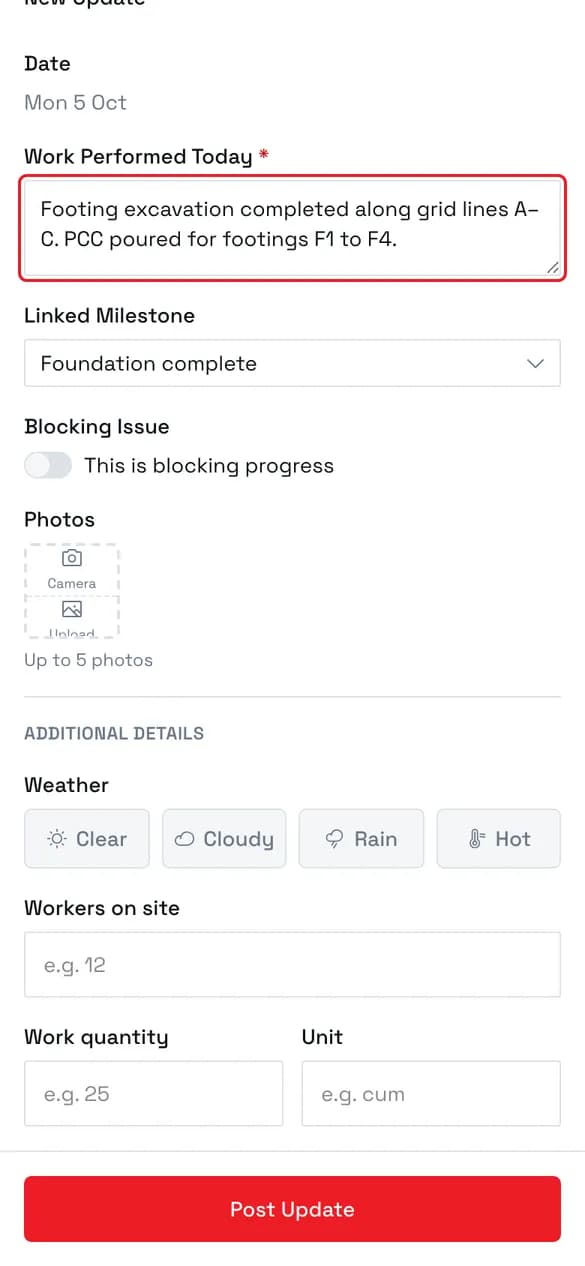
2. Describe the work
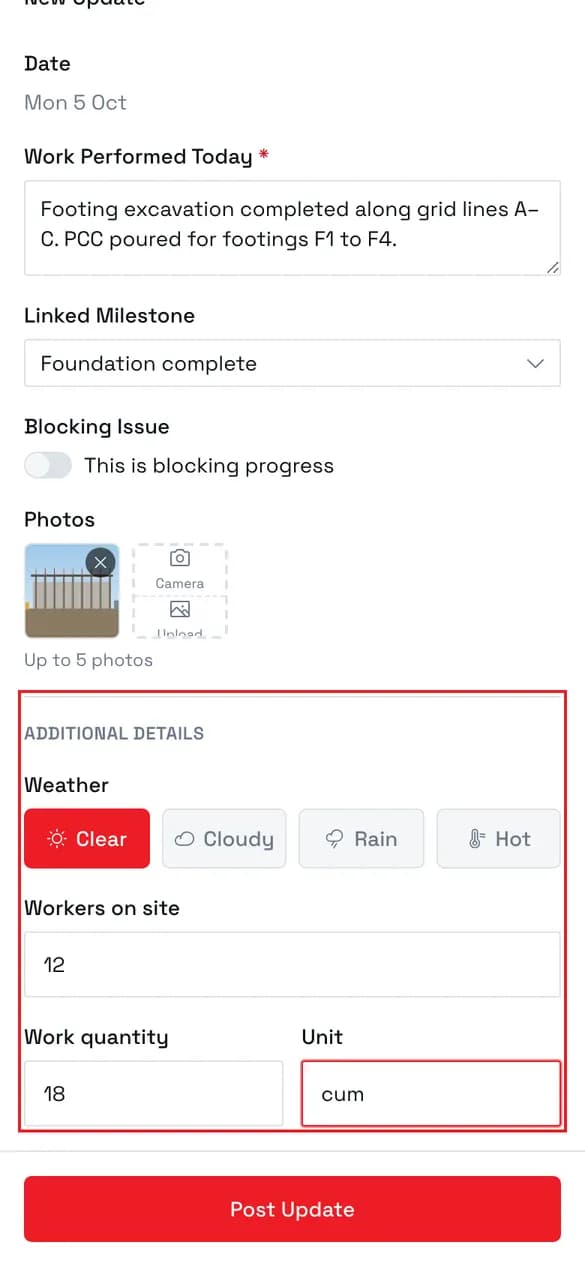
Work Performed Today is the only required field. Linking a milestone files the update against it, so the office can filter the project's progress feed down to that milestone.
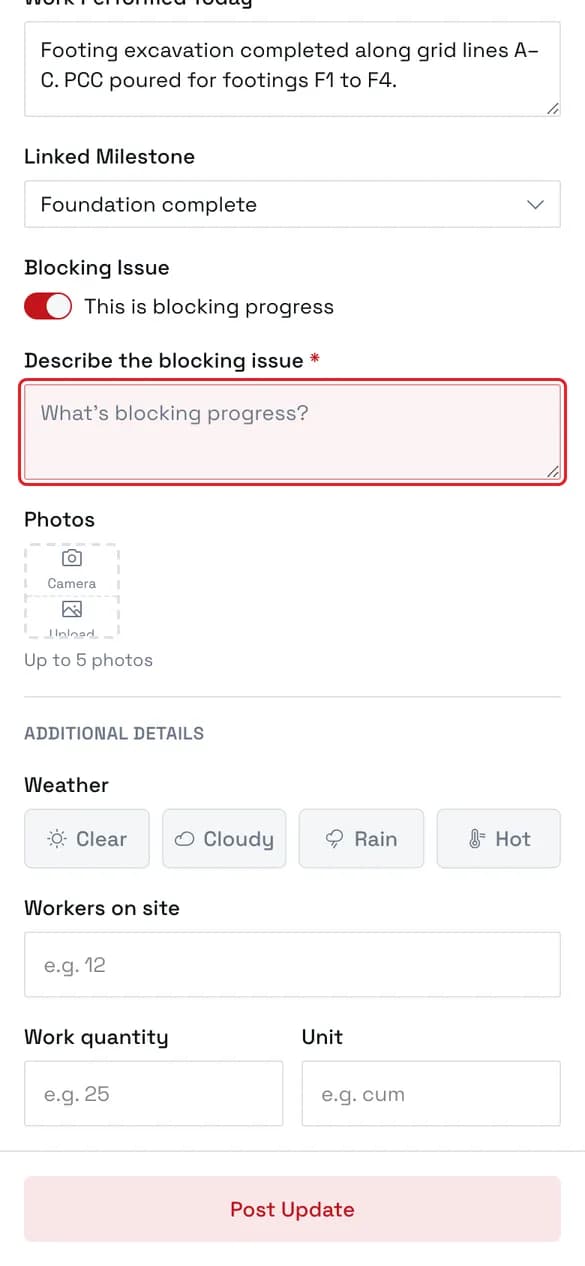
3. Flag a blocking issue
Turn this on only when something is stopping work. It adds a required description, turns Post Update red, and notifies the project manager the moment the update is posted.
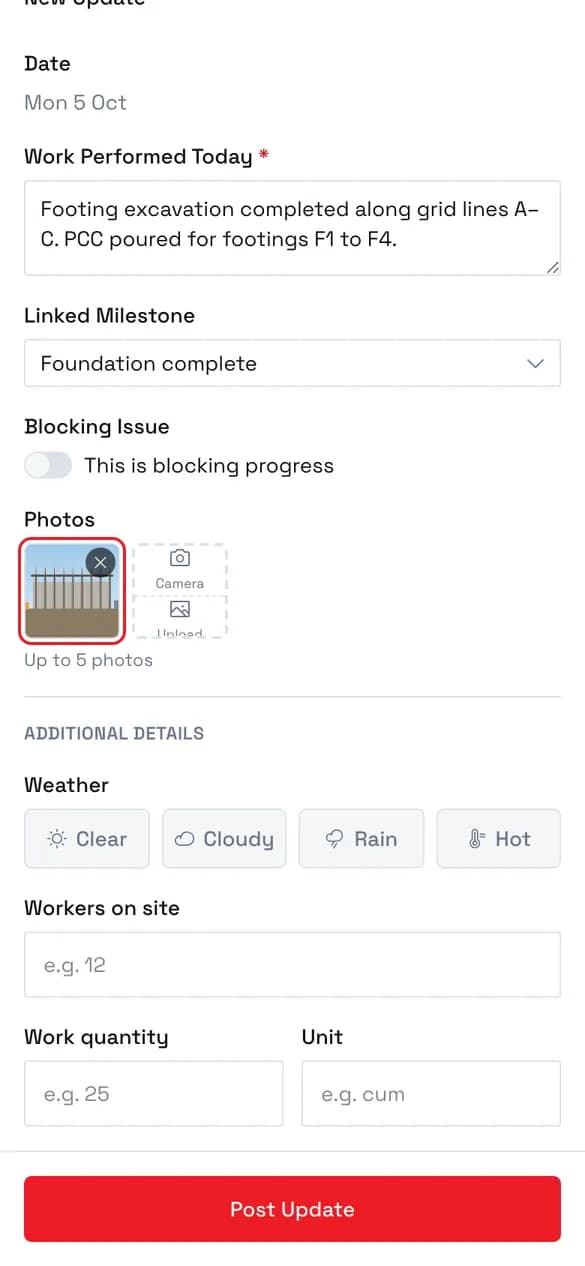
4. Add photos
Camera opens the phone's camera and Upload picks from the gallery. Photos are compressed and uploaded as soon as they are added, up to five per update.
5. Fill in the additional details
6. The update is posted
It appears under Today's Updates with its milestone, weather, and crew size, and shows up in the project's Execution feed in the console.
Field reference
| Field | Required | Rules |
|---|---|---|
| Date | — | Always today. It cannot be changed, so post on the day. |
| Work Performed Today | Yes | Free text. |
| Linked Milestone | No | The project's milestones. Defaults to None. |
| Unit | No | Only shown when the project has units. Defaults to General / site-wide. |
| Blocking Issue | No | A switch. On makes the description below it required. |
| Describe the blocking issue | When blocking | Free text. |
| Photos | No | Up to 5. Each one uploads as soon as it is added. |
| Weather | No | Clear, Cloudy, Rain, or Hot. Tap the selected one again to clear it. |
| Workers on site | No | A whole number. |
| Work quantity / Unit | No | A number and a free-text unit, e.g. 25 and cum. |
Drafts and offline
The form saves what you type on the phone about a second after you stop typing. Close it by accident and the next time you open New Update — within 24 hours — it offers the draft back with Restore Draft and Dismiss. Photos are not part of the draft and need adding again.
Offline, a banner reads "You're offline — changes are saved on this device", and the post button reads Offline — Draft Saved and cannot be tapped. Your text is kept; post it once you are back online.
Drafts are per project, and logging out clears them.
Best practices
- Link the milestone whenever the work belongs to one. The console's progress feed can be filtered by milestone, which only works for updates that name one.
- Keep Blocking Issue for real stoppages. Every blocking update notifies the project manager, so a routine note marked as blocking costs them an interruption.
- Add photos while you are still on site. Each photo uploads straight away, so a weak signal shows up as a failed thumbnail you can retry there and then.
Troubleshooting
"Work performed is required." — the main description is empty.
"Describe the blocking issue." — Blocking Issue is on but its description is empty. Fill it in or turn the switch off.
"Wait for photo uploads to finish." — a photo is still uploading. Post Update works again once every thumbnail has lost its spinner.
A red thumbnail with Retry — that photo failed to upload. Tap it to try again, or remove it with its ✕.
"You can attach at most 5 photos." — an update holds five photos. Remove one to add another.
Posted something wrong — the site app has no edit or delete for a posted update. Post a correcting update, or ask the office.