Raise a buy request from site
Check what is in stock at your site and ask the office for more of a material before you run out.
Overview
The site app's Inventory tab is the active project's stock, as the store team keeps it: each material with its quantity on hand and a status. When something is running short, a buy request asks the office for more — how much, how urgently, and what it is for.
A buy request is not a purchase order. It goes to the office, where the project manager or an admin decides what to do with it: issue the material, deny the request with a reason, or (admin only) turn it into a purchase order. A request raised for a material with nothing left on hand is flagged to the office as stock exhausted.
Before you start
You need to be signed in to the site app with the right project active.
The material must already be in the project's inventory. The app cannot add materials; if the list is empty it reads "Materials will appear here once your store team adds them."
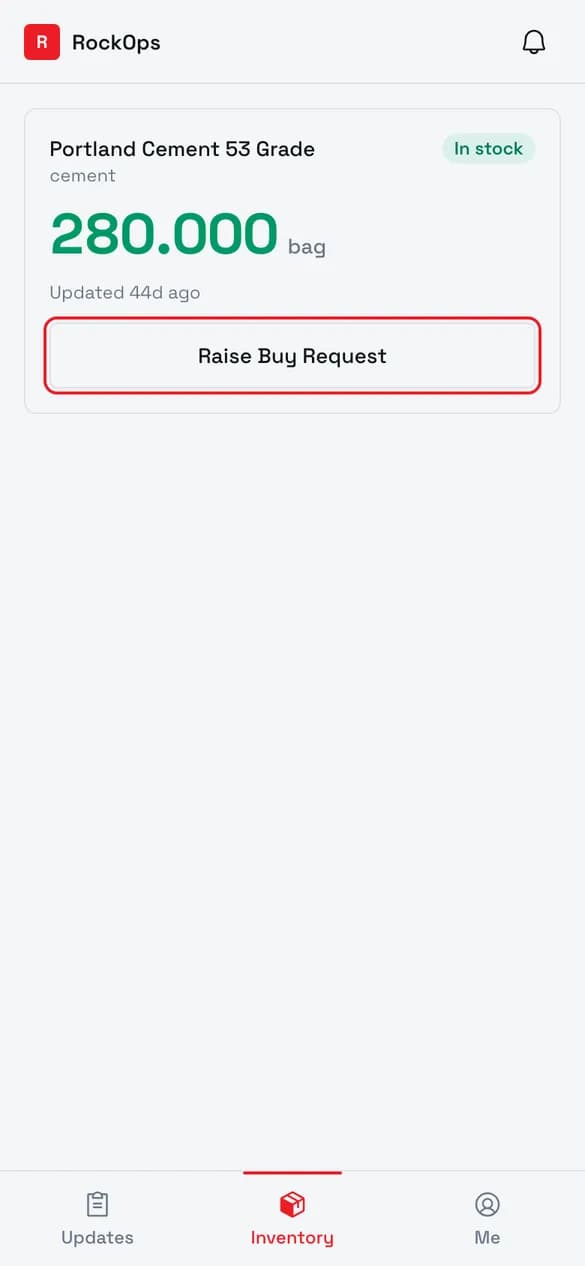
1. Open Inventory
Each card shows what is on hand at this project's site and a stock status: In stock, Low stock, Below minimum, or Out of stock.
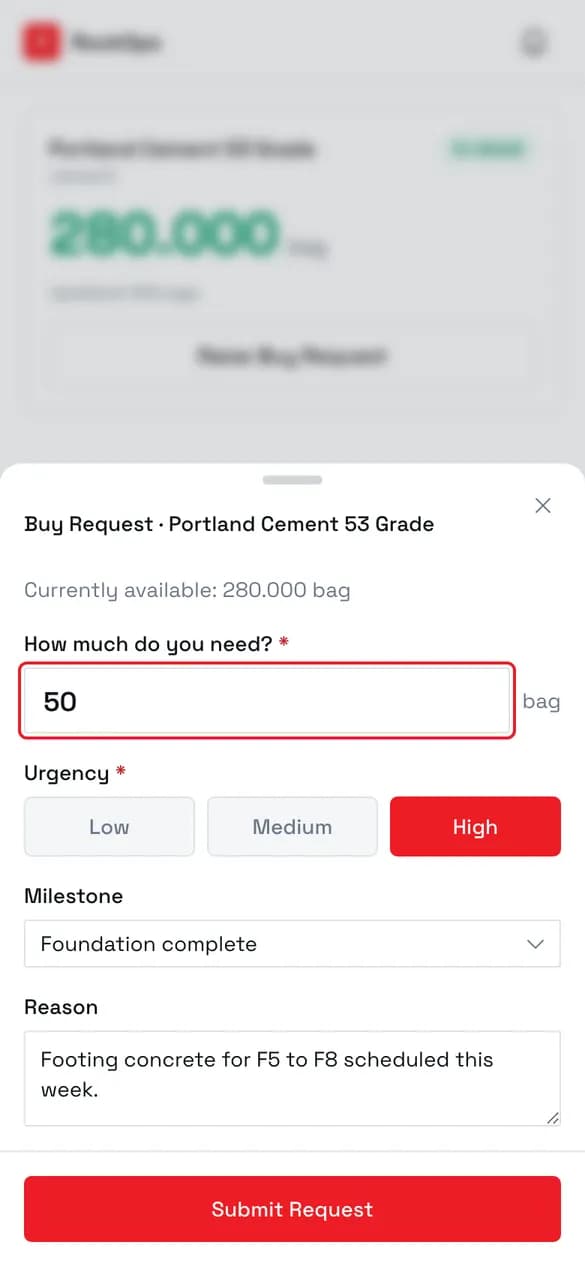
2. Say how much, and how soon
Quantity is in the material's own unit, shown beside the field. Urgency defaults to Medium. Unit, milestone, and reason are optional.
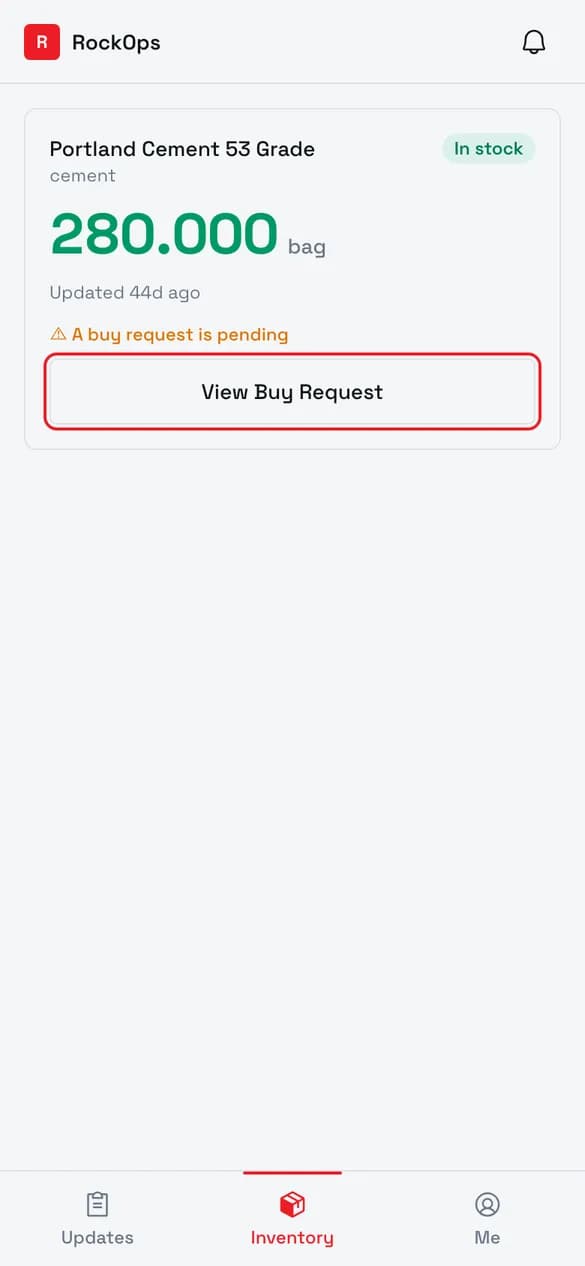
3. The request is pending
The card swaps Raise Buy Request for View Buy Request while the request is pending, so the app holds one open request per material at a time.
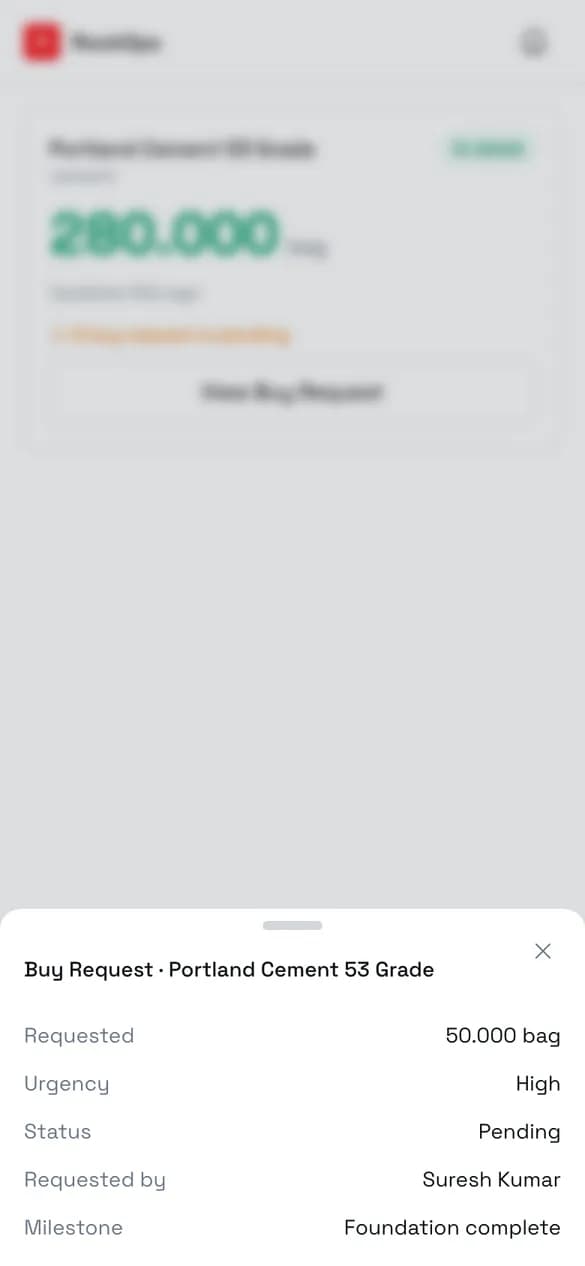
4. Check its status
Shows what was asked for, its urgency, and its status. Once the project manager or an admin issues or denies it, the card goes back to Raise Buy Request.
Stock status
| Status | Meaning |
|---|---|
| In stock | More than 25% above the minimum the store team set, or no minimum set. |
| Low stock | At the minimum, or no more than 25% above it. |
| Below minimum | Some on hand, but under the minimum. |
| Out of stock | Nothing on hand. Its Raise Buy Request button turns red. |
Field reference
| Field | Required | Rules |
|---|---|---|
| How much do you need? | Yes | A number above zero, in the material's own unit. |
| Urgency | Yes | Low, Medium, or High. Defaults to Medium. |
| Unit | No | Only shown when the project has units. Defaults to General / site-wide. |
| Milestone | No | Only milestones that are not yet completed. Picking a unit narrows the list to that unit's milestones. |
| Reason | No | Free text. |
The top of the form shows what is on hand right now, so you can size the request without leaving it.
Best practices
- Use the reason to say what the material is for. It is the only free text the office sees with the request.
Troubleshooting
"Enter a valid quantity." — the quantity is empty, zero, or negative.
There is no Raise Buy Request button, only View Buy Request — a request for that material is already pending. Open it to see where it stands; a new one can be raised once the office has issued or denied it.
"Failed to submit buy request." — the request did not go through, usually because the connection dropped. Check you are online and submit again.