Record a contractor payment
Settle a contractor's approved work — gross, TDS, and the net that actually leaves the bank.
Overview
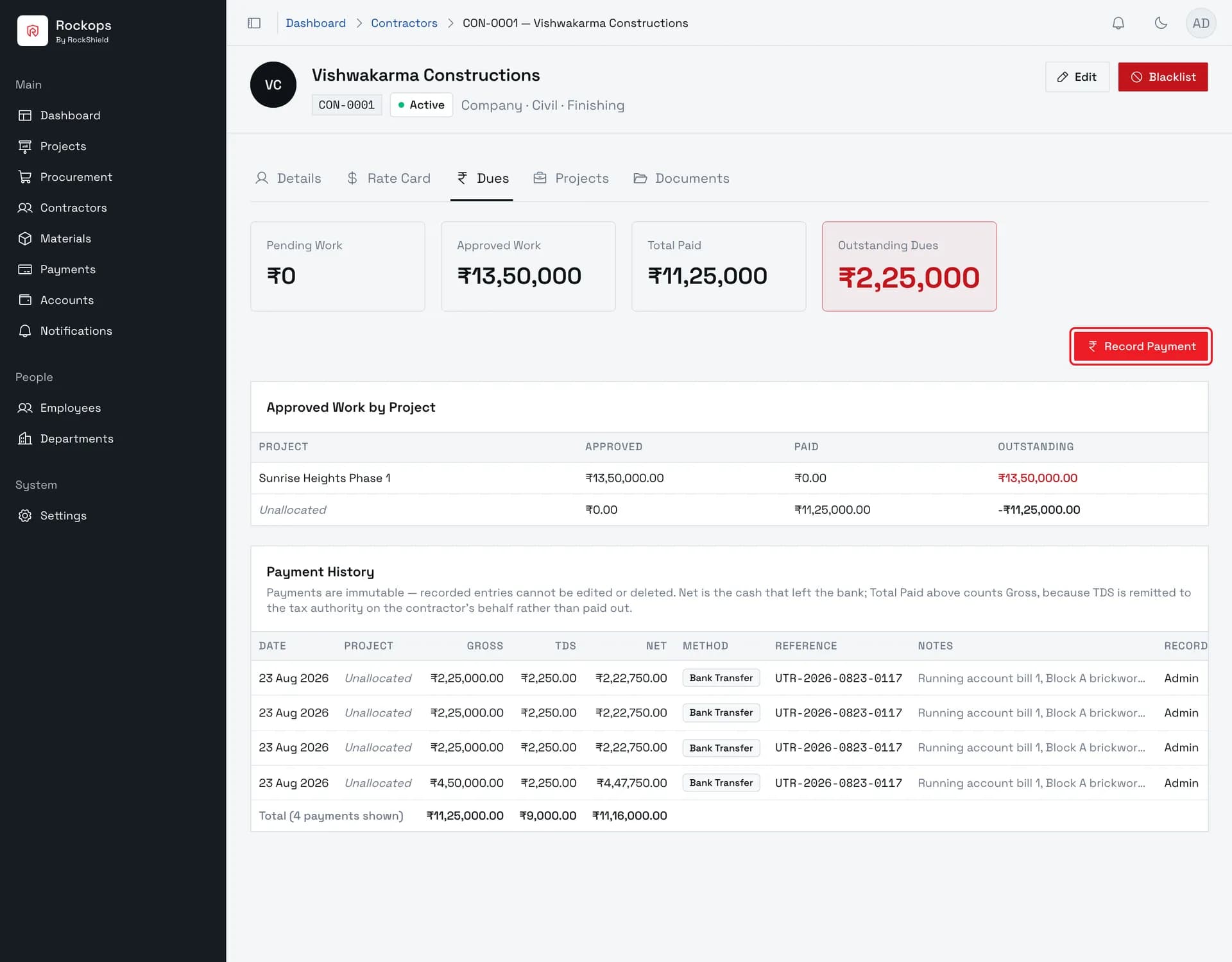
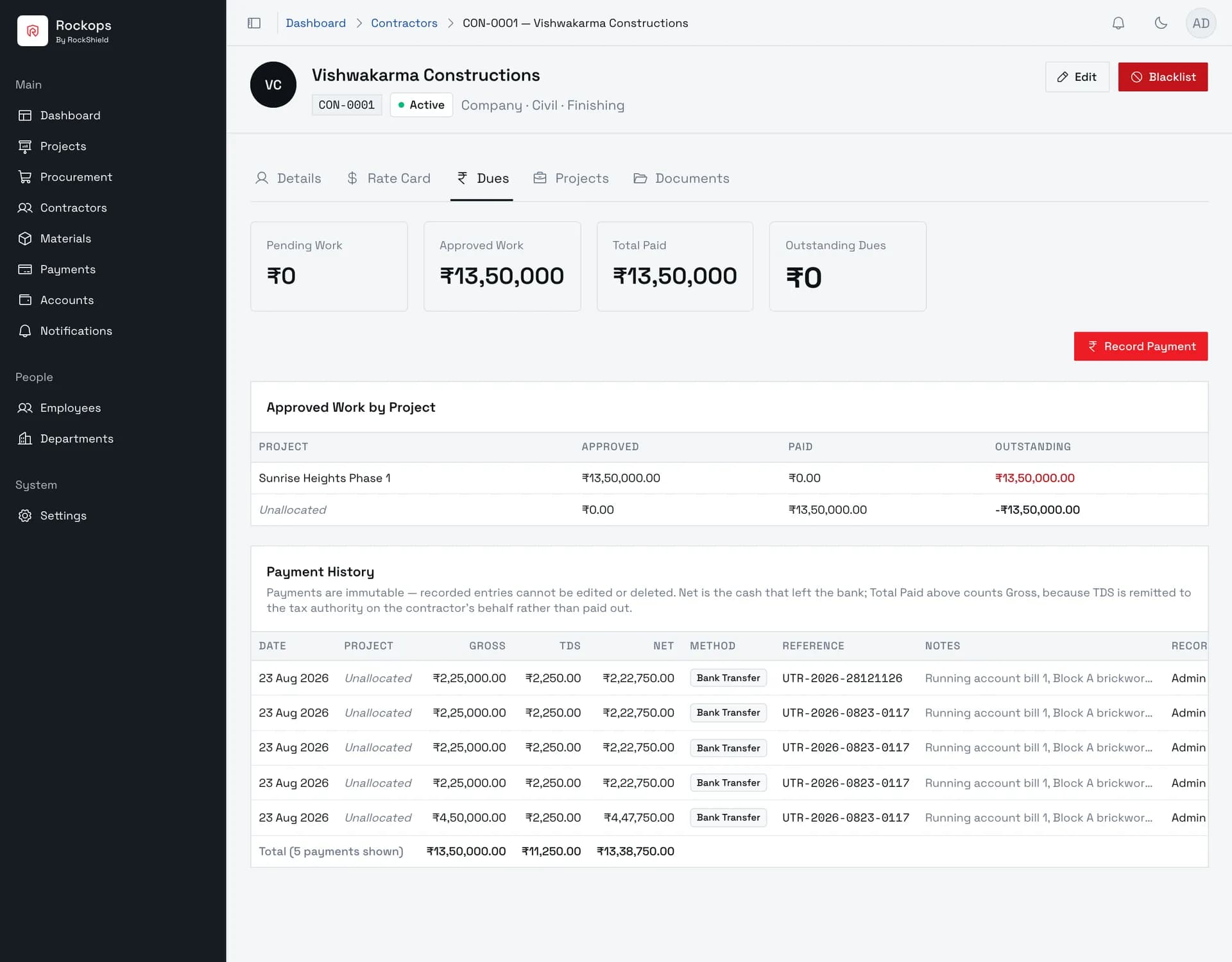
A contractor's Dues tab is the money view of everything they have done on your projects. It adds up their approved work logs, subtracts what has already been paid, and shows what is left.
Recording a payment is how that balance comes down. The form opens pre-filled with the whole outstanding amount, and the figure you enter is gross — what the contractor is credited with. TDS is subtracted from it to give the net, which is the cash that actually leaves the bank. The dues aggregates count the gross, because TDS is remitted to the tax authority on the contractor's behalf rather than paid out.
Payments are immutable. There is no edit and no delete. A payment recorded wrongly is corrected by recording an offsetting entry, and both stay on the record.
Pending work is not dues. A work log counts here only once it has been approved, so a contractor with a week of unapproved entries shows nothing owed.
Before you start
The work has to be approved, not just logged. If Outstanding Dues reads zero and you expected otherwise, the entries are probably still Pending on the project's Work Logs tab.
Recording a payment requires Administrator, Owner, or Finance. A Project Manager can see a contractor's dues but has no Record Payment button — viewing and paying are deliberately different permissions.
Decide the allocation before you record. A payment can be tied to a project or left unallocated, and because payments cannot be edited, an unallocated payment stays unallocated for good.
1. Open the contractor's Dues tab
Dues are the sum of this contractor's approved work logs, broken down by project. Pending work is not counted — only work that has been signed off.
2. Check the amount
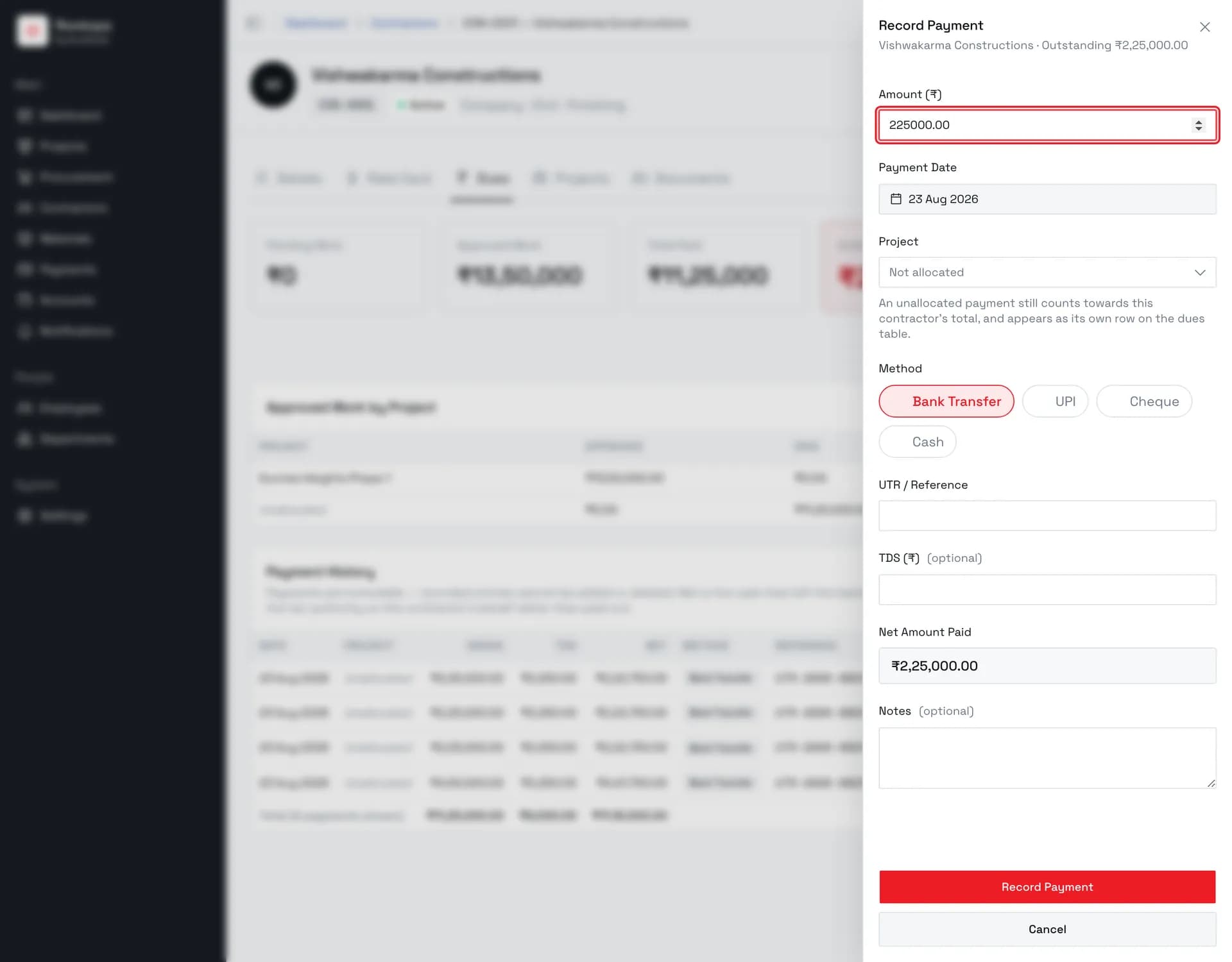
The form opens pre-filled with the whole outstanding balance. This is the gross figure, before any tax deduction — what the contractor is credited with, not what leaves the bank. Payment Date beside it already holds today.
3. Choose how it was paid
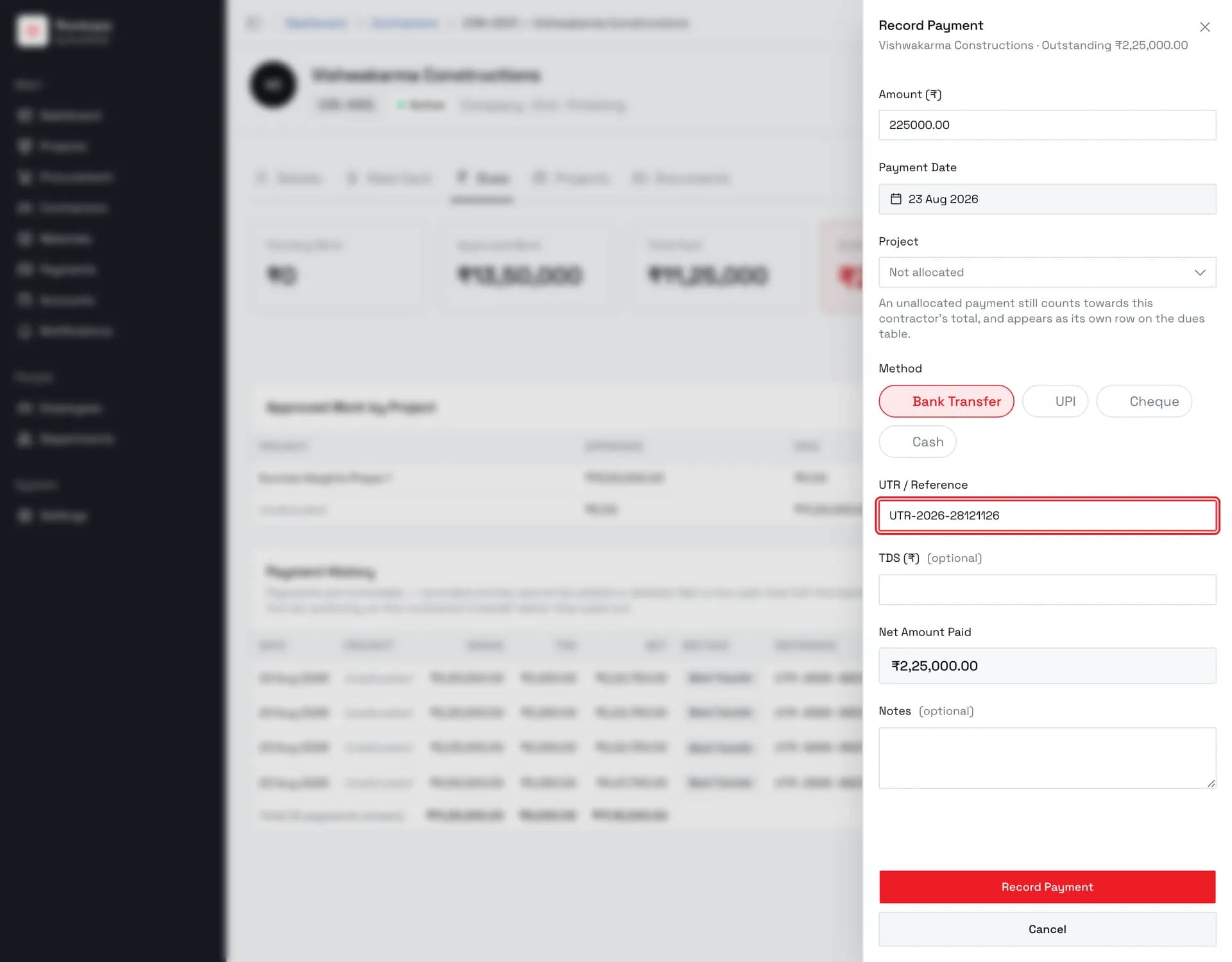
The method decides what identifier is asked for next: Bank Transfer and UPI want a UTR, Cheque wants a cheque number, and Cash asks for nothing at all.
4. Deduct TDS
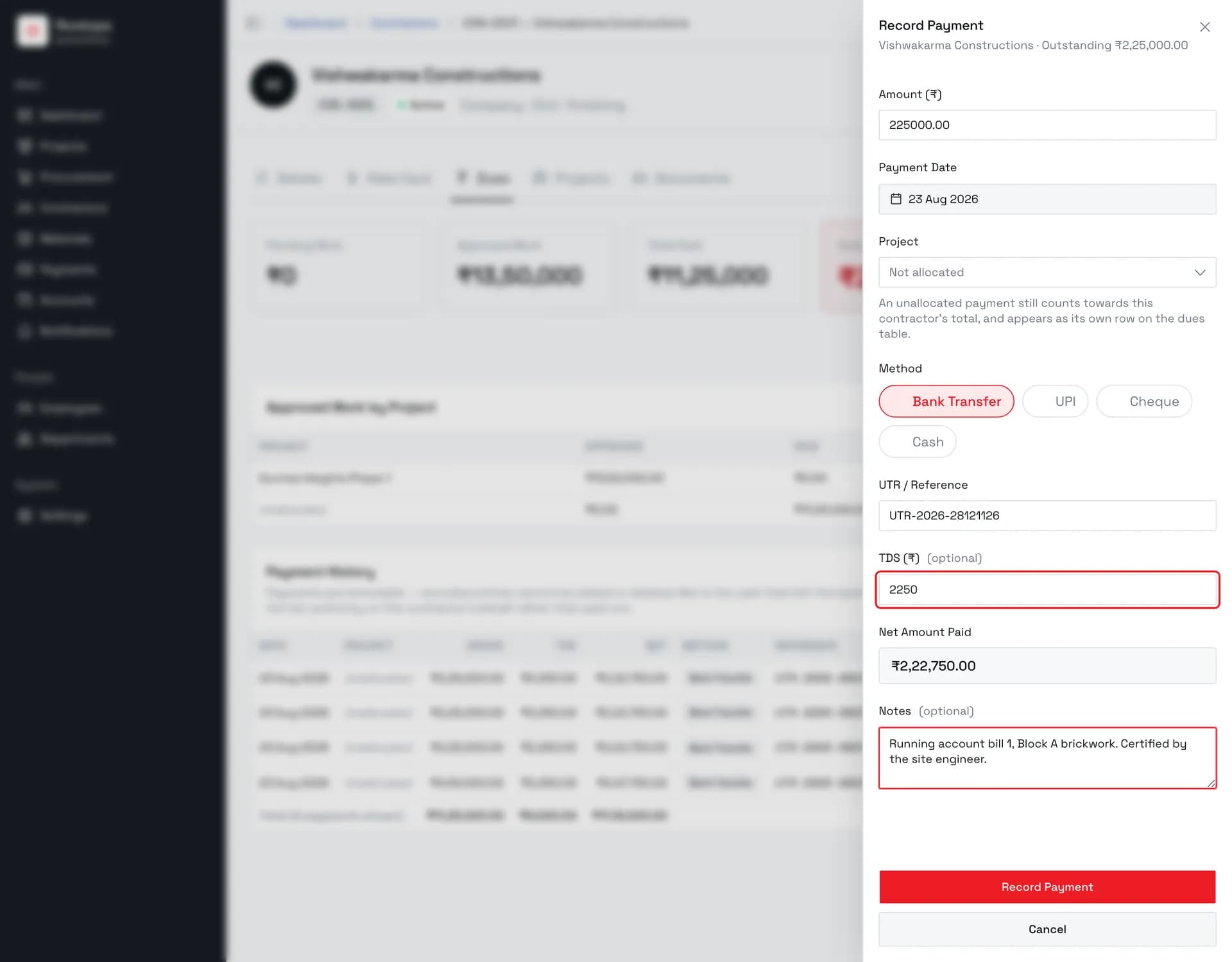
Optional tax deducted at source. Net Amount Paid below updates as you type — that is the cash that actually leaves the bank, while the gross amount above is what the contractor's dues come down by.
5. The payment is on record
Payment History lists it with its gross, TDS, and net figures, and Outstanding Dues above comes down by the gross amount. Recorded payments are immutable — there is no edit and no delete, so a mistake is corrected by recording an offsetting entry rather than changing this one.
Field reference
| Field | Required | Rules |
|---|---|---|
| Amount (₹) | Yes | Gross, in rupees. Pre-filled with the full outstanding balance. Must be more than zero. Anything above outstanding is allowed but raises an overpayment warning that has to be acknowledged before the form will submit. |
| Payment Date | Yes | Pre-filled with today. |
| Project | No | Ties the payment to one project. Left empty, the payment still counts towards the contractor's total but appears as its own Unallocated row on the dues table. |
| Method | Yes | Bank Transfer, UPI, Cheque, or Cash. Defaults to Bank Transfer. |
| UTR / Reference · Cheque Number | Depends on method | Bank Transfer and UPI ask for a UTR, Cheque asks for a cheque number, Cash asks for nothing. |
| TDS (₹) | No | Tax deducted at source. Subtracted from the gross to give Net Amount Paid, which is shown live below it. |
| Notes | No | What the payment was for — a running account bill number, a certification reference. |
Reading the dues table after an unallocated payment
An unallocated payment produces a row that looks wrong at first glance: the project keeps its full Outstanding, and a separate Unallocated row carries a negative outstanding of the same size. That is the table being honest — the work is attributed to a project and the money is not, so neither side can be netted against the other. The summary cards above still balance. Allocating the payment when you record it avoids this entirely.
Best practices
- Allocate every payment you can. It is the one field on this form with a permanent consequence, because payments cannot be edited afterwards.
- Record the real reference. Method and reference are the only link between this entry and the bank statement it corresponds to.
- Enter TDS here rather than netting it off the amount. Putting the net in the Amount field understates what the contractor was credited with and leaves the dues permanently wrong by the TDS.
- Pay against approved work, not against an invoice. The outstanding figure is derived from work logs; paying more than it raises an overpayment warning for good reason.
Troubleshooting
Outstanding Dues is zero but the contractor has been working — their work logs are still Pending. Dues only count approved work.
The amount is pre-filled with 0.00 and the form won't submit — same cause. The amount has to be more than zero.
"This payment exceeds the outstanding amount by …" — you are paying ahead of approved work. That is allowed — an advance, a mobilisation payment, or a retention release legitimately runs ahead — but the acknowledgement checkbox has to be ticked first, because the payment cannot be undone.
The Project picker only offers "Not allocated" — the sheet builds that list from the contractor's project assignments, and it is currently coming back empty even for contractors that have one. Until it does, a payment recorded here cannot be tied to a project, and it will show as an Unallocated row. If the allocation matters, hold the payment rather than recording it unallocated — it cannot be corrected afterwards.
There is no Record Payment button — you are signed in as a Project Manager. Dues are visible to Administrator, Owner, Finance, and Project Manager; recording is restricted to the first three.
Recorded the wrong amount — payments are immutable. Record an offsetting entry with a note explaining it; both entries remain in Payment History.