Record material consumption
Issue material from a project's stock to the work that used it, and read the ledger that keeps the balance honest.
Overview
A project's Inventory tab holds the materials physically on its site. Stock arrives one way only — a delivery recorded against an authorised purchase order — and it leaves three ways: consumed by work, issued against a buy request, or corrected by an adjustment. There is no opening-balance field, and no way to type stock into existence.
Recording consumption is the daily operation. It says how much of a material was used and what for, takes it off the on-hand figure, and writes a line to the material's ledger.
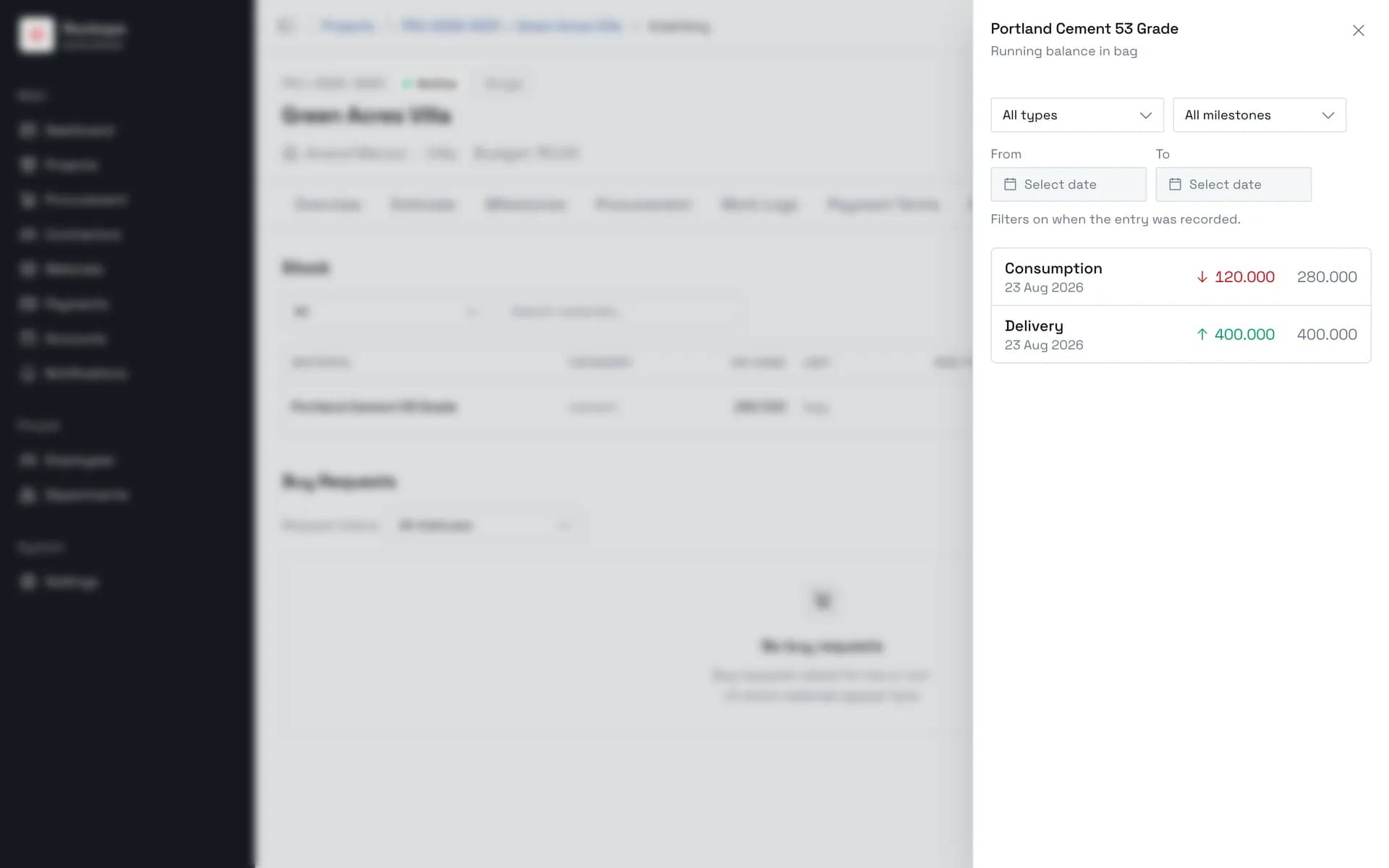
The ledger is the record that matters. It lists every movement with the date it was recorded, the quantity, and the running balance afterwards, and nothing on it can be edited or deleted. A consumption entered wrongly is corrected by an adjustment, which leaves both the mistake and the correction visible.
Two things the ledger deliberately does not show: the purpose text you type when consuming, and the reason given for an adjustment. It is a balance history, not a narrative.
Before you start
The material must already be in this project's stock. If the Inventory tab is empty, nothing has been delivered here yet — raise a purchase order, get it authorised, and record the delivery against it. Stock is per project; a material sitting in another project's store is not available to this one.
Reading inventory is open to Administrator, Owner, Project Manager, Store & Inventory Manager, and Site Supervisor. Writing to it — consumption and adjustments — is narrower, restricted to Administrator, Owner, and Project Manager.
Recording the delivery that creates the stock in the first place is different again: it needs Administrator, Owner, or Store & Inventory Manager, and a Project Manager cannot do it.
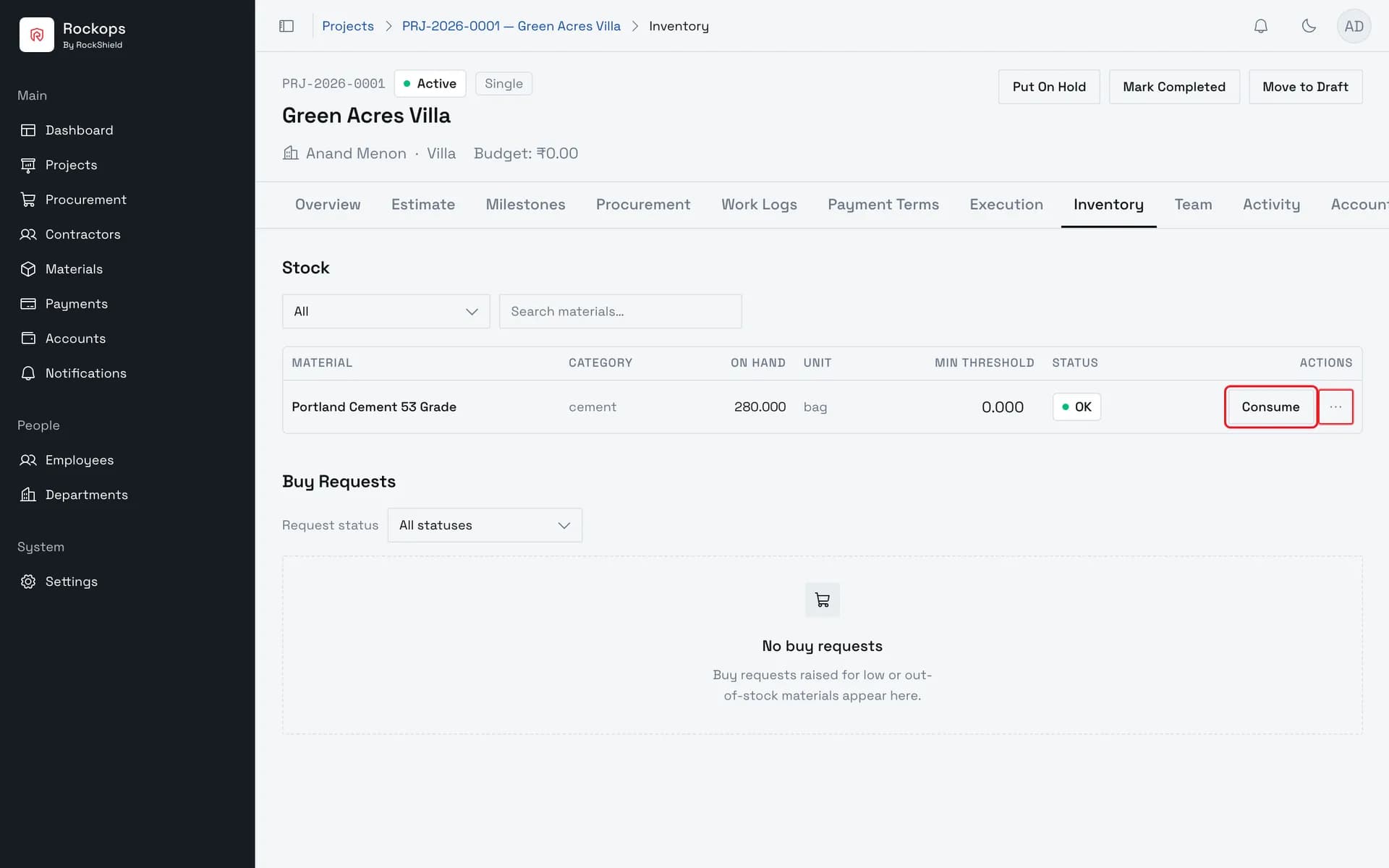
1. Open the project's Inventory tab
Stock is per project, and it only appears here once a delivery has been recorded against an authorised purchase order — there is no way to type an opening balance in.
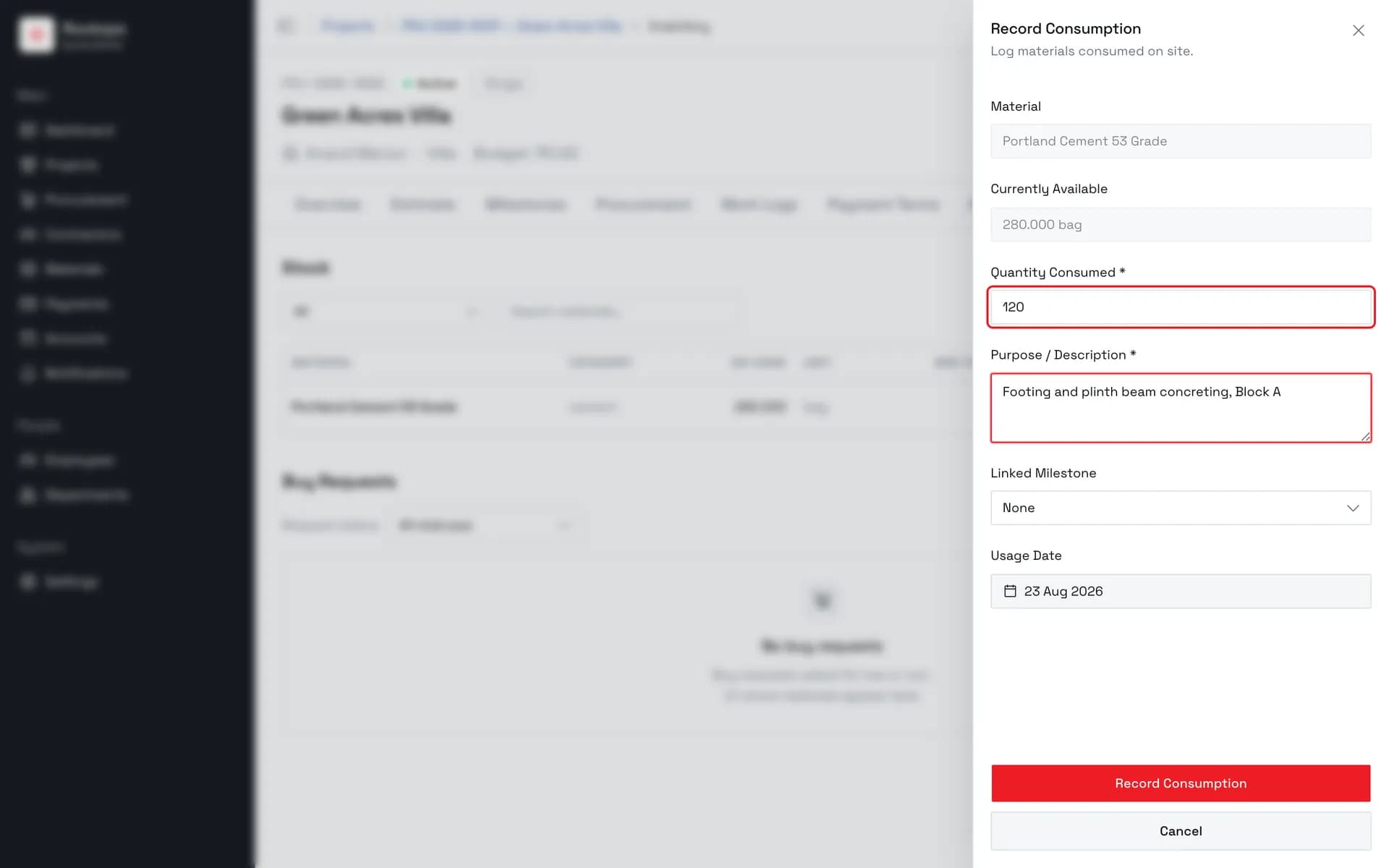
2. Enter what was used, and what for
Quantity and purpose are both required. The sheet shows what is currently available above them, so an over-issue is visible before it is submitted. Unit, milestone, and usage date below are optional attributions.
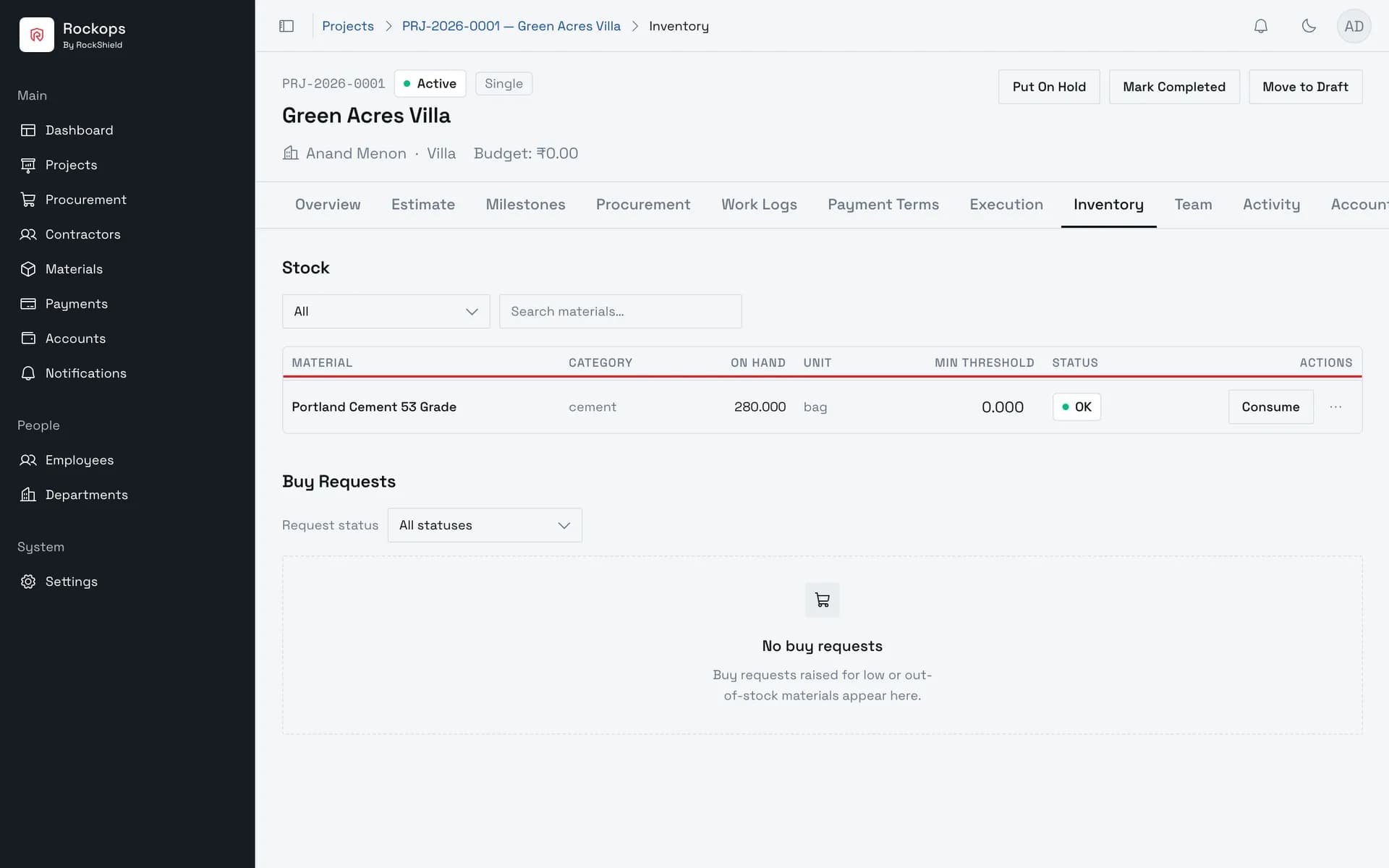
3. On Hand comes down
The row's On Hand figure drops by what was consumed, and its status follows — a material that falls below its minimum threshold is flagged here rather than anywhere else.
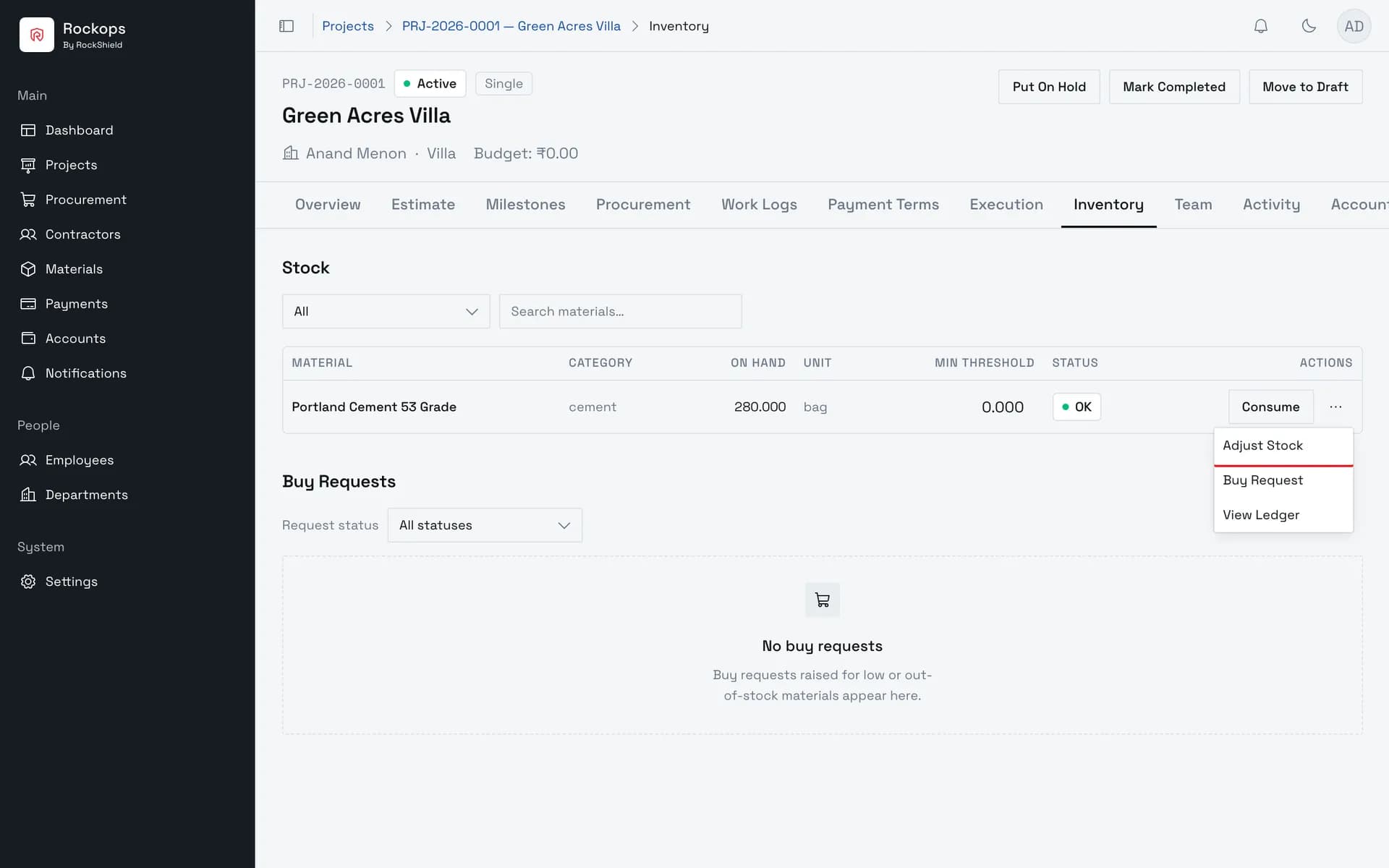
4. The other things a stock row can do
Adjust Stock corrects the figure after a recount and demands a reason. Buy Request asks for more of the material. View Ledger is every movement in and out.
5. Every movement is on the ledger
Deliveries in, consumption and adjustments out, each with the date it was recorded, its quantity, and the running balance after it. The purpose you typed is not shown here — the ledger is a balance history, not a narrative. Nothing on it is editable: a wrong consumption is corrected by an adjustment, which leaves both entries on the record.
Field reference
Record Consumption
| Field | Required | Rules |
|---|---|---|
| Quantity Consumed | Yes | Cannot be more than what is currently available — the sheet shows that figure above the field. |
| Purpose / Description | Yes | What the material was used for. Stored on the movement, but not shown on the ledger. |
| Unit | No | Attributes the usage to one unit of the project. |
| Linked Milestone | No | Attributes the usage to a milestone. |
| Usage Date | No | When the material was actually used, as distinct from when this entry was recorded. |
The row's other actions
| Action | What it does |
|---|---|
| Adjust Stock | Corrects the on-hand figure after a recount. Takes a signed adjustment — 12 or -3.5 — and requires a reason. |
| Buy Request | Asks for more of the material to be bought for this project. |
| View Ledger | Every movement in and out, with the running balance. Filterable by type, unit, milestone, and recorded-date range. |
Best practices
- Consume as the material is used, not at the end of the week. The on-hand figure is what the site trusts when deciding whether to order more, and a batch of back-dated consumption makes it wrong in the meantime.
- Write the purpose as if the ledger will not show it — because it will not. It is stored against the movement, so make it specific enough to mean something when someone pulls the record.
- Use Adjust Stock for recounts, never for corrections you could avoid. Every adjustment is a permanent line saying the books were wrong; it needs a reason for exactly that reason.
- Set a minimum threshold on materials you re-order. The stock row's status flags a material that drops below it, and that flag is the only automatic warning inventory gives.
Troubleshooting
The Inventory tab is empty — nothing has been delivered to this project. Stock cannot be created here; it comes from a delivery against an authorised purchase order.
There is no Consume button — you can read inventory but not write to it. Store & Inventory Manager and Site Supervisor can see stock; only Administrator, Owner, and Project Manager can consume or adjust it.
The quantity is refused as more than available — you are trying to issue more than the on-hand figure. If the site really did use more, the gap is an inventory error: correct it with Adjust Stock, giving the reason, and then record the consumption.
The purpose isn't on the ledger — it never is. The ledger shows the movement type, the recorded date, the quantity, and the balance.
Consumed the wrong amount — nothing on the ledger is editable. Record an Adjustment in the opposite direction with a reason explaining it; both entries stay on the record.
"Delivery date cannot be in the future" when recording the delivery — the delivery form defaults to today and the server can reject that date in the early hours of the day. Back-date it by one day, or record it later in the day.