Raise a purchase order
Order materials against a project — pick the catalogue items, name the vendor, and either park it as a draft or send it straight into approval.
Overview
A purchase order is how materials get bought against a project. It always belongs to a project — there is no organization-level order — and everything on it is priced from the material catalogue rather than typed in free-hand.
Raising one has two possible endings, chosen by a switch at the foot of the form:
- Save Draft parks the order. It gets its reference immediately and sits in the list until someone submits it.
- Submit for Approval sends it into the approval chain in one step. The chain has two stages: a Project Manager stage and an Administrator or Finance stage.
The line-item table is the part worth slowing down for. Materials are chosen from the catalogue, and choosing one fills in its unit of measure and pre-fills the rate from its standard rate. Only the quantity has to be typed — and both the unit and the rate can still be overridden for this order.
Before you start
The project must be Active. The project picker asks for projects whose status is exactly active, so a project still in Draft, or one whose estimates are approved but which has not been activated, is not offered at all — and there is no message explaining why the list is short. Activate the project first.
The materials you want must already be in the catalogue and active. There is no way to add a material from this form; deactivated materials are filtered out of the picker.
Raising an order requires Administrator, Owner, Procurement Officer, or Project Manager. The button is hidden from everyone else, and the server enforces the same rule, so there is no way to fill this form in and be refused afterwards. Finance and Store & Inventory Manager can read the Procurement module but not raise orders in it.
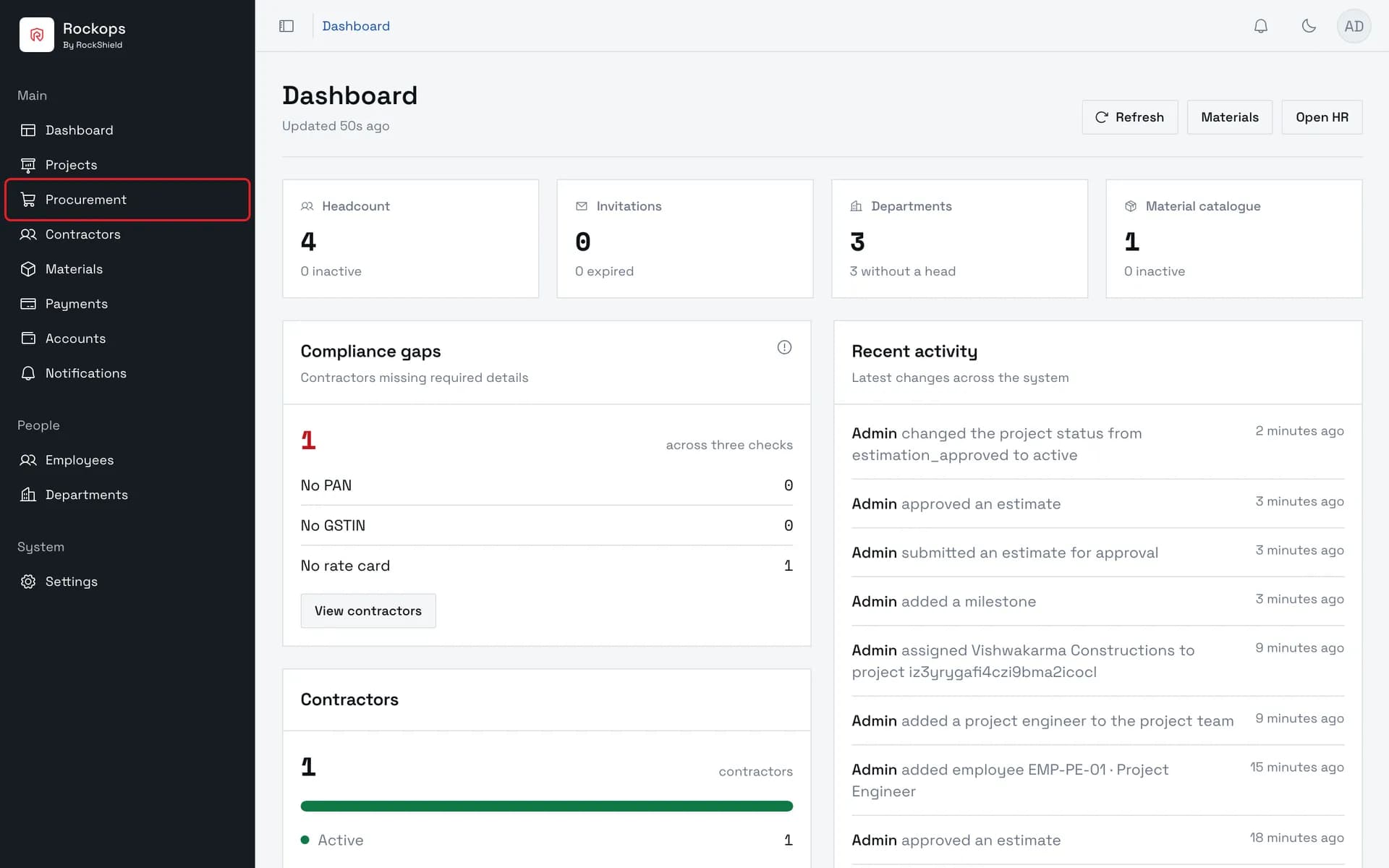
1. Open Procurement
Procurement is the third entry in the sidebar's Main section, and it opens on the purchase-order list.
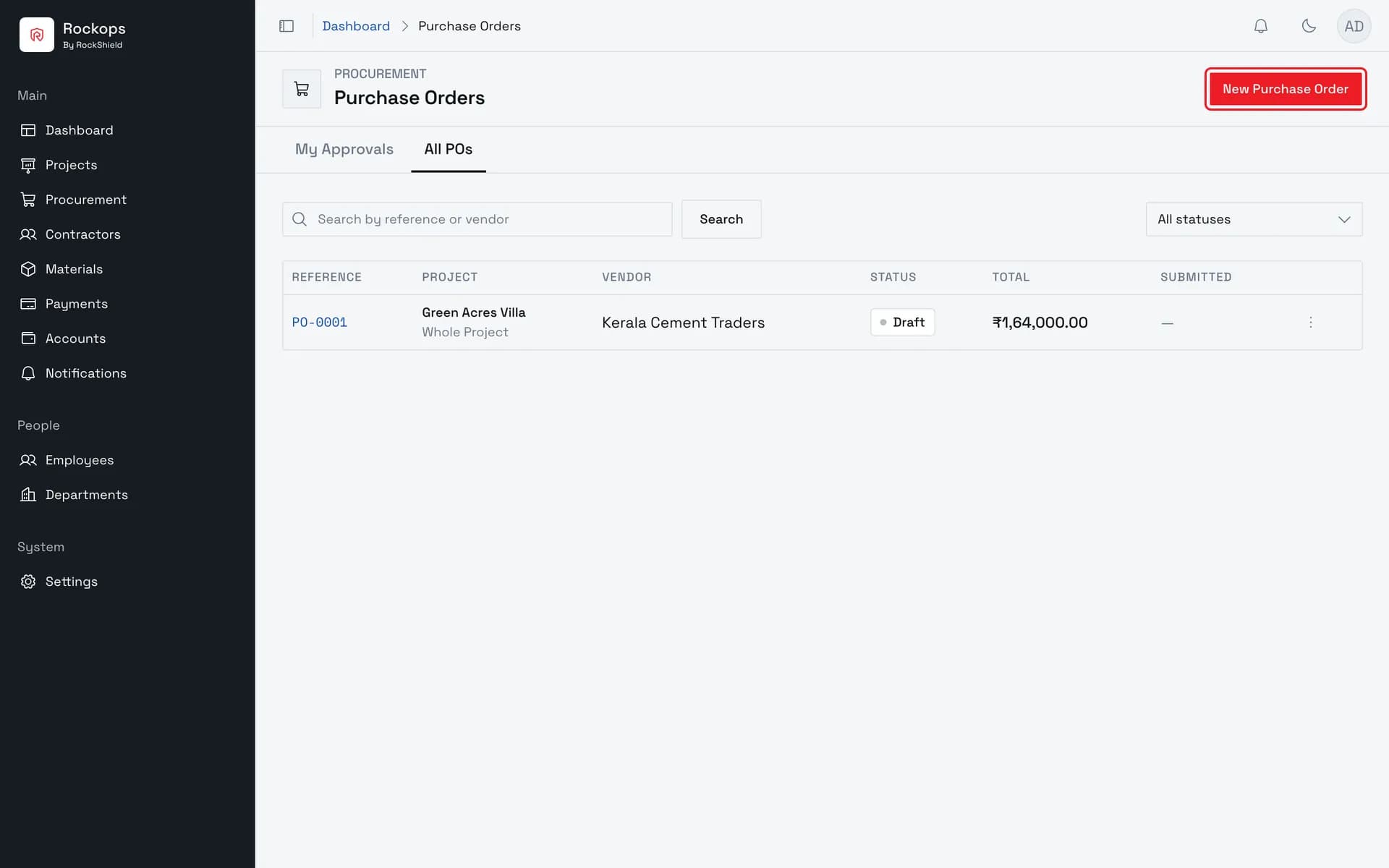
2. The purchase-order list
Every order in the organization, with its reference, project, vendor, value, and where it has reached in the approval chain.
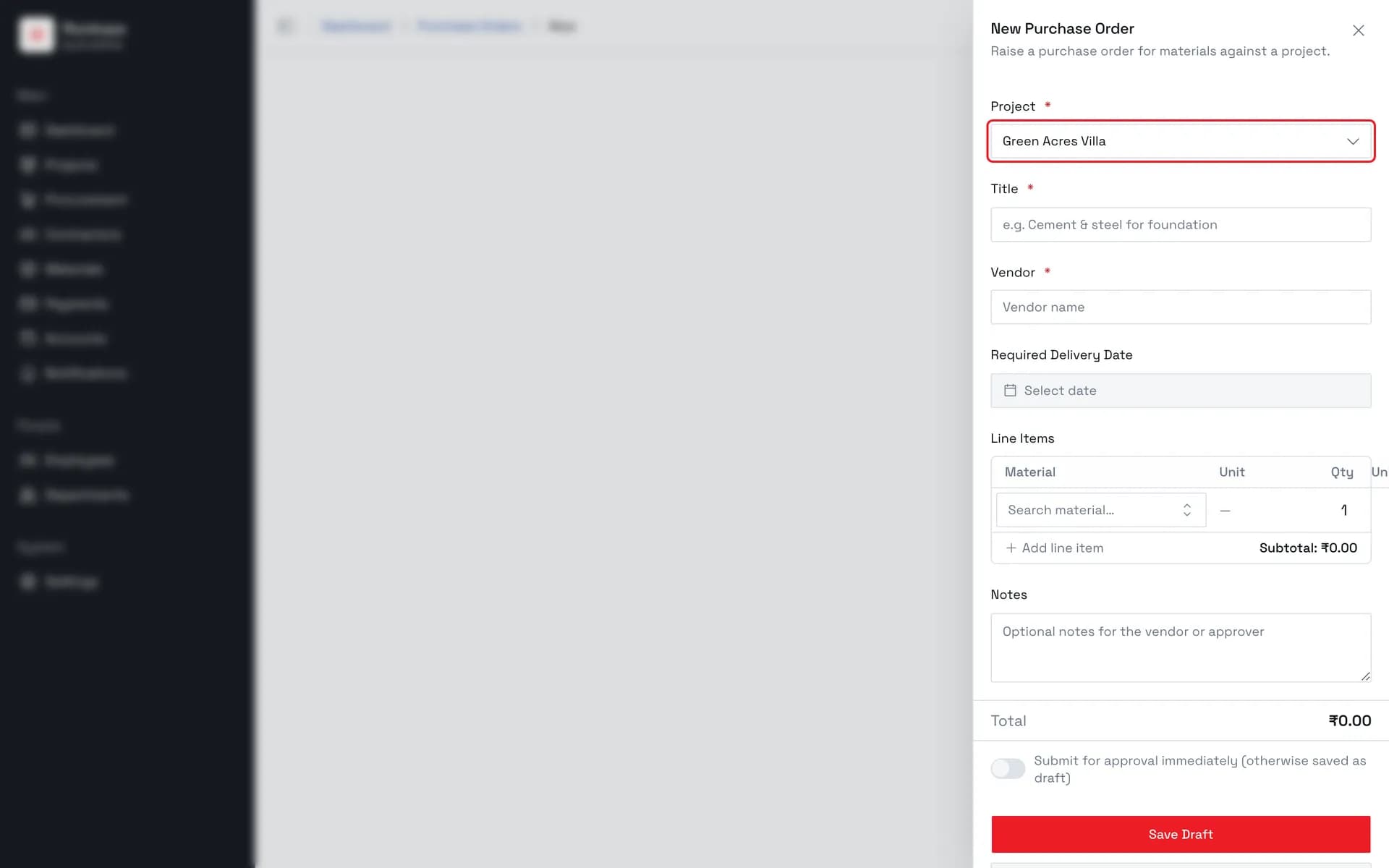
3. Choose the project
Every purchase order belongs to a project, and only projects that are Active are offered — there is no organization-level order. On a multi-unit project, picking one also reveals a Scope field.
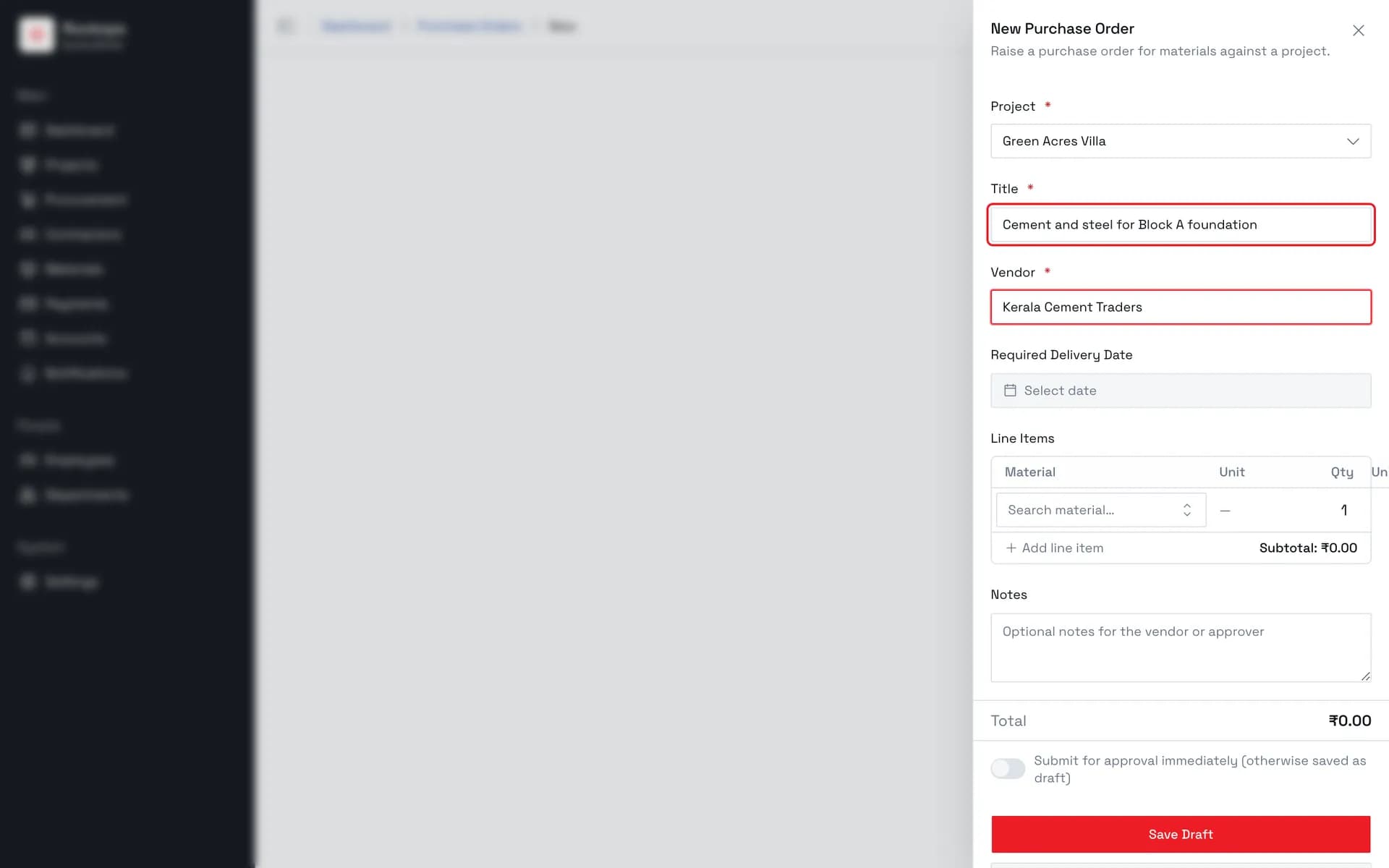
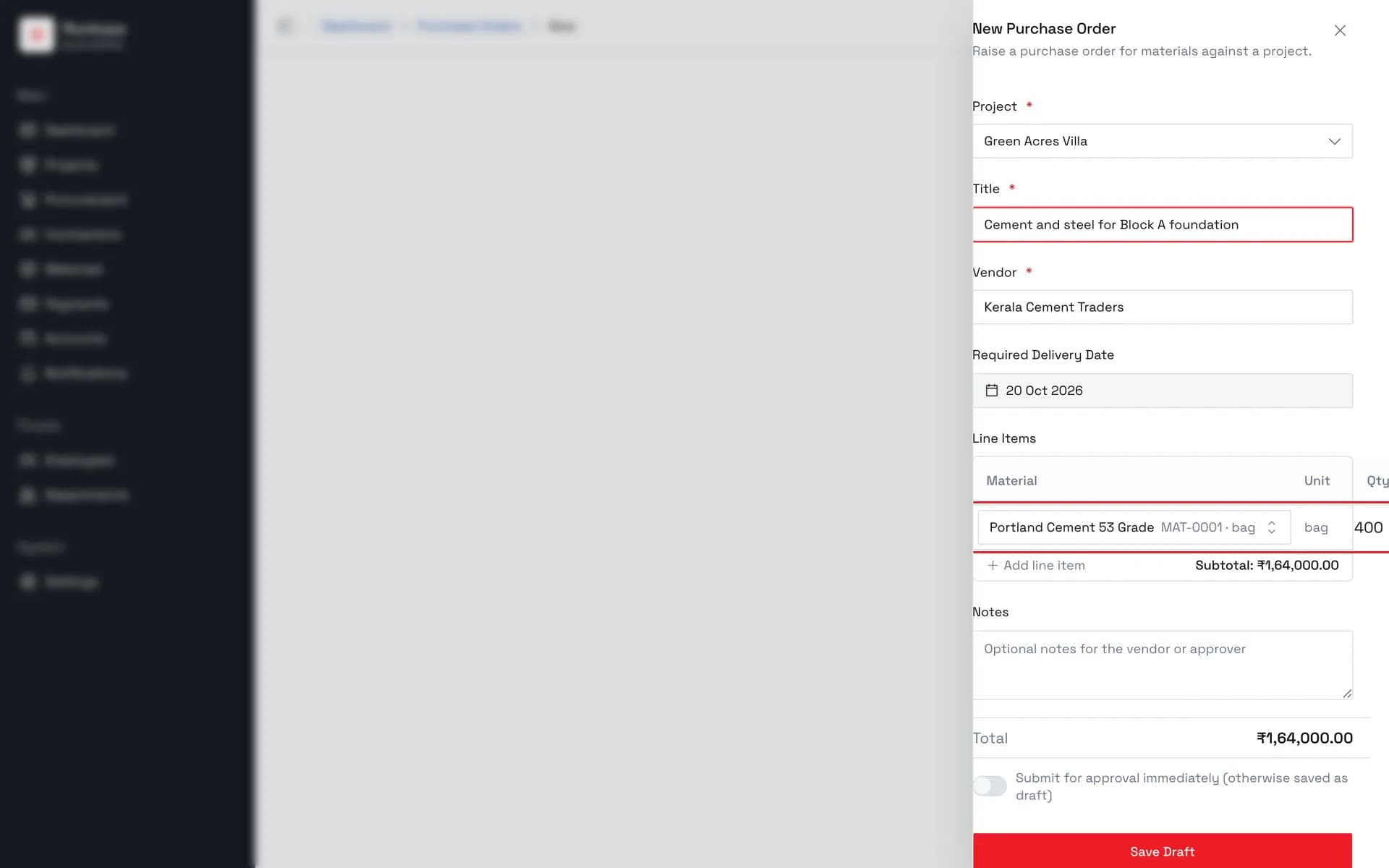
4. Describe the order and name the vendor
Both are required, both free text. Vendor is not a record you pick from — it is typed, and it is one of the two fields the list search matches.
5. Add what you are ordering
Materials come from the catalogue, not free text. Choosing one fills in its unit and pre-fills the rate from its standard rate — both of which you can still change. Only the quantity has to be typed.
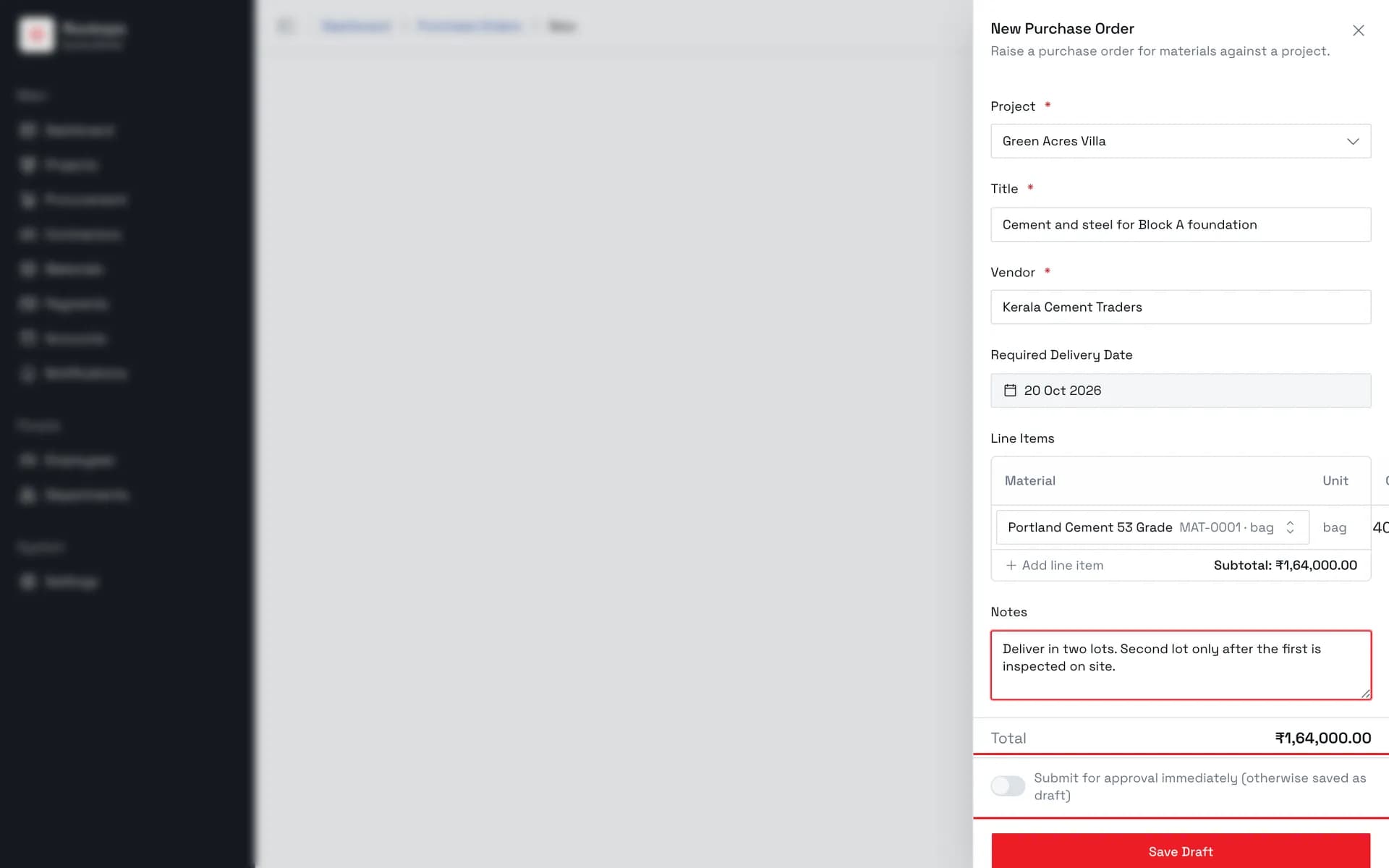
6. Decide whether to submit now
The switch at the foot of the form is what the button above it follows: off, the order is saved as a draft; on, it goes straight into the approval chain and the button reads Submit for Approval instead.
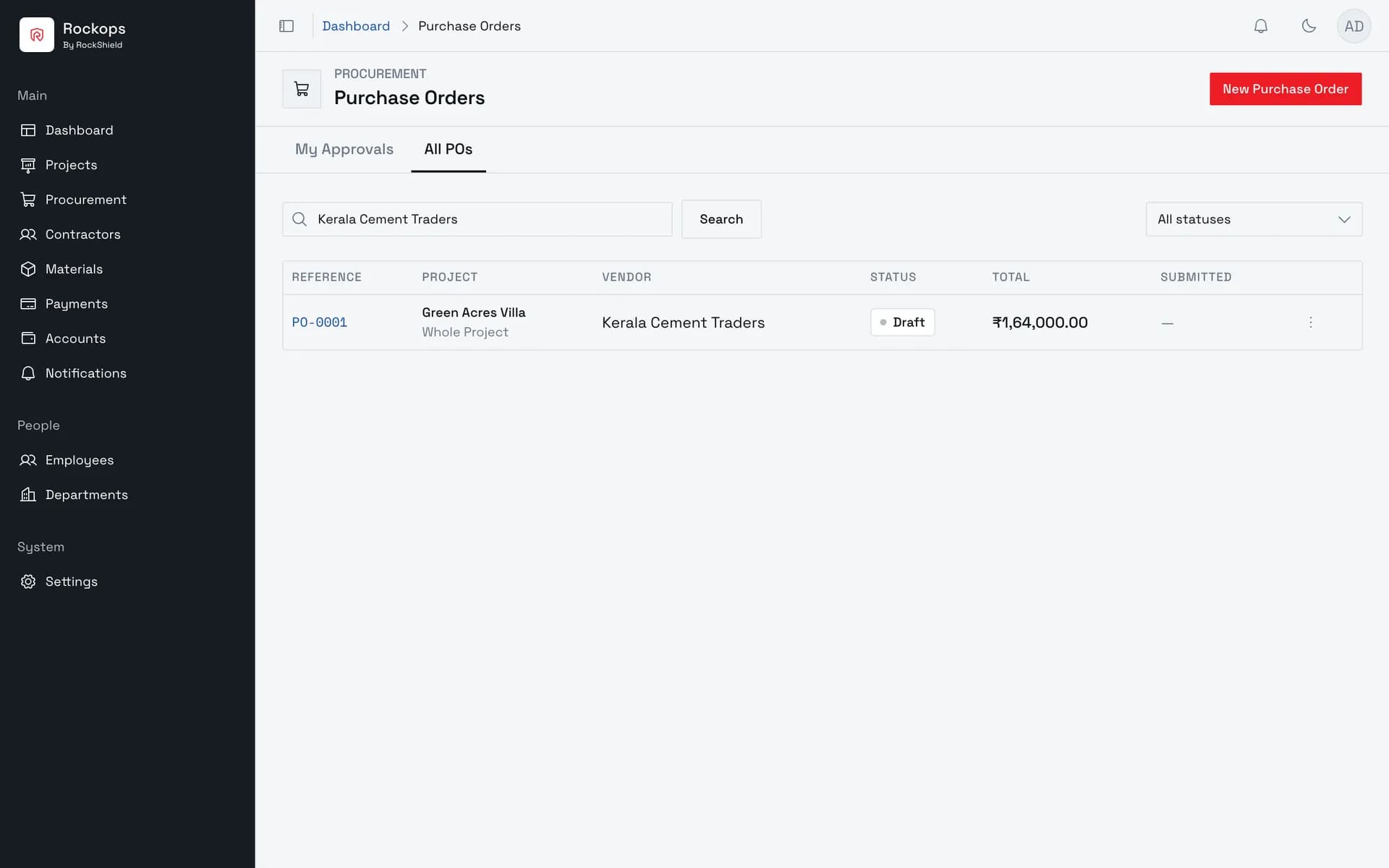
7. The order is raised
A draft order gets its reference straight away and sits in the list until it is submitted. Search by reference or vendor to find it again — the title is not indexed.
Field reference
| Field | Required | Rules |
|---|---|---|
| Project | Yes | Only projects with status Active. |
| Scope | Multi-unit projects only | Whole Project, Common Areas, or one named unit. A single-unit project is fixed to whole-project scope and the field is not shown. |
| Title | Yes | Up to 255 characters. Not matched by the list search. |
| Vendor | Yes | Up to 255 characters, typed free-hand — vendors are not records you pick from. One of the two fields the list search does match. |
| Required Delivery Date | No | Must be in the future. Today and every earlier day are disabled in the calendar and rejected by the form. |
| Line Items | See below | Material from the catalogue, then a quantity. Unit and rate are filled in for you and can be changed. |
| Notes | No | Up to 2000 characters, for the vendor or the approver. |
| Submit for approval immediately | No | Off by default. Off saves a draft; on sends the order into the approval chain and changes the button's label to match. |
Line items are optional for a draft — an order can be parked with nothing on it. They are not optional for a submission: submitting with no line carrying a quantity is refused in the form before anything is sent.
Best practices
- Put the vendor's real name in the Vendor field, spelled consistently. It is free text and it is one of only two things the list search matches, so inconsistent spellings make orders hard to find later.
- Write a title that says what the order is for. It is what the list shows, even though it is not searchable — which makes a vague title doubly expensive.
- Check the pre-filled rate before submitting. It comes from the material's standard rate, which is a reference figure rather than this vendor's quote.
- Save a draft when the quote isn't final. Submitting starts an approval chain; a draft can be edited and cancelled without troubling anyone.
Troubleshooting
The project you want isn't in the picker — it is not Active. Draft, estimation-submitted, and estimation-approved projects are all excluded.
"No active projects available" — no project in the organization has reached Active status yet.
"Add at least one line item with a quantity before submitting." — the submit-immediately switch is on but no line has both a material and a quantity above zero. Either add one, or turn the switch off and save a draft.
"Required delivery date must be in the future." — the date is today or earlier. The calendar disables those days, so this usually means the date was set and then the day rolled over.
There is no Scope field — the project is single-unit. Scope only applies where there are units to scope to.
A material isn't in the line-item picker — it is deactivated, or you have typed fewer than two characters. The picker does not query until the second character.
There is no New Purchase Order button — you are signed in as Finance or Store & Inventory Manager, which can read the module but not raise orders.
Raised the wrong order — purchase orders are not deleted. A draft can be cancelled from the list, after which it can no longer be submitted.