Record a work log
Log what a contractor did on a given day, priced from their rate card — the entry that eventually becomes a payment.
Overview
A work log is the record of work a contractor actually performed on a project, on a particular day, in a measurable quantity. It is the unit of account for contractor money: dues are the sum of approved work logs, and a contractor payment is settled against them.
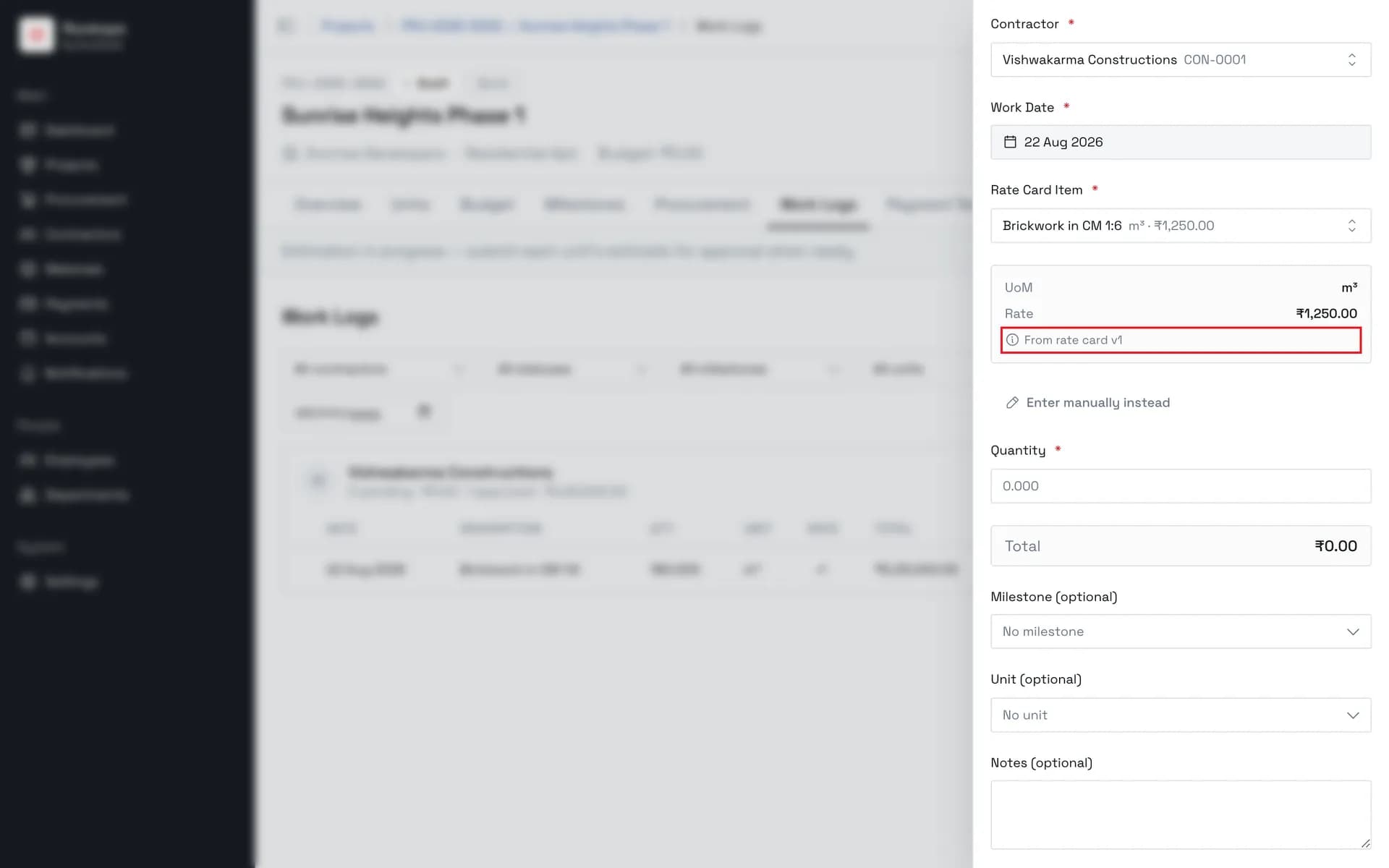
Logs price themselves. Choosing an item from the contractor's rate card fills in the unit of measure and the rate, and the form shows which version of the card supplied them. All you type is the quantity. Work that is not on the rate card goes in through Enter manually instead, which asks for a description, unit, and rate by hand.
The work date is not just a label. Rate cards are versioned with effective dates, so the date decides which version applies. Logging September's work with an August date prices it at August's rates.
Every entry starts as Pending and counts towards nothing. Approving it is a separate, deliberate step — and it cannot be undone.
Before you start
The contractor needs an active assignment on this project. The picker only offers assignments, not the contractor register, so a contractor who has not been assigned to this project cannot be logged against it. Assign them on the project's Team tab first.
The contractor should have a current rate card. Without one the rate-card picker is empty and every entry has to be typed manually, which loses the audit trail back to an agreed rate.
Recording a log requires Administrator, Owner, Project Manager, or Site Supervisor. Approving one is narrower — Administrator, Owner, or Project Manager only — so a site supervisor can log work but not sign it off. Finance can read work logs without being able to add or approve them.
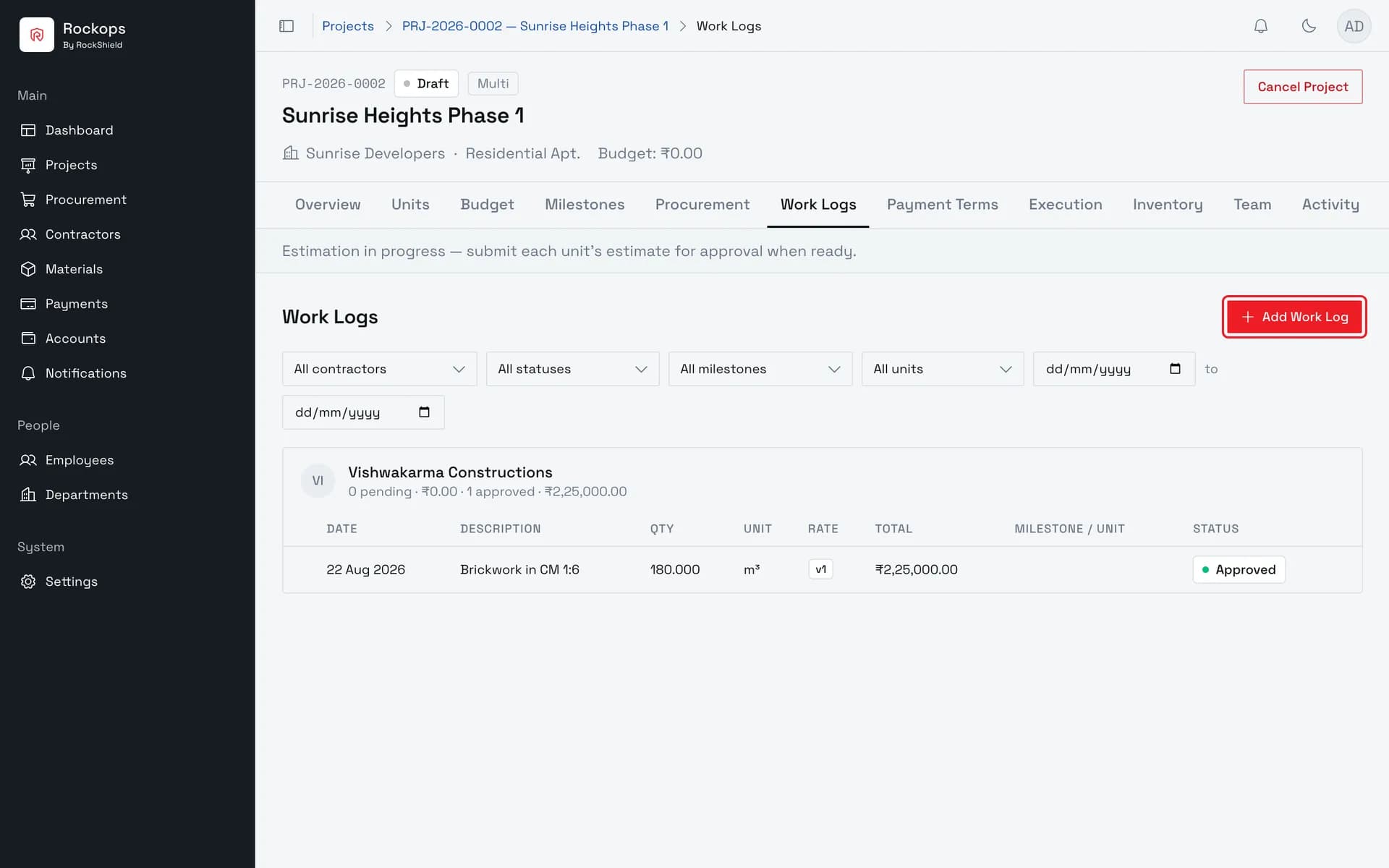
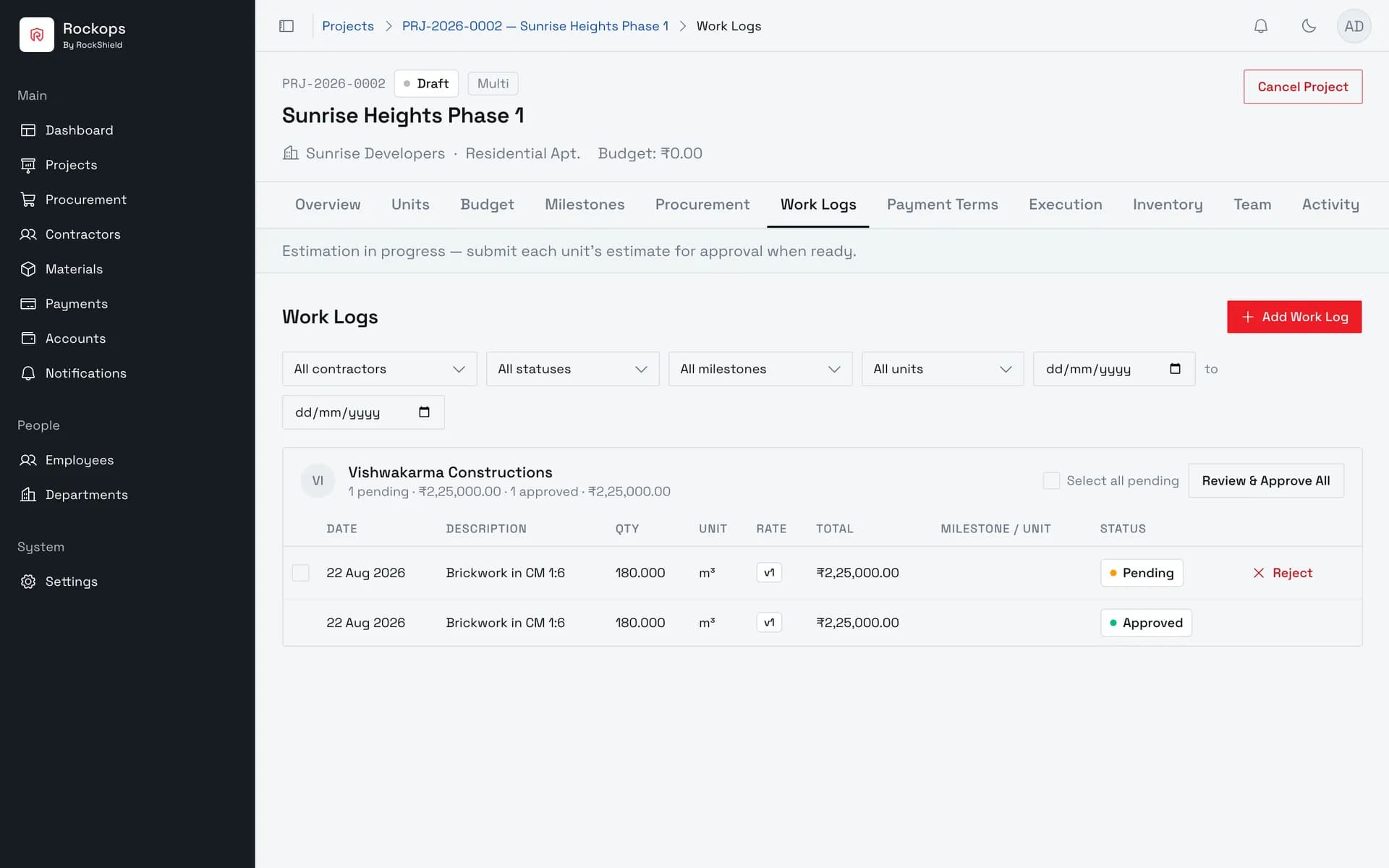
1. Open the project's Work Logs tab
Work logs are the record of what a contractor actually did, day by day. They are grouped by contractor and are what a contractor's dues — and eventually their payment — are calculated from.
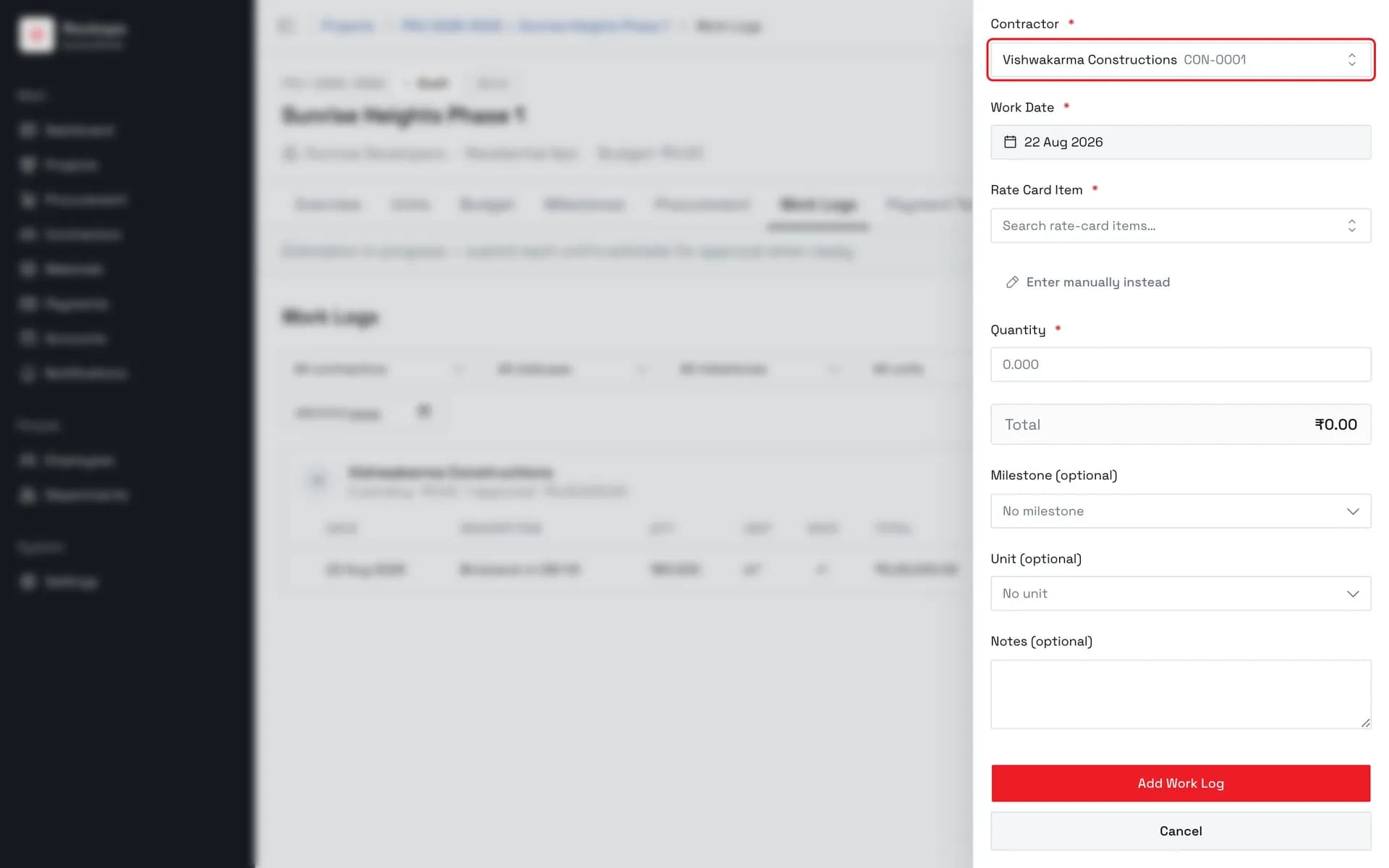
2. Pick the contractor
Only contractors with an active assignment on this project are offered. Work Date beside it already holds today and cannot be set into the future — and it is not just a label, it decides which version of the rate card applies.
3. Choose the rate-card item
The unit and the rate come from the contractor's rate card, and the card names which version supplied them. Work that is not on the rate card is entered through Enter manually instead, which asks for a description, unit, and rate by hand.
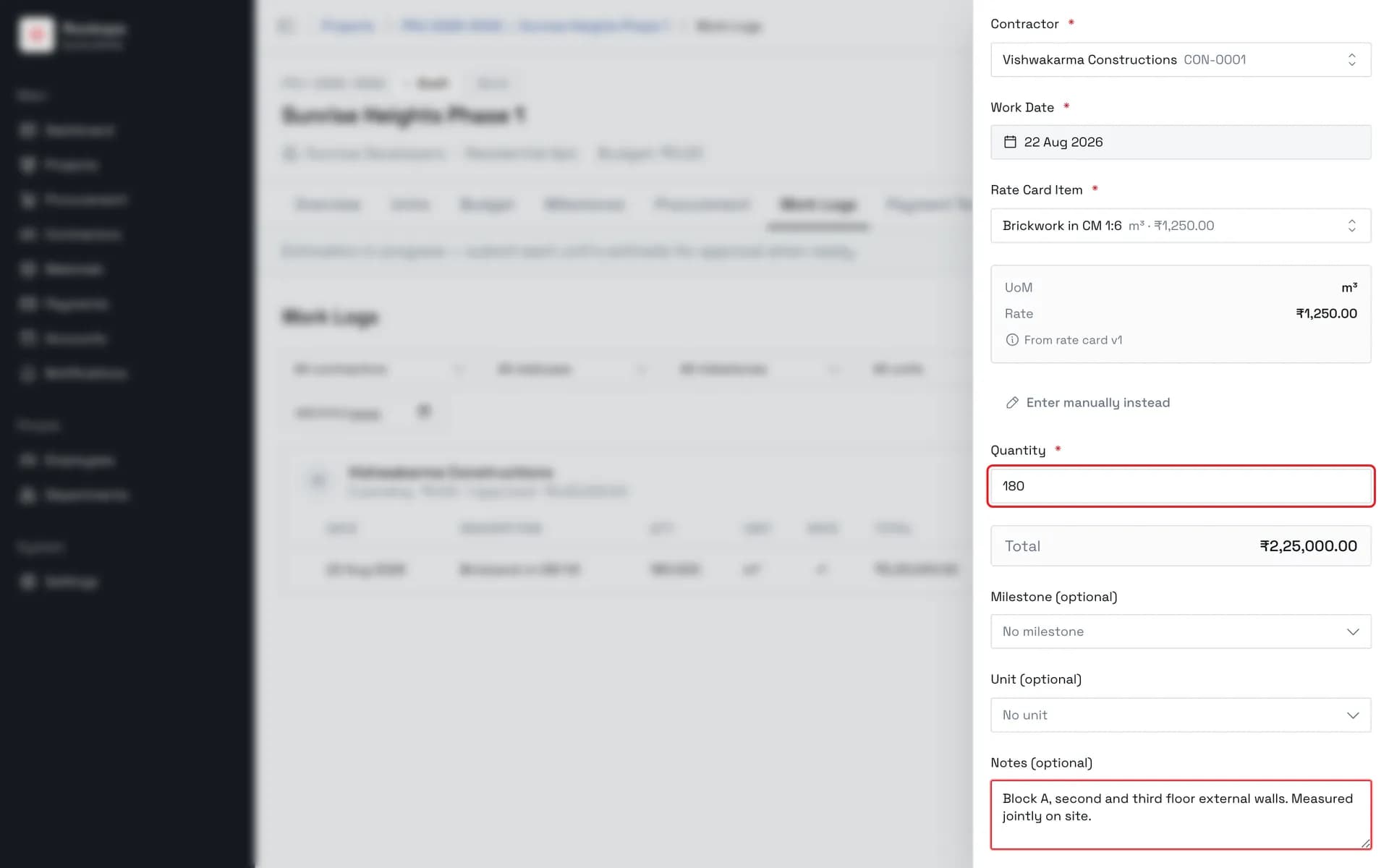
4. Enter the quantity
Quantity times rate gives the total, shown live beneath the form. Milestone and Unit above it are optional, and are what let the same work be reported against a phase or a specific flat.
5. The entry is logged as pending
A new entry lands as Pending and counts towards nothing until it is approved. Selecting pending rows reveals an approval bar at the foot of the page — and approval cannot be undone.
Field reference
| Field | Required | Rules |
|---|---|---|
| Contractor | Yes | Contractors with an active assignment on this project, searchable by name or code. |
| Work Date | Yes | Defaults to today and cannot be set in the future. Determines which rate-card version prices the entry. |
| Rate Card Item | Yes, in rate-card mode | Items on the contractor's current rate card. Choosing one fills in the unit and the rate, and names the version they came from. |
| Description / Unit / Rate (₹) | Yes, in manual mode | Replace the rate-card item when the work isn't on the card. Typed by hand, with no link back to an agreed rate. |
| Quantity | Yes | The measured amount. Quantity times rate gives the total, shown live above the buttons. |
| Milestone | No | Attributes the work to a project milestone. |
| Unit | No | Attributes the work to a specific unit of the project. |
| Notes | No | Free text — how it was measured, who witnessed it, anything the approver needs. |
Best practices
- Log against the rate card wherever possible. The manual route exists for genuine gaps, but a manual rate is just a number somebody typed; a rate-card entry carries the version it came from.
- Log on the day, or at least with the right date. Backdating to the day the work happened is correct and is what the rate lookup expects. Logging it under today's date to save a click can silently reprice it.
- Put the measurement basis in Notes. Quantity is the whole value of the entry, and the note is the only place to record how it was arrived at.
- Approve in batches, but read the total first. The approval bar shows the combined value of everything selected, and approval cannot be reverted.
Troubleshooting
"No active assignments on this project" — the contractor picker is empty because nobody is currently assigned. Assign a contractor on the Team tab.
"No rate card items found" — the contractor has no current rate card, or it has no items. Build one on the contractor's Rate Card tab, or use Enter manually instead.
"No rate found for this work date — try entering manually" — the contractor has a rate card, but no version of it was in effect on the date chosen. Usually the work date is earlier than the first version's effective date.
"Select a rate-card item, or enter manually" — the form is in rate-card mode with nothing chosen. Pick an item or switch modes.
Approved the wrong entry — approved work logs cannot be reverted. The dialog says so before you confirm. Rejecting is only available while an entry is still pending, and it asks for a reason.
The approval bar doesn't appear — it only shows once at least one pending row is selected, and only for roles that can approve. Approved rows have no checkbox.