Add a contractor
Register a contractor in the master register so they can be assigned to projects, given a rate card, and paid.
Overview
The contractor register is the master list of the firms and individuals your organization subcontracts work to. A contractor has to exist here before anything downstream can reference them — project assignments, rate cards, work logs, and contractor payments all pick from this register.
Each contractor carries a name, a type (Company or Individual), and at least
one trade category, plus a primary contact. Address, tax identifiers, and bank
details are all optional. You don't choose the contractor's code: RockOps
assigns one on save, in the form CON-0001, from a counter kept per
organization.
Nothing deletes a contractor. A contractor you no longer use can be Deactivated from their row in the register, and reactivated later from the Inactive tab. Barring one from future work is a separate, heavier action: Blacklist, which lives on the contractor's own profile page, is restricted to Administrators and Owners in both the interface and the server, requires a reason of at least ten characters, is logged, and stops the contractor being assigned to any new project. Reinstating crosses the same boundary and carries the same restrictions. A blacklisted contractor cannot be edited until they are reinstated.
Before you start
Contractors lives in the sidebar's Main section, and that section is visible to Administrator, Owner, Project Manager, and Finance.
Seeing the register is not the same as being able to add to it. The New Contractor button is rendered only for Administrator, Owner, and Project Manager, and the create endpoint enforces exactly the same rule server-side — so Finance can browse the register and open a contractor, but has no way to reach this form at all. There is no role here that can open the form and then be rejected on submit.
One part of the form is narrower still. The Tax & Compliance and Bank sections are rendered only for Administrator and Owner. A Project Manager can create a contractor, but the form they see stops after the address — PAN, GSTIN, and the four bank fields are simply not there. If those details matter, either have an Administrator create the record, or have one edit it afterwards.
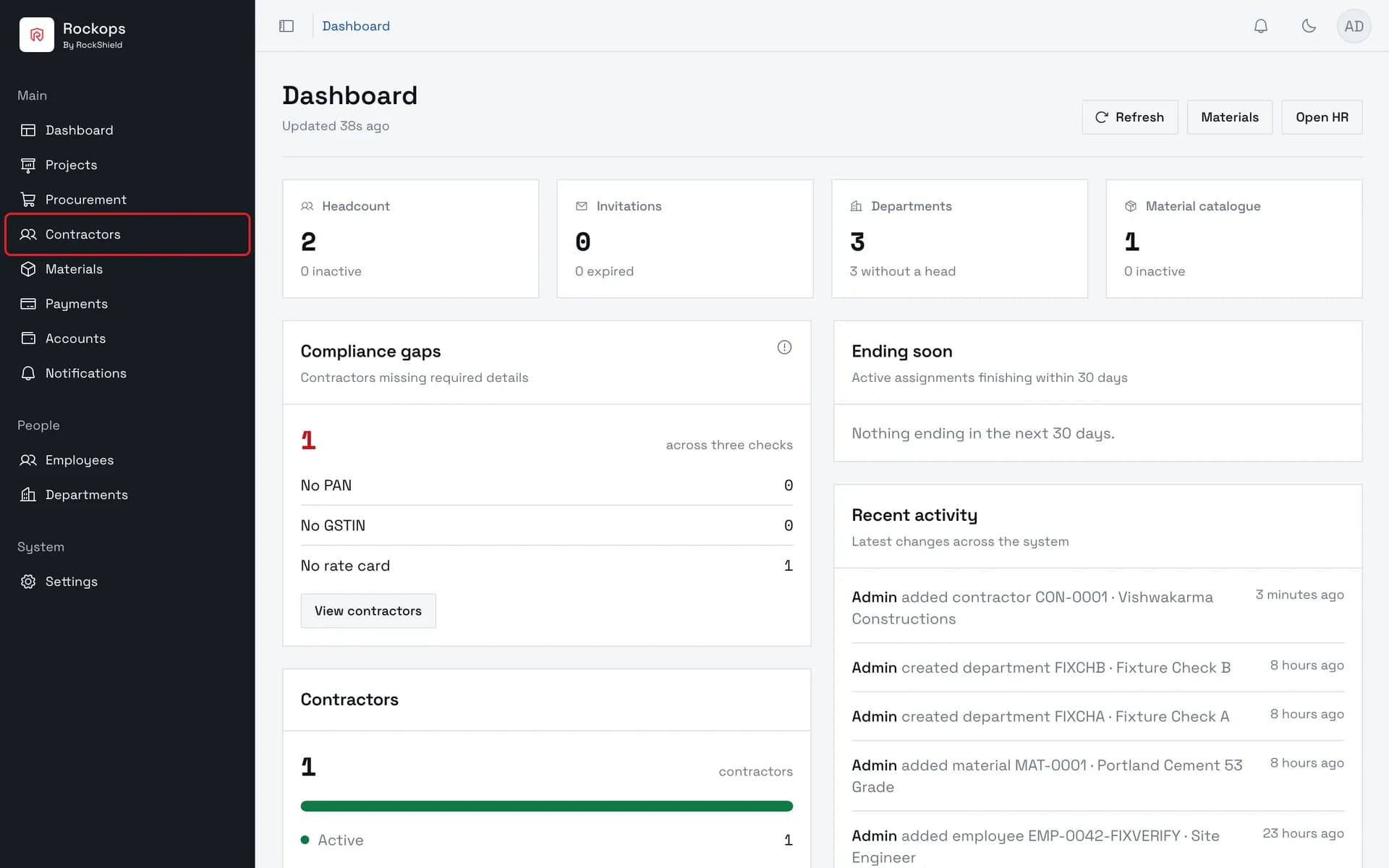
1. Open Contractors
Contractors sits in the sidebar's Main section, between Procurement and Materials.
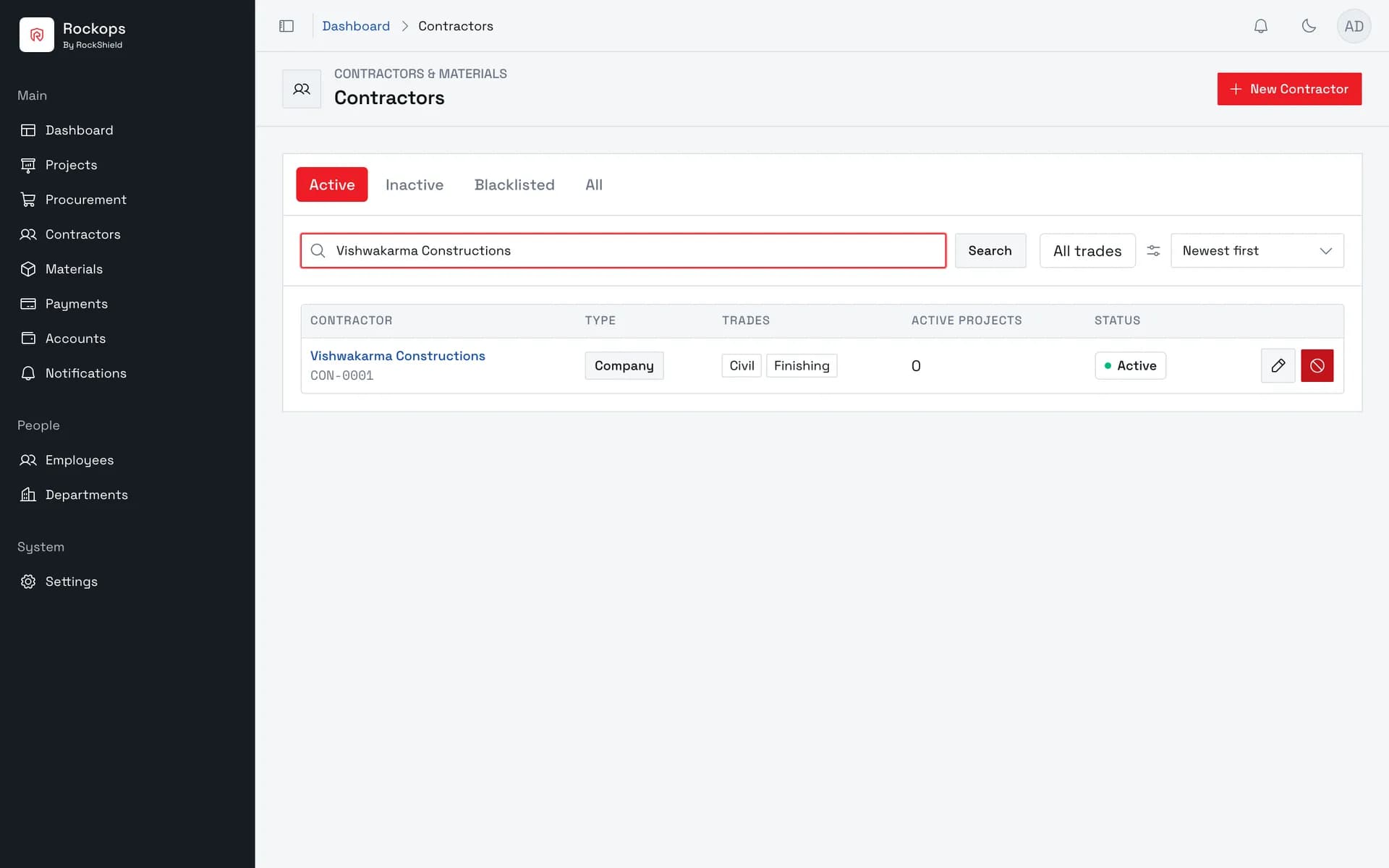
2. The contractor register
Every contractor the organization works with, each with its generated CON- code, trade categories, and status.
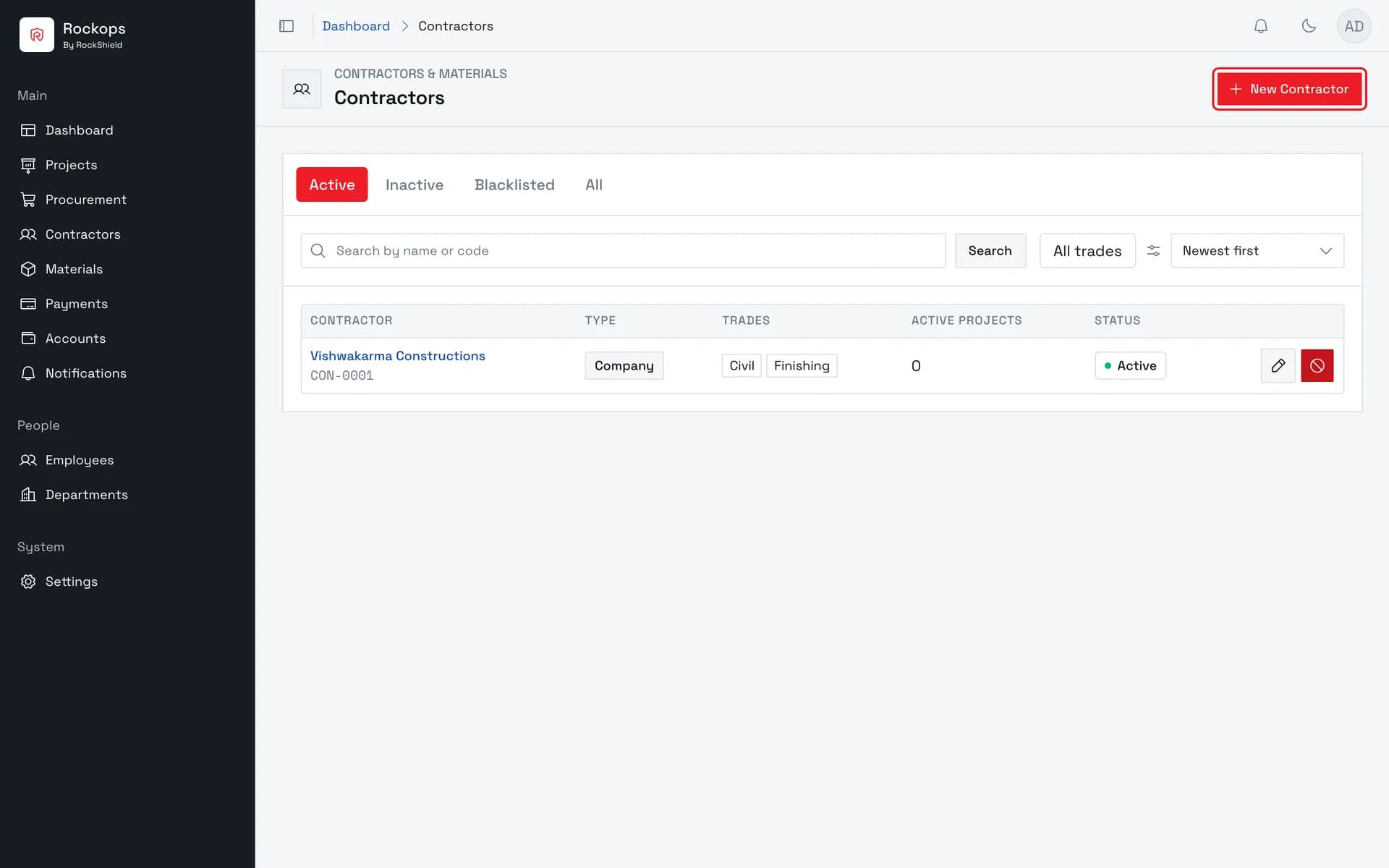
3. Open the New Contractor form
The form opens as a side sheet in five sections — Basic, Contact, Address, Tax & Compliance, and Bank — so the register stays visible behind it.
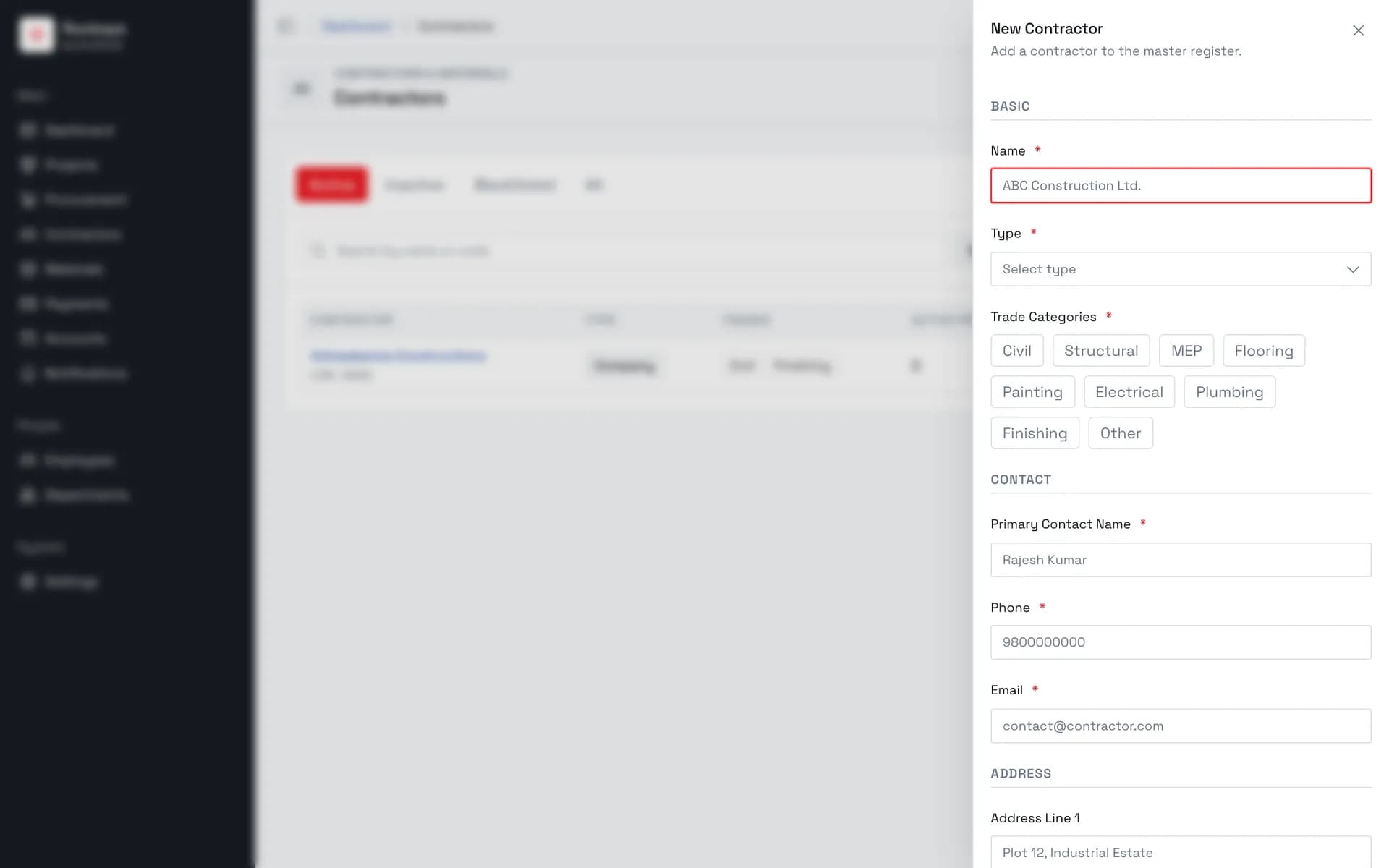
4. Enter the name
The registered business name for a company, or the person's full name for an individual.
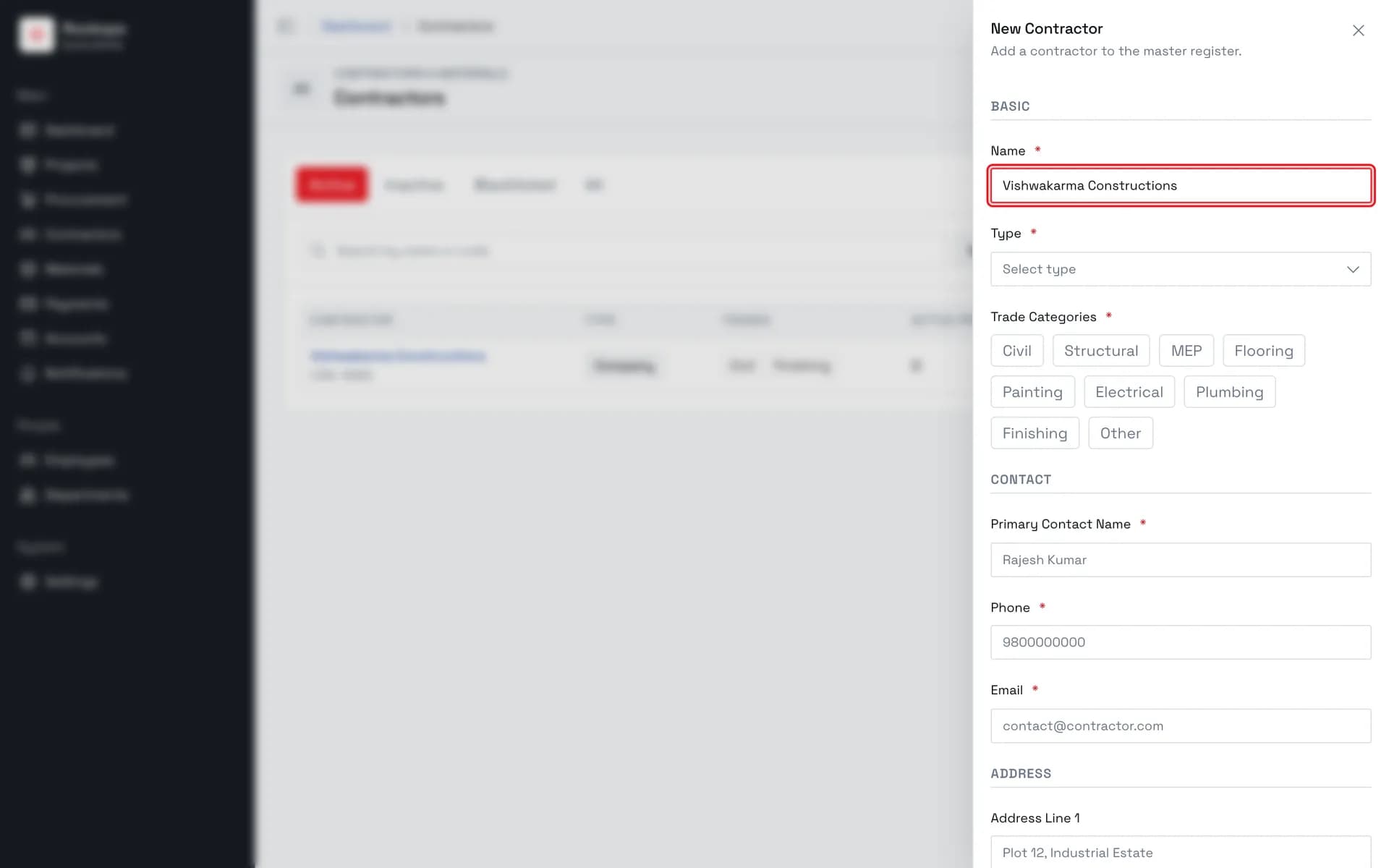
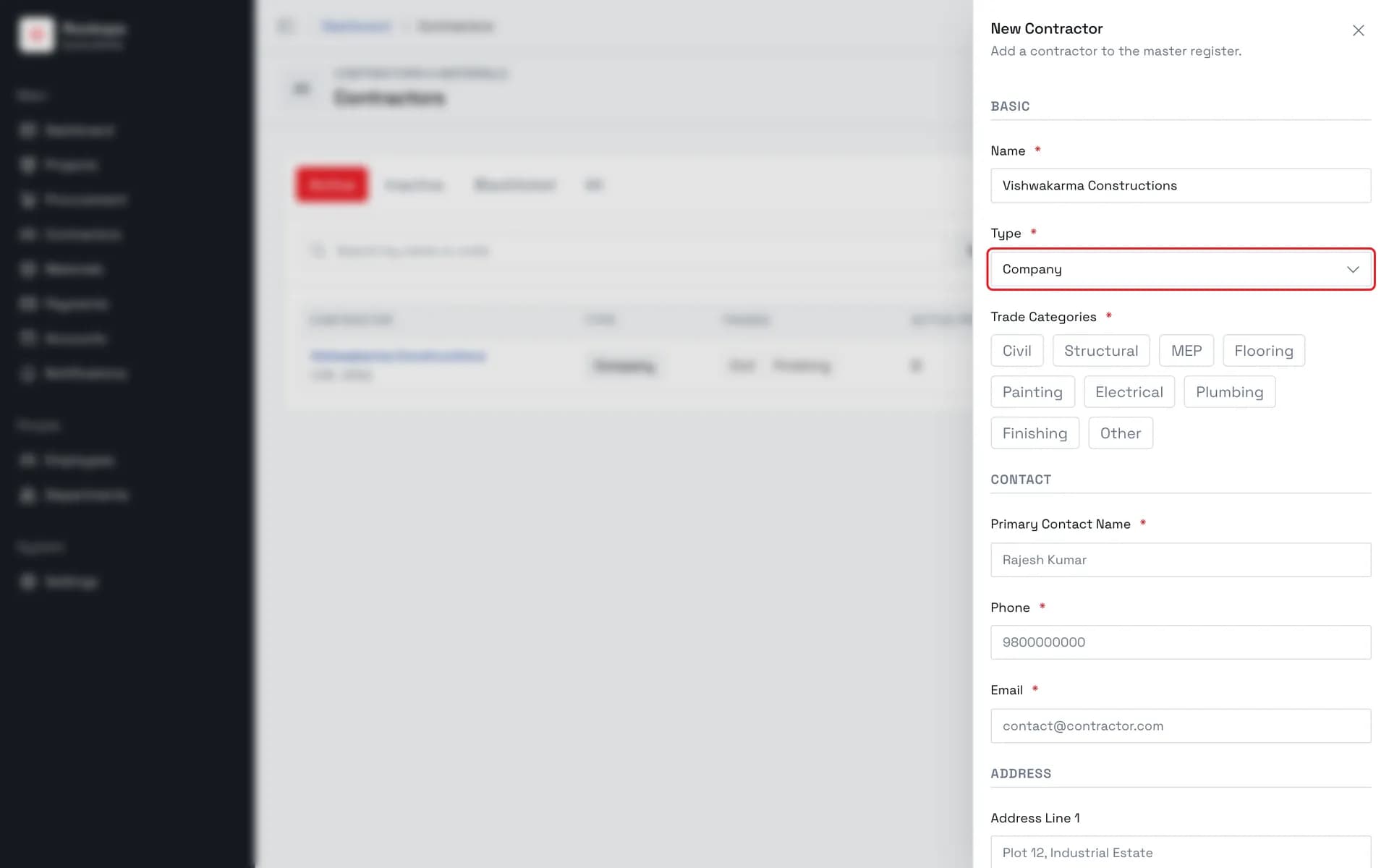
5. Choose Company or Individual
Company or Individual. There is no third option, and the field starts empty rather than defaulting to either.
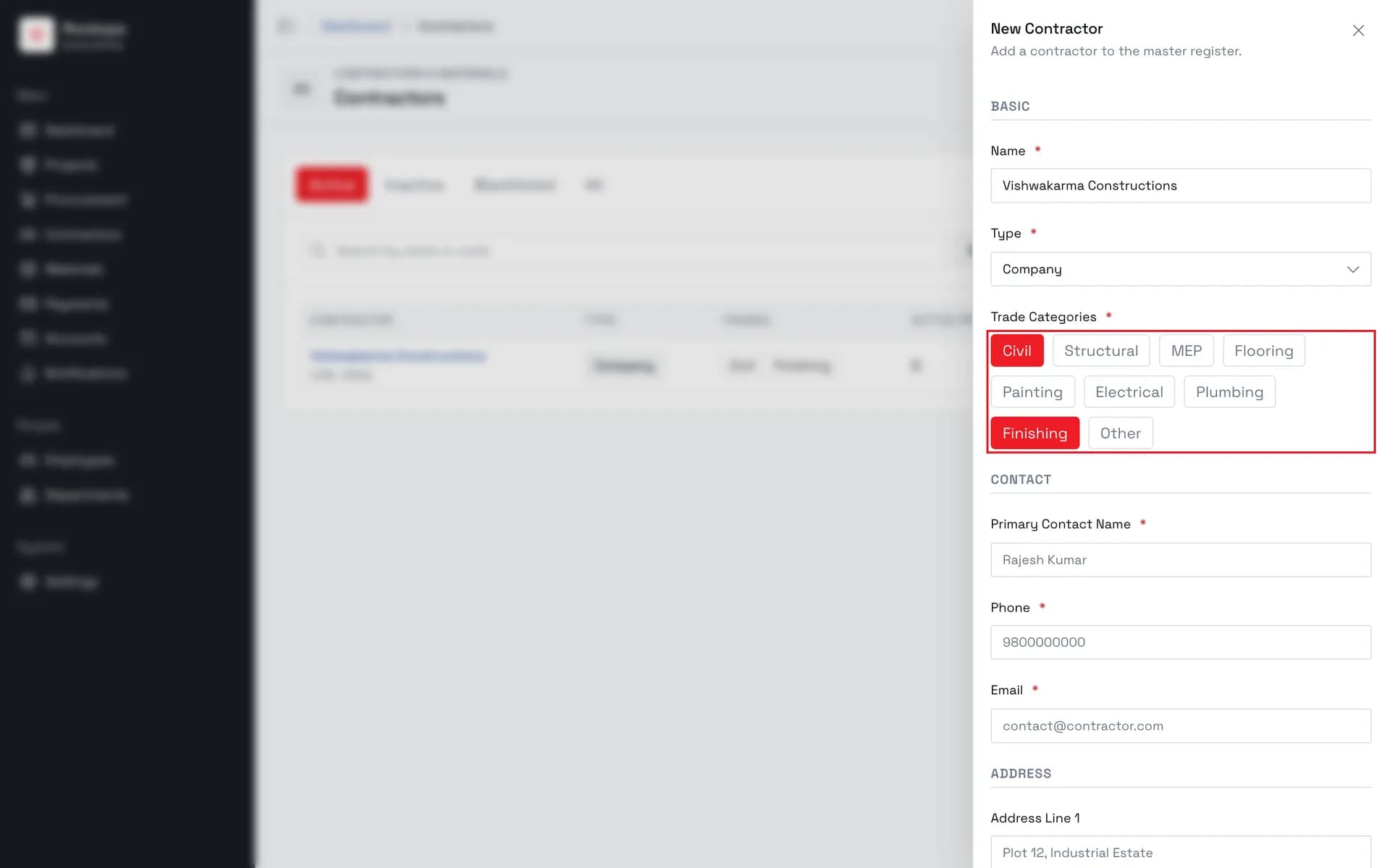
6. Select the trade categories
Nine toggles — click as many as apply, click again to clear one. At least one is required.
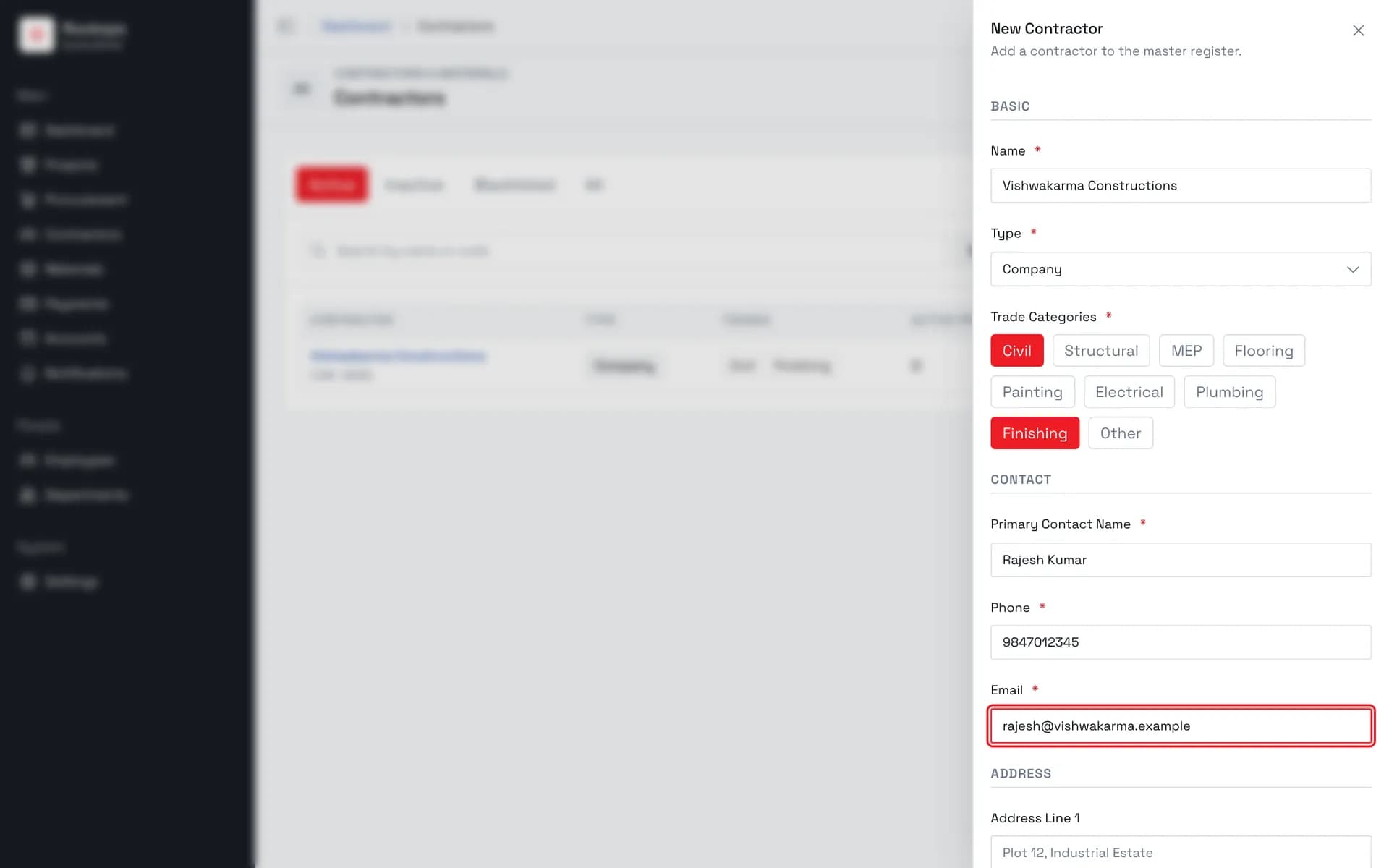
7. Add the primary contact
Contact name, phone, and email are all required. Email is the only one with a format rule.
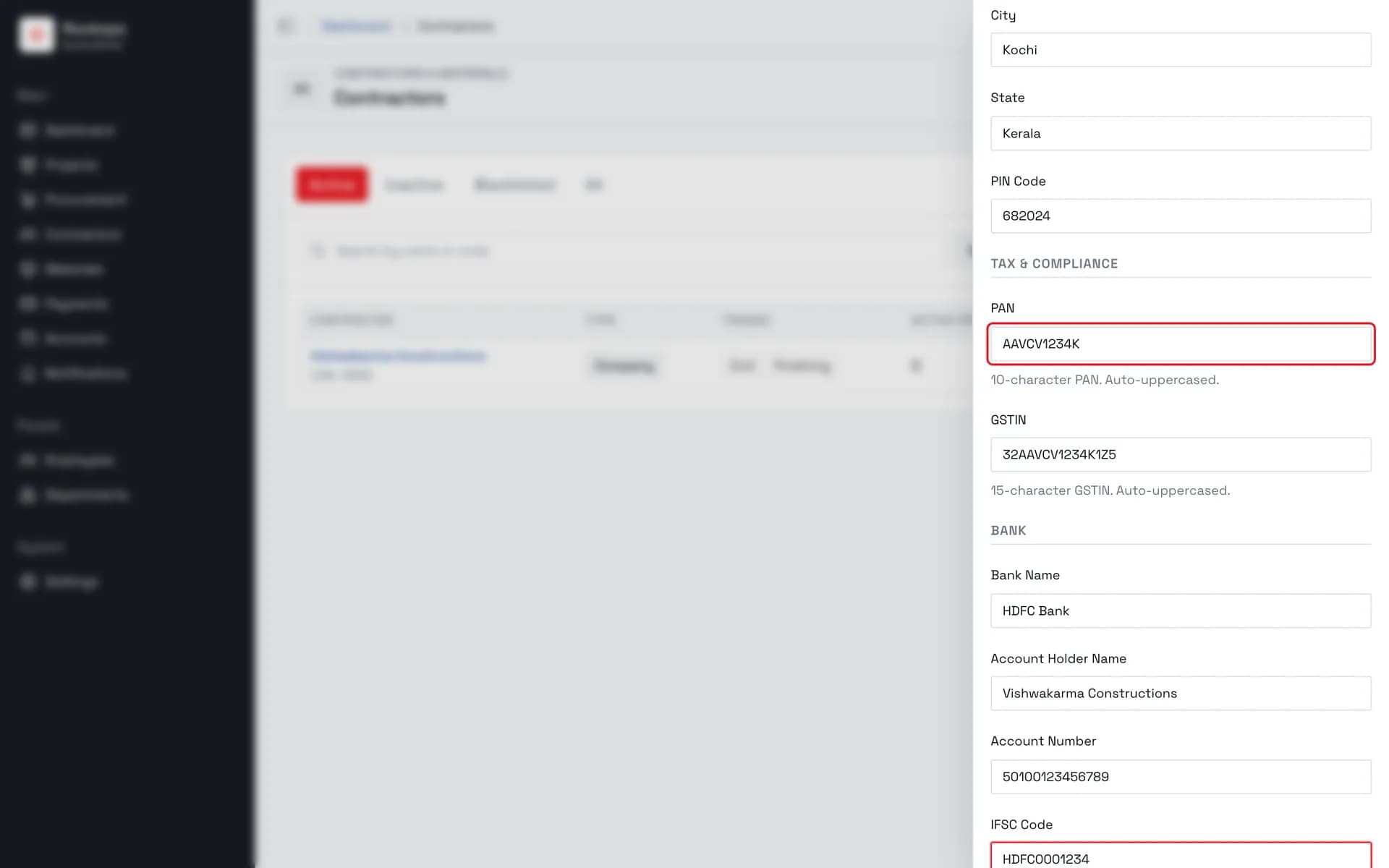
8. Add tax and bank details
All optional, and shown only to Administrators and Owners — a Project Manager creating a contractor never sees this block. PAN, GSTIN, and IFSC are each auto-uppercased and each rejected unless they match their exact shape.
9. Contractor created
The contractor joins the register with a generated CON- code and an Active status — search by name or code at any time to find it.
Field reference
| Field | Required | Rules |
|---|---|---|
| Name | Yes | Up to 255 characters. Not required to be unique — two contractors may share a name, and are told apart by their CON- codes. |
| Type | Yes | Company or Individual. Starts empty; there is no default. |
| Trade Categories | Yes | At least one of Civil, Structural, MEP, Flooring, Painting, Electrical, Plumbing, Finishing, Other. Toggle buttons, not a dropdown — click to add, click again to remove. |
| Primary Contact Name | Yes | The person to call about this contractor's work. |
| Phone | Yes | Free text; no format is enforced. |
| Yes | Must be a valid email address. | |
| Address Line 1 / Line 2 | No | Up to 200 characters each. |
| City / State | No | Up to 100 characters each. |
| PIN Code | No | Up to 20 characters. |
| PAN | No | Exactly five letters, four digits, one letter — ABCDE1234F. Auto-uppercased. Must be unique across the organization. Administrator and Owner only. |
| GSTIN | No | Exactly 15 characters. Auto-uppercased. Administrator and Owner only. |
| Bank Name / Account Holder Name | No | Up to 255 characters each. Administrator and Owner only. |
| Account Number | No | Free text. Administrator and Owner only. |
| IFSC Code | No | Exactly 11 characters. Auto-uppercased. Administrator and Owner only. |
| Code | — | Not a field. Assigned automatically on save as CON- plus a counter padded to at least four digits, and shown under the name in the register. |
The address is deliberately forgiving: filling in only some of its fields is accepted, because a partial address is better than a form that refuses to submit without explaining why.
Best practices
- Record the PAN when you have it. It is the one identifier the system enforces as unique across the organization, so it is what stops the same firm being entered twice under slightly different names.
- Tick every trade the contractor actually does. The register's trade filter reads this field, and it is how you find candidates when staffing a project.
- Deactivate rather than blacklist for ordinary churn. Blacklisting is recorded with a reason, blocks new assignments, locks the record against edits, and can only be undone by an Administrator or Owner. Reserve it for cause; use Deactivate, on the register row, for a contractor you have simply stopped using.
Troubleshooting
"Invalid PAN format. Example: ABCDE1234F" — the PAN is not five letters, four digits, and a final letter. The field auto-uppercases, so case is never the problem; check for a missing character or a transposed digit. Caught in the form before anything is sent.
"GSTIN must be exactly 15 characters." / "IFSC must be exactly 11 characters." — these two are length checks, not pattern checks. Anything of the right length is accepted, so a value that passes here can still be wrong.
"A contractor with PAN "X" already exists in this organization" — the PAN is already recorded against another contractor. Search the register by name or code to find the existing record rather than creating a second one.
"Select at least one trade category." — no trade toggle is active. The toggles look like decoration but the field is required; click at least one.
"Invalid email address." / "Contractor name is required." / "Type is required." / "Contact name is required." / "Phone is required." — one of the required fields is empty or malformed. All are caught in the form.
The form has no PAN, GSTIN, or bank fields — you are signed in as a Project Manager. Those sections render for Administrator and Owner only. See Before you start.
There is no New Contractor button — you are signed in as Finance, which can read the register but not add to it.
Editing a contractor fails with "is blacklisted and cannot be modified" — a blacklisted contractor is locked. Reinstate them first, from their profile; that also requires a reason of at least ten characters and an Administrator or Owner to do it.
Added the wrong contractor and want to remove it — contractors can't be deleted. Deactivate the record instead: it moves to the Inactive tab and can be reactivated at any time.