Create a department
Set up a department so employees, approvals, and reporting can be organized against it.
Overview
A department is a named grouping that employees belong to. Departments can be nested — one department can sit under another as its parent — which is what lets the Departments list show a reporting structure rather than a flat list. A department can also have a department head, an employee who represents it, but that assignment is made by editing the department after it exists, not while creating it.
Departments are a prerequisite for adding employees: every employee record belongs to a department, so at least one department needs to exist before you can add your first employee.
Before you start
Departments live under People → Departments, and that section is only visible to organization roles that can read HR data: Administrator, Owner, Human Resources, and Organization Manager.
Viewing the list is not the same as being able to create a department, though. Only Administrator, Owner, and Human Resources can actually submit the New Department form — an Organization Manager can open the page and see the New Department button, but the server rejects the create request for that role. If you're signed in as an Organization Manager and creation isn't working, this is why.
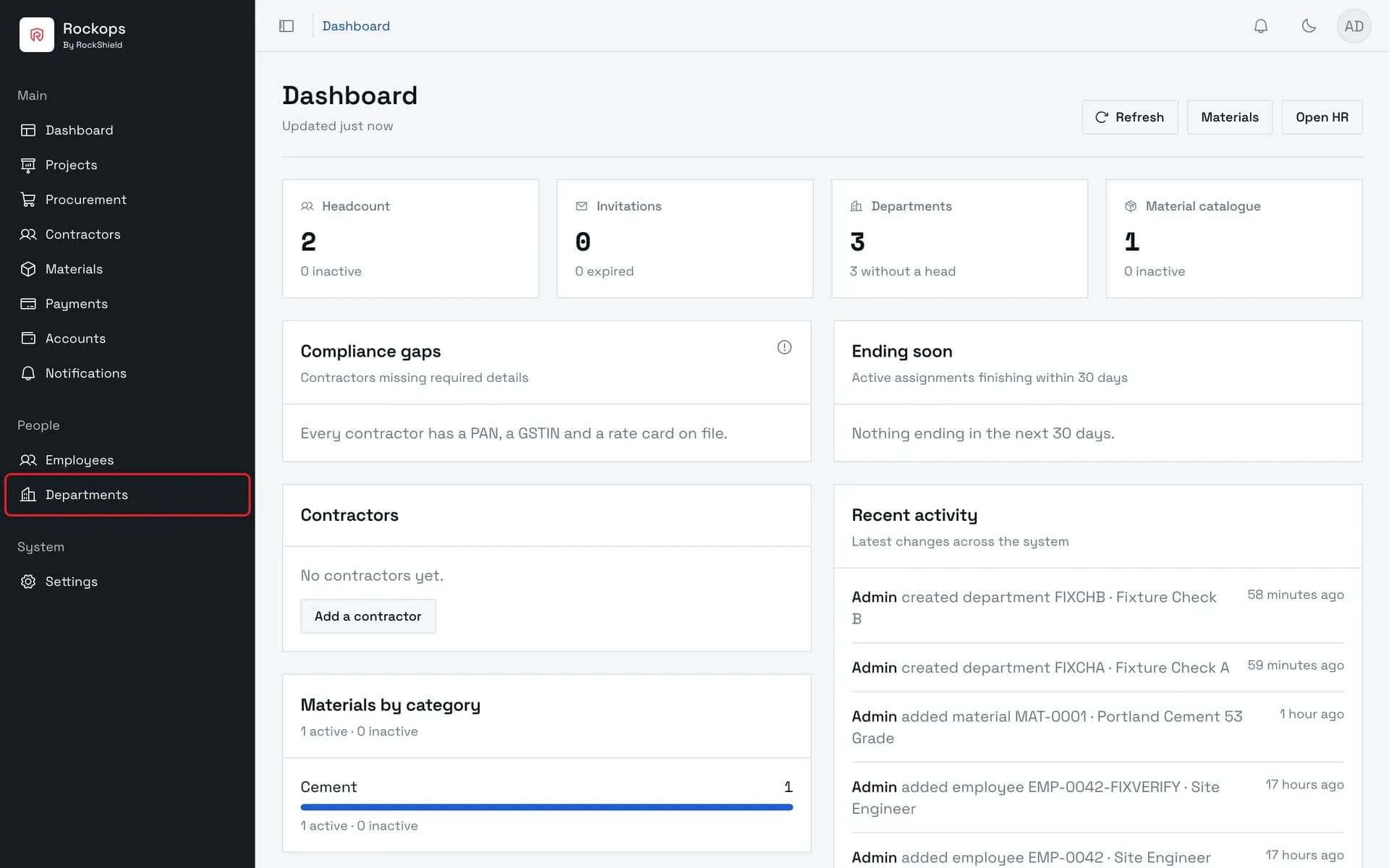
1. Open Departments
Departments lives under the People section of the sidebar.
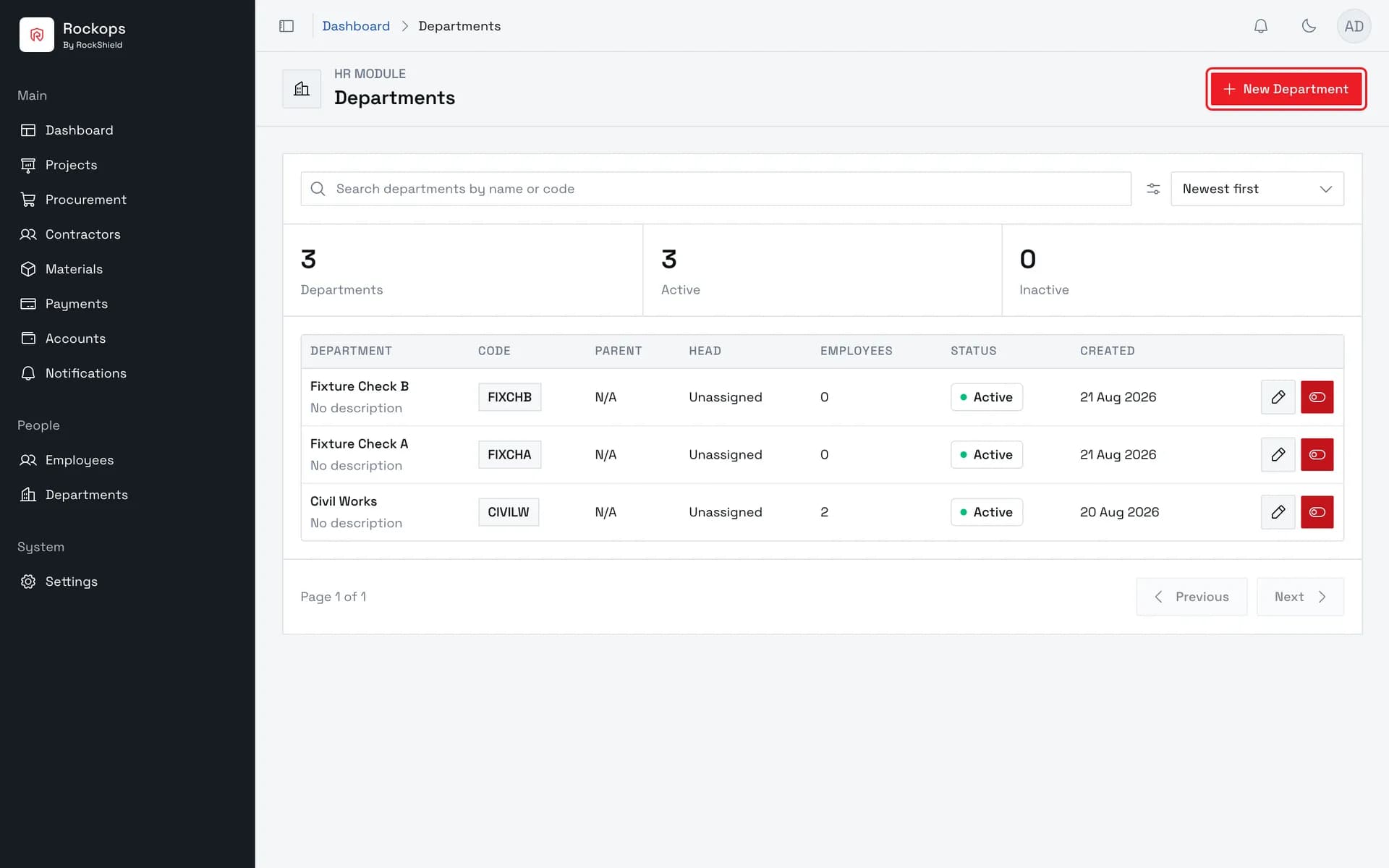
2. The Departments list
Shows every department in the organization, with its code and reporting parent.
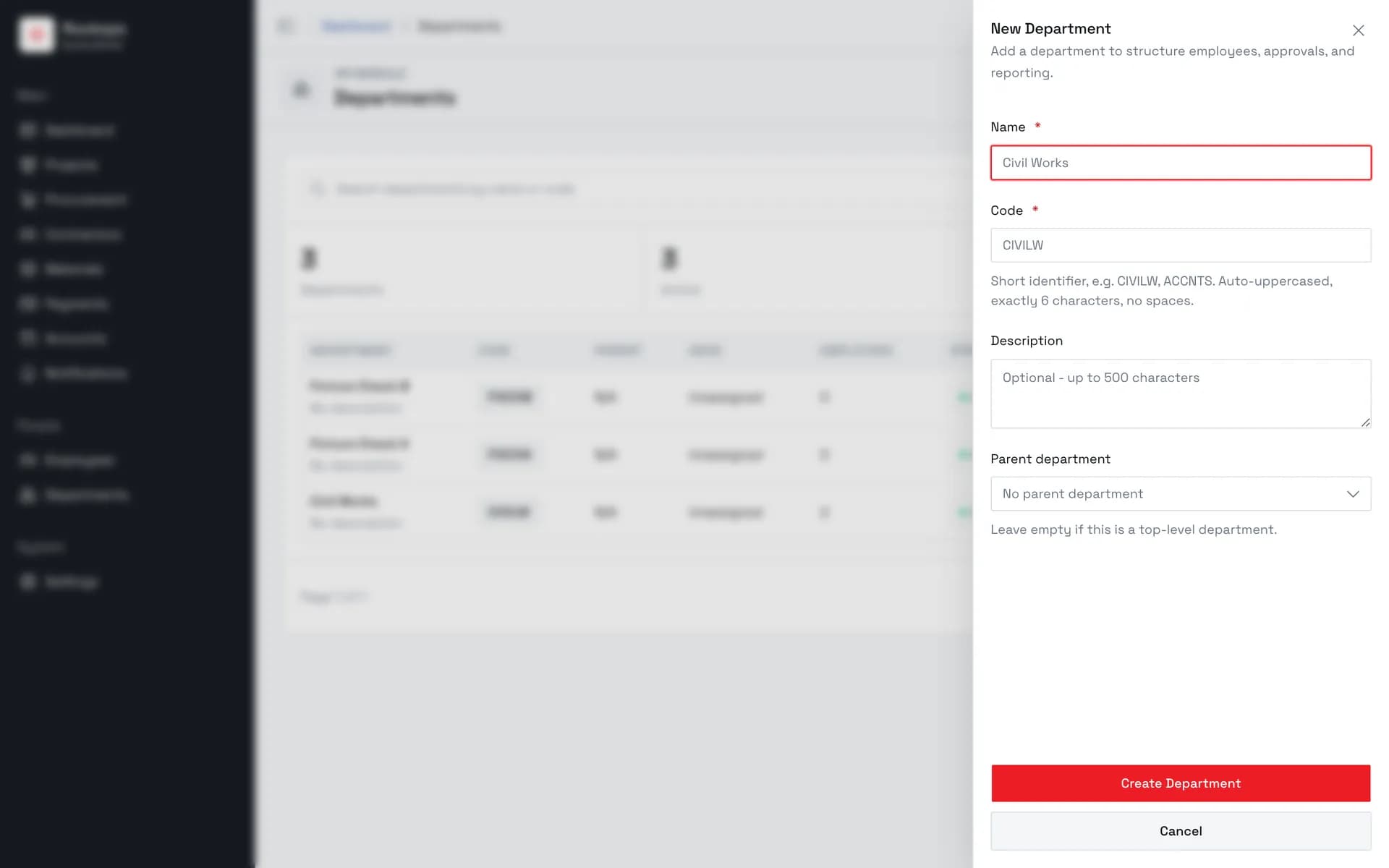
3. Open the New Department form
The form opens as a side sheet, so the list stays visible behind it.
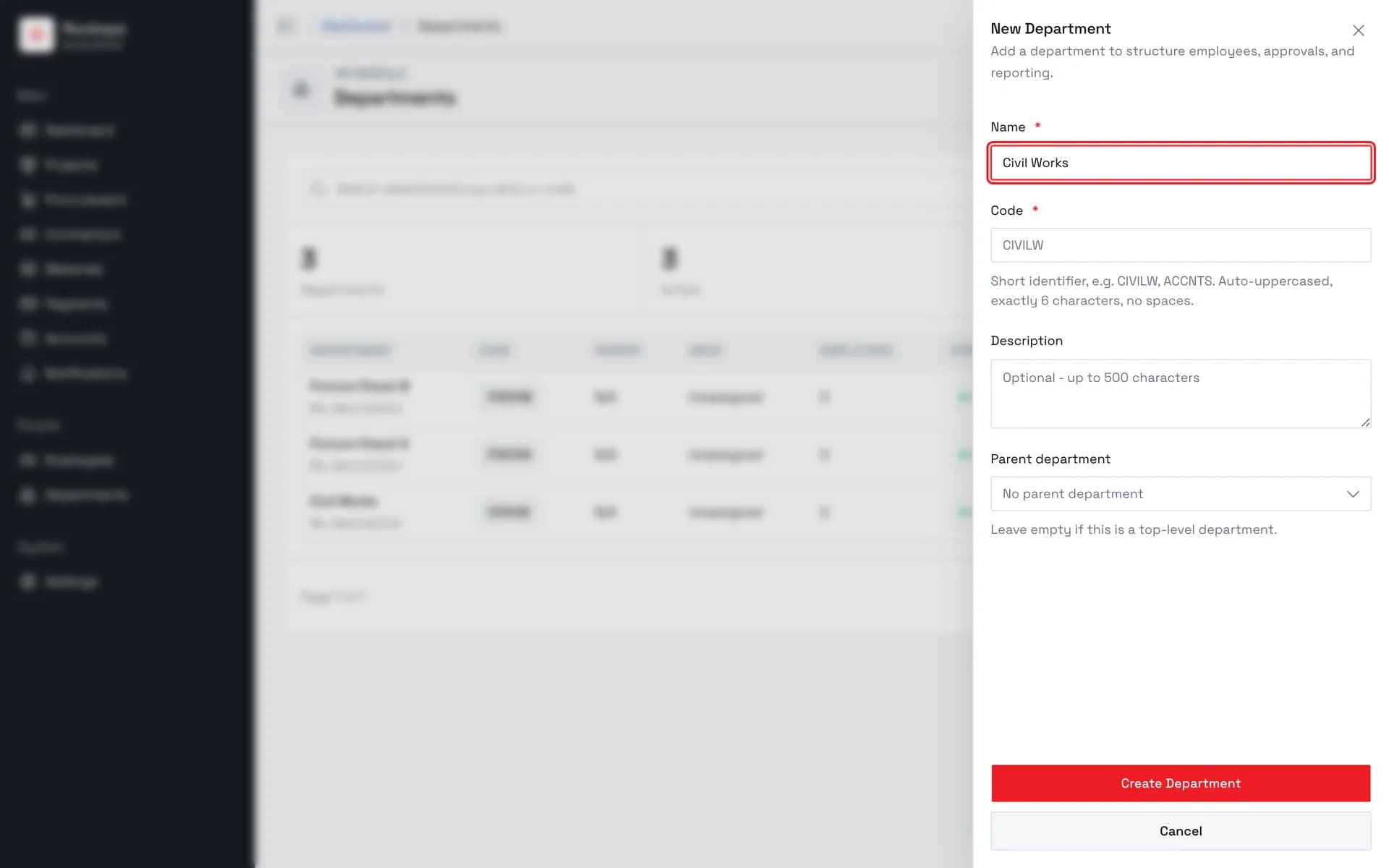
4. Enter the name
The department name as people will recognise it.
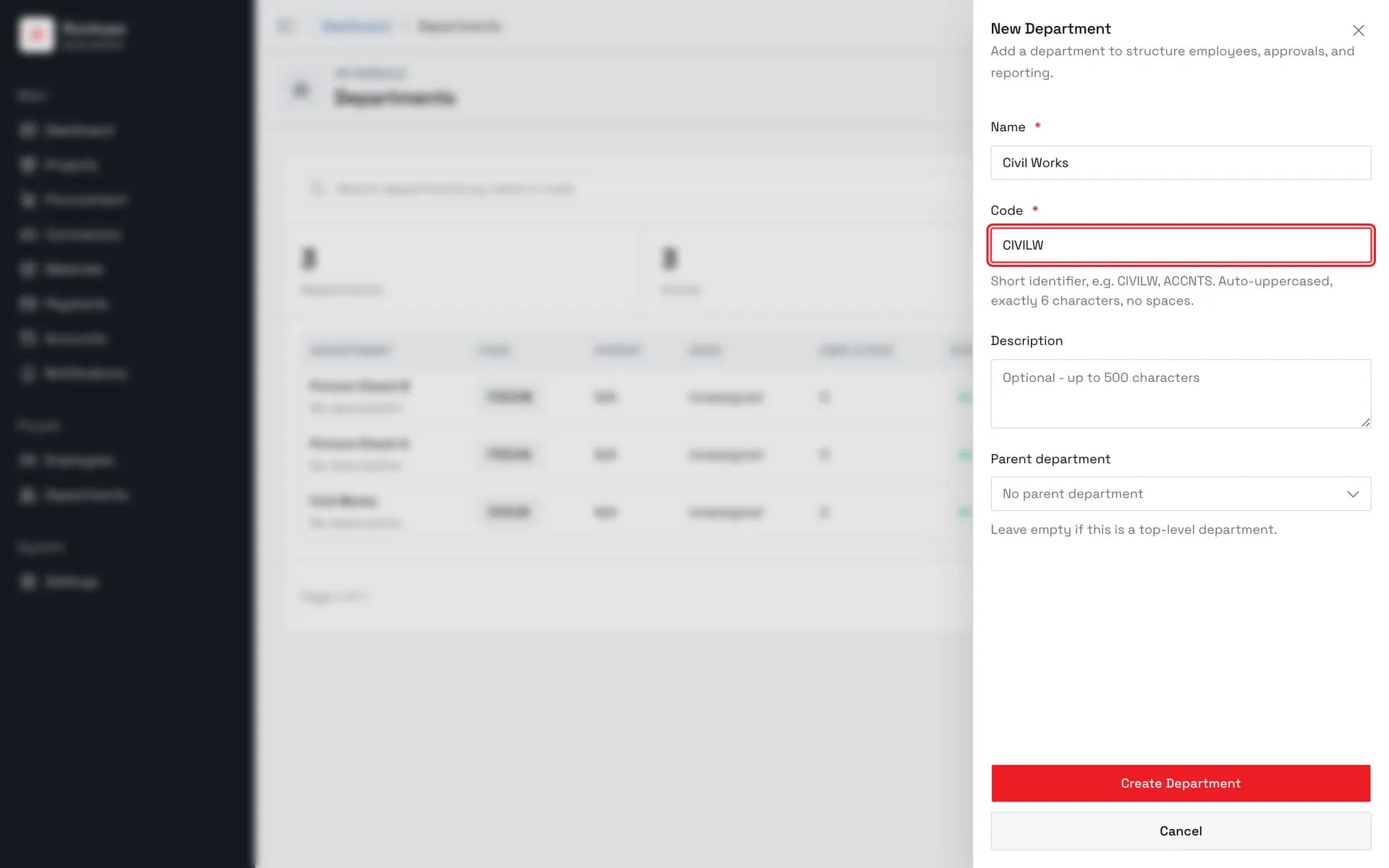
5. Enter the code
A six-character code, auto-uppercased, no spaces. Locked once the department is created.
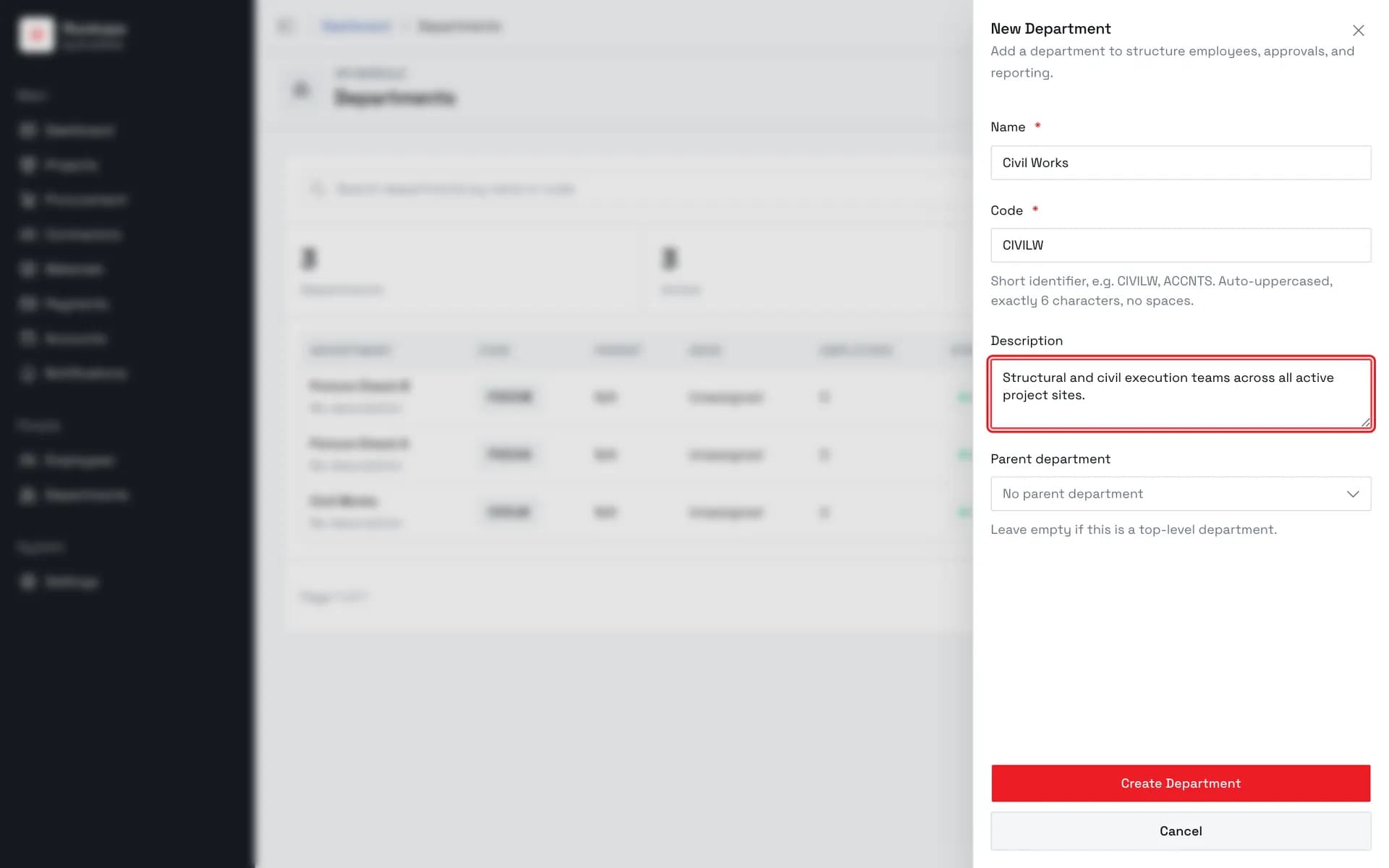
6. Add a description
Optional, up to 500 characters, explaining what the department covers.
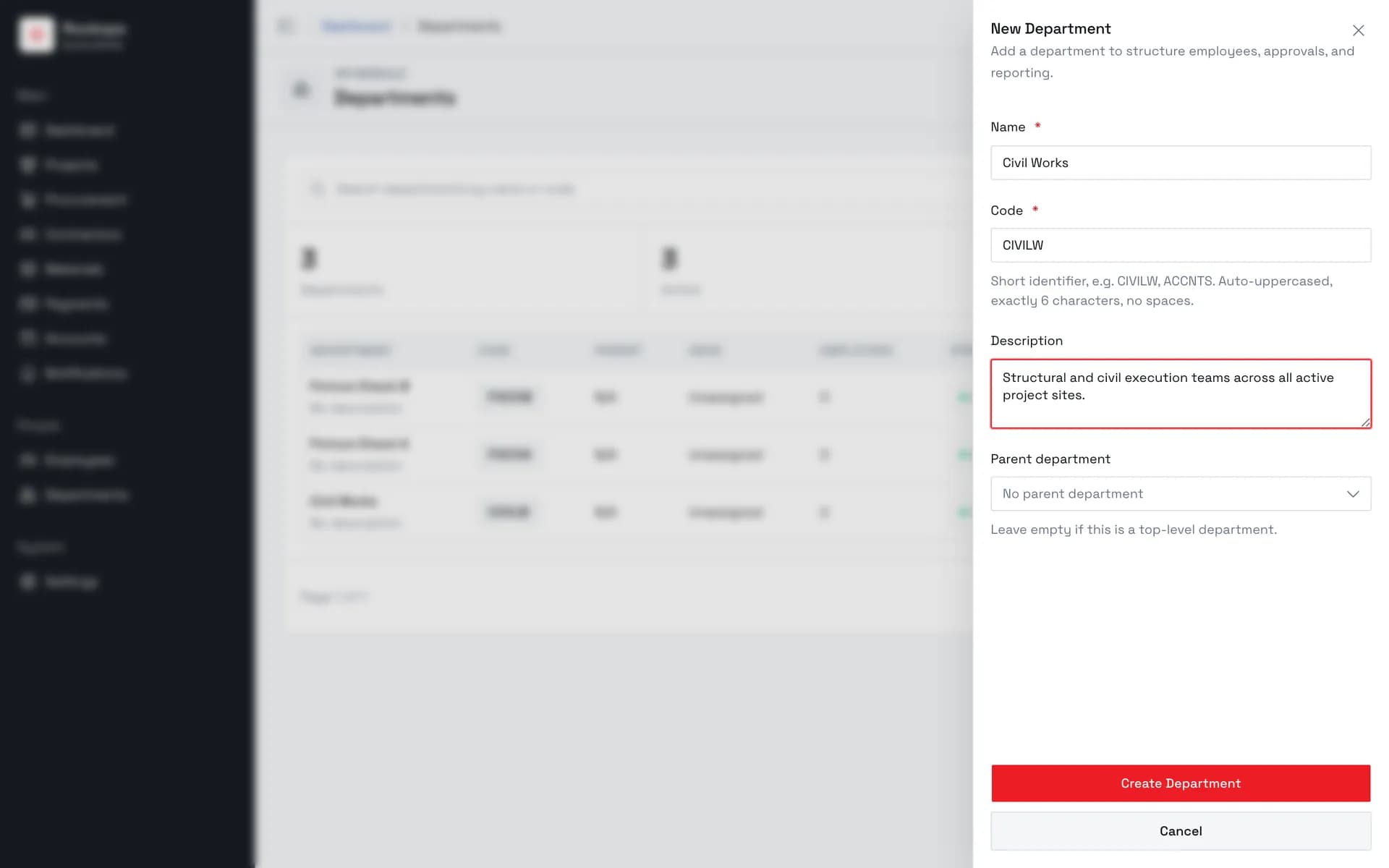
7. Review before saving
Leave Parent department empty for a new top-level department. A parent, and a department head, can both be set later by editing the department.
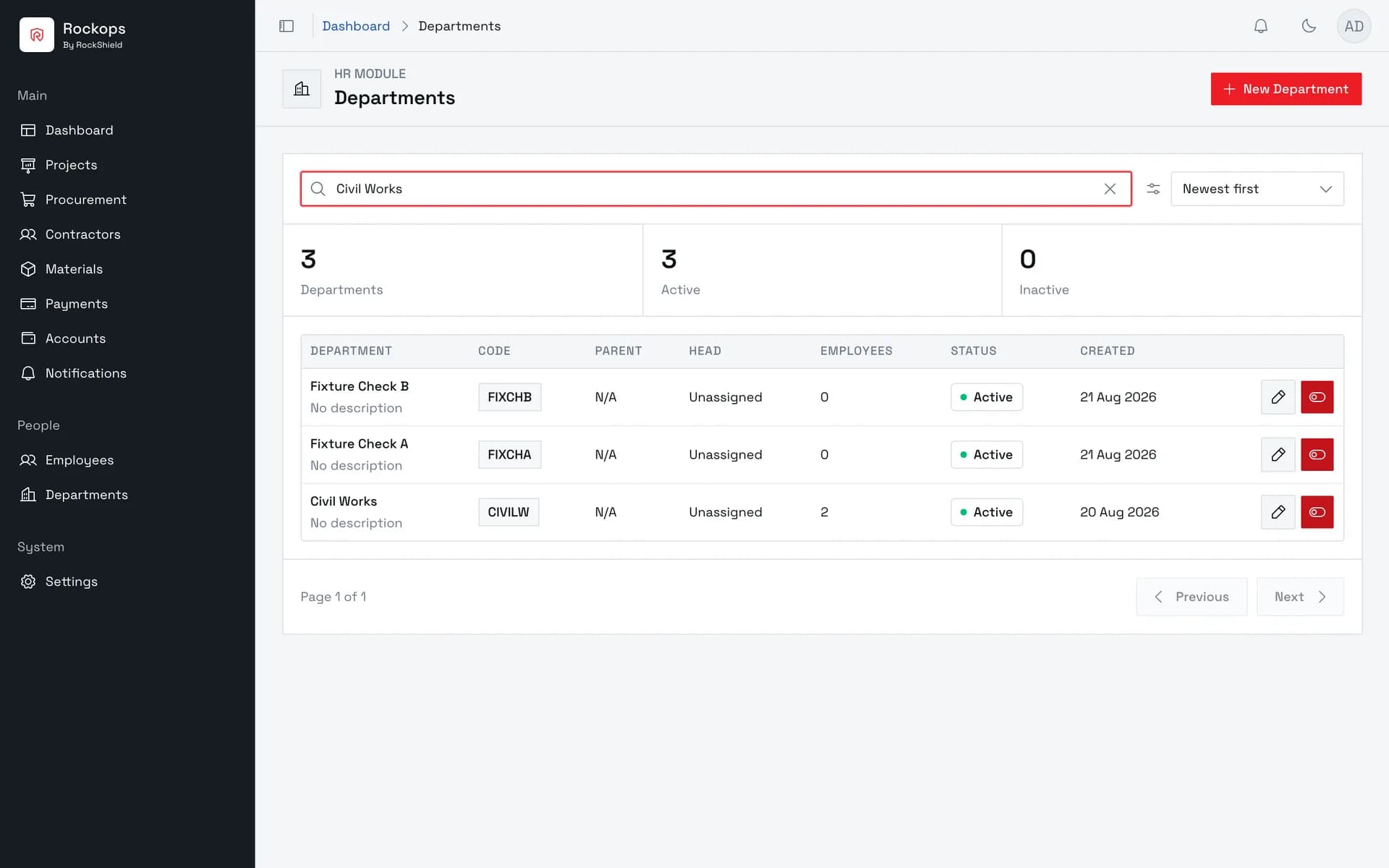
8. Department created
The new department appears in the list — search by name or code at any time to find it.
Field reference
| Field | Required | Rules |
|---|---|---|
| Name | Yes | The department name as people will recognize it. |
| Code | Yes | Exactly 6 characters — letters A–Z or digits 0–9, no spaces. Auto-uppercased as you type. Locked after creation; it cannot be changed when editing later. Must be unique within the organization. |
| Description | No | Up to 500 characters. |
| Parent department | No | Nests this department under another for reporting. A department can't be set as its own parent, or under one of its own descendants. |
| Department head | No | An existing employee, responsible for the department. Only available when editing an existing department — it does not appear on the New Department form, since no employees can belong to a brand-new department yet. |
Best practices
- Agree a code naming convention before you start creating departments. Codes are exactly 6 characters and are locked the moment a department is created — there's no way to rename a code afterward, only to create a new department with a different one.
- Leave Department head empty at creation time — it isn't offered anyway. Create the department first, add the employee who will lead it (see Add an employee), then come back and edit the department to set its head.
- Set Parent department deliberately, not provisionally. It's editable later, but getting the reporting structure right up front keeps the Departments list meaningful as more departments are added.
Troubleshooting
"Department code must be exactly 6 characters, uppercase letters or
numbers, with no spaces." — the Code field failed validation before the
form was even submitted. Fix the code to be exactly 6 characters using only
A–Z and 0–9 (it's auto-uppercased, so lowercase letters are fine to type,
but spaces and other characters aren't allowed).
"Department code "XXXXXX" is already in use. Enter a different code." — another department in the organization already uses that code. Codes must be unique per organization; pick a different one.
"A department named "X" already exists. Enter a different name." — another department already has that exact name. Rename the new department, or open the existing one instead if that's what you meant to do.
Created the wrong department and want to remove it — departments can't be deleted. Edit the department and deactivate it instead; it stays in the list (shown as inactive) and can be reactivated later if needed.
Roles and permissions
The full permission matrix for every organization and project role — what each can see and do, how project membership narrows access, and how to choose the right role for a person.
Add an employee
Create an employee record, assign it to a department, and attach supporting documents.